
Free tools Windows power users keep installed
One-click scans. No signup required.
iTechGuides is reader-supported. When you buy through links on our site, we may earn an affiliate commission. As an Amazon Associate I earn from qualifying purchases. Learn more
To set a universal remote to a Vizio TV, identify the remote’s exact brand and model, select Vizio under TV in its code list, enter a matching code in TV mode, and test more than Power. If the first code fails or controls only some functions, try the next Vizio code or use the remote’s automatic search.
There is no single universal Vizio code or setup sequence. The correct code depends on the remote brand, model, code-list version, and device mode. A GE/Jasco remote, RCA remote, One For All remote, cable-provider remote, and streaming-device remote can all use different programming procedures.
Key takeaways
- The correct Vizio code depends on the universal remote’s brand, model, code-list version, and device mode.
- Direct code entry is usually faster than searching, but a code that turns the TV off may still fail to control volume, input, or navigation.
- Jasco-made GE, Philips, and UltraPro remotes use code-list versions including CL3, CL4, CL5, and CL6, so the list must match the remote.
- Automatic search procedures vary by remote; Jasco-style remotes use Power to move through code groups and Volume Up to review codes within a group.
- Traditional universal remotes generally use infrared, while some newer Vizio voice remotes use Bluetooth and cannot be programmed like ordinary four-digit-code remotes.
What should you check before programming the remote?
Before entering a code, install fresh batteries, turn the Vizio TV on with its physical button, and identify the exact universal remote model. The setup instructions and stored codes belong to the remote, not simply to the Vizio brand.
PC Slower Than It Used to Be?
A free scan shows the junk files, broken settings and background clutter dragging Windows down - then fixes them in one click.Free scan · Windows 10 & 11Outdated Drivers Are Slowing You Down
One free scan finds every outdated or missing driver and matches the right update for your exact hardware.Free scan · exact hardware match- Find the remote brand. Look for GE, RCA, Philips, Jasco, UltraPro, One For All, a cable company, or another manufacturer on the front or back.
- Find the model number. Check the battery compartment, the underside of the battery cover, the back of the remote, and the original instruction sheet. Model numbers may resemble an RCR-, RM-, or URC- designation.
- Check the code-list version. Jasco-made GE, Philips, and UltraPro remotes may identify their code database as CL3, CL4, CL5, or CL6. Use the code list for the exact version rather than assuming that a code for another revision will work. Jasco’s code lookup and direct-entry instructions provide the relevant version-based lists.
- Confirm the device type. The remote must be programmed under TV for a Vizio television. A Vizio soundbar, cable box, streaming stick, or receiver requires a different device mode and possibly a different code.
- Identify the remote technology. Most traditional universal remotes send infrared commands and need a clear path to the TV’s IR receiver. A Bluetooth or radio-frequency remote may not support traditional four-digit IR programming.
What kind of universal remote are you programming?
The remote category determines which instructions you should follow. Do not use GE or Jasco steps for an RCA, One For All, or cable-provider remote merely because each remote is described as “universal.”
Popular on Amazon

- 【KEY FEATURES】This remote control supports a faster transmission.The fastest response NOT over 0.2 seconds to lauch to your TV. It had been successfully tested to click the buttons highly over 150,000 clicks. Also with a longer distant transmit ( >12m/40ft)
- 【UPGRADE MATERIAL】Fabulous High-end glossy design had been upgraded to the remote. Draw your sight view. ABS made to improve its durability, also keep you and your kids away from no harms
- 【USER GUIDANCE】No worries and just use it right out of the box! No pairing or programming needed,insert 2 *1.5V AAA Batteries to get it to work (Batteries are not included with the package)
- 【COMPATIBLE TVs】Compatible with All VIZIO LED LCD HD UHD HDR Smartcast 4K 3D Smart TVs, including D-Series, E-Series, M-Series, P-Series, PX-Series, V-Series, OLED-Series
- 【REMOTE MODELS】This universal TV remote XRT140 is compatible with XRT136, XRT112, XRT122, XRT260, XRT302, XRT135, XRT510, XRT500, XRT100, VR1, VR2, VR10, VR15 and More
| Remote type | Typical use | What to do |
|---|---|---|
| Generic universal remote | GE, RCA, Philips, Jasco, UltraPro, One For All | Use the model-specific code list and direct-entry or search procedure. |
| Cable or satellite remote | Comcast/Xfinity, Spectrum, DirecTV, Dish, Cox, Verizon | Use the provider’s support page or manual for that remote model and its device database. |
| Streaming-device remote | Roku, Amazon Fire TV, Apple TV, Google TV | Check whether the remote uses infrared. Some streaming remotes use Bluetooth or RF and do not accept ordinary universal-TV codes. |
| Vizio replacement remote | A remote intended for a compatible Vizio television | It may work immediately, but compatibility must be verified by TV model and remote model. |
| Phone app | Controlling a compatible Vizio TV without a physical remote | Use the Vizio Mobile app if the TV and phone meet the Wi-Fi and compatibility requirements. |
How do you program a universal remote with a Vizio code?
Direct code entry programs the remote by selecting TV mode and entering a Vizio code from the remote’s official code list. Direct entry is usually the quickest method because you can test the listed codes one at a time instead of cycling through an entire database.
Generic direct-entry sequence
- Turn on the Vizio TV manually.
- Hold the remote’s Setup, Code Search, or equivalent button until the indicator light stays on. The button name and LED behavior vary by model.
- Press and release the TV device button.
- Enter the first Vizio code listed for the exact remote model and code-list version.
- Point the remote at the TV and press Power.
- If the TV responds, test volume, mute, input, menu or Home, navigation, and OK/Select.
- If the TV does not respond, or Power works while other important functions fail, repeat the procedure with the next Vizio code.
For Jasco-made remotes, the published direct-entry process uses Setup, the device button such as TV, and a four-digit code. Jasco also warns that some codes may operate only part of a device’s functions, so Power alone is not a complete test. Follow the official Jasco code list and setup instructions when the remote is a GE, Philips, or UltraPro model made by Jasco.
Do not copy a generic internet list of “Vizio codes” without checking the remote family. The Vizio-published universal remote-code PDF is an older reference and should not be treated as a current, exhaustive code database for every GE, RCA, Philips, cable, or other universal remote.
How do you program the remote when no Vizio code works?
Use automatic or manual code search when the code list is missing, the listed codes fail, the remote has no Vizio entry, or the code list belongs to a different revision. Search methods are not interchangeable, so use the instructions for the exact remote model.
Also popular on Amazon

- Compatibility Models : XRT136 TV Remote Compatible with all VIZIO smartcast V Series M Series D Series P Series PX Series E Series Smart TVs.Compatible with XRT140 / XRT260 / XRT136 / XRT270 / XRT112 / XRT122 / XRT302 / XRT135 / XRT510 / XRT500 / XRT100 / VR1 / VR2 / VR10 / VR15 and More VIZIO Smart TV Remote Control model
- Free of Setup Requirements : Work right out of the box and without program. Put 2 AAA batteries (Not included) to replace your original remote control perfectly
- Short Keys Launch : The remote features 6 shortcut buttons, giving you quicker access to your favorite apps
- No Delay Response: Strongest signal by Infrared technology further transmission for multi-angle induction. Precisely control far from 40 feet.Fastest response not over 0.1 second to your TV, It supports over 150,000 clicks approved test
- Premium After-sale: We provide a 100-day warranty return service. If you have any questions about your order, please feel free to contact us directly and we will get back to you within 12 hours
Jasco-style automatic code search
Jasco’s automatic search sends codes in groups and then lets you review individual codes within the group. The exact timing and LED behavior can vary by model.
- Turn on the Vizio TV manually.
- Hold Setup until the red indicator remains on.
- Press and release TV.
- Point the remote at the TV and keep it pointed at the TV during the search.
- Press and release Power. If the TV does not turn off, repeat the search step to send the next group of codes.
- When the TV turns off, press Volume Up to review the individual codes in that group.
- When the remote responds correctly to the important commands, press the device button again to save the code.
- Turn the TV back on and test the complete button checklist below.
When the TV turns off during an automatic search, the remote may have found only a code that controls Power. Do not assume the first response is the best match. Save and test the code, review other codes in the group if the remote supports that function, and continue searching when volume, input, or navigation does not work. See Jasco’s automatic code-search procedure for the model-specific behavior.
Manual code search on RCA and other remotes
Some RCA remotes search one code at a time rather than using Jasco’s grouped search. The button sequence may involve TV + Power, Code Search, CH+, or another combination held in a specific order. The RCA RCR313BE manual documents both automatic and manual search methods and lists Vizio among supported TV brands, but the procedure should be matched to the actual RCA model.
If the remote has no Setup button, do not force the Jasco sequence. Search the manufacturer’s manual using the model number printed inside the battery compartment. Provider remotes also require their provider-specific instructions and code database.
Also popular on Amazon

- 【COMPATIBILITY TVs】This remote Compatible with All VIZIO Smart TV models:D-Series,E-Series,M-Series,P-Series,PX-Series,V-Series,OLED-Series ect.
- 【REMOTE COMPATIBILITY】XRT140 is universal remote controller,it common use with XRT136 / XRT135 / XRT510 / XRT500 /XRT270/XRT260 XRT100 / XRT112 / XRT122 / XRT302 /VR1 / VR2 / VR10 / VR15 and More VIZIO Remote Control model.
- 【KEY FEATURES】New XRT140 Replacement Remote Control fit for ALL Vizio LED Smart TV ,it with the VIZIO Smart Remote, finding great content and streaming high-quality video is incredibly easy, using the home key that will give quick access to SmartCast Home, where you can browse favorites like Vudu / NFLX / video / Xumo / Hulu / Redbox and Watch right on the TV.
- 【EASY TO USE】Just insert two 1.5V AAA new batteries, and it is ready to go! Please aim at the sensor and avoiding obstacles, make sure to point the remote control toward the remote control sensor on the unit.
- 【UPGRADE MATERIAL】 The remote control upgrades to High-end glossy design, the material made of Shiny plastic, it is more durable than matter material,and it's ABS material that children use safely.
How do you know whether the Vizio remote setup succeeded?
A universal remote is properly programmed only when the functions you need work reliably. Test the remote while it is in TV mode, not another device mode.
| Function | What to test | Why it matters |
|---|---|---|
| Power | Turn the TV off and back on. | Power is often the first response during code search, but it can work with a partial code. |
| Sound | Volume Up, Volume Down, and Mute. | Confirms that the code controls the TV’s audio commands. |
| Sources | Input or Source, then select another input. | Useful when switching between a cable box, console, and streaming device. |
| Menus | Menu or Home, arrow buttons, OK/Select, Back, and Exit. | Checks basic smart-TV navigation rather than only hardware commands. |
| Channels | Channel Up, Channel Down, and number buttons. | Important for viewers using the TV tuner or a cable box through the TV. |
| Special controls | App shortcuts, picture, audio, and closed-caption buttons. | These may be absent from a basic universal remote even when setup is correct. |
Why does Power work but volume or Input does not?
Power working while volume, Input, or navigation fails usually means the remote found a partial Vizio command match, the remote is in the wrong device mode, or volume commands are being routed to another device.
- Try every Vizio code listed for the exact remote, not only the first code.
- Reprogram the remote and fully test each code before saving it.
- Press TV before testing TV volume or Input.
- Check whether a soundbar or receiver is handling audio. Some remotes use a master-volume or punch-through setting that sends volume commands to the audio device instead of the TV.
- Accept that proprietary Vizio features may not exist in a basic universal remote’s command set.
Universal remotes commonly handle Power, volume, mute, Input, and basic navigation more reliably than voice control, app-specific shortcuts, Bluetooth pairing, or specialized Vizio Home and WatchFree+ functions.
The Tool Desk
Outbyte PC Repair FREERepair Windows errors before they cause bigger problemsFix Now →Outbyte Driver Updater FREEFix the driver behind crashes, sound loss and screen glitchesFind Drivers →What should you do when nothing happens?
Work through the following checks before repeating code search:
Also popular on Amazon
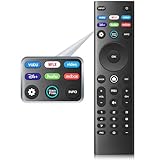
- 【REMOTE MODELS】This universal TV remote XRT140 is compatible with XRT136, XRT112, XRT122, XRT260, XRT302, XRT135, XRT510, XRT500, XRT100, VR1, VR2, VR10, VR15 and More
- 【COMPATIBLE TVs】Compatible with All VIZIO LED LCD HD UHD HDR Smartcast 4K 3D Smart TVs, including D-Series, E-Series, M-Series, P-Series, PX-Series, V-Series, OLED-Series
- 【EASY TO USE】Just insert two 1.5V AAA new batteries, and it is ready to go! Please aim at the sensor and avoiding obstacles, make sure to point the remote control toward the remote control sensor on the unit
- 【UPGRADE MATERIAL】 The remote control upgrades to High-end glossy design, the material made of Shiny plastic, it is more durable than matter material,and it's ABS material that children use safely
- 【6 HOT SHORTCUTS】The XRT140 remote control includes shortcuts to 6 popular channels, giving you quicker access to your favorite apps
- Replace weak or old batteries with fresh batteries. Jasco identifies faulty or weak batteries as a common cause of abnormal indicator-light behavior in its universal-remote troubleshooting FAQ.
- Press TV so the remote is in the correct device mode.
- Turn the TV on using its physical power button.
- Point the remote directly toward the TV’s infrared receiver and remove obstructions.
- Move away from unusually bright light that may interfere with infrared reception.
- Confirm that the remote is an infrared universal remote rather than a Bluetooth or RF-only streaming remote.
- Confirm that the remote has not been locked into another device mode or restricted by a setup feature.
- Use the exact manual for the remote’s model instead of a generic GE, RCA, Philips, or Jasco guide.
What do common Vizio universal-remote problems mean?
| Symptom | Likely cause | Fix |
|---|---|---|
| No response from any button | Wrong mode, weak batteries, blocked IR path, or incompatible remote technology | Press TV, replace batteries, point at the receiver, and verify that the remote supports infrared TV control. |
| Power works but other buttons fail | Partial code match | Try the next Vizio code and test the full button set before saving. |
| Automatic search never finds a response | Unsupported remote, incorrect search sequence, or infrared problem | Verify the model and remote type, then follow the exact manual or contact the remote manufacturer. |
| Volume changes the soundbar instead of the TV | Master-volume or punch-through assignment | Press TV, adjust the remote’s volume assignment, or program the audio device separately. |
| Apps or voice control do not work | Missing proprietary, Bluetooth, or app-specific commands | Use a compatible Vizio remote, the Vizio Mobile app, or the remote supplied with the external streaming device. |
| LED behavior differs from an online guide | Different remote model or code-list generation | Use the model-specific manual and do not assume all GE, RCA, Philips, or UltraPro remotes use the same sequence. |
Can infrared, Bluetooth, and RF remotes be programmed the same way?
Infrared, Bluetooth, and RF remotes cannot automatically be assumed to use the same programming method. Traditional universal remotes generally send IR commands and require line of sight, while some current Vizio replacement remotes use different technologies.
For example, Vizio identifies the XRT190R as an infrared replacement remote, while the XRT270 is a Bluetooth voice remote. A Bluetooth Vizio remote may need compatibility confirmation or pairing instead of a four-digit universal-code setup. Neither product page supports assuming that every Vizio TV or every Vizio remote uses one technology.
Independent reader supportYour contribution helps us test, update, and keep practical guides available for everyone.What alternatives work if the universal remote still fails?
If the universal remote cannot provide the functions you need, choose an alternative based on the TV model and the missing feature rather than buying an unverified remote.
Do these 3 things before closing this tab:
1Repair Windows errors before they cause bigger problems2Scan for outdated or missing drivers - takes under a minute3Clear out junk files and repair common Windows errors| Alternative | Best for | Important limitation |
|---|---|---|
| Compatible Vizio IR replacement remote | Simple TV control and Vizio-specific buttons | Compatibility must be checked by TV model; it is not necessarily a multi-device remote. |
| Vizio Bluetooth voice remote | Compatible newer Vizio TVs requiring voice or Bluetooth functions | It is not a generic universal remote and may not work with older or unsupported TVs. |
| GE or UltraPro universal remote | One remote for a Vizio TV plus other infrared audio/video devices | Basic universal models may not control Vizio apps, voice features, Bluetooth, or RF streaming sticks. |
| Vizio Mobile app | Controlling a compatible TV without buying a physical remote | The phone and TV must be on the same Wi-Fi network, and the TV must support pairing and display the required four-digit code. |
Vizio says the Vizio Mobile app pairs with a compatible TV using a four-digit code shown on the TV. The phone and television must be on the same Wi-Fi network. The app is not a guaranteed solution for a TV that is offline, unsupported, or unable to display the pairing code.
Also popular on Amazon

- NEW XRT112 Replacement TV Remote Control For Vizio XRT-112 Smart LCD/LED Television with Amazon, Netflix, and MGO buttons.
- Compatible with: D500I-B1, D500IB1, D650I, D650I-B2, D650IB2, D650I-C3, D650IC3, D6501, E24-C1, E24C1, E28H-C1, E28HC1, E231I-B1, E231IB1, E241IA1, E241I-A1, E241I-A1W, E241I-B1, E241IB1, E280I-A1, E280IA1, E280I-B1, E280IB1, E291IA1, E291I-A1, E320FI-B0, E320FIB0, E320FI-B2, E320FIB2, E320I-B2, E320IB2, E320IA2, E320I-A2, E320I-B0, E320IB0, E320I-B1, E320IB1, E320I-B2, E320IB2, E390IA1, E390I-A1, E390I-B0, E390IB0, E390I-B1, E390IB1, E390I-B1E, E390IB1E, E400I-B2, E400IB2,
- D500I-B1, D500IB1, D650I, D650I-B2, D650IB2, D650I-C3, D650IC3, D6501, E24-C1, E24C1, E28H-C1, E28HC1, E231I-B1, E231IB1, E241IA1, E241I-A1, E241I-A1W, E241I-B1, E241IB1, E280I-A1, E280IA1, E280I-B1, E280IB1, E291IA1, E291I-A1, E320FI-B0, E320FIB0, E320FI-B2, E320FIB2, E320I-B2, E320IB2, E320IA2, E320I-A2, E320I-B0, E320IB0, E320I-B1, E320IB1, E320I-B2, E320IB2, E390IA1, E390I-A1, E390I-B0, E390IB0, E390I-B1, E390IB1, E390I-B1E, E390IB1E, E400I-B2, E400IB2,
- E650I-B2, E650IB2, E700I-B3, E700IB3, 401IA3, 600156T00886G, D24-173D1, D24173D1, D24-D1, D24D1, D28H-173D1, D28H173D1, D28H-D1, D28HD1, D32173-D1, D32173D1, D32-D1, D32H173-D1, D32H-D1, D32X-D1, D39H173-D0, D39HD0, D39H-D0, D40-173D1, D40U173-D1, D43-173D2, D43-D2, D48173-D0, D5001B1, D500IB1, D50173-D1, D50U-173D1, and more!
- Our products have 100% satisfaction guarantee, if you are not satisfied with your purchase for any reason, please feel free to contact us.
A compatible Vizio IR replacement is the simplest physical alternative when the goal is full TV-specific control. A GE or UltraPro universal remote is more suitable when one remote must control several infrared devices. Streaming sticks that use RF or Bluetooth may not respond to an infrared universal remote; Jasco specifically notes incompatibility with Roku Streaming Sticks and Amazon Fire TV/Sticks for the relevant UltraPro model.
What is the shortest reliable setup path?
- Turn on the TV manually.
- Read the universal remote’s brand, model, and code-list version.
- Open the manufacturer’s code list and select Vizio under TV.
- Enter the first code using the exact model-specific setup sequence.
- Test Power, Volume, Mute, Input, Menu/Home, arrows, OK, Back, and channels.
- Try the next code if any essential function fails.
- Use automatic or manual search if the listed codes do not work.
- If the remote still lacks important features, verify a Vizio replacement remote or use the Vizio Mobile app when the TV supports it.
Frequently Asked Questions
What is the Vizio code for a universal remote?
There is no single Vizio code that works with every universal remote. The correct code depends on the remote’s brand, model, code-list version, and TV device mode, so use the code list for the exact remote and try the next listed code if the first one gives only partial control.
Why does my Vizio remote code turn the TV off but not change the volume?
The code probably provides only a partial command match, or the remote is routing volume to a soundbar or receiver. Reprogram the remote with the next Vizio code, press TV before testing, and check the remote’s master-volume or punch-through setting.
Quick wins for a faster PC:
Fix the driver behind crashes, sound loss and screen glitchesFind Drivers →Repair Windows errors before they cause bigger problemsFix Now →Scan for outdated or missing drivers - takes under a minuteDriver Scan →Can I program an RCA remote to a Vizio TV?
Yes, an RCA remote model that supports Vizio can usually be programmed by direct code entry or automatic/manual code search. RCA procedures differ by model, so use the manual for the exact remote rather than GE or Jasco instructions.
Can a universal remote control a Vizio Smart TV?
A universal remote can usually control basic Vizio Smart TV functions such as Power, volume, mute, Input, and navigation when the remote has a compatible Vizio command set. Voice control, app shortcuts, Bluetooth pairing, and specialized Vizio functions may not work.
Can I program a universal remote without the original Vizio remote?
Yes. Turn the TV on with its physical button, then program the universal remote using its Vizio code list or automatic/manual code search. If setup fails and the TV supports it, the Vizio Mobile app may pair over the same Wi-Fi network using a four-digit code displayed by the TV.
The Bottom Line
The reliable answer to “How do I set a universal remote to a Vizio TV?” is to match the setup instructions and Vizio code to the exact universal remote model, program the remote in TV mode, and test the complete control set. Never treat one Vizio code or one button sequence as universal. If infrared programming fails, verify the remote technology, try code search, or use a compatible Vizio replacement or the Vizio Mobile app.

