
Recommended Free Tools
Windows 11 does not have a universal timeout that proves Checking for updates is stuck. The scan can take longer on a slow connection, a metered network, a large update, or a PC with limited free storage. If the screen has made no useful progress for an unusually long period, work through the fixes below in order.
Start with the low-risk checks. Do not delete Windows Update folders or run repair commands until you have confirmed that the PC is connected, updates are not paused, and the update service is running.
1. Check the connection, VPN, and available storage
Windows Update needs a working internet connection to contact Microsoft and download update files. First, open a browser and load several websites. If the connection is unreliable, restart the router or connect the PC to a different network.
Also check these common blockers:
- Turn off a VPN temporarily. Microsoft lists VPN software as a possible cause of update errors such as 0x800f0922 and 0x8007000E.
- Check whether the network is metered. A metered connection can prevent some updates from installing automatically. If possible, use an unmetered connection while updating.
- Check free space. Microsoft lists at least 16 GB free for a 32-bit operating system or 20 GB free for a 64-bit operating system for an upgrade. Low storage is associated with errors including 0x800f0922, 0x8007000E, 0x80070002, 0x80070003, and 0x80070057.
Third-party antivirus or firewall software can also interfere with Windows Update. Temporarily pause it only if you understand how to restore protection, then try the update again. If you uninstall third-party security software as a last resort, keep the product key and reinstall instructions first.
#1 Best Overall

- MADE FOR CONTROLLED, DAMAGE FREE TENSIONING: Turning a spiral balance rod by hand or with pliers is awkward and risks kinking or bending it, throwing off the tension your window needs to stay balanced. This tool grips the rod securely so you can wind it to the correct tension quickly and without damage.
- HOOKS THE ROD, TURNS THE TENSION: Slip the tool over the end of the spiral rod, then turn it to wind the balance to the correct tension before inserting it into the proper window shoe. The ergonomic grip keeps the motion comfortable through repeated use.
- BUILT FROM HIGH QUALITY MATERIALS: Made to hold up to repeated use, this tool is sturdy enough to handle balance after balance without wearing out.
- MADE FOR TILT SPIRAL BALANCES, NOT A UNIVERSAL FIT: This tool is designed for tilt window spiral balances such as Series 200. It is not intended for non tilt balances or other balance types. Check the series or model number on your existing balance, or compare against your current tool, before ordering.
- WHAT YOU GET: No assembly required, this tool is ready to use straight out of the package. Engage the balance, wind to tension, and insert into the proper window shoe. Sold individually; window balance, shoe, and other hardware are not included.
2. Make sure Windows Update is not paused
- Open Start > Settings > Windows Update.
- Look beside Pause updates.
- If updates are paused, select the pause-duration control and choose to resume updates, or select the available option to check for updates.
Once the maximum pause period is reached, Windows requires the latest updates to be installed before updates can be paused again.
3. Restart Windows and check again
Save your work and restart the PC. A restart can clear a pending update process, release files held by another process, and complete an update that is waiting for a reboot.
After Windows starts again, go to Start > Settings > Windows Update and select Check for updates. If Windows finds updates, the button changes to Download & install.
Windows updates are not offered to every compatible PC simultaneously. Microsoft may withhold a feature update while it evaluates compatibility and readiness, so not seeing a particular feature update immediately does not necessarily mean Windows Update is broken.
4. Run the Windows Update troubleshooter
On current Windows 11 installations, Microsoft recommends starting with the automated troubleshooter in the Get Help app. Follow its prompts and allow it to apply any suggested repair.
You can also run the troubleshooter from Settings:
- Open Start > Settings > System > Troubleshoot > Other troubleshooters.
- Find Windows Update.
- Select Run.
- Follow the on-screen instructions, then restart the PC if Windows recommends it.
Do not use the older Settings > Update & Security > Troubleshoot > Additional troubleshooters route in a Windows 11 guide; that is the Windows 10 path.
Rank #2

- VERSATILE SCREEN TOOL SET FOR EASY REPAIRS: This 2-piece screen roller tool set combines a dual-head window screen roller tool and a spline removal hook, designed to make screen installation and repair effortless. Whether you're working with aluminum alloy or plastic steel frames, these screen replacement tools handle a variety of window types, making them an essential addition to your toolkit.
- PRECISION ENGINEERING FOR SMOOTH SCREEN INSTALLATION: Featuring thickened nylon double wheels with carbon steel bearings, the screen tool roller glides seamlessly along frame grooves to press the screen and spline firmly into place. The combination of convex and concave rollers ensures even pressure and a secure fit, delivering professional results every time you use this window screen roller.
- ERGONOMIC DESIGN FOR COMFORTABLE USE: Both the screen spline tool and spline roller are equipped with ergonomically designed handles, offering solid plastic grip and excellent control, which reduces hand fatigue and make your work easier. This thoughtful design makes the screen repair tool kit ideal for extended projects, allowing precise and comfortable handling.
- EFFECTIVE SPLINE REMOVAL MADE SIMPLE: The included spline removal tool features a sharp stainless steel hook perfect for lifting old screen layers, stubborn spline, and dirt from frame grooves. Its ergonomic handle enhances grip and control, ensuring you can remove aging materials quickly and prepare your frames for new screen installation without hassle.
- RELIABLE TOOLS FOR ALL SCREEN REPLACEMENT NEEDS: Whether you’re tackling a small window repair or a large screen installation, this window screen repair tool set is designed to help you complete your project efficiently. The screen roller tool and spline hook work in tandem to secure the screen tightly, providing a neat finish and extending the life of your screens with ease.
5. Check the Windows Update service
If the Windows Update service is disabled or stopped, Windows can display errors such as 0x80070422 and fail to check for updates.
- Press Win + R, type services.msc, and press Enter.
- Find and right-click Windows Update, then select Properties.
- Set Startup type to Automatic.
- If the service is stopped, select Start.
- Select Apply > OK.
- Restart the PC.
- Return to Start > Settings > Windows Update and select Check for updates.
6. Reset the Windows Update cache
A damaged or incomplete download in the Windows Update cache can cause repeated checking or installation failures. The following is Microsoft’s command-line reset procedure. It requires administrator access, and each command should be run separately.
Free tools Windows power users keep installed
One-click scans. No signup required.
- Search for command prompt.
- Select Run as administrator, then select Yes at the User Account Control prompt.
- Run these commands one at a time. Press Enter after each command and wait for it to finish:
net stop bits
net stop wuauserv
ren %systemroot%\softwaredistribution softwaredistribution.bak
ren %systemroot%\system32\catroot2 catroot2.bak
net start bits
net start wuauserv
- Close Command Prompt and restart the computer.
- Open Windows Update and check again.
This procedure renames the SoftwareDistribution and catroot2 folders. It does not tell you to delete those folders from Command Prompt.
Graphical cache-clearing alternative
If you prefer not to use the commands, Microsoft also documents a graphical method:
- Press Win + R, enter services.msc, and press Enter.
- Right-click Windows Update and select Stop.
- Open C:\Windows\SoftwareDistribution in File Explorer.
- Delete the files and folders inside SoftwareDistribution. Do not delete the folder itself.
- Return to Services, right-click Windows Update, and select Start.
- Restart the PC and try Windows Update again.
7. Repair Windows system files
Corrupted Windows components can prevent the update engine from scanning or installing packages. Run DISM first, then System File Checker.
The Tool Desk
Outbyte PC Repair FREERepair Windows errors before they cause bigger problemsFix Now →Outbyte Driver Updater FREEFix the driver behind crashes, sound loss and screen glitchesFind Drivers →Rank #3
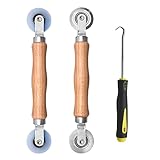
- Upgraded version: Well-fitted Nylon wheels are more safe than steel screen door repair rollers, you will never cut your fibreglass screen for windows or screen doors.
- New Combination: Well-fitted bearing wheels avoid wobble while working. The Screen Retainer Spline Removal Hook is used to remove the old Screen Retainer Spline, and the Screen Rolling is used to install the new screen mesh and Screen Rolling
- 2 IN 1: The Screen rolling tool has two different wheels, convex and concave rollers, it can help you get the job done better and faster. A must have tool for installing window screens and door screens
- Easy to Use: This essential tool is comfortable in the hand and the wheels turn smoothly to roll the screen and spline into the frame.the steel wheels of our screen rolling tool is smooth The hooks are sharp and the aged battens can be hooked out
- Product Material and Details: The core component adopts carbon steel bearing, which rotates concentrically and is silky smooth; The shiny electroplating is rust-proof and corrosion-proof; First-grade wood + surface varnish treatment
- Search for command prompt.
- Select Run as administrator, then select Yes.
- Run this command exactly:
DISM.exe /Online /Cleanup-image /Restorehealth
DISM may take several minutes to start and complete. Wait for a message such as The operation completed successfully or The restore operation completed successfully.
- After DISM completes successfully, run:
sfc /scannow
Wait for Verification 100% complete. Then type exit and press Enter. Restart Windows and try the update again. The spaces in both commands matter: there is a space before each DISM switch and between sfc and /scannow.
8. Check the system drive for disk errors
File-system errors on the Windows drive can interfere with update downloads and installations. Open an administrator Command Prompt and run:
chkdsk /f C:
Windows will ask you to restart if the drive is in use. Approve the restart and let the disk check complete. Do not power off the PC while Windows is repairing the drive.
Quick wins for a faster PC:
Fix the driver behind crashes, sound loss and screen glitchesFind Drivers →Repair Windows errors before they cause bigger problemsFix Now →9. Identify the failure stage
The appropriate response depends on what Windows is displaying:
| Symptom | What to try |
|---|---|
| Checking for updates continues for a long time | Check the connection, VPN, metered-network setting, storage, update service, troubleshooter, and cache reset. |
| Download remains at 0% or 100% | Restart Windows, verify the internet connection, and check available disk space. |
| Installation remains between 51% and 99% | Run Windows Update again or run the Windows Update troubleshooter. |
| An error code is shown | Use the code to select the relevant fix. For example, 0x80070422 points to the Windows Update service, while VPN, security software, or storage can contribute to several other codes. |
10. Reinstall the current Windows 11 version without removing apps or files
Windows 11 has a repair-reinstall option called Fix problems using Windows Update. It reinstalls the same Windows version, repairs system files and components, and preserves your apps, files, and settings.
Rank #4

- 🌟 All-in-One Screen Solution: Essential for seamless window screen replacement & repairs. This versatile screen repair kit Perfect for DIY screen spline insertion, frame rolling, and mesh tightening – your go-to tool for screen for windows projects.
- 🔷 Dual Roller Innovation: Features convex (round) & concave (grooved) steel rollers. The concave roller prevents delicate screen tearing during spline rolling, while the convex wheel ensures tight sealing. Ultimate precision for window screen tool tasks.
- ❖ Ergonomic Wooden Handle: Solid hardwood handle delivers superior comfort during prolonged screen roll installation. Non-slip grip reduces hand fatigue when replacing window screens. Durable steel bearings ensure smooth roller rotation – ideal for screen door repair marathons.
- 🔧Spline Tool + Screen Roller Tool: Offers three roller diameter options for selection. When replacing window screens, choose the corresponding roller based on the Spline specifications to completely eliminate tool size mismatch issues.
- 💎 Pro-Grade Durability: Carbon-steel rollers withstand aggressive spline rolling without deformation. your lifetime screen repair tool investment.
- Open Start > Settings > System > Recovery.
- Next to Fix problems using Windows Update, select Reinstall now.
- Keep the PC connected to power and the internet while the process runs.
Windows downloads a repair version of the last operating-system update that installed successfully and then installs it. The PC may be configured to restart automatically 15 minutes after installation completes, so save open work first.
This option may not appear if the PC is managed by work or school policies, including WSUS, certain Mobile Device Management policies, Autopatch, deployment-service controls, or feature and quality update deferrals. It may also be missing on Windows 11 versions earlier than the 2022 annual update. Microsoft requires the February 2024 optional update or a later update for this feature.
Do these 3 things before closing this tab:
1Repair Windows errors before they cause bigger problems2Scan for outdated or missing drivers - takes under a minute3Clear out junk files and repair common Windows errors11. Review or remove a recent update
If Windows Update started failing immediately after a particular update, check its history:
- Open Start > Settings > Windows Update > Update history.
- Review the recent installation entries and note any error codes.
- If removal is necessary, select Uninstall updates.
- Select the update and choose Uninstall.
Not all updates can be removed, and Microsoft does not recommend uninstalling an update unless necessary. If you remove one, restart the PC and test Windows Update again.
When to stop troubleshooting
If the troubleshooter, service check, cache reset, DISM, SFC, and repair reinstall do not resolve the problem, the cause may be a managed-device policy, a compatibility hold, failing storage, or a deeper Windows installation problem. On a work or school PC, contact the administrator rather than changing update policies. On a personal PC, record the exact error code and check the update history before attempting more invasive repairs.
Also note that Windows 10 support ended on October 14, 2025. That end-of-support date does not apply to Windows 11, but it matters if the affected computer is actually running Windows 10.
What’s actually slowing this PC down?
Pick the symptom - the matching free tool is one click away.
Best Value
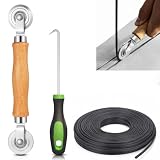
- 【PERFECT SCREEN REPAIR TOOL】King&Charles upgraded screen door mesh repair kit more comprehensively and professionally. A combination of Steel Roller + Hook + 0.14in x 32ft Screen Spline, can help you replace the screen window more easily and efficiently. To meet a wider range of needs.
- 【BEARING ROLLER 】 Most of the screen rollers on the market are simple, but ours are made of a bearing structure, which is stronger, smoother, and has a longer service life.Steel roller has a double side, convex wheel, and concave wheel. CONVEX WHEEL - Press Screen into groove. CONCAVE WHEEL-Press Spline into groove. ERGONOMIC Solid Wood Handle it's easy to hold.
- 【SUFFICIENT 32FT SPLINE】The 0.14 in hollow vinyl spline provides 32 ft of length for multiple screen repair projects and fits most 0.12~0.16 in wide window and door screen frame grooves. Flexible, tear-resistant, and easy to press securely into the groove. Please measure your original spline and groove before ordering.
- 【REMOVAL HOOK】The hooks are sharp and the aged battens can be hooked out. Stainless steel material won't rust and can be reused. Rubber handle is ergonomic, which is more labor-saving and easy to use.
- 【WIDELY&REPEATEDLY USED】3 in 1 screen repair kit widely used in the replacement of various screens at home. Suitable for window screens, sliding screen doors, terrace screens, RV screens, and even aquarium parachute stands, etc, and apply to patio screens, garden screens, pool screens, porch screen, sliding door, entry door, storm door, patio door, etc. All the screen window tools are of high quality, and reusable.
FAQ
How long should Windows 11 stay on “Checking for updates”?
Microsoft does not provide a universal time limit. The duration depends on connection speed, network settings, and update size. If there is no useful progress for an unusually long time, check the connection, storage, update service, troubleshooter, and Windows Update cache.
What is the correct Windows 11 Windows Update troubleshooter path?
Go to Start > Settings > System > Troubleshoot > Other troubleshooters > Windows Update > Run. Microsoft also recommends starting with the automated troubleshooter in the Get Help app.
Can a VPN stop Windows 11 updates?
Yes. Microsoft lists VPN software as a possible cause of update errors including 0x800f0922 and 0x8007000E. Disconnect the VPN temporarily and try Windows Update again.
What command resets the Windows Update cache?
In an administrator Command Prompt, stop BITS and Windows Update, rename SoftwareDistribution and catroot2, then restart the services: net stop bits, net stop wuauserv, ren %systemroot%\softwaredistribution softwaredistribution.bak, ren %systemroot%\system32\catroot2 catroot2.bak, net start bits, and net start wuauserv.
Will “Fix problems using Windows Update” delete my files?
Microsoft says this Windows 11 repair reinstall preserves apps, files, and settings. Keep the computer connected to power and the internet during the process, and save open work because the PC may restart automatically.
The Bottom Line
For a Windows 11 update check that appears stuck, first verify the network, VPN, metered-connection setting, storage, and pause status. Then restart, run the current troubleshooter, check the Windows Update service, reset the cache, and repair Windows with DISM and SFC. If the problem continues, use Settings > System > Recovery > Fix problems using Windows Update when that option is available.
Quick Recap
Product prices and availability are accurate as of the date/time indicated and are subject to change. Any price and availability information displayed on Amazon at the time of purchase will apply.

