
iTechGuides is reader-supported. When you buy through links on our site, we may earn an affiliate commission. As an Amazon Associate I earn from qualifying purchases. Learn more
To configure a router to use DHCP, set the WAN/Internet connection to Dynamic IP or Automatic IP when the ISP supplies an address automatically, and enable the LAN DHCP server when the router should assign addresses to home devices. Most ordinary home networks need both settings, but access points and business networks may not.
Key takeaways
- WAN DHCP makes the router obtain its Internet-facing address from an ISP, modem, or upstream router.
- LAN DHCP makes the router give private IP addresses, gateways, and DNS information to computers, phones, printers, and other local devices.
- A simple home network can use a LAN address such as
192.168.50.1with a DHCP pool such as192.168.50.100through192.168.50.200. - A second router used as an access point should normally not run a second DHCP server on the same LAN.
- A client showing a normal IPv4 address in the wrong subnet, an incorrect gateway, or a
169.254.x.xaddress usually indicates a DHCP, subnet, or connectivity problem.
DHCP means Dynamic Host Configuration Protocol. DHCP automatically supplies network settings such as an IP address, subnet mask, default gateway, DNS server, and lease duration. DHCP is a network-configuration service, not a type of Wi-Fi; a device can use DHCP over Wi-Fi or Ethernet.
Which DHCP setting do you need?
The phrase “use DHCP” describes two separate router functions. Choose the setting that matches the problem before changing anything.
Crashes, No Sound, or Screen Glitches?
Random freezes, missing sound and display glitches usually trace back to one bad driver. Find and replace yours safely.Free scan · under a minuteWindows Errors? Fix Them Before They Spread
Repair common Windows errors and clear accumulated junk for a smoother, more stable PC - no reinstall needed.Free scan · no reinstall| What you want to do | Setting to configure | Where it usually appears |
|---|---|---|
| Let the router receive an address from an ISP, modem, or upstream router | WAN/Internet DHCP, Dynamic IP, Automatic IP | Internet, WAN, or Internet Connection Type |
| Let phones, computers, televisions, and printers receive addresses automatically | LAN DHCP server | LAN, Local Network, or DHCP Server |
| Use a router as an access point on an existing network | Usually disable the secondary DHCP server | Access Point, Bridge, or LAN settings |
| Give a downstream router an address from the main router | DHCP on the downstream router’s WAN interface | Internet or WAN settings |
| Use a business DHCP server | Disable consumer-router DHCP or configure DHCP relay as designed | LAN, VLAN, or DHCP settings |
| Keep a printer or camera at a predictable address | DHCP reservation | Address Reservation, Static Lease, or DHCP Reservation |
What should you prepare before configuring DHCP?
Have the following ready:
- The router administrator username and password.
- The router’s management address or official vendor setup URL. Addresses such as
192.168.0.1,192.168.1.1, and192.168.50.1are examples, not universal defaults. - An Ethernet cable if changing network settings could interrupt Wi-Fi.
- Your ISP connection type, if known.
- The existing LAN subnet if the router is being installed behind another router.
- The answer to one important question: does another router, firewall, server, or access point already provide DHCP?
Use a wired connection when possible. Do not make major LAN changes over an unreliable wireless connection, because changing the router’s address can immediately invalidate the old management address.
Popular on Amazon

- DUAL-BAND WIFI 6 ROUTER: Wi-Fi 6(802.11ax) technology achieves faster speeds, greater capacity and reduced network congestion compared to the previous gen. All WiFi routers require a separate modem. Dual-Band WiFi routers do not support the 6 GHz band.
- AX1800: Enjoy smoother and more stable streaming and gaming with 1.8 Gbps total bandwidth (up to 1200 Mbps on 5 GHz and up to 574 Mbps on 2.4 GHz). Actual speeds cannot exceed your internet plan and vary based on conditions, distance, and obstacles.
- CONNECT MORE DEVICES: Wi-Fi 6 technology communicates more data to more devices simultaneously using revolutionary OFDMA technology
- EXTENSIVE COVERAGE: Achieve the strong, reliable WiFi coverage with Archer AX1800 as it focuses signal strength to your devices far away using Beamforming technology, 4 high-gain antennas and an advanced front-end module (FEM) chipset
- OUR CYBERSECURITY COMMITMENT: TP-Link is a signatory of the U.S. Cybersecurity and Infrastructure Security Agency’s (CISA) Secure-by-Design pledge. This device is designed, built, and maintained, with advanced security as a core requirement.
How do you configure the router’s WAN side to use DHCP?
Configure the WAN/Internet side for DHCP when the ISP, modem, ONT, or upstream router automatically supplies the router with an IP address. Router interfaces may label this option Dynamic IP, DHCP, Automatic IP, or Obtain an IP address automatically. TP-Link’s Dynamic IP instructions describe this option for an ISP that provides DHCP service.
- Connect the modem or ONT to the router’s WAN or Internet port, not an ordinary LAN port.
- Connect a computer or phone to the router.
- Open the router’s web interface or mobile app and sign in as administrator.
- Open Internet, WAN, or Internet Connection Type.
- Select Dynamic IP, DHCP, or Automatic IP.
- Leave optional WAN fields unchanged unless the ISP gave you specific values.
- Save or apply the change.
- Open the router’s status page and check that the WAN address, gateway, and DNS values are populated.
Do not select Dynamic IP merely because it is the easiest option. Some ISPs require PPPoE credentials, a static IP configuration, VLAN tagging, MAC registration, or another provider-specific setting. DHCP is correct only when the upstream network supplies the address automatically.
If a different router has just been connected to a modem or ONT, the modem or ONT may need to be restarted. Some provider equipment remembers the previous router’s hardware address, but this behavior depends on the ISP and equipment.
How do you enable the router’s LAN DHCP server?
Enable the LAN DHCP server when this router is responsible for assigning addresses to devices on the home network. Common paths include LAN > DHCP Server, Network > LAN > DHCP, Advanced > Network > DHCP Server, and Local Network > DHCP. ASUS’s DHCP-server guidance explains that the router can assign client IP addresses and provide DNS-server and default-gateway information.
- Open the router’s administration page.
- Open LAN, Local Network, or DHCP Server.
- Enable DHCP Server if this router should serve the local network.
- Confirm the router’s LAN IP address and subnet mask.
- Choose a DHCP start and end address in the same subnet.
- Keep the router’s own LAN address outside the dynamic pool.
- Leave the default gateway as the router’s LAN address.
- Leave DNS on automatic unless you have a deliberate reason to use another DNS service.
- Save the settings and allow the router to restart if requested.
TP-Link’s LAN configuration guidance states that the DHCP pool must be in the same subnet as the router’s LAN address.
What is a safe DHCP address pool?
A practical example for a small home network is:
| Setting | Example | Why it matters |
|---|---|---|
| Router LAN IP | 192.168.50.1 |
The router’s local gateway and management address |
| Subnet mask | 255.255.255.0 |
Defines the local IPv4 subnet |
| DHCP start | 192.168.50.100 |
First address offered dynamically |
| DHCP end | 192.168.50.200 |
Last address offered dynamically |
| Default gateway | 192.168.50.1 |
Where clients send traffic outside the local network |
| DNS | Automatic | Uses the router or upstream DNS configuration unless deliberately overridden |
The pool does not have to use these exact addresses. The pool must match the router’s LAN subnet, and the pool must not hand out the router’s own LAN address. Avoid manually assigning static addresses inside the active DHCP pool unless the router is designed to prevent conflicts.
For example, ASUS documents a pool from 192.168.50.2 through 192.168.50.254 for a router at 192.168.50.1. A smaller pool such as 192.168.50.100 through 192.168.50.200 leaves room for deliberately assigned infrastructure addresses.
Quick wins for a faster PC:
Fix the driver behind crashes, sound loss and screen glitchesFind Drivers →Repair Windows errors before they cause bigger problemsFix Now →What should you set for DHCP lease time?
Lease time is how long a client may use a dynamically assigned address before renewing it. A normal home network can usually keep the manufacturer’s default. Shorter leases can help networks with many temporary visitors; longer leases reduce renewal activity for stable networks.
Lease controls are model-specific. For example, the TP-Link TL-WR902AC v3 guide documents a configurable range of 1 to 2,880 minutes and a 120-minute default for that model. Those values are not universal DHCP requirements.
Also popular on Amazon

- Dual band router upgrades to 1200 Mbps high speed internet (300mbps for 2.4GHz plus 900Mbps for 5GHz), reducing buffering and ideal for 4K stream
- Full Gigabit Ports - Gigabit Router with 4 Gigabit LAN ports, ideal for any internet plan and allow you to directly connect your wired devices
- Boosted Coverage - Four external antennas equipped with Beamforming technology extend and concentrate the Wi-Fi signals
- MU-MIMO technology - (5GHz band) allows high speeds for multiple devices simultaneously
- Access Point Mode - Supports AP Mode to transform your wired connection into wireless network, an ideal wireless router for home
Should you enter DNS servers manually?
Most users should leave DNS set to automatic. DHCP can distribute DNS information supplied by the ISP or upstream router, and manually entering a public DNS server is not required for DHCP to work.
Manual DNS can be a deliberate troubleshooting, filtering, privacy, parental-control, or policy choice. Changing DNS can also break local hostnames, corporate filtering, split-horizon DNS, or ISP-specific services. TP-Link lists primary and secondary DNS as optional DHCP-server fields.
Free tools Windows power users keep installed
One-click scans. No signup required.
How do you set computers and phones to obtain addresses automatically?
The router’s DHCP server works only when clients are configured to accept automatic network settings. Phones and tablets normally use automatic addressing by default, but printers, cameras, and older IoT devices may retain manual settings.
| Device | Required setting |
|---|---|
| Windows | Set IPv4 to Obtain an IP address automatically and DNS to Obtain DNS server address automatically. |
| macOS | Set TCP/IP configuration to Using DHCP. |
| iPhone, iPad, Android phone, or tablet | Use the Wi-Fi network’s automatic IP setting; exact labels vary by operating-system release and manufacturer. |
| Printer, camera, television, or IoT device | Check the device’s network settings separately and remove a manually configured IP if automatic addressing is intended. |
TP-Link notes that computers must be configured to obtain an IP address automatically for the router’s DHCP server to assign settings as intended.
After changing the client setting, disconnect and reconnect to Wi-Fi or Ethernet. You can also renew the lease manually.
Useful client commands
On Windows, open Command Prompt and run:
ipconfig /all
ipconfig /release
ipconfig /renew
nslookup example.com
ping <router-LAN-IP>
On macOS or Linux, useful examples include:
ip addr
ip route
networksetup -getinfo Wi-Fi
sudo ipconfig set en0 DHCP
The macOS interface may not be named en0, and Linux network commands vary by distribution and network manager. Treat these as diagnostic examples rather than universal commands.
How do you verify that DHCP is working?
Check the router first, then check one client. A working home setup should show a valid WAN configuration, a client address in the expected LAN subnet, the router as gateway, and successful DNS and Internet tests.
Router verification checklist
- The WAN status page shows a usable address rather than
0.0.0.0. - The WAN gateway and DNS values are present where the ISP or upstream network supplies them.
- The LAN address is the intended local gateway.
- The LAN DHCP server is enabled if this router serves the network.
- The DHCP client or lease list shows connected devices.
- Assigned client addresses fall within the configured pool.
TP-Link’s WAN troubleshooting guidance identifies the Internet IP address as an important first check; a WAN address of 0.0.0.0 means the router did not receive a usable Internet-side address.
Client verification checklist
- The device has an IP address in the expected subnet, such as
192.168.50.xfor the example network. - The subnet mask matches the router’s LAN configuration.
- The default gateway is the router’s LAN address, such as
192.168.50.1. - A usable DNS server is listed.
- The client does not have a
169.254.x.xself-assigned IPv4 address in a normal home IPv4 setup. - The client can reach the router’s LAN address.
- DNS resolution works and the client can reach the Internet.
What changes when a second router is connected?
A second router can either create a separate routed network or act as an access point. The correct DHCP arrangement depends on that choice.
Also popular on Amazon

- 𝐅𝐮𝐭𝐮𝐫𝐞-𝐑𝐞𝐚𝐝𝐲 𝐖𝐢-𝐅𝐢 𝟕 - Designed with the latest Wi-Fi 7 technology, featuring Multi-Link Operation (MLO), Multi-RUs, and 4K-QAM. Achieve optimized performance on latest WiFi 7 laptops and devices, like the iPhone 16 Pro, and Samsung Galaxy S24 Ultra.
- 𝐁𝐄𝟔𝟓𝟎𝟎 𝟔-𝐒𝐭𝐫𝐞𝐚𝐦, 𝐃𝐮𝐚𝐥-𝐁𝐚𝐧𝐝 𝐖𝐢-𝐅𝐢 – Enjoy seamless 4K/8K streaming, AR/VR gaming, and more with speeds up to 5764 Mbps (5 GHz) and 688 Mbps (2.4 GHz). Actual speeds cannot exceed your internet plan and vary based on conditions, distance, and obstacles.
- 𝐖𝐢𝐝𝐞 𝐂𝐨𝐯𝐞𝐫𝐚𝐠𝐞 𝐰𝐢𝐭𝐡 𝐒𝐭𝐫𝐨𝐧𝐠 𝐂𝐨𝐧𝐧𝐞𝐜𝐭𝐢𝐨𝐧 - Get up to 2,400 sq. ft. max coverage for up to 90 devices at a time. 6x high performance antennas and Beamforming technology, ensures reliable connections for remote workers, gamers, students, and more.
- 𝐔𝐥𝐭𝐫𝐚-𝐅𝐚𝐬𝐭 𝟐.𝟓 𝐆𝐛𝐩𝐬 𝐖𝐢𝐫𝐞𝐝 𝐏𝐞𝐫𝐟𝐨𝐫𝐦𝐚𝐧𝐜𝐞 - 1x 2.5 Gbps WAN/LAN port, 1x 2.5 Gbps LAN port and 3x 1 Gbps LAN ports offer high-speed data transmissions.³ Integrate with a multi-gig modem for gigplus internet.
- 𝐎𝐮𝐫 𝐂𝐲𝐛𝐞𝐫𝐬𝐞𝐜𝐮𝐫𝐢𝐭𝐲 𝐂𝐨𝐦𝐦𝐢𝐭𝐦𝐞𝐧𝐭 - TP-Link is a signatory of the U.S. Cybersecurity and Infrastructure Security Agency’s (CISA) Secure-by-Design pledge. This device is designed, built, and maintained, with advanced security as a core requirement.
When the second router remains a router
The second router can use DHCP on its WAN interface to receive an address from the main router. The second router’s LAN subnet must be different from the main router’s LAN subnet, and its own LAN DHCP server can remain enabled for devices behind it.
Do these 3 things before closing this tab:
1Repair Windows errors before they cause bigger problems2Fix the driver behind crashes, sound loss and screen glitches3Clear out junk files and repair common Windows errors| Component | Example configuration |
|---|---|
| Main router LAN | 192.168.1.1/24 |
| Second router WAN | DHCP lease from the main router |
| Second router LAN | 192.168.50.1/24 |
| Second router DHCP pool | 192.168.50.100–192.168.50.200 |
This arrangement creates double NAT. Web browsing may work normally, but inbound connections, port forwarding, gaming, VPNs, remote access, and device discovery can become more complicated.
When the second router should be an access point
If the goal is simply better Wi-Fi coverage on one home network, use the manufacturer’s Access Point, Bridge, or equivalent mode. The main router should remain the only DHCP server for that LAN. If the device’s mode does not disable DHCP automatically, disable the secondary DHCP server manually.
Give the access point a reachable management address, preferably through a documented DHCP reservation or an address outside the main DHCP pool. TP-Link’s access-point documentation distinguishes access-point DHCP behavior and explains that the device may receive its management address through DHCP.
Two DHCP servers on the same broadcast network can offer different gateways, DNS values, or subnets. Cisco warns that multiple DHCP servers on the same network can conflict and create unpredictable results. Cisco’s DHCP documentation also explains same-network operation and relay behavior.
What’s actually slowing this PC down?
Pick the symptom - the matching free tool is one click away.
How should you configure DHCP with a business or dedicated DHCP server?
Do not automatically enable the consumer router’s DHCP server when a business server, firewall, or managed network platform already provides DHCP. Determine which device owns the LAN gateway, which device supplies DHCP, whether VLANs are involved, and whether DHCP relay is required.
DHCP broadcasts do not normally cross a router. When clients and the DHCP server are on different routed networks, the network generally needs a DHCP relay or an equivalent design. A dedicated DHCP service is appropriate for multiple VLANs, centralized DNS and DHCP policies, failover, or enterprise administration, but it adds complexity that most homes do not need.
What are the most common DHCP problems?
The router page no longer opens
The router’s management address may have changed, the client may have received a lease from another DHCP server, or the device may have entered access-point or bridge mode.
- Check the client’s current default gateway.
- Enter that gateway address in the browser.
- Disconnect from VPN software temporarily.
- Renew the client’s DHCP lease.
- Try an Ethernet connection.
- Check the router label and official manual for the current management address.
- Factory-reset the router only as a last resort, because resetting erases the configuration.
TP-Link explains that changing the LAN IP can require reconnecting the computer and that the new LAN IP becomes the router’s management address.
Also popular on Amazon
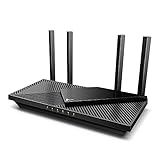
- Wi-Fi 6 Speeds: Up to 2402 Mbps on 5 GHz and 574 Mbps on 2.4 GHz bands ensure smoother streaming and faster downloads; support VPN server and VPN client¹. Actual speeds cannot exceed your internet plan and vary based on conditions, distance, & obstacles.
- A More Responsive Experience: Enjoy smooth gaming, video streaming, and live feeds simultaneously. OFDMA makes your Wi-Fi stronger by allowing multiple clients to share one band at the same time, cutting latency and jitter.²
- Expanded Wi-Fi Coverage: 4 high-gain external antennas and Beamforming technology combine to extend strong, reliable, Wi-Fi throughout your home.
- Improved Battery Life: Target Wake Time helps your devices to communicate efficiently while consuming less power.
- Improved Cooling Design: No heat ups, no throttles. A larger heat sink and redefined case design cools the WiFi 6 system and enables your network to stay at top speeds in more versatile environments.
Clients receive no IP address
Check that the LAN DHCP server is enabled, the address pool is not exhausted, the client uses automatic addressing, and the client is connected to the intended SSID, VLAN, or LAN. Also check for a second DHCP server, guest-network isolation, a faulty cable, or a pool that does not match the LAN subnet.
If DHCP is disabled, another DHCP server must exist or every client must be configured manually. NETGEAR explains that disabling a router’s DHCP service requires another DHCP service or manual client configuration.
The router has a LAN address but no Internet
- Confirm that the modem or ONT is connected to the router’s WAN/Internet port.
- Confirm that the WAN type is Dynamic IP/DHCP only if the ISP requires automatic addressing.
- Check whether the router has a valid WAN address rather than
0.0.0.0. - Check that the modem or ONT is online.
- Verify whether the ISP requires PPPoE, a static address, VLAN tagging, or MAC registration.
- Restart the modem or ONT first, then restart the router.
- Check for manually entered DNS values that are incorrect for the network.
A local LAN lease does not prove that the router has a working Internet connection. WAN addressing, routing, the ISP link, and DNS must be checked separately.
The client shows a 169.254.x.x address
A 169.254.x.x IPv4 address generally means the client did not obtain a DHCP lease and assigned itself a local address. Investigate the client’s Wi-Fi or Ethernet connection, the DHCP server, the VLAN or SSID, the cable, and the available address pool.
The Tool Desk
Outbyte PC Repair FREEClear out junk files and repair common Windows errorsFree Scan →Outbyte Driver Updater FREEFix the driver behind crashes, sound loss and screen glitchesFind Drivers →Two routers both provide DHCP
Symptoms include intermittent connectivity, different devices receiving different gateways, devices appearing on unexpected subnets, inconsistent DNS, and difficulty reaching printers or shared folders. Use one DHCP server per broadcast domain. If both routers must route separate networks, use different LAN subnets and accept the resulting double NAT.
There is an IP address conflict
Keep the router’s own LAN address outside the dynamic pool and avoid manually assigning an address that the DHCP server may also offer. For printers, cameras, servers, and similar devices, use a DHCP reservation when available. A reservation binds a selected address to the device’s MAC address while allowing the device to remain configured for DHCP. TP-Link documents DHCP reservation as an IP-to-MAC binding.
Independent reader supportYour contribution helps us test, update, and keep practical guides available for everyone.Should you use DHCP reservations or static IP addresses?
DHCP is usually the best default for home devices because it centralizes settings, reduces typing errors, reuses addresses efficiently, and makes gateway or DNS changes easier.
| Method | Best use | Trade-off |
|---|---|---|
| Ordinary DHCP | Phones, laptops, televisions, and general home devices | An address can change after lease renewal or network changes |
| DHCP reservation | Printers, cameras, servers, and devices that need a stable address | Requires maintaining a reservation list on the router |
| Manual static address | Devices or legacy systems that specifically require local manual configuration | More typing, more conflict risk, and harder centralized changes |
A reservation is often the practical compromise: the device receives its settings through DHCP but normally receives the same address.
Recommended Free Tools
Should you replace the router to fix DHCP?
Usually, no. Correcting WAN mode, LAN DHCP, client addressing, or a duplicate DHCP server normally requires no purchase. Consider replacement hardware only when the current router has obsolete firmware, lacks access-point mode, cannot provide needed reservations or VLANs, cannot support the required clients, or has a hardware fault.
Also popular on Amazon

- Tri-Band WiFi 6E Router - Up to 5400 Mbps WiFi for faster browsing, streaming, gaming and downloading, all at the same time(6 GHz: 2402 Mbps;5 GHz: 2402 Mbps;2.4 GHz: 574 Mbps)
- WiFi 6E Unleashed – The 6 GHz band brings more bandwidth, faster speeds, and near-zero latency; Enables more responsive gaming and video chatting
- Connect More Devices—True Tri-Band and OFDMA technology increase capacity by 4 times to enable simultaneous transmission to more devices
- Unique Design, More RAM, Better Processing - A unique housing design provides optimal heat dissipation, combined with a 1.0 GHz dual-core CPU and 512 MB High-Speed Memory, the AXE75 is designed for long-term reliability and performance.
- EasyMesh-compatible - Extend network range even more by adding EasyMesh-compatible routers, extenders, or wireless powerline adapters for a seamless, whole-home connection. Eliminate dead zones, drops, and lag as you move across your home.
If the actual problem is poor coverage, a wired access point or mesh system is usually cleaner than adding a second router in normal router mode. A mesh system may be easier to manage but can expose fewer advanced DHCP, VLAN, or routing controls. A business firewall or managed DHCP platform suits multiple VLANs, centralized policies, or failover requirements, but is excessive for a simple home network.
Security and maintenance after configuration
- Change the router administrator password from the factory default.
- Keep firmware updated according to the manufacturer’s support policy.
- Do not expose router administration to the public Internet unless there is a deliberate and secured reason.
- Run only the DHCP services that the network design requires.
- Back up the router configuration if the router supports configuration export.
- Do not treat disabling DHCP as a general security improvement; Wi-Fi security, administrator protection, segmentation, and firewall configuration matter more.
IPv4 DHCP and IPv6 address configuration are not interchangeable. IPv6 networks may use SLAAC, DHCPv6, or both, depending on the network design. The IPv4 steps in this guide should not be assumed to configure IPv6.
Frequently Asked Questions
Should DHCP be enabled or disabled on my home router?
Enable the LAN DHCP server when the router is responsible for assigning addresses to devices on the home network. Disable it on a secondary router that is operating as an access point or bridge on the same LAN, because the main router should normally provide DHCP.
Should the router’s WAN connection use DHCP?
The router’s WAN connection should use DHCP, usually labeled Dynamic IP or Automatic IP, when the ISP, modem, ONT, or upstream router supplies the Internet address automatically. Use PPPoE, static IP, VLAN, or another setting when the ISP specifically requires it.
Can two routers both use DHCP?
Two routers can each use DHCP when they route separate networks with different LAN subnets, but two DHCP servers on the same LAN can conflict. Use access-point or bridge mode on the second device when one shared network is intended.
Why does my device show a 169.254.x.x address?
A 169.254.x.x IPv4 address generally means the device did not obtain a DHCP lease and assigned itself a local address. Check the device’s connection, automatic-addressing setting, DHCP server, VLAN or SSID, cable, and available address pool.
Do I need a static IP address for a printer?
You usually do not need a manually configured static IP for a printer. A DHCP reservation is often better because the printer remains centrally managed through DHCP while normally receiving the same address.
The Tool Desk
Outbyte Driver Updater FREEScan for outdated or missing drivers - takes under a minuteDriver Scan →Outbyte PC Repair FREERepair Windows errors before they cause bigger problemsFix Now →The Bottom Line
For an ordinary home network, configure the router’s WAN as Dynamic IP/DHCP when the upstream network assigns the router an address, enable the router’s LAN DHCP server for local devices, and set computers and phones to automatic addressing. Use only one DHCP server per shared LAN, choose a pool in the router’s subnet, and verify the client IP, gateway, DNS, WAN address, and Internet access.

