
iTechGuides is reader-supported. When you buy through links on our site, we may earn an affiliate commission. As an Amazon Associate I earn from qualifying purchases. Learn more
Do tank printers dry out? Yes, but the ink reservoir is usually not the first problem. Long inactivity more often dries or clogs the printhead nozzles, capping station, or ink path. Regular small color-and-black prints, correct power-button shutdown, clean indoor storage, and model-specific maintenance substantially reduce the risk.
Refillable printers such as Epson EcoTank, Canon MegaTank, HP Smart Tank, and Brother ink-tank models still use inkjet printheads. The large tank reduces the ink’s exposure to air compared with a cartridge, but microscopic nozzles must remain wet and unobstructed to produce a complete page.
Key takeaways
- The printhead nozzles, rather than the sealed ink tank, are usually the first components affected by drying.
- A weekly color-and-black test print is a practical preventive habit, but no universal interval guarantees that every model will avoid clogging.
- Some Epson guidance recommends turning applicable models on at least once every 14 days during extended non-use, while HP says acceptable inactivity can vary by model and environment.
- Use the printer’s normal Power button and wait for shutdown to finish; do not unplug or switch off power while the printhead or maintenance system is active.
- Run a nozzle check before cleaning, because cleaning consumes ink and repeated cleaning can fill the maintenance box or waste-ink system.
- People who print only a few black-and-white pages every few months may find a monochrome laser printer a better fit than an ink tank.
What actually dries out in an ink-tank printer?
The most common drying problem occurs at the printhead nozzles, where tiny openings deposit ink onto paper. Ink can remain liquid in a tank while residue at the nozzle surface dries, causing missing lines, faded output, banding, or one color to stop printing. HP’s explanation of ink-tank printer drying identifies the printhead as the usual vulnerable area rather than treating the reservoir as the primary failure point.
| Component | What can happen during inactivity | Typical symptom or consequence |
|---|---|---|
| Ink tank or reservoir | Ink can age, become contaminated, or change condition, especially if a cap is left open. | The tank may still look full even when ink delivery is poor. |
| Printhead nozzles | Residual ink can dry at microscopic openings. | Missing segments, white gaps, faded text, streaks, or absent colors. |
| Ink tubes and dampers | Air gaps, starvation, sediment, or blockages can develop in some designs. | A full reservoir but incomplete or missing ink at the page. |
| Capping station | Dust, dried ink, or a poor rubber seal can prevent the parked head from staying wet. | Faster nozzle drying or repeated clogging after cleaning. |
| Maintenance box or waste-ink pad | Cleaning cycles send ink into the waste-ink system, which can eventually fill. | A maintenance warning or service requirement even when visible tanks contain ink. |
Epson specifically warns that an uncapped printhead can allow ink to dry and clog the nozzles. The Epson guidance on preventing nozzle clogging explains why correct parking and capping matter.
Popular on Amazon

- INNOVATIVE CARTRIDGE-FREE PRINTING — High-capacity ink tanks mean no more dealing with lots of tiny ink cartridges; Epson’s exclusive EcoFit ink bottles make filling easy to keep you using this home office printer for longer
- CLEAR AND VIBRANT PRINT QUALITY ― Create memorable prints and projects; Unique Micro Piezo Heat-Free Technology allows wireless color printer to produce sharp text and impressive color photos and graphics on virtually any paper type
- ZERO CARTRIDGE WASTE — By using an Epson EcoTank printer you can help reduce the amount of cartridge waste ending up in landfills
- BUILT IN SCANNER AND COPIER ― All-In-One Epson EcoTank is more than a printer; High-resolution flatbed scanner and color display come together for easy document copying and navigation; Boost productivity with this printer, copier, scanner, and fax
- LESS FREQUENT INK REPLACEMENT — Replacement ink bottles don't have to be changed nearly as often as ink cartridges¹; Printer, scanner and copier lets you print up to 4,500 pages black/7,500 color² extra
Are tank printers less likely to dry out than cartridge printers?
Tank printers generally expose the bulk ink to less air than small cartridges, but tank printers remain inkjet printers and can still suffer nozzle clogs. Reliability depends on the model’s printhead architecture, capping mechanism, ink formulation, environment, and usage pattern; a tank printer is not automatically more reliable than every cartridge printer.
| Consideration | Ink-tank printer | Cartridge inkjet |
|---|---|---|
| Bulk ink exposure | Usually stored in a larger, enclosed reservoir with relatively low air exposure. | Ink is held in a smaller cartridge, but the exact exposure varies by design. |
| Nozzle maintenance | Still required because the printhead nozzles can dry or clog. | Still required; some cartridges incorporate or replace the printhead. |
| Neglect-related repair risk | A retained printhead may be difficult or expensive to recover if badly clogged. | Replacing a cartridge can replace the printhead on some designs, but not all. |
| Consumable waste during cleaning | Cleaning can consume tank ink and fill a maintenance box or absorber. | Cleaning also consumes ink, with the cost depending on the cartridge system. |
| Best usage pattern | Regular color printing where low running cost matters. | Occasional or moderate use, depending on cartridge cost and model design. |
The practical advantage of a tank is lower consumable exposure and high ink capacity, not immunity from drying. A neglected tank printer can be harder to recover because the same printhead may remain installed for the machine’s service life.
How long can an ink-tank printer sit unused?
There is no universal safe number of days. The following ranges are risk bands rather than guarantees: several days is usually low risk in ordinary indoor conditions; one to two weeks is often manageable; several weeks carries increasing risk; and several months creates a meaningful possibility of clogged nozzles, air in the ink path, or difficult recovery.
Do these 3 things before closing this tab:
1Scan for outdated or missing drivers - takes under a minute2Repair Windows errors before they cause bigger problems3Fix the driver behind crashes, sound loss and screen glitches| Unused period | Practical risk | Recommended action |
|---|---|---|
| Several days | Usually low in a stable indoor environment. | Resume normal printing; check quality if the first important job shows defects. |
| One to two weeks | Often manageable, but risk varies by model, climate, and ink. | Print a small black-and-color test page or run a nozzle check before an important job. |
| Several weeks | Higher risk, especially in hot, dry, dusty conditions. | Follow the manual’s non-use advice and perform a nozzle check on return. |
| Several months | Meaningful risk of nozzle, cap, tube, damper, or priming problems. | Use the exact long-term storage procedure; do not assume unplugging and covering is sufficient. |
HP’s general guidance says some ink-tank printers may tolerate two to 12 weeks of inactivity depending on the model and environment. That is manufacturer guidance for a range of products, not an industry-wide limit. Separately, Epson storage instructions for applicable models recommend turning the printer on at least once every 14 days when the prescribed extended-use maintenance has not been performed.
Should you leave a tank printer turned on?
The correct answer depends on the model. Some printers may perform automatic maintenance while connected to power, while other manufacturer instructions emphasize turning the printer off with the physical Power button so the printhead parks and caps correctly.
- Use the printer’s normal Power button rather than a power strip or wall switch.
- Wait until the display, carriage, pump, and other maintenance sounds have stopped.
- Never unplug the printer while it is printing, cleaning, parking, or shutting down.
- For a long absence, follow the exact storage instructions in the user guide.
HP support guidance for certain Smart Tank models specifically discusses using the physical Power button. An Epson user guide likewise warns against improper unplugging and emphasizes correct printhead parking. Neither instruction should be generalized to every printer family.
Which conditions make drying and clogging more likely?
High temperatures, very low humidity, direct sunlight, dust, lint, heat vents, radiators, windows, garages, and large temperature swings can increase the risk. A loose tank cap or uncovered printer also allows more contamination and evaporation.
Free tools Windows power users keep installed
One-click scans. No signup required.
HP identifies heat and low humidity as drying factors, while Epson storage guidance advises protecting the printer and printhead area from dust. The safest general location is indoors, away from direct sun and heat sources, with the printer’s covers and tank caps properly closed.
Also popular on Amazon

- THE LAST PRINTER YOU'LL EVER NEED – Set it up once and print with confidence; no complicated maintenance, just easy, reliable printing you can count on
- FULLY LOADED WITH SAVINGS – Best for low-cost, high-volume printing—up to 3 years of HP Ink included; get up to 6,000 color or black pages right out of the box
- KEY FEATURES – Print, copy and scan, plus borderless prints, mobile and wireless printing
- MESS-FREE REFILL – Replenish ink with HP's easy-access, mess-free refill system; simply plug the ink bottles into this cartridge-free ink tank and let them drain—no squeezing, no spilling
- BEST PRINT QUALITY, PERIOD – Sharper text, richer colors, only with HP Smart Tank
What are the symptoms of a dried or clogged printhead?
A clogged inkjet printhead usually produces a repeatable print-quality defect rather than a simple “empty tank” message. Common signs include:
- Missing horizontal lines or broken segments in a nozzle-check pattern.
- White gaps in solid black or color blocks.
- Faded, incomplete, or streaked text.
- Banding across photographs or graphics.
- One color missing entirely.
- Incorrect color balance because one channel is printing weakly.
- Full-looking tanks with little or no output from one color.
- Visible air bubbles or interruptions in exposed ink lines, where the design allows inspection.
A full tank proves only that ink is present in the reservoir. The printhead, ink path, pump, damper, or priming condition can still prevent ink from reaching the paper. HP recommends a print-quality diagnostic page for missing colors, fading, and white lines; Epson recommends a nozzle check before unnecessary cleaning.
How do you diagnose and recover from a clogged tank printer?
Use a staged process rather than repeatedly launching the strongest cleaning option. The exact menu names vary, but the workflow below applies broadly without requiring solvents, syringes, forced flushing, or printhead disassembly.
Recommended Free Tools
- Check every tank. Confirm that each color is above the printer’s minimum line and refill only with the specified ink. On some Epson models, cleaning is unavailable when a tank is at or below the lower line. See Epson’s printhead-maintenance guidance for the model-specific restriction.
- Verify the basic print setup. Check paper, media type, print quality, driver settings, and whether the defect appears from more than one application. A software or paper problem can resemble a nozzle problem.
- Print a nozzle check or diagnostic page. A nozzle-check pattern separates missing ink channels from layout, driver, or color-management issues.
- Inspect the pattern. Look for gaps, missing segments, weak lines, or an entire absent color. Save or photograph the result if you need support.
- Run one standard printhead-cleaning cycle. Cleaning may restore partially blocked nozzles, but it consumes ink.
- Print another nozzle check. Compare the new pattern with the first one instead of judging recovery from a single photograph or document.
- Pause when the manual requires a pause. Some Epson procedures recommend waiting at least 12 hours after repeated cleaning attempts before trying again. That interval is model-specific; consult the exact guide.
- Use deep cleaning, power cleaning, or ink flushing only as a later step. These functions can consume substantially more ink and fill the maintenance system faster.
- Escalate if the defect persists. A damaged printhead, air in the delivery system, failed pump or cap seal, contaminated ink, blocked tubing, or full waste-ink system may require service or a replacement part.
Epson warns that repeated cleaning can fill the maintenance box and may not resolve severe clogs. Repeatedly cleaning a printer without checking the pattern can waste ink while delaying diagnosis of a mechanical fault.
How much ink does cleaning use, and when can cleaning make things worse?
Every cleaning cycle consumes ink and sends some of that ink into the printer’s maintenance box, absorber, or waste-ink pad. A deep-cleaning or power-cleaning function can use considerably more than a standard cycle, and repeated attempts can trigger a maintenance-system limit while the visible tanks still appear full.
| Action | Use it when | Main trade-off |
|---|---|---|
| Nozzle check or diagnostic page | You need to identify which channel or pattern is defective. | Uses a small amount of ink but does not itself clear a clog. |
| Standard cleaning | The nozzle check shows a partial or missing pattern consistent with a clog. | May recover the head, but consumes ink and adds waste ink. |
| Rest period | The manufacturer’s procedure calls for waiting after repeated cleaning. | Slows the process but avoids needless cleaning cycles. |
| Deep or power cleaning | Standard cleaning has not worked and the manual recommends escalation. | Higher ink consumption and faster filling of the maintenance system. |
| Support or replacement | The pattern remains defective after the documented procedure. | May cost money, but is more rational than endless cleaning when hardware has failed. |
Epson’s maintenance instructions explicitly recommend checking the nozzles first and explain that cleaning uses ink. Cleaning is a recovery tool, not a substitute for diagnosis.
How often should you print to prevent drying?
For an intermittently used printer, print a small page containing both black and color about once a week, or at least once every one to two weeks if the model’s manual permits that interval. Weekly printing is a conservative maintenance habit, not a scientifically fixed threshold or a guarantee.
Quick wins for a faster PC:
Fix the driver behind crashes, sound loss and screen glitchesFind Drivers →Clear out junk files and repair common Windows errorsFree Scan →Scan for outdated or missing drivers - takes under a minuteDriver Scan →Use enough content to exercise the black and color channels without printing a large photograph. A black-only page may leave color nozzles unused, while a full-page color image wastes more ink than necessary. A built-in nozzle check is valuable for diagnosis, but the manufacturer may recommend a normal test page or regular use as the preventive routine.
Also popular on Amazon

- INNOVATIVE CARTRIDGE-FREE PRINTING — No more dealing with tiny, expensive ink cartridges; With this wireless printer each ink bottle set is equivalent to about 80 individual cartridges²
- LESS FREQUENT INK REPLACEMENT — Replacement ink bottles don't have to be changed nearly as often as ink cartridges¹; Color printer lets you print up to 4,500 black and white pages and 7,200 color³
- PRINT FOR LONGER — Up to 2 years of ink in the box⁴ (and with every replacement ink set) for fewer out-of-ink frustrations; This home printer keeps printing longer
- HIGH CAPACITY INK TANKS – Printer, scanner and copier utilizes Epson’s exclusive EcoFit ink bottles, making the refill process easy and worry-free
- ZERO CARTRIDGE WASTE — By using an Epson EcoTank printer you can help reduce the amount of cartridge waste ending up in landfills; Cartridge-free printer utilizes ink bottles for more convenience and less waste
What should you do before a vacation, move, or long-term storage?
A holiday absence and long-term storage are different situations. For a short absence, complete any active cleaning cycle, shut down normally if the manual instructs you to do so, close the tank caps and printer covers, and leave the printer indoors in a stable, dust-free location.
For several weeks or months, consult the exact user guide before doing anything beyond normal shutdown. Perform the prescribed storage maintenance, leave the maintenance box installed when required, protect the printer from dust, and do not drain the tanks unless the manufacturer specifically says to drain them. Epson warns that removing the maintenance box or failing to follow storage instructions can allow waste ink to dry and solidify inside the printer.
After storage, perform a nozzle check before printing an important document. If the pattern is defective, follow the manufacturer’s staged cleaning procedure rather than immediately selecting power cleaning.
What’s actually slowing this PC down?
Pick the symptom - the matching free tool is one click away.
Does ink type affect drying?
Dye-based and pigment-based inks have different formulations, but neither category is immune to drying. Pigment particles can settle or behave differently from dye solutions, while the printhead design, capping seal, ink chemistry, climate, and maintenance routine often matter more than the dye-versus-pigment label.
HP suggests that pigment-based ink may be less prone to drying in some circumstances, but that is a qualified manufacturer-level generalization, not a universal performance promise. Do not assume pigment ink makes an unused printer maintenance-free.
What happens if the tank is left open?
An open tank or ink bottle increases the chance of evaporation, dust contamination, and incorrect handling. Keep printer tank caps closed, keep ink bottles sealed until they are ready to use, and use only the ink specified for the printer.
Epson ink-handling instructions advise not opening an ink bottle until it is ready for use. Applicable Epson documentation also warns that non-original ink may cause damage not covered by warranty; that warning depends on the model and warranty terms. Mixing incompatible ink, using the wrong cap, or introducing dust can cause color and flow problems that cleaning may not fix.
Are ink-tank printers suitable for very infrequent users?
An ink-tank printer is usually strongest for someone who prints color documents, photos, schoolwork, or office material regularly enough to justify periodic maintenance. A person who prints only a handful of pages every few months may prefer a monochrome laser printer, particularly when black text is sufficient and liquid-ink maintenance is undesirable.
Also popular on Amazon
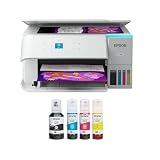
- STRESS-FREE PRINTING — Epson EcoTank comes with enough ink to print up to 6,600 pages black/5,500 color¹⁰ for fewer out-of-ink frustrations. Each replacement ink bottle set is equivalent to about 80 cartridges¹¹
- SIMPLE INK REFILLING — Supersized ink tanks and uniquely keyed EcoFit bottles make refilling ink simple—no mess, no stress and no ink bottle mix-ups
- THE WORLD’S #1 SELLING SUPERTANK PRINTER² — Epson invented EcoTank to revolutionize the way people print; we’ve sold 100 million EcoTanks worldwide⁷ and this is our 7th generation of cartridge-free printers
- ADVANCED PRODUCTIVITY FEATURES — Fast 15 black/8 color ISO ppm print speeds with zero warmup time, built-in scanner, 100-sheet paper tray, auto duplex printing and a 1.44" color display for easy navigation
- STUNNING PRINT QUALITY — High 4800 x 1200 dpi print resolution for exceptional photos and text; enjoy amazing image quality on a wide range of media
| Usage pattern | Likely fit | Why |
|---|---|---|
| Regular color printing | Ink tank | Low running cost and high page capacity can outweigh periodic maintenance. |
| Occasional color and willingness to test-print | Ink tank can work | Stable indoor storage and small maintenance prints reduce the risk. |
| A few black pages every several months | Monochrome laser often deserves serious consideration | No liquid ink nozzles to keep wet, although purchase price, toner cost, size, and model features still vary. |
| Photo-focused intermittent use | Depends on the specific inkjet model | Color and photo requirements may outweigh the maintenance burden. |
When comparing an Epson EcoTank, HP Smart Tank, Canon MegaTank, Brother ink-tank model, or a laser alternative, check the exact model’s storage instructions, nozzle-check access, cleaning controls, replacement printhead policy, maintenance-box availability, official ink supply, and support documentation. Official product families include Epson EcoTank printers, Canon MegaTank printers, and Brother inkjet printers; availability and features can vary by country and model.
Do not choose solely on advertised ink cost. A realistic comparison includes replacement bottles, maintenance boxes or waste-ink absorbers, printhead availability, ink consumed by cleaning, and possible service after prolonged neglect. Current prices and cost-per-page claims require checking the exact official product and consumable pages on the purchase date.
Practical prevention checklist
- Print a small page containing both black and color about weekly when the printer is used intermittently.
- Keep the printer indoors, away from heat vents, radiators, direct sunlight, dust, and extreme temperature changes.
- Keep tank caps, ink bottles, printer covers, and the printhead parking area properly closed or protected.
- Use the normal Power button and wait for the printer to finish parking before disconnecting power.
- Use the specified ink and do not mix products unless the manufacturer explicitly permits it.
- Print a nozzle check before an important job after a long idle period.
- Check ink levels before cleaning; some models will not clean safely below a minimum line.
- Do not repeat cleaning indefinitely. Track the nozzle pattern and follow the model’s rest and escalation instructions.
- Before months of storage, read the exact manual rather than draining tanks or unplugging the printer by habit.
Frequently Asked Questions
Can an EcoTank dry out?
Yes. An Epson EcoTank can develop dried or clogged printhead nozzles even when the ink tanks still contain liquid ink. The exact storage and maintenance procedure depends on the EcoTank model, so use its user guide rather than assuming that all EcoTank printers share one safe inactivity interval.
Can a Smart Tank printer sit unused for months?
A Smart Tank printer may tolerate a period of non-use that varies by model and environment, but several months creates a meaningful risk of nozzle, ink-path, or priming problems. HP’s general guidance should not replace the exact model’s storage and shutdown instructions.
Is it better to leave an ink-tank printer on?
Neither leaving every printer on nor turning every printer off is universally correct. Use the model’s normal Power button, allow the printer to park and finish maintenance, and never cut power while the printhead or cleaning system is active.
Why is one color missing when the ink tank is full?
A full tank with one missing color usually means that ink is not reaching the nozzles because of a localized clog, air in the ink path, a priming problem, or a hardware fault. Print a nozzle check before attempting cleaning.
Is a laser printer better for occasional printing?
A monochrome laser printer may be a better fit for someone who prints very infrequently and mainly needs black text because liquid-ink nozzles are not part of the printing process. An ink tank remains more attractive when regular, economical color or photo printing is important.
The Tool Desk
Outbyte Driver Updater FREEFix the driver behind crashes, sound loss and screen glitchesFind Drivers →Outbyte PC Repair FREEClear out junk files and repair common Windows errorsFree Scan →The Bottom Line
Tank printers can dry out, but the critical risk is usually a dried or clogged printhead nozzle—not an empty-looking reservoir. Regular black-and-color printing, correct shutdown, clean and stable storage, and restrained, model-specific cleaning keep the risk manageable. If printing is extremely sporadic and mostly monochrome, compare the maintenance burden with a laser printer before buying an ink tank.

