
iTechGuides is reader-supported. When you buy through links on our site, we may earn an affiliate commission. As an Amazon Associate I earn from qualifying purchases. Learn more
For a password-protected page, start with the sign-in method: Visualping documents repeated login actions and recommends a local, already signed-in Chrome session for SSO or two-factor authentication; Wachete documents a hosted password-login workflow; and changedetection.io documents login steps when its Playwright browser fetcher is configured. These are vendor-documented capabilities, not guarantees that every site will work. The right choice depends on the target site’s authentication, where checks run, and how much browser setup you can maintain.
What to check before choosing an alternative
A monitor must reach the protected content before it can compare changes. A service that handles public pages may not be able to complete your login flow. Check these details against the exact page you want to watch:

- Authentication: Is it a conventional username-and-password form, or does it use SSO, two-factor authentication, or additional verification?
- Execution location: Does the check run on the vendor’s servers, in your browser, or on infrastructure you operate?
- Session upkeep: What happens when the login expires, and must a browser or device remain on?
- Page selection: Can you monitor the relevant section rather than unrelated page changes?
- Alerts: Are the notification channels you need available?
Distill itself distinguishes local monitors, which run in the user’s browser or app and require that device and browser/app to remain on, from cloud monitors, which run on Distill’s servers while the user’s device is off. That distinction is a useful baseline when comparing alternatives. Distill’s documentation explains its monitoring modes and notifications, including email, SMS, mobile push, Discord, Slack, Microsoft Teams, and webhook-integrated apps.
Recommended Free Tools
Visualping: login actions or a signed-in local browser
For ordinary username-and-password forms
Visualping’s guide, updated August 6, 2026, documents pre-snapshot actions such as typing into fields, clicking buttons, waiting for rendering, scrolling, navigating, and handling frames or cookies. A typical setup enters a username and password and clicks the sign-in button. The particular form may also require focus clicks or additional waits. See Visualping’s guide to monitoring pages behind forms and logins.
#1 Best Overall

- FAST 15-MINUTE DEPLOYMENT – Provision and configure in just 15 minutes (down from 40+ minutes with previous models). Perfect for field technicians who need to get sites up and running quickly without deep networking expertise.
- UPGRADED PERFORMANCE – Powered by the Allwinner H618 processor with 1GB LPDDR4 RAM (double the previous generation). Enables accurate speed tests on gigabit connections and supports SNMP v3 encryption for enhanced security monitoring.
- PLUG-AND-PLAY SIMPLICITY – No complex configuration required. Simply connect to your network via the Gigabit Ethernet port, power up with the included USB-C cable, and start monitoring. Multi-VLAN support with just a few clicks in the interface.
- RISK MITIGATION FOR MSPs – Domotz maintains the operating system and security updates, transferring liability concerns away from your organization. Eliminates the security risks of deploying monitoring software on customer-managed servers or domain controllers.
- UNIVERSAL CONNECTIVITY – USB-C power port (more durable and universal than previous micro USB), Gigabit Ethernet port, and USB 2.0 port for future expansion. Premium casing designed for rack mounting or standalone deployment in professional environments.
This approach is most straightforward when the site presents a repeatable form that the configured actions can complete. Check that the actions reach the page content you intend to monitor and still work after the site changes its login flow.
For SSO or two-factor authentication
Visualping says replayed actions cannot receive a second-factor code. Its guide recommends a local monitor in a Chrome session where you are already signed in. The local check then depends on Chrome staying open, and the session must still have access to the page. Visualping Product Marketing Manager Emily Fenton describes this as watching the page inside the user’s signed-in browser; that is a vendor statement, not an independent test.
Rank #2

- Hardware Controller with Professional Network Management-Centralized management for up to 100 Omada devices including Omada access points, Omada Security Gateways and Jetstream switches.
- Premium Hardware Design-Industry-leading flexible Rackmount/Desktop design with a powerful chipset, durable metal casing, 2 fast ethernet ports and 1 USB 2.0 port for auto backup.
- Dual power selection-Support PoE (802.3af/802.3at) and micro USB for flexible installations.
- Easy Network Monitor & Maintenance-The easy-to-use dashboard makes it simple to see your real-time network status and improve network maintenance for peace of mind.
- Cloud Access with No License Fee-Enjoy cloud service with no license fee with the use of OC200. Remote Cloud access and Omada app brings centralized cloud management of the whole network from different sites—all controlled from a single interface anywhere, anytime.
Visualping recommends using a dedicated account with only enough access to view the monitored page. Its guide says a local monitor avoids storing the password in the service. Verify that the page remains accessible in the local session and that the required browser is available when checks run.
Do these 3 things before closing this tab:
1Repair Windows errors before they cause bigger problems2Fix the driver behind crashes, sound loss and screen glitches3Clear out junk files and repair common Windows errorsWachete: hosted setup for password-protected pages
Wachete’s FAQ describes creating a monitor for a single page, part of a page, a password-protected page, or a media file. After the preview loads, enter the username and password, sign in, and select the content to monitor. Its features page says protected pages are monitored on Wachete’s servers, so the user’s devices can be off. It also lists dynamic-page monitoring, section selection, and alerts by email, phone notification, Slack, Teams, Discord, or Telegram.
Rank #3
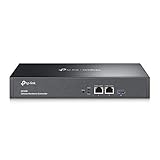
- 【Hardware Controller with Greater Network Management】Latest Omada SDN hardware controller provides centralized management for up to 500 Omada devices including Omada access points, Omada switches and Omada routers.
- 【Premium Hardware Design】Industry-leading flexible Rackmount/Desktop design with a powerful chipset, durable metal casing, 2 * gigabit ports and 1 * USB 3.0 port for auto backup.
- 【Easy Network Monitor & Maintenance】The easy-to-use dashboard makes it simple to see your real-time network status and improve network maintenance for peace of mind.
- 【Cloud Access with No License Fee】Enjoy cloud service with no license fee with the use of OC300. Remote Cloud access and Omada app brings centralized cloud management of the whole network from different sites—all controlled from a single interface anywhere, anytime.
- 【SDN Compatibility】For SDN usage, make sure your devices/controllers are either equipped with or can be upgraded to SDN version. OC300 work only with SDN APs, Switches and Gateways. For devices that are compatible with SDN firmware, please visit TP-Link website.
This is a documented workflow for password-protected pages, not a promise that every identity-provider or SSO flow will work. Test the exact page and confirm the chosen section is the content you need. See Wachete’s FAQ and features page.
changedetection.io: configurable browser automation
The official changedetection.io project documents a Playwright-based browser fetcher and “Browser Steps” for interactions such as logging into a website. Visual selection after those steps also requires Playwright. The project supports Docker or Python installation for self-hosting and also describes a hosted subscription. This option suits readers willing to configure and maintain a browser workflow; browser login is not automatic simply because the feature exists.
The project repository identifies its license as Apache-2.0. Review the official changedetection.io project page for its installation and browser-fetcher details.
Which option fits your login method?
| Option | Documented protected-page approach | Where checks run / operational consideration | Best fit |
|---|---|---|---|
| Visualping | Replay form actions; for SSO or two-factor authentication, use an already signed-in local Chrome session. | Local checks require Chrome to stay open. The guide recommends a dedicated, least-access account. | Repeatable login forms, or SSO/MFA when you can keep a signed-in local browser available. |
| Wachete | Sign in during monitor setup, then choose the content to monitor. | Its feature page says monitoring runs on its servers while your devices are off. Generic password-login support does not establish support for every SSO flow. | Hosted monitoring of a conventional username-and-password page. |
| changedetection.io | Use configured Playwright browser steps to perform interactions such as logging in. | Requires browser workflow configuration; self-hosted deployments also require you to maintain the deployment. A hosted subscription is also described by the project. | Technically comfortable users who want configurable browser automation. |
Prices and plan-specific limits are not established here. Check the vendors’ current plans directly before deciding on cost. The published workflows do not establish comparative reliability, so validate the target page rather than assuming a listed capability will handle its login.
Best Value
Set up a reliable monitoring test
- Identify the authentication flow. Record whether the page uses a basic form, SSO, two-factor authentication, or additional steps such as a consent prompt.
- Choose where the check can run. For a local-session workflow, confirm you can keep the required browser open. For a hosted workflow, confirm the service can reach the protected page after setup.
- Use an appropriately limited account. Where possible, create a dedicated account with only the access required to view the monitored content.
- Select the relevant page area. Check that the monitor is watching the content that matters, not a changing navigation bar or unrelated section.
- Test the full cycle. Confirm the monitor can sign in, reach the target content, and detect a known change. Then check what happens when the session expires or the site changes its login form.
- Confirm alert delivery. Select a supported channel and verify that a notification arrives when the watched content changes.
Or skip the browser setup
ScreenshotNeo is a screenshot API and MCP server, not a page-change monitoring service. If your task is to capture a page rather than track changes over time, it can return a screenshot or PDF with one GET request. Before the capture, it accepts the cookie or consent banner like a visitor and removes more than 60 known consent platforms, newsletter popups, and chat widgets; each step can be turned off. Bot checks/CAPTCHAs, blank pages, timeouts, failed loads, and cache hits are not billed, and response headers report the page verdict and billing status. Its MCP server offers screenshot and page-info tools for AI agents.
For example, this cURL request captures a page as WebP. Replace the URL with your target and supply your API key. See the ScreenshotNeo documentation for parameters and response details.
curl -G "https://api.screenshotneo.com/v1/shot" -d access_key=YOUR_API_KEY --data-urlencode url=https://stripe.com -o shot.webpScreenshotNeo includes 1,000 screenshots a month on the free plan with no card required; paid plans start at $5 for 3,000 shots. It is not a substitute for a change monitor when you need scheduled comparisons and change alerts. Learn about ScreenshotNeo or sign up for 1,000 free screenshots a month, with no card.
Frequently Asked Questions
Will a screenshot API monitor a page for changes over time?
No. ScreenshotNeo captures a page or PDF; it does not provide scheduled change comparisons or change alerts.
Can a hosted monitor handle every SSO or two-factor login?
The documented workflows do not establish that. Visualping’s guide specifically recommends a local signed-in Chrome session for SSO or two-factor authentication.
Quick Recap
Product prices and availability are accurate as of the date/time indicated and are subject to change. Any price and availability information displayed on Amazon at the time of purchase will apply.

