
iTechGuides is reader-supported. When you buy through links on our site, we may earn an affiliate commission. As an Amazon Associate I earn from qualifying purchases. Learn more
Windows uses the monitor arrangement in Settings > System > Display to decide where the mouse can travel. If the screens are physically side by side but the display rectangles are stacked vertically, the pointer will leave through the wrong edge—or may appear unable to cross at all.
Arrange the virtual monitors to match your desk, select Apply, and make sure Windows is using Extend rather than Duplicate mode.
Set up mouse movement between monitors in Windows 11
- Right-click an empty area of the desktop and select Display settings. Alternatively, open Settings > System > Display.
- At the top of the page, Windows displays your monitors as numbered rectangles. Select Identify to show each monitor’s number on its physical screen.
- Drag the numbered rectangles until they match the physical layout. For example, place the second monitor to the right of the first if that is how the monitors sit on your desk.
- Adjust the vertical position as well. If one screen is higher than the other, move its rectangle upward. For a monitor above the main display, place its rectangle above rather than beside the other one.
- Select Apply.
- Move the pointer across the shared edges to test the arrangement.
Windows treats the monitors as one virtual desktop. The edges that touch in the Display settings diagram determine where the pointer can cross. A monitor positioned above another in Windows is reached by moving the pointer upward, regardless of where it is sitting physically.
Crashes, No Sound, or Screen Glitches?
Random freezes, missing sound and display glitches usually trace back to one bad driver. Find and replace yours safely.Free scan · under a minutePC Slower Than It Used to Be?
A free scan shows the junk files, broken settings and background clutter dragging Windows down - then fixes them in one click.Free scan · Windows 10 & 11Fix partial or awkward edge crossings
Two monitors with different resolutions or physical heights may have only part of an edge aligned. In that situation, the pointer crosses only through the overlapping section. It can seem stuck when you try to leave from a part of the screen where the virtual edges do not touch.
Popular on Amazon
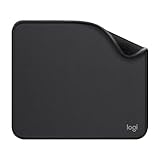
- Move and glide effortlessly: The Studio Series mouse pad features a smooth, comfortable cloth surface with a fine weave for effortless, silent gliding on any surface whether in the office or at home
- Spill-repellent, easy to clean: The desk pad's coated surface lets you easily wipe away any accidental mishaps; wipe liquids clean with a damp cloth
- Crafted with precision: Say goodbye to fraying thanks to the anti-fray, durable flat-stitch edges; plus, get added stability from the anti-slip, rubber base (contains latex)
- Carefully chosen materials: Travel mouse pad made from comfortable surface fabric and inner layer(2) using recycled polyester, giving a 2nd life to PET bottles, anti-slip base from natural rubber
- Pair with your Logitech Mouse: Fresh color and modern design make Logitech Mouse Pad a suitable accomplice for your wired, wireless or Bluetooth mouse, taking your work setup to new heights
Select the smaller monitor’s rectangle and drag it vertically until the layout resembles the real arrangement. To make most or all of a shared edge available, align the rectangles appropriately, then select Apply. There is no universal rule that says the smaller display must be aligned at the top, center, or bottom; use the position that matches your desk.
Enable easier crossing between differently sized displays
- Open Settings > System > Display.
- Expand Multiple displays.
- Turn on Ease cursor movement between displays.
This option is designed to make pointer movement easier when screens have different resolutions, scaling values, or imperfectly aligned edges. It does not rearrange the monitor rectangles and does not lock the pointer to a particular display. Turn it off if you prefer strict virtual-edge behavior—for example, when the exact boundary between monitors matters.
Set up mouse movement in Windows 10
- Open Settings > System > Display.
- Under Rearrange your displays, select Identify to match the numbers with the physical monitors.
- Drag the display rectangles into the correct left-to-right, top-to-bottom arrangement.
- Select Apply, then test the pointer at each shared edge.
Windows 10 does not include the Windows 11 Ease cursor movement between displays option in the supplied Display settings path. Correcting the rectangle alignment is therefore the main way to change where the pointer crosses.
Windows 10 support ended on October 14, 2025. Microsoft no longer provides free Windows Update software updates, technical assistance, or security fixes for the operating system after that date.
Confirm that the monitors are extended
If the pointer will not move between displays, first check the projection mode:
- Press Windows + P.
- Select Extend.
The projection menu contains these four options:
| Option | What it does |
|---|---|
| PC screen only | Uses the computer’s primary screen only. |
| Duplicate | Shows the same desktop on both displays. |
| Extend | Creates one extended desktop across independent monitors. |
| Second screen only | Uses the external display or displays only. |
Duplicate mode does not provide separate work areas for normal monitor-to-monitor pointer movement. Choose Extend for independent displays.
Also popular on Amazon

- ✔【Durable Mouse Pad】The mouse pad is made of natural rubber to avoid the trouble of choosing poor product quality and material, designed to provide you a great product that cares about your living
- ✔【Cheap and Cheerful】 It's time to Get Your Money's Worth! Our mouse pad is more comfortable and durable,10.2x8.3x0.12inch, it is not too large or small, standard size is perfect for macbook bags, designed for placing it in your bag without worrying about it warping. And it is available for all types of mouse, wired, wireless, mechanical, laser & optical
- ✔【Ultra-smooth Surface】Made of Premium-textured and smooth cloth surface that the mouse glides over nicely, it is optimized for fast movement while maintaining excellent speed and control, great for daily work or gaming
- ✔【Durable Stitched Edges】This computer mouse pad has delicate edges which can prevent wear, deformation and degumming in prolonged use. And the edge even the seams at the edge are flat, comfortable for your wrists and hands
- ✔【Anti-slip Rubber Base】Dense anti-slip rubber base provides heavy grip preventing sliding or movement of mouse pads, available for any flat, hard, tabletop surface. Low-friction top-material for accurate tracking the movement of cursor
If Windows does not show a monitor
Open Settings > System > Display, expand Multiple displays, and select Detect. This path is used in both Windows 11 and Windows 10.
Free tools Windows power users keep installed
One-click scans. No signup required.
If detection fails, check the physical connection before changing mouse settings:
- Reconnect the video cable at both ends.
- Confirm that the monitor is set to the input being used.
- Try another port on the computer, dock, or monitor.
- Bypass a dock, USB-C hub, DisplayLink adapter, or KVM and connect the monitor directly to the PC.
- Install the required dock, adapter, or DisplayLink driver and update its firmware.
Check resolution and scaling
Select each monitor at the top of Settings > System > Display, then review Scale & layout. Use the monitor’s recommended Display resolution when troubleshooting inconsistent behavior.
Scaling affects how movement feels after the pointer crosses. For example, a 4K monitor at 150% scaling beside a 1080p monitor at 100% scaling has different effective pixel densities. Windows translates pointer movement between those displays, so the pointer may appear to change speed or position. That does not necessarily indicate a faulty mouse.
Mouse speed is separate from monitor-boundary behavior. In Windows 11, open Settings > Bluetooth & devices > Mouse and adjust Mouse pointer speed. For classic acceleration controls, select Additional mouse settings > Pointer Options, then change Select a pointer speed or Enhance pointer precision.
In Windows 10, use Settings > Devices > Mouse > Cursor speed, then select Additional mouse options > Pointer Options.
Also popular on Amazon

- Classic Black, Standard Size: This 8.5” x 11” letter-size mouse pad fits almost any workspace. At 3mm thickness, it smooths uneven surfaces, providing a balanced combination of speed and control for your mouse, ideal for work or gaming.
- Moderate Surface Friction: Performance-tuned surface ensures precise and consistent tracking. Optimized for all mouse types, including wired, wireless, optical, and mechanical devices.
- Reinforced Stitched Edges: 360° precision stitching protects the edges against fraying and surface peeling, extending the pad’s durability.
- Stable Rubber Base: Dense, non-slip rubber grips flat tabletops firmly, preventing unwanted movement for uninterrupted control.
- Shields Up: Waterproof and stain-resistant coating allows liquids to slide off easily, preventing accidental damage. Our 18-month satisfaction assurance instills confidence in your purchase.
Common mouse movement problems
| Problem | Likely cause and fix |
|---|---|
| The pointer will not cross at all | Confirm every monitor appears in Display settings, select Detect, and choose Extend with Windows + P. Then check cables, adapters, dock connections, monitor input selection, and alternate ports. |
| The pointer crosses only through a small section | The virtual rectangles do not overlap along the edge where you are trying to cross. Reposition them and select Apply. |
| The pointer exits through the wrong side | Windows is following the Display settings arrangement, not the physical desk arrangement. Move the pointer around the edges to identify the configured direction, then rearrange the rectangles. |
| The problem occurs only through a dock, hub, adapter, or KVM | Update the device firmware and drivers, then test the monitor directly on the computer. |
| The layout became incorrect after a graphics-driver problem | Press Windows + Ctrl + Shift + B. The screen may blink and the computer may beep while Windows restarts the graphics driver without rebooting. |
| The pointer is difficult to find | Open Additional mouse settings > Pointer Options, enable Show location of pointer when I press the CTRL key, and select OK. Press Ctrl to show a temporary circle around the pointer. |
Can Windows lock the mouse to one monitor?
Windows does not provide a normal-desktop switch named “lock the mouse to one monitor.” For that behavior, use a game’s cursor-confinement option or a third-party utility.
Games may offer settings named Lock cursor to window, Confine mouse cursor, or Capture mouse. Exclusive fullscreen may confine the pointer more reliably than borderless-windowed mode, depending on the game.
The main display is not the monitor that controls pointer routing. It affects the taskbar, Start menu, new-window placement, and some full-screen applications. The monitor rectangle arrangement controls the direction of mouse movement.
What’s actually slowing this PC down?
Pick the symptom - the matching free tool is one click away.
Mouse Without Borders is not needed for multiple monitors connected to one PC. It is designed to control multiple Windows computers with one keyboard and mouse over a network.
Independent reader supportYour contribution helps us test, update, and keep practical guides available for everyone.PowerToys tools for pointer control and visibility
Microsoft PowerToys includes utilities that can change cursor behavior or make the pointer easier to find, but most do not change Windows’ monitor boundaries.
- CursorWrap: wraps the pointer from one edge of the active monitor to the opposite edge. It changes cursor travel behavior rather than replacing the Display settings layout. CursorWrap was introduced in PowerToys 0.97 and received multi-monitor layout improvements in version 0.98.
- Mouse Jump: moves the pointer quickly across one or multiple screens. Its activation shortcut can be customized in PowerToys settings.
- Find My Mouse: highlights the pointer. Its activation can be configured for two presses of Ctrl, a custom shortcut, or a mouse shake.
- Mouse Pointer Crosshairs: draws crosshair lines that follow the pointer. Its gliding-cursor shortcut is Win + Alt + .; press Esc or click to cancel gliding mode.
Use these tools to locate or reposition the pointer, not to correct a monitor arrangement. For normal desktop movement, the numbered rectangles in Settings > System > Display remain the relevant control.
Also popular on Amazon
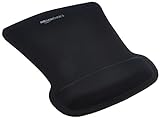
- ERGONOMIC WRIST SUPPORT: Black mouse pad with wrist rest features unique comfort gel-filled cushion that conforms to your wrists for maximum comfort and support during extended use
- SMOOTH TRACKING SURFACE: Excellent tracking surface provides smooth and precise mouse tracking for accurate cursor control and productivity
- SECURE GRIP: Rubber undersurface firmly grips the desktop to prevent sliding; special wave design offers ergonomic support for proper hand and wrist movement
- PAIN RELIEF DESIGN: Irregular shape with integrated wrist support promotes proper hand positioning to help reduce strain during computer use
- COMPACT SIZE: Measures 10.1L x 8.1W inches; ideal ergonomic mouse pad for desktop workstations and laptop setups
Use multiple monitors in Remote Desktop
Remote Desktop has its own multi-monitor setting. In the Windows Remote Desktop client, select Show Options > Display, enable Use all my monitors for the remote session, and reconnect. A Remote Desktop session can therefore behave differently from the local Windows desktop even when the physical monitor arrangement is correct.
FAQ
Why does my mouse move to the wrong monitor in Windows?
Windows is using the arrangement shown in Settings rather than the physical arrangement on your desk. Open Settings > System > Display, identify the numbered screens, drag their rectangles into the correct positions, and select Apply.
Why can the mouse cross only part of the monitor edge?
Only overlapping portions of the virtual monitor edges allow normal crossing. Move the display rectangle vertically or horizontally until it matches the physical arrangement and the required edges overlap.
Which Windows projection mode allows mouse movement between monitors?
Select Extend. Press Windows + P and choose Extend. Duplicate shows the same desktop on both screens instead of creating independent work areas.
Does making a monitor the main display control mouse movement?
No. The main display affects items such as the taskbar, Start menu, and some full-screen applications. The numbered monitor arrangement controls where the pointer crosses.
Can I stop the mouse from leaving one monitor?
Windows has no normal-desktop built-in mouse-lock switch. Use a game’s Lock cursor to window or Confine mouse cursor option, or use a suitable third-party utility.
What does Ease cursor movement between displays do?
In Windows 11, this option under Settings > System > Display > Multiple displays makes crossings easier when displays have different resolutions, scaling, or imperfectly aligned edges. It does not rearrange displays or lock the pointer.
The Bottom Line
For reliable monitor-to-monitor mouse movement, set the projection mode to Extend, then make the numbered rectangles in Settings > System > Display match the real monitor positions. Align the rectangles where you need the pointer to cross, select Apply, and use Ease cursor movement between displays in Windows 11 if different resolutions or scaling make edge crossings awkward.

