
What’s actually slowing this PC down?
Pick the symptom - the matching free tool is one click away.
iTechGuides is reader-supported. When you buy through links on our site, we may earn an affiliate commission. As an Amazon Associate I earn from qualifying purchases. Learn more
Cleaning dirty printer rollers can resolve paper-feed failures, including “out of paper” errors, missed pickups, skewed pages, jams, and multiple sheets feeding together. The safest general method is to power down and unplug the printer, wipe accessible rollers with a lightly damp lint-free cloth and manufacturer-approved fluid, let them dry fully, and test with fresh paper.
Dirty rollers are only one possible cause. Paper quality, tray guides, separator pads, sensors, duplexers, and worn rubber components can produce similar symptoms, and printer mechanisms differ substantially by model. Use the procedure below as a cautious starting point, then check the support instructions for the exact printer model before using alcohol, cleaning sheets, compressed air, or any disassembly.
Key takeaways
- Paper dust, fibers, ink residue, adhesive, and debris can reduce roller grip and cause pickup failures, jams, skewed pages, or multi-sheet feeding.
- The safest general cleaning method is a soft lint-free cloth lightly moistened with water approved by the manufacturer, followed by complete drying before printing.
- Pickup rollers, feed or separation rollers, separator pads, duplex rollers, output rollers, platen rollers, and ADF rollers serve different functions, so the visible roller may not be the one causing the fault.
- Isopropyl alcohol, glass cleaner, compressed air, cleaning sheets, and printer-tilting procedures are model-specific and should not be treated as universal recommendations.
- Cleaning cannot restore friction to rubber that is glazed, cracked, hardened, flattened, or worn; persistent failures may require a compatible replacement part or service.
How does cleaning dirty printer rollers fix paper-feed problems?
Cleaning dirty printer rollers can restore grip when contamination is preventing the rollers from pulling or separating paper correctly. Paper dust, fibers, adhesive residue, ink residue, and general debris can collect on rubber surfaces, allowing paper to slip instead of advancing through the printer.
Recommended Free Tools
Manufacturer procedures support the general pattern of powering down, removing paper, wiping accessible rollers with a soft lint-free cloth, rotating the rollers so the entire circumference is cleaned, and waiting until the rollers are dry. For example, HP’s OfficeJet 8010/8020/8030 roller-cleaning procedure specifies distilled water and approximately 10 minutes of drying for the applicable models. Brother’s paper-feed procedure likewise requires the rollers to be dry before the machine is used.
Popular on Amazon

- Versatile Compatibility: These scanner cleaning sheets work with most of laser printer,inkjet printer,scanners,copiers,nd fax machines.
- Letter Size : 8.5 x 11 inches cleaning paper Size. Quick and Simple Setup for hassle-free maintenance. Regular cleaning ensures longevity and performance.
- Premium Quality : Made from thick, durable paper, these sheets are built to last and reusable. Cleaning Sheets for scanner and copier maintenance. The cleaning sheets effectively clean the printhead and remove dust, smudges, or residue from the printer’s internal components.
- Cost-Effective & Reusable: Printer cleaning kit includes 10 printer cleaning sheets. Each inkjet cleaner sheet can be used up to 20 times, offering 200 cleans per kit. Ideal for home, school and office, enhance the printing efficiency and ensure clear and smudge-free print.
- Please Noted: If you have any problems with our printer roller cleaner sheets please feel free to contact us.
Cleaning is not a guaranteed repair. The same symptoms can result from damp paper, incorrect paper settings, a full tray, incorrectly adjusted guides, a broken separator pad, a foreign object, a failed sensor, a duplexer fault, or worn rollers.
What symptoms indicate dirty printer rollers?
Dirty or contaminated rollers are more likely when a printer’s paper-handling problem is intermittent, changes after cleaning, or affects one feed path more than another. Look for these symptoms:
- The printer reports “Out of paper” even though paper is loaded.
- The printer picks up paper inconsistently or does not pick up a sheet at all.
- Two or more sheets feed together.
- Pages enter the printer crooked or come out skewed.
- Paper jams near the input tray, rear access door, duplexer, or output path.
- Paper slips, pauses, or repeatedly needs help entering the feed path.
- An automatic document feeder (ADF) pulls multiple originals together during scanning, copying, or faxing.
- A label or thermal printer feeds inaccurately or prints with increasing skew.
- Pages show faint dirt, adhesive, or other contamination transferred from a roller.
These symptoms are clues, not proof. Before cleaning, inspect the paper stack, tray, guides, and paper path. HP’s paper-feed troubleshooting guidance recommends removing damaged sheets and scraps, squaring the stack, checking for obstructions, and positioning the paper guides correctly.
When is the problem probably something other than dirty rollers?
Investigate other causes first when the problem began immediately after loading a different paper type, occurs only with duplex printing, follows a paper jam with torn scraps left inside, or continues unchanged after a correct cleaning procedure.
- Paper may be damp, curled, wrinkled, torn, excessively smooth, or unsuitable for the printer.
- The tray may be overfilled, or the guides may be too loose or pressing too tightly against the stack.
- The selected paper size or type may not match the loaded paper.
- A fragment of paper or another object may block a sensor or roller.
- A rubber roller may be shiny, cracked, hardened, flattened, or visibly worn.
- A separator pad, separation roller, tray, gear, sensor, duplexer, driver, firmware component, or other mechanism may have failed.
Which printer rollers need cleaning?
The correct roller depends on where the failure occurs. Cleaning only the most visible roller may leave the actual problem untouched.
| Component | What it does | Symptoms when its area is dirty or worn | Typical access area |
|---|---|---|---|
| Pickup roller | Grabs the first sheet from the input tray. | No pickup, intermittent pickup, or an “out of paper” message with paper loaded. | Tray cavity, underside, or a rear or internal access point. |
| Feed or separation roller | Moves paper forward and helps control separation. | Slipping, jams, skew, or inconsistent movement. | Paper path, rear cover, or internal mechanism. |
| Separator pad | Stationary friction surface that works with the pickup or separation roller. | Multiple sheets feeding together. | Near the pickup area or inside the ADF. |
| Duplex rollers | Reverse and guide paper during two-sided printing. | Duplex-only jams, skew, or failed second-side feeding. | Duplexer or rear paper-path cover. |
| ADF rollers | Feed original documents during scanning, copying, or faxing. | ADF misfeeds, multiple originals feeding together, or skewed scans. | Under the ADF cover. |
| Platen roller | Supports or transports paper in some compact, thermal, label, and specialty printers. | Skew, feed inaccuracies, or contamination transferred to media. | Label-roll compartment or the model’s designated paper path. |
| Output rollers | Move printed paper toward the exit. | Exit jams, skew near the output, or marks on the finished page. | Output path or rear access area. |
For example, an ADF-only problem calls for ADF roller and separator-pad inspection, not just cleaning the printer’s main paper-tray pickup roller. Brother’s pickup-roller instructions identify both rollers and separator pads, while HP’s OfficeJet Pro guidance covers rear rollers, duplex rollers, ADF rollers, and related paper-feed areas.
What supplies are safe for cleaning printer rollers?
Start with a soft, lint-free microfiber cloth, a small amount of the fluid named by the printer’s manual, a dry lint-free cloth, a flashlight, and fresh plain printer paper for testing. Distilled or filtered water is a common manufacturer-specified option, but the printer’s exact instructions take priority.
Do these 3 things before closing this tab:
1Scan for outdated or missing drivers - takes under a minute2Repair Windows errors before they cause bigger problems3Fix the driver behind crashes, sound loss and screen glitches- Soft lint-free cloth: Use it to avoid leaving fibers on the rubber surface. Brother specifically warns against rough or abrasive cloths that can leave material behind.
- Distilled or filtered water: Use this when the manufacturer specifies it. Several HP procedures call for distilled, bottled, filtered, or warm water depending on the model and component.
- Cotton swabs: Use them only if the exact manual permits them and only in narrow, accessible areas.
- Manufacturer-approved cleaning sheet: Use one only in a printer designed for that sheet or whose manual specifically requires it.
- Flashlight: A flashlight helps reveal scraps, adhesive, and dust without poking into the mechanism.
Do not assume isopropyl alcohol is safe for every printer. Brother permits water, isopropyl alcohol, or nonflammable glass cleaner for certain paper-feed rollers, but another Brother procedure says that a specified platen roller must be cleaned only with a designated cleaning sheet. The difference is model- and component-specific.
What should you not use on printer rollers?
Do not spray liquid directly into the printer or soak a roller. Avoid paper towels, tissues, napkins, abrasive cloths, household solvents, acetone, paint thinner, benzene, and abrasive cleaners. Do not scrape rubber with a tool, pull hard on a roller, or blindly direct compressed air into the mechanism.
Also popular on Amazon
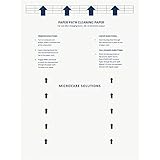
- Made in the USA: Microcare Solutions premium pack includes 10 high-quality printer cleaning sheets, each designed to be reused up to 20 times, giving you an exceptional quantity to meet all your regular and long-term cleaning needs. Manufactured in the USA, these sheets ensure you receive a reliable and effective product for maintaining your office equipment. Whether you have a bustling home office or a large workplace with multiple printers and scanners, this bulk pack is perfect for keeping your machines running smoothly.
- Universal Compatibility for Multiple Printer Types: These printer cleaning sheets, measuring a standard size of 8.5 x 11 inches, are designed to be compatible with a wide range of printer and scanner models, including both inkjet and laser printers. Their versatile design makes them suitable for virtually any office or home setup, helping to clear out paper jams, dust, dirt, and toner buildup across various brands and models. These sheets are built to the highest standards of quality and reliability, ensuring they perform consistently with all major printer types.
- Enhance Printing Efficiency and Clarity: Experience a noticeable improvement in your printing process with these specially designed cleaning sheets. By regularly running these sheets through your printer or scanner, you’ll prevent issues such as ink smudging, misfeeds, and paper jams. They effectively remove debris, dust, and dirt from internal components, leading to sharper, clearer, and more vibrant printouts. This product guarantees high performance, helping you maintain optimal printing efficiency with minimal effort while avoiding costly service calls.
- Preserve Your Printer and Extend its Lifespan: Regular use of these cleaning sheets significantly contributes to extending the life of your printers and scanners. Dust, dirt, and paper particles that accumulate inside the machine can lead to poor print quality and frequent maintenance needs. By using these sheets weekly, you help reduce wear and tear on critical components, ensuring that your printers stay in top condition for longer. This maintenance solution allows you to invest in the long-term performance of your equipment while reducing the risk of costly breakdowns and repairs.
- Eliminate Double Printing, Ghosting, and Reprints: Designed to address common printing issues like double printing, ghosting, and misaligned prints, these cleaning sheets help you achieve consistently crisp, professional-quality printouts. Their deep-cleaning action ensures that internal printer mechanisms, such as rollers and paper paths, remain free of debris and excess toner. This not only reduces the likelihood of frustrating print errors but also cuts down on the need for reprints, saving time, resources, and paper. These sheets are a dependable choice for keeping your printers performing at their best.
Compressed air is not automatically forbidden, but it is not a universal cleaning solution. A specific HP document-feeder procedure mentions compressed air for that procedure, while other printer mechanisms may be damaged or contaminated further when dust is blown deeper inside. Follow the exact model instructions.
Keep fluid away from encoder strips, belts, sensors, gears, circuit boards, printheads, toner areas, and electrical contacts. A damp cloth should be damp—not dripping—and liquid should never pool inside the printer.
What safety steps come before cleaning?
- Stop active printing, copying, or scanning jobs.
- Remove paper from the input tray and remove loose trays or accessories only as the manual directs.
- Turn the printer off normally.
- Unplug the power cord before reaching inside or tilting the unit. Brother’s paper-feed instructions include unplugging the machine to reduce electric-shock risk.
- If the printer is a laser model, allow hot fuser components to cool before opening the paper path. Never touch or dismantle the fuser while it is hot.
- Remove an ink or toner cartridge only when the model’s procedure explicitly requires removal.
- Do not force a cover, tray, duplexer, roller, or gear.
- If the printer must be moved, photograph cable and tray positions first. Have another person help with a heavy unit.
- Do not place the printer on its side unless the manufacturer’s instructions explicitly allow or require that access method.
Some HP OfficeJet procedures require carefully placing the printer on its side to reach underside rollers, but that instruction applies to the specified models and should not be generalized to every inkjet, laser, label, or multifunction printer.
How do you clean paper-feed rollers safely?
The following is a model-agnostic starting procedure for accessible paper-feed rollers, not a replacement for the exact printer manual.
1. Rule out simple paper problems
Remove bent, curled, damp, torn, or heavily wrinkled sheets. Remove scraps and foreign objects that are visible without tools. Fan and square a fresh paper stack, load only the amount allowed by the tray, and adjust the guides so they lightly touch the stack without squeezing it. Confirm that the selected paper size and type match the loaded paper.
2. Find the correct access point
Check the manufacturer’s support site for the exact model. The relevant rollers may be in the paper-tray cavity, behind a rear access door, beneath the printer, inside a duplexer, near the cartridge or toner area, in the output path, or under the ADF cover. Similar model names can have different access procedures.
Quick wins for a faster PC:
Repair Windows errors before they cause bigger problemsFix Now →Fix the driver behind crashes, sound loss and screen glitchesFind Drivers →3. Prepare the cloth
Moisten the lint-free cloth with the model-approved fluid, then wring it until no liquid can drip. Keep a second dry lint-free cloth ready. HP commonly specifies distilled water for applicable models, while Brother’s general procedure uses a soft lint-free cloth moistened with water.
4. Wipe every relevant roller
Press the damp cloth gently against the roller and rotate the roller by hand only where the model permits it. Continue rotating until the entire circumference has been wiped, not just the exposed section. Clean the opposing roller, other accessible feed rollers, and the separator pad when the manufacturer identifies the pad as part of the feed system.
Do not pull on an encoder strip, belt, sensor flag, or gear while trying to rotate a roller. If the roller will not turn easily, stop and follow the model-specific procedure instead of forcing it.
Also popular on Amazon

- Package List: You will receive 15 pieces of professional printer cleaning paper designed to safely clean inkjet, laser label printers. Effectively removes dust, ink residue, and paper dust for clear printing.
- Perfect Standard Size: Each sheet measures about 8.5x11in/28.5x21cm, compatible with most standard printers. Easy to insert and use without cutting or trimming.
- Good-Quality Material: Made of thick all-wood pulp offset paper with strong adsorption and toughness. Not easy to tear during cleaning, protecting print heads and rollers from damage.
- Easy to Use & Reusable: Simply load a sheet into your printer as you would regular paper and run a print cycle. No special setup, sprays, or solutions required. The thick, durable material holds up to repeated use, making printer maintenance quick, easy, and highly effective.
- Widely Applicable: Suitable for home, office, shop printers. Regular use extends printer life, improves print quality, and prevents streaks or blurs.
5. Wipe away moisture
Use the dry lint-free cloth to remove visible moisture from the rollers and nearby accessible surfaces. Do not close the printer around a wet cloth or leave liquid pooled in a tray cavity.
6. Let the rollers dry completely
Leave covers open where practical and wait for the time specified by the manufacturer. HP specifies approximately 10 minutes for several OfficeJet procedures, while an older HP procedure specifies 10–15 minutes. Those times are manufacturer-backed examples, not a universal drying rule. Brother says not to use the machine until the rollers are dry.
7. Reassemble and test
- Reinstall the paper tray, rear cover, duplexer, cartridge, or paper-path cover as directed.
- Reconnect the power cord and turn the printer on.
- Wait for initialization to finish.
- Load a small stack of fresh, ordinary paper.
- Print or copy several test pages.
- Test duplex printing separately if the original fault occurred during two-sided printing.
- Test the ADF separately if scanning or copying was affected.
For some HP printers, a blank page printed on thicker photo paper can help carry debris through the paper path, but HP describes that as a model-specific paper-jam procedure. Do not use the technique as a universal substitute for manual cleaning.
How do you clean ADF rollers?
ADF rollers require a separate procedure because they feed original documents rather than print paper. Open the ADF cover at the designated access point, remove visible scraps, and clean the ADF pickup roller and separator pad with the fluid and cloth specified by the exact model. Do not assume that cleaning the main paper-tray rollers will affect ADF feeding.
Clean the full accessible circumference where the model permits roller rotation, wipe away moisture, and wait until the ADF components are completely dry. Test with a few clean, flat originals. If multiple pages still feed together, the separator pad or ADF roller may be worn rather than dirty. HP’s document-feeder roller guidance demonstrates why ADF cleaning instructions should be followed separately from paper-feed instructions.
When should you use a printer cleaning sheet?
Use a cleaning sheet only when the printer’s manual specifically supports that sheet or requires it. Cleaning sheets are particularly relevant to selected label, thermal, mobile, and specialty printers, but they are not interchangeable with ordinary inkjet or laser-printer roller cleaning.
Some Brother label-printer procedures use a one-time adhesive cleaning sheet to remove lint and dirt from a roller. A separate Brother platen-roller procedure restricts cleaning that component to a designated cleaning sheet. Epson documentation also describes model-specific roller-cleaning functions and materials: the Epson SureColor P800 guide includes a roller-cleaning mode, while Epson’s CW-C6000/C6500 technical reference warns that using an unapproved cleaning material could damage the roller.
Search the manufacturer’s support site using the exact model and one of these phrases: [exact model] clean paper feed rollers, [exact model] pickup roller cleaning, [exact model] roller cleaning sheet, or [exact model] paper feed maintenance.
What should you check if the printer still will not pick up paper?
If cleaning does not resolve a pickup failure, inspect the printer in this order:
Also popular on Amazon
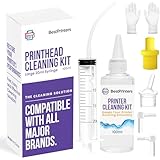
- High Success Rate: Save hundreds of dollars with our best printing cleaning kit for restoring print quality on inkjet printers. Access additional video support of the best printers cleaning kit on YouTube Channel. Remember to run a printhead or power cleaning after use to bring ink back into the printhead
- User-Friendly Design: DIY Print Head Cleaning Kit for Epson. No expertise is required! This cleaning kit fixes common printing issues like discoloration, missing colors, low-quality prints, blank pages and streaks
- Wide Compatibility: Works with popular printer models, including Epson EcoTank, Epson WorkForce HP SmartTanks, HP OfficeJet, Canon Pixma, Brother MFC, DTF, Sublimation and many more.
- Complete Cleaning Solution: Includes a LARGE 20ml print head cleaner syringe and multiple attachments for hp officejet printhead cleaning kit. Our ionized cleaning solution is safe to use on all printer components
- Complete Printhead Cleaning Solution: Includes specialized cleaning fluid, syringes, and tools; printer cleaning kit flush cleaner removes dried ink buildup; extends printhead lifespan and delays replacement
- Try fresh, flat, appropriate paper.
- Check the tray load limit and paper-guide position.
- Look for foreign objects and torn paper in every manufacturer-approved access area.
- Inspect the separator pad and separation roller.
- Check all pickup rollers, including rollers under the printer or behind a rear cover if the manual identifies them.
- Inspect the duplexer and rear paper path if the fault occurs during duplex printing.
- Inspect the ADF rollers and separator pad if the problem occurs only during scanning, copying, or faxing.
- Look for shiny, cracked, hardened, flattened, or visibly damaged rubber.
- Search the exact model’s error code in the manufacturer’s support documentation.
- Use warranty or professional service when the mechanism is inaccessible or the fault persists.
Cleaning cannot restore the original friction of worn rubber. HP directs users toward service or replacement when the applicable cleaning and troubleshooting steps do not solve the issue.
Why does the printer feed multiple sheets?
Multiple-sheet feeding often involves the separator pad or separation roller, not just the pickup roller. Inspect the separator mechanism, reduce the stack to the tray’s allowed amount, square and fan the paper, and test with dry paper of the recommended type.
A dirty pickup roller can contribute to poor separation, but cleaning only that roller will not repair a worn separator pad. The ADF has its own separator components, so an ADF that pulls several originals at once needs ADF-specific inspection.
Independent reader supportYour contribution helps us test, update, and keep practical guides available for everyone.Why are pages entering the printer crooked?
Skew usually points to paper-guide alignment, uneven roller grip, a damaged tray, or a dirty or worn platen or output roller. Set both guides evenly against the paper stack, test with fresh paper, and clean the relevant rollers rather than only the easiest roller to see.
Crashes, No Sound, or Screen Glitches?
Random freezes, missing sound and display glitches usually trace back to one bad driver. Find and replace yours safely.Free scan · under a minutePC Slower Than It Used to Be?
A free scan shows the junk files, broken settings and background clutter dragging Windows down - then fixes them in one click.Free scan · Windows 10 & 11For label and specialty printers, media alignment and platen condition are especially important. Brother notes that platen-roller dirt can feed paper at an angle and affect print quality.
What should you do when paper jams inside a laser printer?
Turn off and unplug the laser printer, allow hot components to cool, and follow the model’s paper-jam procedure. Feed-roller cleaning is separate from paper-path debris removal, toner or drum maintenance, and fuser maintenance.
Never touch a hot fuser, dismantle the fuser, or reach into high-voltage areas as part of a roller-cleaning attempt. If a jam repeatedly occurs near the fuser or the printer requires major disassembly, use qualified service instead of extending a simple cleaning task into a hazardous repair.
How often should printer rollers be cleaned?
There is no universal monthly or page-count cleaning schedule that applies to every printer. Clean when symptoms appear or when the exact model’s maintenance instructions call for cleaning. Keep the tray and paper path free of scraps, store paper sealed and flat, use media appropriate for the printer, and replace rollers or pads according to the model’s service instructions.
The Tool Desk
Outbyte Driver Updater FREEScan for outdated or missing drivers - takes under a minuteDriver Scan →Outbyte PC Repair FREEClear out junk files and repair common Windows errorsFree Scan →Replacement intervals are component-specific. For example, Epson lists a 300,000-scan replacement recommendation for a particular scanner pickup roller accessory. That figure must not be generalized to ordinary printers or other scanner models.
Also popular on Amazon

- Package List: You will receive 15 pieces of professional printer cleaning paper designed to safely clean inkjet, laser label printers. Effectively removes dust, ink residue, and paper dust for clear printing.
- Perfect Standard Size: Each sheet measures about 28.5x21cm/11x8.5in, compatible with most standard printers. Easy to insert and use without cutting or trimming.
- Good-Quality Material: Made of thick all-wood pulp offset paper with strong adsorption and toughness. Not easy to tear during cleaning, protecting print heads and rollers from damage.
- Easy to Use & Reusable: Simply load a sheet into your printer as you would regular paper and run a print cycle. No special setup, sprays, or solutions required. The thick, durable material holds up to repeated use, making printer maintenance quick, easy, and highly effective.
- Widely Applicable: Suitable for home, office, shop printers. Regular use extends printer life, improves print quality, and prevents streaks or blurs.
When should you replace the rollers or call for service?
Replace a roller when the exact part is compatible with the printer and the rubber is visibly glazed, cracked, hardened, flattened, or worn, or when the feed problem returns immediately after proper cleaning. Replacement may also be necessary when multiple-sheet feeding continues because the separator pad has lost friction.
DIY cleaning is reasonable when the rollers are accessible, the procedure requires no disassembly, and the manufacturer identifies the task as user-maintainable. Choose service when access requires major disassembly, the printer is under warranty, a gear, shaft, sensor, tray, or cover is broken, a laser fuser or high-voltage section is involved, or repeated jams continue after cleaning.
Use the exact model and part number when shopping. Manufacturer parts are not universal. For example, the Epson B12B819611 pickup roller is for compatible Epson scanners, not general-purpose printers. Brother’s PURA0001 pickup roller and PRKA2001 roller kit likewise apply only to specified scanner models. Canon’s exchange roller page showed an “as low as $87.00” price signal during the research pass but also identified the item as discontinued and unavailable, so it should not be treated as a currently purchasable option.
Free tools Windows power users keep installed
One-click scans. No signup required.
HP maintains a printer maintenance kit page, but there is no single universal kit for every HP printer. Business-printer owners who need professional installation can review HP’s maintenance-kit replacement service document.
Manufacturer-specific cautions
- HP: Applicable OfficeJet procedures commonly specify distilled water, roller rotation, and approximately 10 minutes of drying. Some models expose underside rollers or require a model-specific access position.
- Brother: General paper-feed guidance commonly uses a water-moistened lint-free cloth and requires complete drying. Some models permit isopropyl alcohol or nonflammable glass cleaner, while certain platen rollers require only a designated cleaning sheet.
- Epson: Some photo, commercial, label, and specialty models provide a roller-cleaning mode or specify an approved cleaning material. Follow the model’s software or control-panel instructions rather than assuming a manual wipe is appropriate.
- Canon and other brands: Access points, fluids, cleaning sheets, replacement parts, and maintenance menus vary by model. Search the manufacturer’s support site using the full model number.
Frequently Asked Questions
Can I use rubbing alcohol to clean printer rollers?
Use rubbing alcohol only when the exact printer manual or manufacturer support procedure allows it. Water is the safer general starting point because HP and many Brother procedures specify water, while some Brother models separately permit isopropyl alcohol for particular rollers.
How long should printer rollers dry after cleaning?
Printer rollers must be completely dry before printing. Approximately 10 minutes is specified for several HP OfficeJet procedures, and an older HP procedure specifies 10–15 minutes, but the exact model’s instructions take priority.
Why does my printer say out of paper when paper is loaded?
An “out of paper” message can result from dirty or worn pickup rollers, but damp paper, incorrect guides, an overloaded tray, paper scraps, a separator-pad problem, a sensor fault, or an incorrect paper setting can cause the same message.
Recommended Free Tools
Can cleaning fix worn printer rollers?
Cleaning cannot restore friction to rubber that is glazed, cracked, hardened, flattened, or worn. Replace the exact compatible roller or separator pad, or arrange service when the problem persists after proper cleaning.
The Bottom Line
Clean printer rollers when contamination is a plausible cause, but begin with paper, tray, and guide checks and use the exact model’s instructions. Unplug the printer, use only an approved fluid or cleaning sheet, clean the relevant roller and separator components, let everything dry completely, and test each affected feed path. Persistent or immediately recurring failures usually indicate worn parts, a damaged mechanism, or a sensor or service issue rather than dirt alone.

