
Outdated Drivers Are Slowing You Down
One free scan finds every outdated or missing driver and matches the right update for your exact hardware.Free scan · exact hardware matchPC Slower Than It Used to Be?
A free scan shows the junk files, broken settings and background clutter dragging Windows down - then fixes them in one click.Free scan · Windows 10 & 11iTechGuides is reader-supported. When you buy through links on our site, we may earn an affiliate commission. As an Amazon Associate I earn from qualifying purchases. Learn more
Yes, you can connect a compatible mouse to most modern Samsung Galaxy tablets through Bluetooth or USB. Bluetooth is usually the easiest option; a USB-C mouse can plug in directly, while a USB-A mouse or wireless receiver normally needs a data-capable USB-C OTG adapter or hub. DeX is optional, not required.
A mouse works in the regular Android tablet interface as well as Samsung DeX on supported Galaxy Tab models. The exact experience depends on the tablet model, One UI version, available port, and whether the mouse relies on Android-compatible software or a proprietary receiver.
Key takeaways
- Most modern Samsung Galaxy tablets support compatible Bluetooth mice, wired USB mice, and wireless mice that use a USB receiver.
- Bluetooth is the best default for most tablet users because it requires no adapter and leaves the tablet’s USB-C port free for charging.
- A USB-A mouse or receiver usually needs a USB-C OTG adapter or USB-C hub with USB data support; a charge-only adapter will not work.
- A mouse works outside DeX, while Samsung DeX adds desktop-style windows, file management, and more precise navigation on supported tablets.
- Basic movement, clicking, and scrolling are more reliable on Android than custom buttons, macros, RGB controls, DPI profiles, or app-specific shortcuts.
What do you need before connecting a mouse to a Samsung tablet?
Before connecting a mouse, identify the tablet’s port, the mouse’s connection type, and the accessories required for that connection. Most modern Galaxy Tabs use USB-C, but older tablets may use Micro-USB or a less common connector, and DeX availability varies by model.
The Tool Desk
Outbyte PC Repair FREERepair Windows errors before they cause bigger problemsFix Now →Outbyte Driver Updater FREEFix the driver behind crashes, sound loss and screen glitchesFind Drivers →| Mouse type | What the tablet needs | Best for | Main limitation |
|---|---|---|---|
| Bluetooth mouse | Working Bluetooth | Most tablet owners, travel, keyboard-cover use, and DeX | Requires pairing and battery power |
| USB-C wired mouse | Available USB-C port | Simple desk use and Bluetooth troubleshooting | Uses the charging/data port |
| USB-A wired mouse | USB-C OTG adapter or USB-C hub with data support | Using an existing desktop mouse | Needs an adapter and occupies the port |
| Wireless USB-receiver mouse | USB-C OTG adapter or USB-C hub, plus the correct receiver | Users who prefer a receiver-based wireless connection | The receiver may be proprietary and is not automatically interchangeable |
Samsung’s official keyboard and mouse connection guidance explains that an OTG adapter may be required when a USB-A accessory connects to a USB-C mobile device. A basic mouse needs only a data-capable OTG adapter; a hub becomes useful when you also need a keyboard, storage, charging passthrough, or HDMI output.
Popular on Amazon
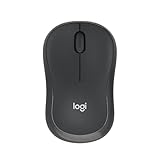
- Pair and Play: With fast, easy Bluetooth wireless technology, you’re connected in seconds to this quiet cordless mouse —no dongle or port required
- Less Noise, More Focus: Silent mouse with 90% reduced click sound and the same click feel, eliminating noise and distractions for you and others around you (1)
- Long-Lasting Battery Life: Up to 18-month battery life with an energy-efficient auto sleep feature, so you can go longer between battery changes (2)
- Comfortable, Travel-Friendly Design: Small enough to toss in a bag; this slim and ambidextrous portable compact mouse guides either your right or left hand into a natural position
- Long-Range: Reliable, long-range Bluetooth wireless mouse works up to 10m/33 feet away from your computer (3)
Do not assume that every mouse advertised as “wireless” uses Bluetooth. Some wireless mice communicate only with a USB receiver. Check the exact model and package contents before buying, particularly if you want to avoid an adapter.
How do you connect a Bluetooth mouse to a Samsung tablet?
To connect a Bluetooth mouse, put the mouse into pairing mode and select it from the tablet’s Bluetooth settings. Samsung’s documented menu path is Settings > Connections > Bluetooth, although labels can vary by Galaxy Tab model and One UI version.
- Turn on the mouse.
- Insert batteries or charge the mouse if necessary.
- Press and hold the mouse’s Bluetooth or pairing button until its indicator flashes. The button and required hold time vary by manufacturer.
- On the tablet, open Settings.
- Tap Connections, then Bluetooth.
- Turn Bluetooth on if it is disabled.
- Under Available devices, tap the mouse’s name.
- Tap Pair or confirm the pairing request if the tablet displays one.
- Move the mouse and test the buttons and scroll wheel.
After a successful connection, a pointer should appear on the tablet. Left-click normally selects or opens items, and the scroll wheel generally works in compatible pages and documents. Right-click behavior depends on the Android or One UI version, the app, and the interface being used.
If the mouse does not appear, make sure the mouse is genuinely in pairing mode and is not still connected to a computer, phone, or another tablet. Many Bluetooth mice connect to only one active device at a time unless the mouse specifically supports multi-device switching.
How do you connect a USB mouse or wireless receiver?
A USB mouse connects through the tablet’s USB-C port, either directly or through an OTG adapter or hub. A USB-C mouse can usually connect directly; a USB-A mouse or receiver needs a USB-C accessory that supports USB host or OTG data.
USB-C wired mouse
- Turn on the tablet.
- Plug the USB-C mouse into the tablet’s USB-C port.
- Wait briefly for the tablet to recognize the mouse.
- Move the mouse and test clicking and scrolling.
A direct USB-C connection avoids Bluetooth pairing and does not require mouse batteries, but the port cannot simultaneously be used for ordinary charging unless you use a suitable hub with charging passthrough.
USB-A wired mouse
- Connect a USB-C OTG adapter or USB-C hub to the tablet.
- Plug the mouse’s USB-A connector into the adapter or hub.
- Move the mouse and test the pointer.
- If there is no response, unplug and reconnect the adapter and mouse.
The adapter must support data and USB host functionality. A charge-only USB-C adapter may physically fit but cannot provide the connection a mouse needs.
Also popular on Amazon

- Convenient Portable Mouse for Laptops and Tablets: The Logitech M196 Bluetooth Wireless Mouse connects in seconds with a reliable pair-and-play Bluetooth connection, no dongle or port required, and works with MacBook Neo laptops and other Apple, Windows, and Chromebook devices
- Comfortable, Travel-Ready Design: This Bluetooth travel mouse is lightweight and fits in any bag; its contoured, ambidextrous shape is comfortable for both left and right hands
- Works on a Variety of Surfaces: With precise line-by-line scrolling and optical tracking; the M196 Wireless Bluetooth Mouse provides smooth and accurate cursor control on nearly any surface
- Made to Last With Recycled Plastic: The plastic parts in the M196 contain certified post-consumer recycled plastic (67% for Graphite and 66% for Off-White and Rose (2))
- 12-Month Battery Life: Enjoy a reliable 12-month battery life (1) and auto sleep feature for longer use between battery changes; 1 AA battery included
Wireless mouse with a USB receiver
- Connect a USB-C OTG adapter or USB-C hub to the tablet.
- Insert the mouse’s USB receiver into the adapter or hub.
- Turn on the mouse.
- Move the mouse and test clicking.
A receiver-based mouse is not the same as a Bluetooth mouse. The receiver normally must remain plugged into the tablet, and a receiver from one manufacturer or product family may not work with another mouse. If the receiver is not detected, reconnect it securely and try another hub port where one is available. Samsung provides separate guidance for wireless USB-receiver troubleshooting and wired USB troubleshooting.
Does a mouse work outside Samsung DeX?
Yes. A compatible mouse works in the normal Samsung Galaxy tablet interface, so you do not need to enable DeX for web browsing, document editing, file management, or other ordinary Android tasks.
Samsung DeX is an optional desktop-style interface that makes a mouse more useful. On a supported Galaxy tablet, open the Quick settings panel by swiping down from the top right with two fingers, then tap Samsung DeX. Samsung explains that standalone DeX can run directly on a compatible Galaxy tablet without an external monitor.
In DeX, a USB or Bluetooth mouse can help with window controls, dragging, resizing, file management, spreadsheets, and document editing. A mouse can also be used when DeX is displayed on a compatible monitor or TV, but the required cable, hub, and display arrangement depends on the tablet and setup.
What’s actually slowing this PC down?
Pick the symptom - the matching free tool is one click away.
DeX does not turn every Android app into a Windows or macOS application. Some Android apps remain touch-first, handle dragging poorly, or do not implement desktop-style right-click, hover, or keyboard behavior. A mouse improves navigation; it does not guarantee laptop-level support inside every app.
Which mouse settings can you change?
Samsung DeX includes controls for pointer behavior, including pointer speed, the primary mouse button, wheel-scrolling speed, enhanced pointer precision, pointer size, and pointer color. Samsung’s documented DeX path is Settings > Connected devices > Samsung DeX > Mouse and trackpad > More settings; the exact path can differ outside DeX and between One UI versions.
If that path is not present, search the tablet’s Settings app for Mouse, Trackpad, or Pointer. Accessibility settings may also contain pointer-size or pointer-visibility controls. Samsung’s Bluetooth mouse and DeX troubleshooting instructions provide the relevant settings and recovery options.
Also popular on Amazon

- Convenient Portable Mouse for Laptops and Tablets: The Logitech M196 Bluetooth Wireless Mouse connects in seconds with a reliable pair-and-play Bluetooth connection, no dongle or port required, and works with MacBook Neo laptops and other Apple, Windows, and Chromebook devices
- Comfortable, Travel-Ready Design: This Bluetooth travel mouse is lightweight and fits in any bag; its contoured, ambidextrous shape is comfortable for both left and right hands
- Works on a Variety of Surfaces: With precise line-by-line scrolling and optical tracking; the M196 Wireless Bluetooth Mouse provides smooth and accurate cursor control on nearly any surface
- Made to Last With Recycled Plastic: The plastic parts in the M196 contain certified post-consumer recycled plastic (67% for Graphite and 66% for Off-White and Rose (2))
- 12-Month Battery Life: Enjoy a reliable 12-month battery life (1) and auto sleep feature for longer use between battery changes; 1 AA battery included
Basic pointer movement and primary clicking usually work without an app. Side buttons, DPI switching, gesture buttons, macros, RGB lighting, and application-specific profiles may require manufacturer software that is designed for Windows or macOS and is unavailable or limited on Android.
Do these 3 things before closing this tab:
1Fix the driver behind crashes, sound loss and screen glitches2Repair Windows errors before they cause bigger problems3Scan for outdated or missing drivers - takes under a minuteWhat are the benefits of using a mouse with a Galaxy Tab?
A mouse adds precision and reduces the need to touch the screen. The improvement is most noticeable when the tablet is on a stand or keyboard cover rather than being held in the hands.
- More precise selection: A pointer is useful for small controls, text editing, spreadsheet cells, and browser links.
- Easier dragging: Dragging files, selecting text, moving objects, and resizing DeX windows can be more comfortable with a physical mouse.
- Better desk productivity: A mouse pairs naturally with a keyboard, stand, external monitor, office apps, and cloud-storage tools.
- Accessibility: Some users find a pointer easier than repeated tapping, sustained dragging, or touch gestures.
- Creative and gaming use: A mouse may help in compatible games, drawing applications, design tools, and remote-desktop software, but each app determines how mouse input works.
- Less screen touching: A mouse keeps fingerprints off the display during desk-based work.
Touch remains better for swiping, pinch-to-zoom, handwriting, and apps designed specifically around gestures. A mouse is an additional input method, not a universal replacement for the touchscreen or S Pen.
Bluetooth or USB: Which mouse connection should you choose?
Bluetooth is the best default for most Galaxy Tab owners, but USB can be the better choice when reliability, low latency, or troubleshooting matters more than keeping the port free.
| Choose this | When it makes sense | Trade-off |
|---|---|---|
| Bluetooth mouse | You want the simplest portable setup without an adapter. | You must manage pairing and battery power. |
| USB-C mouse | You work at a desk or want to bypass Bluetooth problems. | The mouse occupies the tablet’s USB-C port. |
| USB-A mouse plus OTG adapter | You already own a reliable wired mouse. | You need a compatible data adapter. |
| Wireless receiver mouse | You prefer a receiver-based connection or already own one. | The receiver needs an adapter and may be proprietary. |
| Keyboard cover with trackpad | You want an integrated laptop-style case, keyboard, stand, and pointing surface. | Compatibility is model-specific and the cover can cost more than a basic mouse. |
When choosing a mouse, check Bluetooth support, Android compatibility, battery type, portability, click noise, scroll-wheel quality, ergonomics, multi-device switching, and whether a USB receiver is included. Do not pay extra for Windows- or macOS-only customization unless you also plan to use the mouse with those computers.
Quick wins for a faster PC:
Fix the driver behind crashes, sound loss and screen glitchesFind Drivers →Repair Windows errors before they cause bigger problemsFix Now →Scan for outdated or missing drivers - takes under a minuteDriver Scan →A compact Bluetooth model such as the Logitech Pebble Mouse 2 M350s is the type of product that suits a travel-focused tablet setup, but verify the exact model and package because Bluetooth support and proprietary receiver support are different features. A larger ergonomic or multi-device mouse may be more comfortable for long desk sessions but will be less portable and may offer Android users fewer customization options than Windows or macOS users.
How do you fix a mouse that does not appear in Bluetooth?
When a Bluetooth mouse is missing from the tablet’s available-device list, start with power and pairing mode before changing tablet settings.
Also popular on Amazon
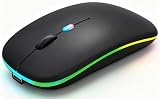
- 【Dual Mode Wireless Bluetooth Mouse】:(BT5.2/3.0 and 2.4G)Dual Mode Realize the Free Switching of One Computer Mouse Between Two Devices.Bluetooth Mouse Mode Can Connect One Device Through BT5.2/3.0 and Wireless Mouse Mode Another Device Through a 2.4G USB Receiver,No Need to Install any Driver,Plug and Play;Wireless/Bluetooth Technology Provides Powerful and Reliable Connection,Which Can Enables Fast Data Transmission Without Delays or Dropouts,Effective Up to 10 Meters(33 feet)of Range;Note:The USB Receiver is Stored Inside The Back of The Mouse.You Can't Use Bluetooth Mode and 2.4G Mode At the Same Time
- 【Rechargeable Wireless Mice Save Energy】:Cordless Mouse Built-in Durable 500mAh Rechargeable Battery, High Cycle Life;LED Wireless Mouse No Need Change Battery,It Can Be Easily Charged Using the Included USB Cable,Just 2 Hours Charging,You Can Use Than 7 Days of Working Time and 30 Days of Standby Time,Standby Time is Very Long;The Laptop Mouse Wireless will enter a sleep state after 5 minutes of inactivity,which saves power and can be used for a long time;You Can Wake USB Mouse Up By Clicking any Button
- 【Colorful LED Breathing Light】:This Tablet Mouse With 7 Different LED Colorful Breathing Lights,Wireless Laptop Mouse for Laptop 7 Different Color Changes Randomly While in Use,Offering Soothing Lighting;Creating Cool and Fancy Atmosphere for Work and Play;LED Mouses Can Give You More Fun During
- 【3 Adjustable DPI Levels】:Wireless Computer Mouse with 800 / 1200 / 1600 DPI Resolution Optical Tracking Technology provides more sensitivity than standard optical mice for smooth and precise tracking on a wide range of surfaces;you can freely choose your cursor speed,reduces muscle fatigue and boost your workflow.whether working on spreadsheets,browsing the web,or gaming,this wireless mouse will ensure smooth and responsive performance
- 【Wide Compatibility Wireless Mouse】:This Wireless Bluetooth Mouse for Laptop,PC/Tablet/Mac/ipad/iphone;It is Compatible With Android/Chromebook/Windows/Vista/Linux/Notebook/Mac OS and Other Devices;Suitable for Homes、Offices、Travel and More
- Confirm that the mouse is switched on.
- Replace the batteries or recharge the mouse.
- Put the mouse back into Bluetooth pairing mode.
- Disconnect the mouse from any computer, phone, or other tablet.
- Turn Bluetooth off and on in the tablet’s Bluetooth settings.
- Restart the mouse.
- Restart the tablet.
- If the mouse was previously paired, open its Bluetooth options, choose Unpair, and pair it again.
- Test the mouse on another device.
- Install available tablet software updates.
Testing the mouse on another device separates a faulty mouse or battery from a tablet-side pairing problem. Samsung recommends these checks, including power checks, unpairing and repairing, restarting, and checking for software updates.
What if the mouse is paired but the pointer does not move?
A paired mouse with no movement usually has a stale connection, low battery, another active connection, or a problem limited to the current app.
- Move the mouse and click once to wake it.
- Switch the mouse off and on.
- Check the battery or charge level.
- Confirm that another device has not taken over the connection.
- Test the pointer on the tablet’s Home screen or in Settings.
- Unpair and re-pair the mouse if the pointer still does not respond.
- Test the mouse on another device.
- If the pointer works everywhere except one app, update or troubleshoot that app rather than assuming the tablet’s mouse support has failed.
What should you check when a USB mouse is not detected?
For a USB mouse, check the adapter, data connection, power, and physical port before replacing the mouse.
- Confirm that the USB-C adapter supports OTG or USB data rather than charging only.
- Push the adapter and mouse connector fully into place.
- Try another port on the hub if the hub has multiple ports.
- Reconnect the receiver or wired mouse.
- Test the hub with another simple USB peripheral.
- Inspect the tablet’s USB-C port for obstruction or damage.
- Disconnect other peripherals if the hub may be short of power.
- Use a powered hub when several accessories require more power than the tablet can provide.
A basic USB mouse normally does not need a special Android application. If a wired mouse works but a receiver-based mouse does not, the receiver, adapter, or receiver compatibility is the more likely issue. Samsung’s receiver and wired-device support pages provide connection-specific troubleshooting.
Why do right-click, scrolling, or extra buttons behave differently?
Android and individual Android apps decide how mouse events are interpreted, so basic movement and clicking are more dependable than advanced controls.
Scrolling usually works in compatible documents and web pages, but right-click menus may vary. Side buttons, DPI controls, gestures, macros, RGB lighting, and custom shortcuts may not work because the manufacturer’s configuration software may support Windows or macOS but not Android. A mouse can therefore be fully functional for navigation while still lacking features advertised for desktop computers.
What are the best alternatives to a separate mouse?
The best alternative depends on whether the tablet is being held, used on a desk, or configured as a DeX workstation.
Also popular on Amazon

- 【Tri-mode Bluetooth Mouse】This mouse connects via Bluetooth 5.0/4.0 or 2.4GHz wireless— seamlessly pair this wireless mouse with laptops, tablets, or PCs. Switch between devices in 0.8s, perfect for hybrid office and home setups.
- 【Rechargeable Mouse/Automatic Sleep】Built-in 500 mAh large-capacity battery, Type-C charging port. Say goodbye to AA batteries, environmentally friendly charging, and reduce electronic waste. It will automatically enter sleep mode after 5 minutes of inactivity.
- 【Smart Bluetooth Mouse with LED Status Display】The built-in LED screen shows real-time battery percentage, DPI level (800/1000/1200/1600/2400), and connection mode. Never guess your settings again—control is literally at your fingertips.
- 【Silent Button & Portable】This mouse uses a silent button, which retains the click feel without disturbing others, making it ideal for quiet environments such as libraries and offices. The small and portable size is perfect for business trips and travel.
- 【Ergonomic Comfort Mouse】Designed with a contoured thumb rest and arched palm support, this mouse prevents wrist strain during 8-hour workdays. The smooth matte finish resists fingerprints, while the textured grip zone ensures control during rapid movements.
| Alternative | Best use | Why choose it | Limitation |
|---|---|---|---|
| Keyboard cover with trackpad | Laptop-style tablet work | Combines keyboard, case, stand, and pointing surface | Must match the exact Galaxy Tab model |
| S Pen | Handwriting, drawing, and annotation | Precise on-screen input without a desk accessory | Does not provide a physical scroll wheel or desktop pointer |
| Touchscreen | Browsing, reading, media, and gesture-based apps | Fast for swiping, zooming, and casual use | Less precise for long editing and small controls |
| External monitor with DeX | Desktop workspace | Provides more screen area for windows and documents | Adds display, cable, hub, and compatibility requirements |
| Samsung Multi control | Controlling a compatible Galaxy phone and tablet | One mouse and keyboard can control both devices | Requires supported devices and specific account, Bluetooth, Wi-Fi, and software conditions |
Samsung says compatible keyboard covers can be used for DeX navigation and that a cover’s touchpad can replace a separate mouse. Samsung also documents Multi control requirements, including One UI 5.1 or later on supported Galaxy phones and tablets, Bluetooth enabled on both devices, the same Samsung account, and the same Wi-Fi network.
An external monitor is optional for supported standalone DeX tablets. A full DeX setup makes sense for users who need a desktop workspace; a Bluetooth mouse alone is more appropriate for someone who simply wants more precise browsing or editing.
Which setup is right for you?
- Most tablet owners: Choose a Bluetooth mouse.
- You already own a USB-A mouse: Add a USB-C OTG data adapter or a USB-C hub.
- You use DeX at a desk: Pair a Bluetooth mouse with a keyboard, or choose a compatible keyboard cover with a trackpad.
- You travel frequently: Choose a compact Bluetooth mouse and verify battery life and multi-device support.
- You work for long sessions: Choose a larger ergonomic mouse, accepting greater size and potentially limited Android customization.
- You want to control a phone and tablet: Check whether both devices meet Samsung Multi control requirements.
- You only browse and read: Keep using the touchscreen unless a pointer solves a specific precision or accessibility problem.
Frequently Asked Questions
Can I connect a mouse to a Samsung tablet without Bluetooth?
Yes. You can connect a USB-C mouse directly or use a USB-A mouse through a USB-C OTG adapter or data-capable hub. A wireless USB-receiver mouse also works through an adapter or hub when the tablet recognizes the receiver.
Do I need an OTG adapter for a mouse on a Samsung tablet?
You need an OTG or USB-C data adapter when the mouse or wireless receiver has a USB-A plug and the tablet has a USB-C port. You do not need an adapter for a Bluetooth mouse, and a USB-C mouse can usually connect directly.
Will a mouse work outside Samsung DeX?
Yes. A compatible mouse works in the ordinary Android tablet interface, so DeX is not required. DeX adds desktop-style windows and navigation but does not guarantee that every Android app will support desktop mouse behavior.
Can one mouse control a Samsung phone and tablet?
Yes, Samsung Multi control can allow one Bluetooth mouse and keyboard to control compatible Galaxy devices. Samsung lists requirements including supported devices, One UI 5.1 or later on supported tablets and phones, Bluetooth enabled on both devices, the same Samsung account, and the same Wi-Fi network.
Can I connect a keyboard and mouse to a Samsung tablet at the same time?
Usually, yes, when the tablet and connection methods support both peripherals. Two Bluetooth devices may be paired separately, while USB devices can use a suitable hub; available ports, hub power, and the tablet model determine the practical arrangement.
Free tools Windows power users keep installed
One-click scans. No signup required.
The Bottom Line
Most modern Samsung Galaxy tablets can use a compatible Bluetooth or USB mouse. Choose Bluetooth for the simplest setup, use a USB-C OTG adapter or hub for USB-A accessories, and treat DeX as an optional productivity upgrade rather than a requirement. If pairing or detection fails, troubleshoot the mouse, battery, connection type, adapter, and app separately.

