
What’s actually slowing this PC down?
Pick the symptom - the matching free tool is one click away.
iTechGuides is reader-supported. When you buy through links on our site, we may earn an affiliate commission. As an Amazon Associate I earn from qualifying purchases. Learn more
The best speakers for Zoom meetings are usually conference speakerphones, not ordinary Bluetooth music speakers. A conference speakerphone combines clear playback with microphones, acoustic echo cancellation, and full-duplex audio, so you can hear other participants and they can hear you. Choose a personal model for one person, a larger or linkable model for a table, or a headset for noisy spaces.
A speaker alone improves only incoming audio. If your real problem is that colleagues cannot hear you, the microphone, echo control, placement, and Zoom device selection matter at least as much as speaker volume.
Key takeaways
- A conference speakerphone is the best all-in-one choice for two-way Zoom calls because it combines a loudspeaker, microphone array, echo cancellation, and full-duplex operation.
- USB is usually the most reliable connection for a permanent desk or meeting table, while Bluetooth is more convenient for mobile work but requires more careful device selection.
- A personal speakerphone suits one person or a small group; four-to-eight-person tables may need a larger or linkable model, while large or acoustically difficult rooms need a room system.
- Zoom lists Jabra Speak2 40, 55, and 75; Poly Sync 10, 20, 40, and 60; and Anker PowerConf S3, S330, and S360 among its compatible speakerphones.
- In Zoom, select the same external speakerphone under both Speaker and Microphone, then test both before joining an important meeting.
Which speakers are best for Zoom meetings?
For most solo workers, freelancers, students, and small teams, a dedicated USB/Bluetooth conference speakerphone is the best fit. A conference speakerphone is designed for conversation: microphone-array processing captures voices, acoustic echo cancellation reduces feedback from the loudspeaker, and full-duplex audio allows people to talk and listen at the same time.
The Tool Desk
Outbyte Driver Updater FREEFix the driver behind crashes, sound loss and screen glitchesFind Drivers →Outbyte PC Repair FREERepair Windows errors before they cause bigger problemsFix Now →The Jabra Speak2 55 is the strongest general-purpose fit for one person or a small table based on its feature balance and official Zoom support. Jabra describes it as having four beamforming noise-cancelling microphones, voice-level normalization, USB and Bluetooth connectivity, and a 50-mm full-range speaker. Those are manufacturer specifications, not independent laboratory test results; actual performance depends on room layout, noise, placement, and speaking distance. Jabra’s Zoom portfolio guide provides the model details.
Popular on Amazon

- [COMPATIBLE WITH USB DEVICES] - Our USB Speakers are compatible with Windows, macOS, ChromeOS, and Linux, making them ideal for PC, laptop, and desktop computer. Incompatible Devices: Monitors TVs and Projector.
- [COMPATIBLE WITH USB-C DEVICES] - Thanks to the built-in USB-C to USB Adapter, our USB-C speakers are now compatible with devices that only have USB-C interface, such as the latest MacBook, Mac mini, iMac, iPad, Android phones, and tablets.
- [INCREDIBLE LOUD SOUND WITH RICH BASS] - Our small computer speaker is equipped with dual ultra-magnetic drivers and dual passive radiators, providing high-quality stereo sound with powerful volume and deep bass for an incredible audio experience.
- [ADAPTIVE-CHANNEL-SWITCHING WITH G-SENSOR] - Ensures the left and right sound channels remain correctly positioned whether the speaker is clamped to the top or bottom of your monitor.
- [CONVENIENT TOUCH CONTROL] - Three intuitive touch buttons on the front allow for easy muting and volume adjustment.
For several people around a table, the Jabra Speak2 75 is a better fit than a small personal unit. Jabra lists a larger 65-mm full-range speaker, four beamforming microphones, a microphone-quality indicator, voice-level normalization, and the ability to link two units. The larger model costs more and may be unnecessary for one person sitting close to a desk speakerphone.
The AnkerWork PowerConf S3 is a sensible value candidate because Zoom lists it as a compatible personal speakerphone. Current availability, warranty, regional model, and price should be checked before purchase because those details can change.
For a more substantial room deployment, the Poly Sync 60 belongs on the shortlist because Zoom lists it under Zoom Rooms speakerphones. That category is intended for room-wide use, not as the default purchase for a solo home office.
Quick recommendations by use case
| Use case | Recommended type or model | Connection | Why it fits | Qualification |
|---|---|---|---|---|
| One person at a desk | Jabra Speak2 55, Jabra Speak2 40, AnkerWork PowerConf S3, or Poly Sync 20 | USB; Bluetooth on supported models | Hands-free two-way audio in a compact personal device | A headset may be better in a noisy or private workspace |
| Two to four people at a small table | Jabra Speak2 55, Poly Sync 40, or a similar personal speakerphone | USB or Bluetooth | Central microphone array and speaker support shared conversation | Placement and room reflections affect pickup more than a published range claim |
| Four to eight people | Jabra Speak2 75 or AnkerWork PowerConf S500 | USB, Bluetooth, or a supplied wireless option depending on model | Larger speaker and more room-oriented capabilities | Consider linking, expansion microphones, or a room system |
| Zoom Rooms or a larger shared room | Poly Sync 60 or another room-oriented system | Deployment-dependent | Designed for room use and Zoom Rooms scenarios | Do not buy room hardware for a solo desk without a room-wide need |
| Noisy surroundings or privacy | Headset | USB or Bluetooth | Places the microphone near one speaker’s mouth and keeps sound out of the room | Not suitable when several people must share one microphone |
| Listening only | Powered USB desktop speakers or a Bluetooth speaker | USB or Bluetooth | Can make incoming voices louder or richer | A separate microphone is still required for clear outgoing audio |
Zoom’s current compatibility listing includes Jabra Speak2 40, 55, and 75; Poly Sync 10, 20, 40, and 60; and Anker PowerConf S3, S330, and S360. Compatibility reduces configuration risk, but compatibility does not guarantee equally good results in every room. Zoom’s compatible speakerphone list also distinguishes personal speakerphones from Zoom Rooms hardware.
What are you actually buying: a speaker, speakerphone, headset, or room system?
The product category determines whether the device solves one problem or both sides of a Zoom conversation.
| Device | What it does | Best for | What it does not solve |
|---|---|---|---|
| Speaker | Plays other participants’ voices | People who already have a suitable microphone | Outgoing voice quality or echo caused by a separate microphone |
| Microphone | Sends your voice to Zoom | Users who already have good speakers | Incoming audio quality |
| Conference speakerphone | Combines speaker and microphone-array processing, normally with acoustic echo cancellation | Hands-free one-person calls and small groups | Large, reflective rooms beyond its practical capability |
| Headset | Places both speaker and microphone close to one person | Noisy spaces, privacy, travel, and individual calls | Shared table conversations |
| Room system | Combines one or more microphones, speakers, cameras, and sometimes a dedicated Zoom Rooms appliance | Permanent or larger meeting rooms | Simple, low-cost home-office use |
That distinction explains why an ordinary Bluetooth music speaker is often the wrong answer to “How can I hear and be heard clearly on Zoom?” A music speaker may improve playback, but the laptop may continue using its distant built-in microphone. A dedicated speakerphone is built for the complete two-way audio path.
How many people will use the Zoom speakerphone?
Room size and participant count should guide the purchase more than maximum wattage or bass response. A device that works well for one person close to the microphone may struggle when six people sit around a reflective table.
- One person at a desk: Choose a personal speakerphone or headset. A compact speakerphone keeps the conversation hands-free, while a headset is usually more dependable in a noisy room.
- Two to four people: Use a personal speakerphone with an omnidirectional or beamforming microphone array. Place the unit centrally so the participants are distributed around it.
- Four to eight people: Choose a larger speakerphone or a model that supports linking or expansion microphones. The Jabra Speak2 75 is a candidate for this type of small-table setup because Jabra states that two units can be linked.
- Large or acoustically difficult rooms: Consider a dedicated room system, ceiling microphones, multiple table microphones, or professional AV installation. A portable speakerphone cannot guarantee coverage in every room.
Effective microphone range is not a universal promise. Voice level, HVAC noise, furniture, table position, room reflections, simultaneous talkers, and the device’s processing all change the result. Put a shared speakerphone in the open center of the table rather than behind a monitor, laptop, or pile of papers.
Is USB or Bluetooth better for Zoom?
USB is usually better for reliability; Bluetooth is better for portability. USB avoids pairing, battery, and multipoint problems and generally makes the intended input and output easier to identify. Bluetooth removes cable clutter and is useful when the speakerphone must work with a phone or move between locations.
| Connection | Advantages | Risks or trade-offs | Practical choice |
|---|---|---|---|
| USB | Predictable connection, no Bluetooth pairing, no speakerphone battery requirement while connected | Requires a cable and a compatible port; cable placement matters | Use first for a permanent desk or meeting table |
| Bluetooth | Portable, less cable clutter, useful with phones and mobile computers | Wrong input or output selection, battery limits, multipoint switching, operating-system behavior, and corporate restrictions can interfere | Use when portability matters and verify both Zoom devices |
| Wireless dongle, where supplied | Can simplify wireless computer connection for supported models | Dongle compatibility and model-specific behavior vary | Follow the manufacturer’s instructions and test before an important call |
Bluetooth does not inevitably produce poor Zoom audio, but Bluetooth introduces more possible failure points. A computer can connect to a phone, headset, or speaker for playback while Zoom continues using the laptop microphone. Bluetooth audio can also change mode when a microphone is activated, so speech quality may differ from music playback.
Also popular on Amazon

- IMPORTANT UPDATE NOTICE -- Based on extensive customer advises, we’ve rolled out two major upgrades to this desktop speaker. First, volume control buttons have been added. Second, we increased the product thickness for a larger sound cavity, bringing moderate improvements in sound quality and volume.
- HIGH-QUALITY SOUND -- This laptop speaker is equipped with Dual 3W High-Excursion Drivers & Passive Radiator, delivering louder sound, wider dynamic range, enhanced bass and reduced distortion.
- ONE CABLE FOR BOTH AUDIO & POWER -- No 3.5mm AUX jack needed. Just one USB cable delivers both audio signal and power for the computer speaker to cut down cable clutter.
- WIDE SYSTEM COMPATIBILITY -- This upgraded PC speaker works with Windows, macOS, Linux and ChromeOS laptops & PCs, compatible with HP, Lenovo, ThinkPad, ASUS, Dell, Samsung, Acer, LG and more. Simply install the latest audio driver for smooth audio playback.
- PLUG-N-PLAY FOR SIMPLE SETUP -- For Windows PCs: Plug the speaker into your computer’s USB port, click the taskbar “Speaker” icon, then select “USB Speakers” as your playback device, and you’re ready.
Which specifications matter most?
For Zoom, prioritize speech intelligibility and reliable two-way operation over music-oriented specifications.
Free tools Windows power users keep installed
One-click scans. No signup required.
- Microphone performance and echo cancellation: The microphone must capture voices while limiting the speaker’s sound returning into the call.
- Full-duplex audio: Participants should be able to speak and listen without the device cutting one side off whenever the other side talks.
- Room suitability: Match the device to the number of people, table size, background noise, and room reflections.
- USB compatibility: A straightforward wired connection reduces setup variables.
- Zoom compatibility or certification: An official listing may support device controls and reduce configuration risk.
- Physical mute control and a visible mute indicator: These help users confirm their state without guessing.
- Speaker clarity for speech: Clear voices matter more than deep bass or maximum loudness.
- Battery performance: Consider this only when wireless use matters, and verify whether a published figure means talk time or playback time.
- Linking or expansion: Larger tables may benefit from two linked units or additional microphones.
- Software and firmware support: Updates can affect controls, compatibility, and stability.
Do not treat “AI noise cancellation,” a Bluetooth version number, microphone count, maximum wattage, or marketing phrases such as “crystal-clear” as proof of superior meeting performance. A specification can describe a feature without showing how well the feature works in a particular room.
AnkerWork states that the PowerConf S500 supports full-duplex communication, USB-C, Bluetooth, and a wireless dongle, and is certified for Zoom Rooms and Google Meet. AnkerWork also lists a 1.75-inch speaker, 10-W output, an 80-Hz-to-20-kHz frequency range, and less-than-3% vocal distortion. These are manufacturer specifications rather than independent measurements. AnkerWork’s PowerConf S500 product page contains the vendor’s specifications.
What is the difference between Zoom-compatible and Zoom-certified hardware?
“Works with Zoom,” “Zoom-compatible,” “certified,” and “Zoom Rooms device” are not identical labels.
- Works with Zoom: Basic USB or Bluetooth audio may function because the computer recognizes the device as an audio input and output.
- Zoom-compatible: Zoom lists the model as a supported device or category.
- Zoom-certified: The device is included in an official certification or certified-hardware program, subject to Zoom’s terminology and current program requirements.
- Zoom Rooms device: The product is intended for room deployments and may support additional room controls, integration, or management.
Zoom’s Workspace Certified Hardware documentation and supported USB HID device information are better evidence than a retailer’s generic “Zoom ready” wording. Certification or compatibility still cannot guarantee good audio in a glass-walled room or with poor placement.
Crashes, No Sound, or Screen Glitches?
Random freezes, missing sound and display glitches usually trace back to one bad driver. Find and replace yours safely.Free scan · under a minuteWindows Errors? Fix Them Before They Spread
Repair common Windows errors and clear accumulated junk for a smoother, more stable PC - no reinstall needed.Free scan · no reinstallHow much did the Jabra Speak2 models originally cost?
Jabra’s launch announcement listed historical February 2023 MSRPs of $369 for the Speak2 75, $189 for the Speak2 55, and $169 for the Speak2 40. Those are launch prices, not verified August 2026 U.S. selling prices, and they should not be used as current checkout prices. Jabra’s February 2023 launch announcement is the source for those historical figures.
| Model | Historical launch MSRP | Best-fit use | Current-price guidance |
|---|---|---|---|
| Jabra Speak2 75 | $369, February 2023 | Small conference table or larger personal setup | Verify current price, stock, bundle, warranty, and return terms |
| Jabra Speak2 55 | $189, February 2023 | Solo desk or small group | Verify current price before publication or purchase |
| Jabra Speak2 40 | $169, February 2023 | Lower-cost personal speakerphone | Verify current price and availability |
Prices vary by country, retailer, sale, bundle, and product variant. The available research does not establish reliable current official checkout prices for every recommended model, so a buyer should check live U.S. pricing and terms at the time of purchase.
How do you set up a speakerphone in Zoom?
Use Zoom’s desktop audio settings to select and test the same speakerphone for both output and input.
- Open the Zoom desktop app and sign in.
- Click your profile picture in the top-right corner.
- Select Settings.
- Open Audio.
- Under Speaker, select the intended speakerphone.
- Click Test speaker and confirm that the test tone comes from the speakerphone.
- Under Microphone, select the intended speakerphone microphone.
- Click Test microphone, speak, and listen to the playback.
- Adjust output and input volume if necessary. Disable automatic microphone-volume adjustment if manual control is preferable for your setup.
- During a meeting, click the arrow beside Mute/Unmute to confirm or change the selected speaker and microphone.
Zoom also offers a join-time Test speaker and microphone option. Zoom’s documented audio testing flow covers the desktop workflow for Windows, macOS, and Linux, although operating-system permission and Bluetooth panels use different labels.
Quick wins for a faster PC:
Scan for outdated or missing drivers - takes under a minuteDriver Scan →Clear out junk files and repair common Windows errorsFree Scan →Fix the driver behind crashes, sound loss and screen glitchesFind Drivers →What should the Zoom test show?
- The speaker test tone should come from the selected external speakerphone.
- The microphone test should record and replay your voice.
- The microphone input meter should respond when you speak.
- Other participants should hear a clean voice without repeated echo when you unmute.
Test before an interview, presentation, class, or client call rather than assuming that a connected device is the device Zoom is using.
Also popular on Amazon
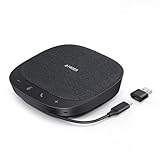
- Smart Voice Enhancement: Eliminate background noise while simultaneously enhancing voices for a professional meeting experience in any environment.
- Plug and Play: Connect via USB-C (includes standard USB adapter) and join meetings in an instant. A wired connection offers a stable and reliable USB speakerphone experience.
- 360° Voice Coverage: A USB speakerphone with 4 high-sensitivity microphones to pick up all voices within 3m in super-high clarity.
- Superior Sound: A 1.75” driver paired with 2 passive bass-radiators adds body and depth to both meeting audio and music.
- What’s In The Box: PowerConf S330 USB Speakerphone, USB-C to USB-A adapter.
How can you prevent echo in a Zoom meeting?
Use one speaker output path and one active microphone whenever possible, with the external speakerphone selected for both.
- Do not select the laptop microphone while the external speakerphone is playing meeting audio.
- Do not leave two microphones active in the same room.
- Use one speaker output path rather than simultaneously playing audio through a laptop and external speaker.
- Keep the speakerphone away from the laptop’s built-in microphone if the laptop microphone must remain active.
- Lower speaker volume if the far end hears its own voice.
- Mute nearby participants’ devices when several people join the same meeting from one room.
- In a reflective room, add curtains, rugs, soft furnishings, or acoustic treatment to reduce sound reflections.
A dedicated speakerphone with acoustic echo cancellation is generally a safer two-way choice than ordinary speakers paired with a distant laptop microphone. A conventional Bluetooth speaker can improve playback while leaving the microphone problem—and therefore the echo problem—untouched.
How should you place the speakerphone?
Place a shared speakerphone centrally and unobstructed on the table, with roughly similar distance to each participant. For one person, place the device near the user but not directly beside a keyboard, laptop fan, noisy dock, or other sound source.
Glass walls, bare wood or stone tables, hard floors, HVAC systems, fans, multiple simultaneous talkers, and large gaps between participants can all reduce intelligibility. A premium device cannot completely compensate for a room with severe reverberation or background noise.
A larger speaker is not automatically better in a small room. Excess output can increase reflections and make echo-control processing work harder. Choose the smallest device that comfortably covers the intended space.
Independent reader supportYour contribution helps us test, update, and keep practical guides available for everyone.What should you buy for each common situation?
One person at a desk
Choose a personal speakerphone such as the Jabra Speak2 55, Jabra Speak2 40, AnkerWork PowerConf S3, or Poly Sync 20. USB is the sensible default for a fixed workstation. Choose Bluetooth when the device must move between a computer and phone and you are willing to verify the active devices each time.
Two to four people around a small table
Choose a personal speakerphone with a beamforming or omnidirectional microphone array and place it at the center of the table. The Jabra Speak2 55, Poly Sync 40, and similar models are more appropriate than a laptop microphone because they are designed for shared two-way audio.
Do these 3 things before closing this tab:
1Scan for outdated or missing drivers - takes under a minute2Clear out junk files and repair common Windows errors3Fix the driver behind crashes, sound loss and screen glitchesFour to eight people
Choose a larger speakerphone or one that supports linking or expansion. The Jabra Speak2 75 is a candidate when its larger speaker and two-unit linking are useful. The AnkerWork PowerConf S500 is another more substantial option, but confirm the exact room requirement before paying for capabilities a solo user will not use.
Noisy home, shared office, café, or travel
Choose a headset. A headset keeps sound out of the room and places the microphone close to one person’s mouth, making it the better choice for privacy and background noise. A headset is less suitable when several people need to speak through one shared microphone.
Zoom Rooms or a larger permanent meeting room
Choose room-oriented hardware such as the Poly Sync 60 or a professionally designed room system. Zoom lists Poly Sync 60 under Zoom Rooms speakerphones, but a room deployment may also require cameras, additional microphones, control hardware, installation, and management.
Also popular on Amazon

- External computer speaker in Black (set of 2) for amplifying PC or laptop audio
- USB-Powered from USB port of PC or Laptop
- In-line volume control for easy access
- Blue LED lights; metal finish and scratch-free padded base
- Bottom radiator for “springy” bass sound
Only incoming audio needs improvement
Powered USB desktop speakers or a Bluetooth music speaker can be reasonable if your existing microphone already produces clear voice audio. Do not expect playback-only speakers to make you easier for other participants to hear.
Recommended Free Tools
How do you fix common speakerphone problems?
The device plays sound but Zoom cannot hear you
The most likely cause is that Zoom selected the laptop microphone or that Bluetooth connected only for playback. In Zoom, explicitly select the speakerphone under both Speaker and Microphone, then run both tests. Also check the physical mute button, operating-system microphone permissions, and whether another application has access to the device.
The speakerphone does not appear in Zoom
- Reconnect the USB cable.
- Confirm that the speakerphone is powered on.
- For Bluetooth, confirm that the device is connected at the operating-system level.
- Close other applications that may be using the speakerphone.
- Reopen Zoom.
- Check operating-system microphone permissions.
- Try USB instead of Bluetooth.
- Try another USB port or computer.
Zoom’s speaker and microphone troubleshooting guidance specifically covers cable connections, Bluetooth power and connection status, USB support, mute state, system volume, and microphone permissions.
Participants hear themselves
Echo usually means that more than one device or microphone is active in the same room, or that the laptop microphone is capturing audio from the speakerphone. Leave the meeting on all but one nearby device, mute or disable extra microphones, select one speakerphone for both input and output, and lower its volume if necessary.
Your voice sounds quiet or muffled
Move the speakerphone to the table center or closer to the speaker, remove obstructions, check the microphone input level, and reduce nearby fan or HVAC noise. Participants who speak away from the microphone array and reflective rooms can overwhelm voice processing even when the device is functioning normally.
Bluetooth keeps switching to another device
Bluetooth multipoint and the operating system’s last-connected-device behavior can cause Zoom to select a phone, headset, or laptop microphone unexpectedly. Disconnect unused Bluetooth devices and use USB as the default troubleshooting step.
The mute button and Zoom mute state do not match
Check the physical indicator and Zoom’s on-screen microphone state, then confirm whether the model supports the relevant Zoom device controls. Listed compatibility and USB HID support can help, but controls vary by model, firmware, operating system, and product variant.
Which choice is right for you?
| If your priority is… | Choose… | Avoid… |
|---|---|---|
| Simple hands-free calls for one person | Personal USB/Bluetooth speakerphone | Room hardware designed for more people |
| Shared conversation at a small table | Larger or linkable speakerphone | Relying on a laptop microphone from one end of the table |
| Maximum reliability at a fixed desk | USB speakerphone | Bluetooth as the only connection without testing |
| Privacy or noisy surroundings | Headset | Open-room speakers that allow background noise into the call |
| Louder incoming audio only | Powered desktop speakers, if a separate microphone is already suitable | Assuming speakers alone improve outgoing voice quality |
| A permanent larger meeting room | Zoom Rooms hardware or a professionally designed room system | Using a personal desk speakerphone as a guaranteed room solution |
Frequently Asked Questions
Can a regular Bluetooth speaker make me sound better on Zoom?
A regular Bluetooth speaker can make other participants louder, but it does not automatically improve your outgoing voice because its microphone and echo-control features may be absent or unsuitable. Use a dedicated speakerphone or pair the speaker with a separate, correctly selected microphone.
Should I use USB or Bluetooth for a Zoom speakerphone?
Use USB for the most predictable setup at a permanent desk or meeting table. Use Bluetooth when portability and reduced cable clutter matter, but verify that Zoom has selected the speakerphone for both Speaker and Microphone.
What is the best Zoom speakerphone for a small group?
A larger or linkable conference speakerphone is the better fit for a small group. The Jabra Speak2 75 is a candidate for a small conference table because Jabra lists a 65-mm speaker, four beamforming microphones, and two-unit linking; room acoustics and placement still determine practical performance.
Why can people hear the meeting but not hear me?
Zoom is probably using the laptop microphone, the speakerphone is muted, Bluetooth is connected only for playback, or microphone permission is blocked. Select the intended speakerphone under Zoom’s Speaker and Microphone menus and test each device separately.
The Bottom Line
Buy a conference speakerphone—not a conventional music speaker—when you need to hear and be heard clearly on Zoom. Choose a personal USB/Bluetooth model for one or two users, a larger or linkable model for a small table, a headset for noisy or private work, and Zoom Rooms hardware for a larger permanent deployment. After connecting the device, select it under both Zoom’s Speaker and Microphone settings and test before the meeting.

