
iTechGuides is reader-supported. When you buy through links on our site, we may earn an affiliate commission. As an Amazon Associate I earn from qualifying purchases. Learn more
The best NES emulators for Windows 10 in 2026 depend on your priority: use the current Mesen-family build for accuracy and advanced features, Nestopia UE for simple standalone play, FCEUX for debugging and ROM hacking, or RetroArch with a Mesen or Nestopia core for a larger multi-console library. Mesen2’s original repository is archived, so verify the newer MesenCE release before downloading.
NES emulation is relatively lightweight, and most ordinary 64-bit Windows 10 PCs should have enough performance for the software covered here. The more important choice is not raw speed but whether you want a focused emulator, development tools, or a frontend that manages several classic systems.
Key takeaways
- Best overall for accuracy: choose the current Mesen-family build, but treat archived Mesen2 information separately from the newer MesenCE project.
- Best simple standalone emulator: Nestopia UE 1.53.2 offers lightweight NES/Famicom emulation, archive loading, save states, and USB or Bluetooth controller support.
- Best for ROM hacking and tool-assisted work: FCEUX 2.6.6 provides debugging, Lua scripting, movie recording, and inspection tools.
- Best for multiple consoles: RetroArch with the Mesen or Nestopia core combines NES emulation with one broader frontend, but requires more setup.
- Famicom Disk System games need extra firmware: the Mesen and Nestopia cores document
disksys.romas the required FDS BIOS, while ordinary cartridge images generally do not need it.
Best NES emulators for Windows 10 in 2026: quick comparison
The best NES emulators for Windows 10 in 2026 fall into two groups: standalone programs such as Nestopia UE, FCEUX, and Mesen-family builds, and RetroArch, which is a frontend that runs emulator cores rather than a single NES emulator.
The Tool Desk
Outbyte Driver Updater FREEFix the driver behind crashes, sound loss and screen glitchesFind Drivers →Outbyte PC Repair FREERepair Windows errors before they cause bigger problemsFix Now →| Option | Format | Best for | Important strengths | Main qualification | Windows 10 status |
|---|---|---|---|---|---|
| Current Mesen-family build | Standalone emulator or core, depending on build | Accuracy, unusual games, Famicom features, and advanced users | High-accuracy emulation, broad mapper support, FDS, VS System, Dendy, NSF/NSFe, patches, recording, rewinding, cheats, and netplay | The original Mesen2 repository is archived; verify the current MesenCE Windows package and requirements | Verify the current native build, architecture, and runtime requirements before installation |
| Nestopia UE 1.53.2 | Standalone emulator | Simple, faithful NES play | Lightweight, free and open source, ZIP/7z loading, save states, and USB/Bluetooth controller mapping | It has fewer debugging and development tools than FCEUX or Mesen | Strong fit for Windows 10; use the project’s current distribution or linked release channel |
| FCEUX 2.6.6 | Standalone emulator | ROM hacking, debugging, Lua scripting, and TAS workflows | Debugger, movie recording, scripting, memory and graphics inspection, and Windows builds | The tagged release and interim autobuilds can differ in stability and interface | Strong fit; select the appropriate current Windows build |
| RetroArch + Mesen core | Frontend plus NES core | NES alongside SNES, Game Boy, Genesis, arcade, and other systems | Unified library, remapping, shaders, save states, netplay, and a large ecosystem | Requires frontend, core, directory, controller, and save-path configuration | Strong fit when multi-system support matters |
| RetroArch + Nestopia core | Frontend plus NES core | A lighter RetroArch-based NES setup | Nestopia emulation inside a multi-system interface | Extra frontend complexity is unnecessary for NES-only users | Strong fit when RetroArch is already installed |
The NESdev emulator index lists FCEUX, Mesen, Nestopia UE, and puNES among Windows-capable projects. The index is useful for discovery, but current releases and download files should be confirmed on each project’s own page.
Popular on Amazon
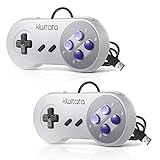
- ✅【Compatibility】Compatible with Windows PC, Linux ,Mac, Raspberry Pi(Retropie system). Specifically designed for playing classic old school retro snes games on computer or laptop.This is the USB controller what has a wired plug for PC, NOT compatible for Super Nintendo Entertainment System(SNES machine)
- ✅ 【Ergonomic Design】Super precise cross key and function buttons,the cross direction key adopts frosted concave design,anti-sweat and anti-slip.The shape of the controller is designed to fit the contour of your hands,easy and comfortable to hold.
- ✅ 【Advanced Game Experience】PC running operating system:Windows 98/2000/ ME/XP/Vista/Win7/8/8.1/10/11 or later,or Mac running OS X 10.0/Mac OS X or above.It works with most of emulators you wish to download and use,such as VirtuaNES(PC),sens9x,Zsens,sensgt,Uosnesw,RetroArch,OpenEmu(MAC),NESEmu and Jnes etc.
- ✅ 【Wired USB Connection】Standard USB 2.0 port with a 1.5 meters (5ft) cable, don't need to install any drivers, you must manually set the buttons and directionals within the emulator you're using, and the controller not automatically assigns buttons/directional axes. Notice: please download the game emulator first before start the games, you can download the emulator “VirtuaNES” on PC and “OpenEmu”on MAC.
- ✅【Satisfaction】Third party controller(USB Version), not for original SNES console and not support for switch. If there is an incompatibility on MAC or Raspberry Pi , please contact the seller for a support.
Which NES emulator is best overall?
The current Mesen-family emulator is the strongest overall choice for readers who prioritize accurate CPU, PPU, APU, mapper, timing, and peripheral emulation over the simplest interface. Libretro’s Mesen documentation describes support for more than 220 mappers, licensed NES games, Famicom Disk System, Dendy, VS System, NSF and NSFe music files, save states, rewinding, recording, overclocking, cheats, netplay, ZIP/7z loading, and IPS/BPS patches.
That recommendation needs an important 2026 qualification. The original SourMesen/Mesen2 repository is archived, and its README directs users to the newer MesenCE project for the latest Mesen version. The archived Mesen2 release page lists version 2.1.1, but Mesen 2.1.1 should not automatically be called the latest Mesen release. Before publishing or downloading, check the MesenCE project’s current Windows package, release notes, architecture, and runtime requirements.
Mesen is the best fit for unusual mappers, Famicom Disk System software, Dendy or VS System research, diagnostic work, and users who want more than basic cartridge playback. Nestopia UE or FCEUX is a better first download when the goal is simply to open an NES file and play without learning a broad set of advanced menus.
Is Nestopia UE the easiest NES emulator for Windows 10?
Yes. Nestopia UE is the easiest standalone recommendation for most beginners who want faithful NES and Famicom play without installing a multi-system frontend. The project page identifies Nestopia UE 1.53.2 as free, open source, cross-platform software for Windows, macOS, Linux, and BSD, with ZIP/7z loading, save states, and USB or Bluetooth controller support.
Download Nestopia UE from the project page or its linked official release channel rather than from a third-party “emulator download” mirror. The project’s current distribution source should be checked at publication time so that the visible version and download file match the maintained project.
Nestopia UE is a particularly sensible choice for an older Windows 10 computer because an NES emulator does not need the extensive frontend services, shader library, or multi-system database that RetroArch brings. “Lightweight” does not mean that every controller, shader, or game modification will behave identically; unusual hardware, patches, and peripherals remain useful reasons to compare with Mesen or FCEUX.
Why choose FCEUX for ROM hacking and TAS?
Choose FCEUX when debugging, Lua scripting, movie recording, memory inspection, graphics inspection, or ROM-hacking investigation matters more than having the cleanest beginner interface. The official FCEUX repository describes FCEUX as an open-source NES emulator for Windows and Unix with advanced tools.
The official FCEUX releases page shows 2.6.6 as the latest tagged release in the supplied research. The project also discusses interim or autobuild versions and directs users to SourceForge for release binaries. A tagged release is the safer default for ordinary play; an autobuild may contain newer fixes or features but should be treated as a development build whose stability and interface can differ.
FCEUX remains usable for normal gaming, but its tool-rich interface can expose more terminology than a casual player needs. Select FCEUX if you expect to inspect memory, reproduce a precise behavior, create a tool-assisted movie, or investigate a translation or ROM hack. Select Nestopia UE when those tools would only add clutter.
Also popular on Amazon

- USB Wireless Adapter: Compatible with PC, Window Games and Android Devices with Game Emulator,For using the USB wireless adapter, Please pay atention, Our controller does not compatible with Super Nitnedo, Mini NES, NES CLASSIC EDTION, if you have one of those console, please do not purchase our controller.
- Please download software like" joystick mapper" configure keys first if needed. then you can play on your PC , Macs,Window, Linux ,Raspberry PI Gadget.
- Wireless: Via 2.4GHz Wireless technology.Wireless range Up to 10 meters.
- Turbo Function: You can set your own rapid button as you want. beware you might accidently iniated the turbo function for certain keys when you play game, you can cancel it. please take reference from the manual sheet come with the packing box.
- Build in rechargeable Lithium Ion battery, One charge last around 100 hours playing time.
Is RetroArch better than a standalone NES emulator?
RetroArch is better when NES is one part of a broader retro library, but a standalone NES emulator is usually easier when NES is the only target. RetroArch provides the interface, library management, input system, shaders, and other frontend functions; an installed core such as Mesen or Nestopia performs the NES emulation.
Libretro documents both the Mesen core and the Nestopia core for NES and Famicom use. Core behavior, core version, BIOS location, save directory, and content compatibility all matter, so a RetroArch troubleshooting report is incomplete unless it identifies which core is installed.
What’s actually slowing this PC down?
Pick the symptom - the matching free tool is one click away.
RetroArch is a good choice for a user who wants one controller configuration and one library across NES, SNES, Game Boy, Genesis, arcade systems, and other platforms. RetroArch is overkill for someone who wants to download one program, associate .nes files, and start playing.
How do you save a RetroArch controller profile?
After connecting the controller, use Settings → Input → RetroPad Binds → Port 1 Controls → Save Controller Profile. The Libretro controller guide notes that mappings can vary with the operating system and controller driver, so save the profile after confirming the buttons rather than assuming automatic detection is correct.
Does Windows 10 still support NES emulators?
Windows 10 support depends on the exact emulator build, Windows architecture, graphics drivers, and runtime requirements; Windows 10 Home versus Pro is usually less important than whether the PC is 32-bit or 64-bit and whether its required components are available.
Prefer a 64-bit build on a 64-bit Windows 10 installation when the project provides one. A 32-bit build may be appropriate for a 32-bit installation, but a 64-bit executable will not run there. Do not transfer the archived Mesen2 README’s Windows 10/11 and .NET notes directly to MesenCE: those notes describe the archived Mesen2 project, not necessarily the newer project. Check the current MesenCE release documentation before installing.
Portable ZIP packages are convenient for users who want an emulator in a dedicated folder such as C:EmulatorsNES without a system-wide installer. Installers can be more convenient when available, but either format should be obtained from the official project or release page.
How do you install and configure an NES emulator on Windows 10?
- Download the official build. Use the project’s official page or release repository. Avoid ROM-hosting pages and download mirrors that bundle installers or unknown utilities.
- Choose the architecture. Select the Windows 64-bit build for a 64-bit Windows 10 installation when available. Check the release notes for runtime or dependency requirements.
- Install or extract the emulator. For a portable ZIP, extract the complete folder to a location such as
C:EmulatorsNES. Do not run only one executable while leaving required DLLs behind. - Launch it once. The first launch normally creates configuration, save, and state directories. The exact folder names vary by emulator and build.
- Connect the controller before mapping. Windows may expose an Xbox-compatible pad as XInput or a generic gamepad as DirectInput. Confirm that the emulator sees the intended device.
- Map the essentials. Assign Up, Down, Left, Right, A, B, Select, and Start. Configure Player 2 separately if local multiplayer is needed.
- Save the configuration. Save the controller profile or emulator settings after testing every button. Avoid overwriting keyboard bindings accidentally while mapping a gamepad.
- Load a legally obtained cartridge image. Use a supported
.nesfile, or extract an archive if direct ZIP/7z loading fails. - Check region and timing. Confirm whether the software is NTSC, PAL, Famicom, Dendy, or a modified homebrew build when speed, music pitch, or frame pacing seems wrong.
- Test both save types. Make an in-game save when the game supports one, then create a separate save state. Back up both before changing emulator versions or cores.
What graphics settings should you use?
Start with the emulator’s default video and audio settings, then adjust display preferences deliberately. Integer scaling can preserve whole-pixel multiples and avoid uneven scaling; a 4:3 presentation generally avoids the visibly stretched image produced by filling a 16:9 display.
| Setting | Practical starting choice | Trade-off |
|---|---|---|
| Aspect ratio | 4:3 or the emulator’s NES-appropriate ratio | Preserves the intended presentation better than stretching to 16:9 |
| Scaling | Integer scaling when the display size permits | Sharper pixel structure, but unused borders may remain |
| Filtering | Nearest-neighbor or the emulator default | Sharper pixels; bilinear filtering looks smoother but softer |
| CRT shader | Optional and preference-based | Can imitate scanlines or curvature, but is not automatically more authentic |
| VSync and frame pacing | Begin with defaults, then enable VSync if tearing occurs | May reduce tearing but can affect latency depending on the display and driver |
| Enhancements | Leave overclocking, cheats, and patches disabled for troubleshooting | Enhancements can change timing or behavior from the original hardware |
NTSC and PAL software can differ in timing, speed, music pitch, and region behavior. A game that “runs” is not necessarily behaving identically across regional versions, and no single filter can be called objectively authentic for every display.
Also popular on Amazon
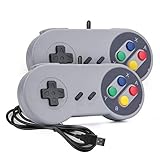
- 【Supported Operating System】The Game Controller is specifically designed for playing classic old school retro snes games on computer or laptop. Compatible with Windows 98 / ME / Vista / 2000/2003 / XP / 7 / 8 / 8.1 / 10/11, Mac OS X/ OS X 10.0 and beyond, Raspberry Pi, Raspberry PI 2 model B,Model A, Raspberry Pi 1 Model B+, Raspberry Pi 2,Raspberry Pi OS, Raspberry Pi 3 Model B+, Raspberry Pi 3, Raspberry Pi Zero.
- 【Simple USB Plug and Play】If your program or application accepts USB controller input, this classic game controller do not need install drivers or patches. 1.5 meter external cable(approx. 5 ft. Long). Notice: Please download the game emulator first before start the games, and then you must manually set the buttons and directionals within the emulator you're using, and the controller not automatically assigns buttons/directional axes. If on the Steam platform, you need to first enable Steam's "Universal Controller Configuration Support" and then restart Steam. After entering the game, you also need to manually bind key positions in the game
- 【High Sensitivity without Delay】Super sensitive buttons for precision control: 6 fire buttons, a 'Start' button and a 'Select' button, motion control cross. Play your favorite old school games with classic retro feel. Fits perfectly in the hand and also perfect for two player action.Note: Not applicable to Switch/PS games. Not Compatible with TV/ TV Box, third Mini Games Box and Tesla Model 3
- 【Supported Game Emulators】The game controller works with most emulators. Download any emulator you wish to download and use from Google and do the same with ROMS. Notice:Third party controller, not original controller. But it works phenomenal with the Raspberry Pi game emulation and so on
- 【Product Service】If you have any problem during use, send message to us and we will help you to solve the problem soon
Do NES emulators need BIOS files?
Ordinary NES cartridge emulation generally does not need a BIOS file, but Famicom Disk System software does. The Mesen and Nestopia core documentation identifies disksys.rom as the FDS BIOS requirement in the relevant core configuration.
Keep the FDS BIOS in the location required by the selected standalone emulator or RetroArch core, and follow the project’s documented filename and checksum requirements. A missing BIOS normally produces a load error or prevents FDS software from starting; it is not usually a subtle cause of ordinary cartridge slowdown.
Obtain firmware through lawful means applicable to your jurisdiction. Do not use random “BIOS pack” sites, and do not assume that a BIOS file bundled with an unofficial download is safe or authentic.
Which ROM formats, archives, and patches work?
Common NES-related formats include .nes cartridge images, .fds disk images, and .nsf or .nsfe music files. The Mesen documentation also lists ZIP and 7z archive loading and IPS/BPS patch support.
| File or feature | What it represents | Important caution |
|---|---|---|
.nes |
NES or Famicom cartridge image | The mapper, region, and dump can affect compatibility |
.fds |
Famicom Disk System disk image | Requires the appropriate FDS BIOS and configuration |
.nsf / .nsfe |
NES music files | Support varies by emulator or core; they are not ordinary game cartridges |
.zip / .7z |
Archives containing supported content | Extract the archive if direct loading fails or the archive contains multiple files |
| IPS / BPS patch | Translation, homebrew modification, or ROM hack patch | Apply it to the exact required base dump, region, and checksum |
Use game files you are legally entitled to use. The emulator software may be free and open source, but that does not make commercial games, ROM images, BIOS files, or downloaded patches automatically free to redistribute or download. Copyright and backup-copy rules vary by country and by how a file was obtained.
Quick wins for a faster PC:
Scan for outdated or missing drivers - takes under a minuteDriver Scan →Repair Windows errors before they cause bigger problemsFix Now →Fix the driver behind crashes, sound loss and screen glitchesFind Drivers →Are NES emulators free, and do they include games?
The major options in this guide are free to download and open source, but legitimate emulator downloads do not normally include commercial NES games. Mesen-family projects are GPL-licensed, Nestopia UE identifies itself as GPL-2.0 software, FCEUX is open source, and RetroArch is a free/open-source frontend.
An emulator is the program that reproduces console hardware. Homebrew and public-domain software are separate categories from commercial game images, and a user-created backup or dump is subject to the laws and circumstances of the user’s jurisdiction. This guide does not link to ROM-hosting sites.
Independent reader supportYour contribution helps us test, update, and keep practical guides available for everyone.How do you fix a controller, screen, audio, BIOS, or save problem?
The controller is not detected
Reconnect the USB or Bluetooth controller, confirm that Windows sees it, and check whether the emulator expects XInput or DirectInput. Pair Bluetooth before launching the emulator, map Player 1 again, test every button, and save the profile. For RetroArch, use the documented controller-profile path rather than relying only on automatic detection.
The screen is black or the game has no audio
Restore default video and audio settings first. A black screen can result from an unsuitable video driver, fullscreen mode, shader, corrupt ROM, or incorrect region or mapper detection. No audio can result from a muted emulator, the wrong Windows output device, or a bad driver. Test a known-good legally obtained cartridge image before changing several settings at once.
Recommended Free Tools
Also popular on Amazon

- 🔁【Compatibility 】Works for Windows PC, Linux ,Mac and Raspberry Pi. Specifically designed for playing classic old school retro N64 Emulator games on computer or laptop. Notice: Only for Desktop/Notebook/Raspberry Pi,not support Switch games or N64 video games.
- 🔁【Compatible with Raspberry Pi】Work with Raspberry Pi 3+ and Retro pie, but you need to build raspberry pi into a retro gaming system. Notice: please download the emulator first before start the games, you can download the emulator “Project64” on PC and “OpenEmu”on MAC.
- 🔁 【Supported Operating system】Windows 98/2000/ ME/XP/Vista/Win 7/8/8.1/11 or later,or Mac running OS X,Mac OS X and macOS. The cord is approx. 1.7 meters (6ft), standard USB 2.0 port.
- 🔁【Advanced Game Experience 】Ergonomic handle design fits naturally in your hands during extended gaming sessions. Tight and accurate analog control,the controller features 10 function buttons (including Left and Right shoulder functions and Z-trigger).
- 🔁 【Multi-Function for favorite gift 】Third party controller, there are no connectors to use a "rumble pack". But you can play N64 games on the computer very well with your friends and family, such as Super Smash Bros,Mario Kart, Perfect Dark, Super Mario 64, Legend of Zelda, Ocarina of Time and many other classic N64 games.
An FDS game reports a missing BIOS
Confirm that the selected emulator or core supports FDS, that the file is named and placed as documented, and that the BIOS matches the required checksum. Ordinary .nes cartridge games should not be used as a test for whether the FDS BIOS is installed.
A patched ROM crashes
Verify that the patch was applied to the exact base ROM required by the patch author, including region and checksum. Try the unmodified image first, then test the patched image in Mesen, Nestopia, or FCEUX with cheats, overclocking, and other enhancements disabled.
Saves disappeared after changing emulators
Copy the entire save and state directories before migrating. Standalone emulators and RetroArch cores may use different filenames, extensions, SRAM formats, and directories, and save states may not be portable between emulator versions or cores. Do not overwrite the original save while troubleshooting.
A Zapper game does not respond correctly
A conventional keyboard or gamepad does not reproduce every light-gun behavior. Check whether the selected emulator exposes mouse-based Zapper input and verify the exact mapping for the game and build.
Crashes, No Sound, or Screen Glitches?
Random freezes, missing sound and display glitches usually trace back to one bad driver. Find and replace yours safely.Free scan · under a minutePC Slower Than It Used to Be?
A free scan shows the junk files, broken settings and background clutter dragging Windows down - then fixes them in one click.Free scan · Windows 10 & 11Which NES emulator should you choose?
| Your priority | Recommended choice | Why |
|---|---|---|
| I only want to play NES games | Nestopia UE | Simple standalone workflow with accuracy-oriented emulation and controller support |
| I want the broadest accuracy and Famicom features | Current Mesen-family build | Advanced mapper, timing, FDS, VS System, Dendy, music, debugging, patch, and recording capabilities; verify MesenCE’s current Windows release |
| I want debugging, TAS, or ROM-hacking tools | FCEUX | Lua scripting, debugger, movie recording, and memory or graphics inspection |
| I want NES plus many other consoles | RetroArch with Mesen or Nestopia | One frontend, library, controller system, and configuration environment across multiple platforms |
| I need Famicom Disk System support | Mesen-family or the documented Mesen/Nestopia core | These options document FDS support; obtain and configure the required disksys.rom lawfully |
For most first-time Windows 10 users, install Nestopia UE. For the most technically capable NES/Famicom experience, verify and use the current MesenCE release rather than treating archived Mesen2 as the current project home. For development and tool-assisted work, choose FCEUX. For a complete retro library, choose RetroArch and identify the exact NES core you install.
Frequently Asked Questions
Can I run an NES emulator on Windows 10 without a BIOS file?
Yes. Ordinary NES cartridge images generally do not require a BIOS file. Famicom Disk System software is different and requires the appropriate FDS BIOS, documented as disksys.rom for the Mesen and Nestopia cores.
Is Mesen 2.1.1 still the latest Mesen emulator for Windows 10?
Do not assume that Mesen 2.1.1 is the latest Mesen release. The original Mesen2 repository is archived and directs users to MesenCE, so check the current MesenCE Windows release and requirements before downloading.
Are NES emulator save states the same as game saves?
No. An in-game save is created by the game and is usually stored as battery-backed save data, while a save state is a snapshot of emulator memory and hardware state. Save states may fail to transfer between different emulator versions or cores, so back up normal save files separately.
Free tools Windows power users keep installed
One-click scans. No signup required.
Do NES emulators include NES games?
Legitimate NES emulator downloads do not normally include commercial NES games. Emulator software can be free and open source while game images, BIOS files, and commercial ROM downloads remain subject to copyright and local law.
The Bottom Line
Bottom line: Nestopia UE is the safest simple recommendation for NES-only play on Windows 10; FCEUX is the specialist choice for debugging, ROM hacking, and TAS; and RetroArch is the right frontend for a multi-console library. The Mesen family is the technical leader for accuracy and advanced NES/Famicom features, but in 2026 you should verify the current MesenCE release instead of downloading from the archived Mesen2 project by habit.

