
Recommended Free Tools
The best macOS version is the newest one Apple supports for your specific Mac, unless an app or peripheral requires an older release. As of August 7, 2026, Apple lists macOS Tahoe 26.6.1 as its latest release; older Macs may only be compatible with an earlier version.
Software Update filters for versions compatible with your Mac, but it cannot guarantee compatibility with every third-party app or device. Check application and peripheral requirements before upgrading.
Which macOS version is best?
For most people, the best version is the newest macOS their Mac officially supports. Newer releases generally offer newer security fixes, features, and compatibility with current applications. However, installing a version beyond a Mac’s supported range is not a sensible way to keep an old computer current.
There are legitimate reasons to remain on an older compatible version:
#1 Best Overall

- Read speeds up to 2382MB/s and Write speeds up to 1732MB/s
- NVMe – PCIe 3.1 x4 Designed for macOS 10.12 and beyond
- Includes (1) Aura N2 SSD (1) Tools (1) Envoy Pro Enclosure (1) USB 3.1 Gen 1 (Type-A to Micro-B cable) (1) Envoy Pro Carrying Case (1) Envoy Pro User Guide (1) Installation Guide for MacBook Air (Mid-2013 - 2017), MacBook Pro (Retina, Late 2013 - Mid 2015)
- Compatible With MacBook Air 11-inch and 13-inch, Mid 2013- Mid 2017 (MacBookAir6,1 MacBookAir6,2 MacBookAir7,1 MacBookAir7,2) // MacBook Pro Retina, 13-inch and 15-inch, Late 2013- Mid 2015 (MacBookPro11,1 MacBookPro11,2 MacBookPro11,3 MacBookPro11,4 MacBookPro11,5 MacBookPro12,1)
- 3 Year OWC Limited Warranty
- A critical application or plug-in has not been updated for a newer macOS.
- Older peripherals, printers, scanners, or audio hardware require legacy drivers.
- The Mac has limited storage or performance and is used for basic tasks.
- You need to run 32-bit applications. Mojave 10.14 was the last macOS version that supported them; Catalina 10.15 removed 32-bit application support.
Sierra and High Sierra can be useful for specific compatibility needs, but neither is a good general-purpose security recommendation today. Apple’s current security-release list does not include Sierra.
macOS versions from Sierra onward
| Version | Release year | When it may make sense |
|---|---|---|
| macOS Sierra 10.12 | 2016 | Only when software or hardware specifically requires it. It is obsolete and is not a current security-supported release. |
| macOS High Sierra 10.13 | 2017 | A possible ceiling for some older Macs or a choice for legacy software. High Sierra made APFS the default file system. |
| macOS Mojave 10.14 | 2018 | The last macOS release that runs 32-bit applications. |
| macOS Catalina 10.15 | 2019 | The first macOS release that stopped running 32-bit applications. |
| macOS Big Sur 11 | 2020 | A newer interface and security baseline for Macs that support it. |
| macOS Monterey 12 | 2021 | Useful on Macs that cannot run newer releases, but not the latest macOS. |
| macOS Ventura 13 | 2022 | A possible target for compatible older hardware. |
| macOS Sonoma 14 | 2023 | One of Apple’s currently listed security-release branches. |
| macOS Sequoia 15 | 2024 | A current release branch for compatible Macs. |
| macOS Tahoe 26 | 2025 release line | Apple’s latest major release line; version 26.6.1 was released August 6, 2026. |
Apple’s latest listed security releases as of August 7, 2026, are Tahoe 26.6.1, Sequoia 15.7.9, and Sonoma 14.8.9, all released August 6, 2026. Check Apple’s release list for current versions rather than relying on an old article that calls Monterey or Big Sur the latest.
How to check which macOS is installed
- Choose Apple menu > About This Mac.
- Read the macOS name and version number in the window that appears.
For example, “macOS High Sierra 10.13.6” identifies the major release and installed update. The model information in the same window can help you determine whether a newer system is supported.
How to update to the newest compatible version
- Choose Apple menu > System Settings.
- Click General in the sidebar.
- Click Software Update.
- Wait for the compatibility check to finish.
- Click the button Apple presents, such as Update, Upgrade, or Restart Now.
- Enter an administrator password if macOS requests one.
System Preferences is the older name; current macOS uses System Settings. Back up important files before starting. Keep a MacBook connected to power, do not put the Mac to sleep, and do not close its lid during installation. Several restarts, progress bars, and temporary blank screens can be normal.
The Tool Desk
Outbyte PC Repair FREERepair Windows errors before they cause bigger problemsFix Now →Outbyte Driver Updater FREEFix the driver behind crashes, sound loss and screen glitchesFind Drivers →What does “Your Mac is up to date” mean?
It means Software Update has no compatible update or upgrade currently available for that Mac. It does not mean the computer is running the newest macOS release overall.
To check again, open Apple menu > System Settings > General > Software Update and click Check for Update. You can also press Command-R in the Software Update pane, close and reopen it, or use Spotlight to search for “Software Update.”
How to download a specific macOS version
Apple’s macOS download page provides several methods. The right method depends on the release and the Mac you are using.
Use the App Store for High Sierra through Sequoia
- Open Apple’s macOS download page and select the required version.
- Follow its App Store link.
- Click Get.
- If Software Update opens and asks whether to download macOS, approve the download.
After downloading, the installer normally opens automatically. To keep it for later, quit the installer rather than continuing. The installer remains in Applications with a name such as Install macOS High Sierra.app.
Do these 3 things before closing this tab:
1Scan for outdated or missing drivers - takes under a minute2Repair Windows errors before they cause bigger problems3Fix the driver behind crashes, sound loss and screen glitchesRank #2
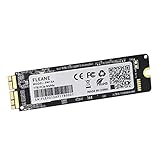
- Write and Read: 512GB NVMe 3D TLC NAND PCIe 3.0 x4 SSD fast speed up to: Read 1850MB/S, Write 1450MB/S. 1: 1 design according to the original SSD interface, it provides a perfect upgrade solution for your Macbook Air/Pro/iMac without using any adapter card. (Different models of machines may test different read and write speeds.)
- Important note: macOS 10.13 High Sierra (or later OS) must be installed on the Mac before installing the new ssd. These OS versions include an EFI firmware update for your Mac. Without the update, the new SSD will not be recognized.
- Compatible with: MacBook Air A1465 A1466 Mid2013-Mid2017, MacBook Pro A1502 A1398 Late2013-Mid2015, iMac A1418 A1419 Late2013-Mid2017.There is a very detailed table of supported models in the listing images. Please check carefully.The EMC number is the best way to match
- Order contains: 1 x PCIe NVMe High-Speed SSD(Pre-loaded with Catalina), 1 x16GB USB Bootable Installer (Big Sur), 2 xScrewdrivers (For removing the back panel and ssd screws), Very detailed SSD installation guide (scan the QR code on the label)
- About warranty: We provide 3-year worry-free warranty. If you have any other questions, please feel free to contact us, we will provide the most professional service.
The App Store may disable Get or display “macOS is not compatible with this device” or “the requested version of macOS is not available.” These messages indicate the selected release cannot be obtained for that Mac through that method.
Tahoe 26 is obtained through Software Update or Terminal rather than the App Store link list.
Download Sierra or an older release
Apple distributes macOS Sierra 10.12 as a browser-downloaded disk image:
- Download the .dmg file from Apple’s macOS download page.
- Open Finder and choose Go > Downloads, or open Downloads from the Dock.
- Double-click the downloaded disk image.
- Double-click the included .pkg file.
- After the package installs the installer, open Applications.
- Double-click Install macOS Sierra.
Apple warns that the Mac used for the download must itself be compatible with the selected macOS. Downloading an installer does not bypass the Mac’s hardware requirements.
Download a full installer with Terminal
On macOS Catalina 10.15 or later, Terminal can download a full installer. First list the full installers available to that Mac:
softwareupdate –list-full-installers
Then request a specific version shown in the results:
softwareupdate –fetch-full-installer –full-installer-version 15.7.4
The installer is normally placed in Applications. Replace 15.7.4 with the exact compatible version you need.
Rank #3

- Jorkar A1466 SSD Hard Drive for Macbook is compatible with MacBook Air (mid 2013-2015,2017), A1466 SSD (EMC 2632 2925 3178), A1465 SSD (EMC 2631 2924); for MacBook Pro Retina 2013-2015, A1398 SSD (EMC 2674 2745 2876 2881, 2909 2910), A1502 SSD (EMC 2678 2875 2835).
- Note: Model & EMC needs both match with our list, or will not work. Before removal, Back up your original data to USB drive; and Updated your old original SSD to mac OS 10.13 High Sierra or Later version. If not, the new SSD will not be recognized after replacement.
- Jorkar SSD for Macbook air/pro has been Pre-installed MacOS High Sierra 10.13, If you want a higher system, you can go to the Appl Store to upgrade it. Note, when you update the MacOS, please change to the regional language, then the installation will begin.
- Jorkar SSD Hard Drive for macbook Increases the capacity and processing speed for your macbook air/pro, read speed is up to 2150 MB/s, write speed 1650 MB/s (1TB). The newer the computer and the larger the SSD capacity, the faster the speed.
- Faster boot times, faster application loading times and better system responsiveness. Encryption protect your data safely.
If Terminal reports “update not found,” that version is not available for that Mac. Apple limits this command to versions no earlier than the macOS originally supplied with the Mac, or the closest still-available version. It is not a general downgrade mechanism.
When to create a bootable USB installer
A bootable installer is optional. It can help when normal installation or Recovery fails, when you need to install on multiple Macs without repeatedly downloading the installer, or when the Mac cannot reliably access the internet during installation.
You need:
- The complete installer application in Applications, named Install [Version Name].
- A USB flash drive with at least 32 GB for current macOS installers. Apple says 16 GB is enough for most older versions.
- A backup of anything on the USB drive. Creating the installer erases it.
Rename the USB volume MyVolume. In Finder, open Applications with Go > Applications. Run the command matching the installer; the backslashes preserve spaces in each application path.
createinstallmedia commands
High Sierra: sudo /Applications/Install\ macOS\ High\ Sierra.app/Contents/Resources/createinstallmedia –volume /Volumes/MyVolume
Mojave: sudo /Applications/Install\ macOS\ Mojave.app/Contents/Resources/createinstallmedia –volume /Volumes/MyVolume
Catalina: sudo /Applications/Install\ macOS\ Catalina.app/Contents/Resources/createinstallmedia –volume /Volumes/MyVolume
Big Sur: sudo /Applications/Install\ macOS\ Big\ Sur.app/Contents/Resources/createinstallmedia –volume /Volumes/MyVolume
Monterey: sudo /Applications/Install\ macOS\ Monterey.app/Contents/Resources/createinstallmedia –volume /Volumes/MyVolume
Quick wins for a faster PC:
Scan for outdated or missing drivers - takes under a minuteDriver Scan →Clear out junk files and repair common Windows errorsFree Scan →Fix the driver behind crashes, sound loss and screen glitchesFind Drivers →Rank #4
- Write and Read: 256GB NVMe 3D TLC NAND PCIe 3.0 x4 SSD fast speed up to: Read 1700MB/S, Write 1300MB/S. 1: 1 design according to the original SSD interface, it provides a perfect upgrade solution for your Macbook Air/Pro/iMac without using any adapter card. (Different models of machines may test different read and write speeds.)
- Important note: macOS 10.13 High Sierra (or later OS) must be installed on the Mac before installing the new ssd. These OS versions include an EFI firmware update for your Mac. Without the update, the new SSD will not be recognized.
- Compatible with: MacBook Air A1465 A1466 Mid2013-Mid2017, MacBook Pro A1502 A1398 Late2013-Mid2015, iMac A1418 A1419 Late2013-Mid2017.There is a very detailed table of supported models in the listing images. Please check carefully.The EMC number is the best way to match
- Order contains: 1 x PCIe NVMe High-Speed SSD(Pre-loaded with Catalina), 1 x16GB USB Bootable Installer (Big Sur), 2 xScrewdrivers (For removing the back panel and ssd screws), Very detailed SSD installation guide (scan the QR code on the label)
- About warranty: We provide 3-year worry-free warranty. If you have any other questions, please feel free to contact us, we will provide the most professional service.
Ventura: sudo /Applications/Install\ macOS\ Ventura.app/Contents/Resources/createinstallmedia –volume /Volumes/MyVolume
Sonoma: sudo /Applications/Install\ macOS\ Sonoma.app/Contents/Resources/createinstallmedia –volume /Volumes/MyVolume
Sequoia: sudo /Applications/Install\ macOS\ Sequoia.app/Contents/Resources/createinstallmedia –volume /Volumes/MyVolume
Tahoe: sudo /Applications/Install\ macOS\ Tahoe.app/Contents/Resources/createinstallmedia –volume /Volumes/MyVolume
Free tools Windows power users keep installed
One-click scans. No signup required.
El Capitan uses older syntax:
sudo /Applications/Install\ OS\ X\ El\ Capitan.app/Contents/Resources/createinstallmedia –volume /Volumes/MyVolume –applicationpath /Applications/Install\ OS\ X\ El\ Capitan.app
Terminal asks for an administrator password. Nothing appears on screen while you type it; this is normal. When asked to erase the volume, type Y and press Return.
Common USB-installer errors
| Error or symptom | Likely fix |
|---|---|
| “Command not found” | Check the command, installer name, spelling, and that the installer is in Applications. |
| “The installer does not appear to be a valid installer application” | Delete the installer, repair the startup disk with Disk Utility, and download the installer again. |
| USB cannot be erased | Use Disk Utility to erase the drive as Mac OS Extended (Journaled), then rerun the command. |
| Mac runs Sierra 10.12.6 or earlier | Append –applicationpath and the full installer path as Apple specifies. |
| Permission request for a removable volume | Click OK to allow Terminal to access the drive. |
How to boot from the USB installer
Apple silicon Mac
- Shut down the Mac and connect the installer directly.
- Press and hold the power button until startup options appear.
- Select the installer.
- Click Continue.
Intel Mac
- Shut down the Mac and connect the installer.
- Turn it on and immediately hold Option (Alt).
- Select the installer.
- Click the onscreen arrow or press Return.
Some Intel Macs with a T2 Security Chip require Startup Security Utility to permit booting from external or removable media. Connect the Mac to the internet so the installer can obtain firmware and model-specific information.
Do not force an incompatible macOS onto a Mac. Installation can fail, or startup may show a circle with a line through it.
PC Slower Than It Used to Be?
A free scan shows the junk files, broken settings and background clutter dragging Windows down - then fixes them in one click.Free scan · Windows 10 & 11Outdated Drivers Are Slowing You Down
One free scan finds every outdated or missing driver and matches the right update for your exact hardware.Free scan · exact hardware matchBest Value

- IMPORTANT NOTE:Before installation, please back up your original data to an external drive. Make sure your original SSD has been updated to macOS 10.13 High Sierra or later. Otherwise, the new SSD may not be recognized after replacement. If the drive is not detected, please recheck the installation steps or contact us for assistance
- 3 METHODS REINSTALL macOS:Install macOS via Time Machine backup, a bootable USB installer, or Internet Recovery. You can also download the electronic instruction manual on Amazon and watch installation videos, or refer to our listing guide and product manual for step-by-step instructions. Before restoring macOS, make sure to format (erase) the new SSD
- DESIGNED FOR MAC UPGRADE:Upgrade your storage capacity and system performance with NVMe PCIe speeds. Compatible with select models of MacBook Air (A1369, A1465, A1466), MacBook Pro Retina (A1502, A1398), iMac (A1418, A1419), Mac mini (A1347 2014), and Mac Pro (A1481 2013). Please verify your model and EMC compatibility before purchase
- HIGH SPEED & RELIABLE PERFORMANCE:With read speeds up to 2150MB/s and write speeds up to 1650MB/s, this NVMe SSD delivers faster boot times, quick application launches, and smooth system performance. Built-in data protection features help keep your data secure and stable
- EASY UPGRADE & SUPPORT: Upgrade your MacBook with improved speed and storage. Simply install the SSD and macOS 10.13 or later. For installation issues, we recommend using a bootable USB installer or a Time Machine backup
Bottom line
Choose the latest macOS that Apple supports for your Mac, unless a specific application or device requires an older release. High Sierra may suit some aging Macs, and Sierra may be needed for very old software, but neither is a good security recommendation for everyday internet use. Start with System Settings > General > Software Update; use Apple’s download page, Terminal, or a bootable USB only when you need a particular installer or the normal upgrade path is unavailable.
Sources: Apple: Update macOS on Mac, Apple: How to download and install macOS, Apple: Create a bootable installer for macOS, Apple: Apple security releases, and MacMyths: Best Mac OS version.
FAQ
Is macOS Sierra still supported?
No. Apple’s current security-release list does not list Sierra 10.12 as a supported security branch. Use it only when legacy software or hardware requires it, and avoid relying on it for normal internet-connected work.
Is High Sierra better than Sierra?
High Sierra is newer and made APFS the default file system, so it may be preferable when the Mac and required applications support it. It is still an old release, however, and is not automatically the best choice for every Mac.
What is the newest macOS version?
As of August 7, 2026, Apple lists macOS Tahoe 26.6.1 as the latest release. Your Mac may not support Tahoe, so check Software Update for the newest compatible version.
Can I install a newer macOS than Software Update offers?
Not through Apple’s normal supported process. Software Update filters for Mac compatibility. Terminal and bootable installers provide alternative installation methods, but they do not make unsupported hardware compatible and may produce installation or startup failures.
Do I need a bootable USB to upgrade macOS?
No. Apple says a bootable installer is not required for an ordinary upgrade or reinstall. Software Update or macOS Recovery is normally simpler. Use USB when those methods fail or when installing on multiple Macs.
Can macOS Catalina run 32-bit applications?
No. Catalina 10.15 was the first macOS release to stop running 32-bit applications. Mojave 10.14 is the last release with 32-bit application support.
What’s actually slowing this PC down?
Pick the symptom - the matching free tool is one click away.
Quick Recap
Product prices and availability are accurate as of the date/time indicated and are subject to change. Any price and availability information displayed on Amazon at the time of purchase will apply.

