
iTechGuides is reader-supported. When you buy through links on our site, we may earn an affiliate commission. As an Amazon Associate I earn from qualifying purchases. Learn more
The best laptops without bloatware are the Framework Laptop 13 for clean Windows or Linux flexibility, System76 laptops for Linux preinstallation, and carefully selected business laptops after a clean Windows 11 installation. No industry certification guarantees a bloatware-free laptop, so the exact model, operating-system image, and included utilities matter more than the brand name.
“Bloatware-free” does not mean “no preinstalled software.” A laptop still needs drivers, firmware tools, graphics controls, hotkey services, power-management features, and security components. The useful distinction is between software that makes the hardware work and software that exists mainly to advertise, sell, duplicate, or promote something.
Key takeaways
- The Framework Laptop 13 prebuilt ships with stock Windows 11 and necessary drivers, according to Framework, while the DIY Edition lets the buyer supply the operating system.
- System76 is the clearest Linux-first choice because its laptops ship with Linux and hardware drivers configured, but System76 does not guarantee or support the quality of a Windows installation on those laptops.
- A clean Windows 11 installation removes the manufacturer image, apps, and settings, but it also requires backups, driver preparation, hardware testing, and careful attention to recovery options.
- Business-oriented ThinkPad, Dell Pro or Latitude, and HP EliteBook or ProBook models can be sensible lower-clutter alternatives, but factory software varies by exact model, region, retailer, and configuration.
- Removing bloatware can reduce startup clutter, notifications, background processes, and storage use; it does not guarantee higher CPU, GPU, battery, or benchmark performance.
What are the best laptops without bloatware?
The best laptops without bloatware fall into three practical categories: a laptop that is clean when purchased, a conventional laptop that becomes clean after reinstalling Windows, and a Linux laptop that never receives a Windows OEM image.
What’s actually slowing this PC down?
Pick the symptom - the matching free tool is one click away.
| Recommendation | Operating system | Best for | Software position | Main compromise |
|---|---|---|---|---|
| Framework Laptop 13 prebuilt | Windows 11 | Most Windows users who want a near-stock installation | Framework says the prebuilt models use stock Windows 11 with necessary drivers and no “crapware” | Higher price or fewer conventional retail options than mass-market laptops; configuration affects value |
| Framework Laptop 13 DIY Edition | Buyer chooses Windows, Linux, or another supported operating system | Advanced users who want maximum control | No operating-system image is the central selling point; the buyer supplies or installs the software | Memory, storage, operating-system licensing, and sometimes the power adapter can affect the final cost |
| System76 laptops | Linux | Linux users who want a ready-to-use installation | System76 says Linux ships installed with drivers configured for the hardware | Windows compatibility and support are not the product’s strength |
| Selected ThinkPad, Dell Pro or Latitude, or HP EliteBook or ProBook | Windows 11 | Buyers prioritizing enterprise support, ports, and service networks | Potentially restrained, but must be checked at the model level | No blanket brand-wide guarantee against trials, utilities, or promotions |
| Chromebook | ChromeOS | Web-first users who want a tightly managed system | Generally avoids traditional Windows desktop bloat | Not a direct replacement for Windows-only applications, unrestricted local administration, or many desktop games |
For most Windows buyers, the Framework Laptop 13 prebuilt is the strongest clean-out-of-the-box recommendation. For a Linux-first buyer, a System76 laptop is the more direct answer. For buyers who need conventional enterprise support or a specific port selection, a business-class Windows laptop followed by selective cleanup—or a Microsoft clean installation—can be the better overall purchase.
Popular on Amazon
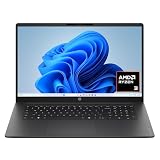
- FULL HD IPS DISPLAY - Enjoy vibrant, crystal-clear images with 178-degree wide-viewing angles
- AMD RYZEN 3 30 PROCESSOR - Everyday performance you can count on; Multitask, stream, game casually, and edit photos smoothly with responsive power and vibrant HDR visuals
- ENJOY UP TO 14 HOURS AND 15 MINUTES OF BATTERY LIFE - HP Fast Charge restores battery from 0 to 50% in approximately 45 minutes
- AMD RADEON 610M GRAPHICS - Experience smooth entertainment; Built for streaming and multitasking, enjoy realistic visuals and efficient performance for work and play
- STORAGE AND MEMORY - 512 GB PCIe NVMe M.2 SSD offers fast speed and efficient storage; and 8 GB LPDDR5 RAM memory boosts performance with higher bandwidth
What counts as bloatware on a laptop?
Bloatware is optional software that consumes attention or system resources without providing a clear benefit for the owner’s hardware, workflow, or security needs. The term should be applied narrowly rather than used for every application installed by the manufacturer.
Software that usually counts as bloatware
- Trial antivirus software or repeated prompts to purchase a security subscription.
- Manufacturer shopping, registration, feedback, advertising, or promotional apps.
- Duplicate media players, photo tools, cloud-storage prompts, or app stores.
- Games and third-party promotional shortcuts.
- Vendor services that run at startup without an obvious hardware purpose.
- Repeated upgrade prompts for paid software.
- Overlapping management tools that duplicate functions already available in Windows Settings.
Software that should not automatically be removed
- Chipset, graphics, audio, touchpad, webcam, fingerprint, and hotkey drivers.
- BIOS and firmware update tools.
- Fan, battery-conservation, thermal, display, and GPU-mode controls.
- OEM recovery utilities.
- Enterprise security and device-management components on business laptops.
- Microsoft components required for Windows features or security.
Removing every vendor utility can disable brightness keys, touchpad gestures, battery-charge limits, fan controls, display modes, discrete-GPU switching, firmware updates, or enhanced audio. A clean laptop is one with unnecessary software removed—not one with every manufacturer component erased.
Why is Framework the best clean Windows laptop choice?
The Framework Laptop 13 is the best general-purpose clean Windows choice because Framework combines a relatively unmodified Windows image with modular hardware and a clear DIY alternative. Framework’s product information describes prebuilt systems as shipping with stock Windows 11 and necessary drivers, while the DIY Edition gives the buyer control over the operating-system installation.
The Framework Laptop 13 product page also identifies features such as a 13.5-inch 3:2 display, hardware privacy switches, user-selectable expansion cards, and upgradeable components. Those features do not prove that every configuration is the fastest or longest-lasting laptop, but they make the Framework a strong fit for buyers who value serviceability and software control alongside a clean image.
| Framework option | What arrives | Who should choose it | Cost consideration |
|---|---|---|---|
| Laptop 13 prebuilt | Windows 11 and necessary drivers | Users who want to start working immediately with minimal OEM clutter | Final price depends on processor, memory, storage, operating system, and accessories |
| Laptop 13 DIY Edition | Buyer supplies or installs the operating system and selected components | Linux users, developers, and technically confident Windows users | Advertised price may exclude RAM, SSD, Windows licensing, and a power adapter |
| Refurbished Laptop 13 DIY Edition | DIY package with components varying by listing | Buyers comfortable sourcing parts and accepting refurbished hardware | On the cited August 18, 2026 price check, Ryzen 5 7640U was listed at $729 sale price and Ryzen 7 7840U at $889 sale price; prices and stock can change |
On the cited Framework marketplace price check from August 18, 2026, the Laptop 13 DIY Edition with AMD Ryzen AI 300 was listed from $849 at a sale price. The same marketplace showed Laptop 13 Pro DIY configurations from $1,399, with other Laptop 13 Pro configurations listed from $1,599 for Intel and $2,299 for AMD; availability and preorder status varied. These are dated price signals, not permanent prices or like-for-like configurations.
The main Framework trade-off is that a clean operating system does not compensate for an unsuitable processor, screen, keyboard, battery, speaker system, or thermal design. DIY buyers should calculate the complete usable system price before comparing the laptop with a fully configured Windows machine.
Is the Framework Laptop 13 DIY Edition worth it?
The Framework Laptop 13 DIY Edition is worth considering when operating-system choice, upgradeability, and repairability matter more than the convenience of a fully configured retail laptop. The DIY format is especially appealing to Linux users and developers who already have preferred installation media, memory, and storage.
The DIY Edition is a poor fit for buyers who interpret the base price as the price of a complete Windows laptop. The Framework configuration and specifications page should be checked for the exact operating-system, memory, storage, warranty, and accessory selections before ordering. Framework availability and pricing can change quickly.
Is System76 the best Linux laptop without bloatware?
System76 is the clearest choice for a buyer who wants Linux preinstalled rather than Windows cleaned up afterward. System76 presents its laptops as Linux-ready systems with drivers configured for the hardware, making the initial setup more direct for users who do not want to install and troubleshoot a distribution themselves.
Linux avoids the Windows OEM software layer, but “cleaner” does not mean universally easier. Application compatibility, sleep behavior, fingerprint readers, webcam features, GPU switching, peripheral support, and vendor assistance vary by distribution and model. Check the current System76 laptop catalog for the exact model and configuration; no reliable model-by-model price should be assumed without checking the live listing.
System76 is not the right recommendation for a Windows-first buyer who merely dislikes OEM applications. System76’s Windows support policy states that the success and quality of a Windows installation on its laptops are not guaranteed or supported by System76. Choose System76 because Linux is the intended environment, not because the laptop is a cheaper Windows machine with less clutter.
Are business laptops less bloated than consumer laptops?
Business-oriented ThinkPad, Dell Pro or Latitude, and HP EliteBook or ProBook models can be good lower-clutter strategies, but business branding is not a guarantee. The exact factory image depends on model, region, retailer, configuration, and sales channel.
Business laptops are often attractive because their support tools and hardware utilities tend to have a clearer maintenance purpose. They can also offer better port selection, docking support, service documentation, and enterprise management than thin consumer models. However, a business laptop can still include trial software, update agents, registration prompts, or overlapping utilities.
Model-specific evidence is essential. For example, Tom’s Guide’s Windows laptop coverage describes Samsung software as a source of clutter on an otherwise strong laptop, while Windows Central’s Lenovo Yoga Pro 9i review found that particular model comparatively restrained. Those observations do not establish a universal Samsung or Lenovo software policy.
Should you buy a Chromebook or MacBook to avoid bloatware?
Chromebooks and MacBooks can avoid the traditional Windows OEM-bloat problem, but they are separate operating-system choices rather than direct Windows recommendations.
Chromebooks generally feel clean because ChromeOS is tightly managed, but buyers should verify the model’s update-support period. ChromeOS is not a full replacement for desktop Adobe applications, certain games, specialized business software, or workflows requiring unrestricted local administration.
MacBooks are outside the normal Windows OEM-bloatware problem because Apple controls both the hardware and operating system. macOS still includes bundled apps and services, and Windows-only applications may require virtualization or compatibility software. Apple’s software ecosystem, repairability, and service policies should be evaluated separately from the question of Windows bloatware.
Is a factory-clean laptop better than a clean Windows installation?
A factory-clean laptop is better for immediate setup and hardware compatibility; a clean Windows installation provides more control over the software image. Neither approach is universally superior.
| Approach | Advantages | Disadvantages | Best for |
|---|---|---|---|
| Factory-clean or near-stock Windows | Ready immediately; drivers and device utilities are already present; recovery and support are simpler | May still include update agents, support tools, optional services, or promotions | Users who want minimal setup risk |
| Uninstall selected apps | Preserves factory drivers and recovery environment; low risk when unwanted apps are obvious | Leaves some OEM services and image customizations in place | Machines with only a small amount of unwanted software |
| Reset this PC | Reinstalls Windows without manually creating installation media; removes files, apps, and settings when “Remove everything” is selected | Still requires backups; the vendor recovery environment may remain acceptable or may not provide a truly generic Windows image | Users wanting a supported reset with less manual work |
| Full clean installation | Removes the manufacturer image in one operation and lets the buyer choose which utilities return | Destructive; drivers, recovery media, activation details, and hardware testing require preparation | Experienced users or heavily cluttered installations |
A clean Microsoft installation is also not a completely minimal operating system. A standard Windows installation can still include Edge, OneDrive prompts, Microsoft Store apps, account prompts, recommendation surfaces, Windows services, and other Microsoft features that vary by edition and release. “OEM-free” and “minimal Windows” are different goals.
Free tools Windows power users keep installed
One-click scans. No signup required.
How do you clean a Windows laptop safely?
Option 1: Uninstall only the obvious clutter
Use this method when the laptop is stable and only contains a few unwanted trials or promotional applications.
- Back up important files and confirm that you can restore browser data, password-manager access, license keys, and authentication codes.
- Open Settings > Apps > Installed apps.
- Sort by installation date and identify trial antivirus, games, shopping tools, promotional apps, and duplicate utilities.
- Uninstall only software whose purpose is clear.
- Restart the laptop.
- Test Wi-Fi, Bluetooth, audio, camera, brightness keys, sleep, charging, external displays, touchpad gestures, and any fingerprint reader.
Do not uninstall an unfamiliar driver or hardware-control application simply because it starts with Windows. Identify the vendor, read the laptop’s support documentation, and check whether the application controls a feature you use.
Option 2: Reset Windows
Microsoft documents the reset path as Settings > System > Recovery > Reset this PC. The Remove everything choice removes personal files, apps, and settings and reinstalls Windows. Read every prompt carefully, choose the appropriate reinstall source, and keep a backup outside the laptop.
Microsoft’s Reset this PC documentation is the appropriate reference for current reset choices. Resetting is useful when the installation is unstable or when the buyer wants a supported reset without manually preparing USB installation media, but it should not be treated as a harmless speed tweak.
The Tool Desk
Outbyte Driver Updater FREEFix the driver behind crashes, sound loss and screen glitchesFind Drivers →Outbyte PC Repair FREERepair Windows errors before they cause bigger problemsFix Now →Also popular on Amazon

- Intel Celeron N4120: 4 Cores & Threads, 1.1GHz Base Clock, Up to 2.6GHz Boost Clock, 4MB Cache, Intel UHD Graphics 600. The perfect combination of performance, power consumption, and value helps your device handle multitasking smoothly and reliably with four processing cores to divide up the work.
Option 3: Perform a full clean installation from USB
A full clean installation is the most thorough way to remove an OEM Windows image, but the process deletes data and can remove the manufacturer’s recovery environment.
- Back up files, browser data, license keys, recovery codes, and any required work credentials.
- Record the exact laptop model and the original Windows edition, such as Home or Pro.
- Download Windows 11 installation media from Microsoft.
- Create a bootable USB drive.
- Before wiping the laptop, download the manufacturer’s Wi-Fi, Bluetooth, chipset, graphics, audio, touchpad, camera, hotkey, storage-controller, fingerprint, and firmware packages.
- Keep the driver files on a second USB drive or other accessible device in case networking does not work after installation.
- Boot from the USB drive and select the Windows 11 installation option.
- Choose the installation path that deletes the existing files, apps, and settings only after confirming that the backup and recovery plan is complete.
- Run Windows Update after Windows starts.
- Install only the manufacturer utilities required for hardware behavior, firmware updates, power controls, GPU modes, or other features you actually use.
- Test every device and function before deleting old backups or recovery media.
Microsoft’s official installation-media procedure warns that a clean installation can delete files, apps, and settings. Microsoft also explains that linking a Microsoft account to the device’s digital license can help Windows reactivate after reinstalling. Record the original edition because Home and Pro activation are not interchangeable in every situation.
What drivers and utilities should you reinstall?
Install the chipset and networking drivers first, then add the components required for the laptop’s actual hardware. A practical order is:
- Chipset and platform drivers.
- Wi-Fi and Bluetooth drivers, unless Windows already provides working connectivity.
- Graphics drivers.
- Audio drivers and optional audio-control software.
- Touchpad, webcam, fingerprint, and card-reader drivers.
- Hotkey and keyboard-function software.
- Power, battery, fan, thermal, display, and GPU-mode controls.
- BIOS and firmware update utilities, using the manufacturer’s instructions.
Test USB-C display output, sleep and hibernate, charging limits, brightness controls, audio, camera behavior, and external monitors. Generic Windows drivers may provide basic operation while omitting enhanced audio, touchpad gestures, discrete-GPU switching, battery thresholds, or vendor-specific controls.
Quick wins for a faster PC:
Fix the driver behind crashes, sound loss and screen glitchesFind Drivers →Repair Windows errors before they cause bigger problemsFix Now →Scan for outdated or missing drivers - takes under a minuteDriver Scan →What happens when a clean installation goes wrong?
Wi-Fi, Bluetooth, or audio does not work
Use the drivers downloaded before the wipe, copy them from a second USB device, or temporarily connect through a compatible USB Ethernet adapter. Install chipset and networking drivers before looking for optional utilities.
Brightness keys, touchpad gestures, or fingerprint login fail
Install the laptop’s hotkey, touchpad, fingerprint, and platform packages from the manufacturer’s support page. These features often require more than the generic Windows driver.
GPU switching, fan control, or battery conservation is missing
Reinstall the manufacturer’s control center or power-management utility after confirming that the application is intended for the exact model. Gaming laptops may need GPU control centers, performance modes, fan curves, RGB tools, overlays, or launcher integrations even when those programs look like clutter.
Windows does not activate correctly
Confirm the original Windows edition, connect the device to the internet, and use the Microsoft account associated with the digital license when appropriate. Do not use unofficial activation scripts. If activation remains unresolved, consult Microsoft support and the laptop manufacturer before making further changes.
Recommended Free Tools
The OEM recovery partition was deleted
A generic Windows installation may not recreate the original recovery environment. Create manufacturer recovery media before wiping when the vendor provides it, and verify whether a downloadable recovery image exists. A clean install is not always reversible without downloading that image.
An OEM utility was removed accidentally
Reinstall the utility from the manufacturer’s support page, then reinstall chipset, graphics, audio, and firmware packages if required. If features remain broken, use the vendor recovery image or reset Windows only after backing up data.
Should you use a Windows debloat script?
Most readers should avoid aggressive debloat scripts that remove Windows components indiscriminately. Such scripts can break Microsoft Store dependencies, remove optional features needed later, disable security or update components, complicate troubleshooting, and make future feature updates less predictable.
A safer sequence is to uninstall known unwanted applications, disable unnecessary startup programs, retain hardware-control utilities, and use Microsoft’s supported reset or clean-installation process when the OEM image is heavily cluttered. Avoid registry cleaners and generic “PC optimization” subscriptions that promise performance without identifying the specific software they change.
Do these 3 things before closing this tab:
1Repair Windows errors before they cause bigger problems2Scan for outdated or missing drivers - takes under a minute3Clear out junk files and repair common Windows errorsDoes removing bloatware improve laptop performance?
Removing bloatware can improve perceived responsiveness when unwanted applications generate startup processes, notifications, background activity, or storage use. The benefit varies by model and workload, and a clean installation does not automatically make a weak processor faster.
Removing a trial antivirus program or promotional startup service may reduce background activity, but it does not transform the CPU, cooling system, display, battery, or graphics hardware. A clean installation may feel faster while producing little or no measurable change in sustained CPU or GPU performance. Treat “pure performance” as a user-experience goal, not a guaranteed benchmark result.
Before-and-after speed claims are meaningful only when the same laptop is tested under controlled conditions with the same drivers, updates, power mode, workloads, and thermal state. Anecdotal reports should not be presented as benchmark evidence.
How should you inspect a laptop for bloatware before the return period ends?
- Complete initial setup without accepting unnecessary trials or promotional subscriptions.
- Open Settings > Apps > Installed apps and sort by installation date.
- Open Settings > Apps > Startup and inspect third-party startup programs.
- Open Task Manager > Startup apps and note the publisher and startup impact.
- Inspect the Start menu for trials, games, shopping links, duplicate utilities, and promotional shortcuts.
- Open Settings > System > About and record the exact model and Windows edition.
- Identify which vendor utilities control hotkeys, charging limits, fan modes, GPU switching, display profiles, and firmware updates.
- Create recovery media if the manufacturer supports it.
- Uninstall obvious clutter, restart, and test all hardware before deciding whether a reset or clean installation is necessary.
A short inspection is more reliable than a brand stereotype. A laptop that appears clean may still include intrusive vendor utilities, startup services, or promotional surfaces that only become visible in Installed apps, Startup settings, Task Manager, or the first-run setup screens.
Outdated Drivers Are Slowing You Down
One free scan finds every outdated or missing driver and matches the right update for your exact hardware.Free scan · exact hardware matchPC Slower Than It Used to Be?
A free scan shows the junk files, broken settings and background clutter dragging Windows down - then fixes them in one click.Free scan · Windows 10 & 11What should you check before buying?
| Criterion | Questions to ask |
|---|---|
| Operating-system image | Does the laptop ship with stock Windows 11, Linux, ChromeOS, no OS, or a customized OEM image? |
| Third-party trials | Are antivirus, cloud-storage, games, or productivity trials included? |
| OEM utilities | Which utilities are essential, optional, promotional, or duplicated? |
| Driver availability | Can all exact-model drivers be downloaded before reinstalling? |
| Recovery | Can factory recovery media or a vendor recovery image be created or downloaded? |
| Hardware fit | Are the processor, memory, SSD, display, keyboard, webcam, ports, and thermals suitable for the workload? |
| Firmware support | Can BIOS and device updates be installed after a clean OS setup? |
| Repairability | Are the SSD, RAM, battery, and other parts replaceable and available? |
| Warranty | Will DIY upgrades or an alternative operating system affect support for the exact product? |
| Total price | Does the advertised base price include memory, storage, Windows, and a power adapter? |
| Long-term value | Does the laptop remain useful because of upgradeability and serviceability, rather than only having a clean first boot? |
Windows 10 should not be treated as the default fallback for a new recommendation in 2026. Microsoft says Windows 10 support ended on October 14, 2025, so current Windows recommendations should center on Windows 11 or a supported alternative. See Microsoft’s Windows recovery documentation for the relevant support context and current reset guidance.
Which laptop should each type of buyer choose?
- Best overall clean Windows laptop: Framework Laptop 13 prebuilt, because Framework positions the installation as stock Windows 11 with necessary drivers and the hardware is upgradeable.
- Best DIY and clean-install choice: Framework Laptop 13 DIY Edition, for buyers who want to choose the operating system, memory, storage, and software image themselves.
- Best Linux-first laptop: System76, because Linux is preinstalled and configured for the hardware; do not choose it as a Windows-first laptop.
- Best conventional business alternative: A carefully inspected ThinkPad, Dell Pro or Latitude, or HP EliteBook or ProBook model when enterprise support, ports, docking, or local service networks matter more than a guaranteed factory image.
- Best cleanup strategy for an existing Windows laptop: Uninstall known unwanted apps first; use Reset this PC or Microsoft installation media when the factory image is substantially cluttered.
- Best non-Windows alternative: A Chromebook for web-first work or a MacBook for users whose applications fit macOS, with compatibility checked before purchase.
Frequently Asked Questions
Are there truly bloatware-free laptops?
There is no universally certified bloatware-free laptop category. Framework comes closest among general-purpose Windows options by describing its prebuilt Laptop 13 as stock Windows 11 with necessary drivers, while System76 ships Linux rather than a Windows OEM image.
Is it safe to reinstall Windows on a new laptop?
A clean Windows 11 installation is safe when the buyer backs up data, records the original Windows edition, downloads exact-model drivers, and creates recovery media first. The process can delete files, apps, settings, and the manufacturer’s recovery environment.
Does removing bloatware make a laptop faster?
Removing unwanted software can reduce startup clutter, notifications, background processes, and storage use, but it does not guarantee higher CPU, GPU, battery, or benchmark performance. The improvement depends on the laptop’s original software load and the user’s workload.
Should I remove the laptop manufacturer’s control center?
Do not remove a manufacturer control center until you know what it manages. Gaming, business, and thin laptops may depend on vendor utilities for fan modes, battery-charge limits, GPU switching, display profiles, firmware updates, hotkeys, or enhanced audio.
The Bottom Line
For a clean Windows laptop that is ready immediately, choose the Framework Laptop 13 prebuilt. Choose the Framework Laptop 13 DIY Edition when you want to install Windows or Linux yourself and can calculate the complete cost of memory, storage, licensing, and accessories. Choose System76 when Linux is the intended operating system. Otherwise, buy the business laptop with the hardware and support you need, inspect its software, and use Microsoft’s supported cleanup or clean-installation process instead of an indiscriminate debloat script.

