
iTechGuides is reader-supported. When you buy through links on our site, we may earn an affiliate commission. As an Amazon Associate I earn from qualifying purchases. Learn more
The best laptop for architecture rendering in the August 2026 research snapshot is a Windows laptop with an NVIDIA RTX 5080 Laptop GPU, 16GB VRAM, 32GB RAM, a high-performance HX-class processor, and upgradeable memory and storage. Choose an RTX 5090 with 24GB VRAM and 64GB RAM for exceptionally large scenes, animation, or VR.
Architecture rendering is not one workload. Revit and AutoCAD emphasize modeling and CPU responsiveness; Enscape, Lumion, Twinmotion, D5 Render, V-Ray GPU, Octane, and Blender Cycles place much more pressure on the GPU and VRAM; Corona and V-Ray CPU favor sustained processor throughput and system memory. The right purchase therefore depends on the software, scene size, rendering method, portability requirements, and whether final images are rendered locally or in the cloud.
Key takeaways
- An RTX 5080 Laptop GPU with 16GB VRAM and 32GB RAM is the strongest general-purpose target for serious architecture rendering.
- An RTX 5070 Ti laptop with 12GB VRAM and 32GB RAM is the sensible value tier for students and mixed BIM/visualization work.
- An RTX 5090 Laptop GPU provides 24GB VRAM and is most appropriate for very large Lumion scenes, GPU rendering, animation, and VR—not ordinary Revit work.
- System memory should start at 32GB for most architecture users; 64GB is advisable for large linked models, real-time visualization, animation, and long-term ownership.
- GPU wattage, cooling, and sustained performance matter because two laptops with the same RTX GPU name can perform differently during a long render.
- A 2560×1600 display is often a better real-time viewport compromise than a 4K panel, although a high-quality 4K OLED can be useful for image review and presentations.
What is the best laptop for architecture rendering?
The best overall laptop configuration for architecture rendering is a well-cooled Windows laptop with an RTX 5080 Laptop GPU, 16GB GDDR7 VRAM, 32GB or 64GB RAM, a recent HX-class processor, and at least a 1TB SSD. The Lenovo Legion Pro 7i Gen 10 with RTX 5080 is a representative choice because Lenovo lists an Intel Core Ultra 9 configuration, RTX 5080 graphics with 16GB GDDR7, a 16-inch 2560×1600 OLED display, and memory options up to 64GB.
Lenovo’s US product page displayed one RTX 5080 configuration at $3,199.99 when observed, but the price depends on the exact specification and promotion. The laptop starts below approximately 2.72kg (6lb), before the power adapter. See Lenovo’s official Legion Pro 7i Gen 10 configuration page for current availability and pricing.
Popular on Amazon

- 【16" WQXGA OLED 240Hz Display】Provides ultra-sharp resolution with vibrant colors, deep contrast, and ultra-smooth motion, enhancing immersive gaming and high-precision creative work.
- 【Intel Core Ultra 9 275HX Processor】Offers desktop-class performance with advanced multi-core architecture and AI acceleration, supporting extreme gaming, content creation, and professional workloads.
- 【16GB DDR5 RAM】Enjoy high-bandwidth performance built for demanding workloads. Effortlessly run multiple applications simultaneously while maintaining smooth, responsive operation.【1TB PCIe SSD】Experience ultra-fast storage speeds combined with generous capacity, giving you ample space to keep your files, apps, and multimedia content organized and easily accessible.
- 【NVIDIA GeForce RTX 5080 16GB GDDR7 8GB GDDR7】Enhances next-generation gaming and creative performance with advanced ray tracing, AI acceleration, and high-bandwidth memory for ultra-smooth visuals and demanding workloads.【RGB Backlit Keyboard】Features a full-size keyboard with customizable RGB lighting, allowing you to personalize your setup and work or play comfortably, even in low-light environments.
- 【Windows 11 Home】【Dimensions & Weight】14.35" x 10.86" x 1.02", 5.67 lbs.【Ports】3 x USB-A, 2 x USB-C, 1x HDMI, 1x Headphone/ mic combo, 1x RJ-45, 1x Power in. Wi-Fi 7 + Bluetooth.【Bonus Docking Station Set】1x 7-in-1 Docking Station with 1TB Storage, 1x 32GB MicroSD Card with Adapter, 1x Type-C Data Cable, 1x 3-in-1 Charging Cable, 1x Suede Cleaning Cloth.
The Legion Pro 7i is not the best choice for every architect. The chassis is heavy, the gaming styling and RGB lighting may not suit a client-facing studio, and the OLED panel can be reflective. The configuration is better suited to a student, freelancer, or professional who values local rendering performance over low weight and quiet battery operation.
Which architecture-rendering laptop should you buy?
The following recommendations are configuration families rather than permanent model rankings. Laptop manufacturers change processors, graphics power limits, memory, displays, storage, and prices under the same product-family name.
| Configuration or laptop family | Best for | GPU and VRAM | Recommended RAM | Display target | Main trade-off |
|---|---|---|---|---|---|
| RTX 5070 Ti laptop | Students and mixed BIM/visualization | 12GB VRAM | 32GB | 2560×1600 preferred | Less headroom for very large scenes |
| Lenovo Legion Pro 7i Gen 10, RTX 5080 | Best overall local rendering balance | RTX 5080 Laptop, 16GB GDDR7 | 32GB minimum; 64GB preferred | 16-inch 2560×1600 OLED | Heavy, large charger, gaming appearance |
| ASUS ProArt P16, RTX 5090 | Maximum mobile GPU capacity and color-focused work | RTX 5090 Laptop, 24GB GDDR7 | 64GB where available | 16-inch 4K OLED touchscreen | Expensive; 4K can reduce viewport performance |
| Certified RTX professional laptop | Enterprise, procurement, and validated workflows | Professional RTX GPU | 32GB or 64GB | Choose for workflow and external-monitor needs | Higher price and not necessarily faster rendering |
| Balanced laptop plus cloud or desktop rendering | Mobile users who render high-end output occasionally | Enough local GPU for viewport work | 32GB preferred | Portable, sharp panel | Upload time, internet dependence, and service costs |
Best value: an RTX 5070 Ti laptop with 32GB RAM
An RTX 5070 Ti laptop with 12GB VRAM is the practical value target for architecture students and professionals who use Revit, Rhino, SketchUp, Enscape, Twinmotion, or moderate Lumion scenes. NVIDIA places RTX 5070 Ti laptops in its advanced 3D-rendering category, and Lumion includes the RTX 5070 Ti among its recommended laptop GPU options. The NVIDIA Studio GPU selector and Lumion 2026 laptop guidance are useful checks against the exact scene-size and memory requirements.
Do not choose an arbitrary RTX 5070 Ti model solely because its GPU label looks attractive. Check the GPU’s TGP, cooling design, RAM arrangement, SSD slots, display resolution, return policy, and independent sustained-load testing. A well-cooled 12GB laptop can be a better purchase than a thin model with a nominally higher GPU that cannot maintain its power target.
Best overall: Lenovo Legion Pro 7i Gen 10 with RTX 5080
The RTX 5080 configuration is the best general recommendation when local real-time rendering matters. The RTX 5080 Laptop GPU supplies 16GB VRAM, which is a useful balance between scene capacity and price, while the HX-class Intel processor and thick performance-oriented chassis suit long sessions better than an ultra-thin laptop.
Lenovo lists RTX 5070 Ti, RTX 5080, and RTX 5090 options for the Legion Pro 7i Gen 10 family, along with up to 64GB DDR5 memory and a 16-inch 2560×1600 OLED display. The official Legion Pro 7i specifications should be checked before purchase because the family contains materially different configurations.
Choose it if: you want strong Enscape, Lumion, Twinmotion, D5, GPU-rendering, and viewport performance without paying RTX 5090 pricing.
Do these 3 things before closing this tab:
1Scan for outdated or missing drivers - takes under a minute2Repair Windows errors before they cause bigger problems3Fix the driver behind crashes, sound loss and screen glitchesSkip it if: you carry the laptop across campus or job sites every day, need an understated design, or prioritize maximum battery life and low fan noise.
Best for maximum local GPU rendering: ASUS ProArt P16 with RTX 5090
The ASUS ProArt P16 RTX 5090 configuration is the high-capacity option for very large scenes, high-resolution animation, VR, extensive texture libraries, and GPU renderers that frequently approach 16GB VRAM limits. ASUS lists a Ryzen AI 9 HX 370 or comparable high-performance processor, up to 64GB memory, a 2TB SSD option, and an RTX 5090 Laptop GPU with 24GB GDDR7 in the product family.
ASUS displayed a US starting price of $5,499.99 for an RTX 5090 version when observed, while an RTX 5070 version displayed a $3,999.99 starting price. ASUS cautions that displayed starting prices may not correspond exactly to every listed specification. Check the ASUS ProArt P16 store page and its technical specifications for the precise GPU, RAM, storage, and display combination.
The 16-inch 4K OLED touchscreen offers 100% DCI-P3 coverage, touchscreen and stylus support, and a presentation-friendly image. The 4K panel also makes the GPU process more pixels in real-time applications. Lumion recommends 1920×1080 for best performance and warns that higher resolutions reduce performance, so use a lower application or editor resolution when smooth viewport interaction matters more than native desktop sharpness.
Crashes, No Sound, or Screen Glitches?
Random freezes, missing sound and display glitches usually trace back to one bad driver. Find and replace yours safely.Free scan · under a minutePC Slower Than It Used to Be?
A free scan shows the junk files, broken settings and background clutter dragging Windows down - then fixes them in one click.Free scan · Windows 10 & 11Choose it if: you need 24GB VRAM in a creator-focused design and can accept a high price.
Also popular on Amazon

- Flagship Processing Power: Powered by an Intel 24-core Ultra 9 275HX Processor (8 Performance + 16 Efficient cores) with a base clock of 2.7GHz, max boost up to 5.4GHz, 36MB SmartCache, and 24 threads for uncompromising performance in gaming, rendering, and heavy multitasking.
- Elite Visuals & Graphics: 16" QHD+ (2560 x 1600) IPS 240Hz display, paired with a dedicated NVIDIA GeForce RTX 5080 16GB graphics card for breathtaking detail, ultra-smooth motion, and ray-traced realism at the highest settings.
- Next-Gen Connectivity Hub: Features 2 x Thunderbolt 5, 2 x USB-A 3.2, 1 x HDMI 2.1, 1 x RJ45 Ethernet, and 1 x SD Express Card Reader — ideal for lightning-fast data transfers, multi-monitor pro setups, or high-speed storage access during video editing and competitive gaming.
- Total Immersion & Security: Runs Microsoft Windows 11 Professional, with a 24-zone RGB backlit keyboard for customizable flair
- Wi-Fi 7 for ultra-low latency, Nahimic 3 and Hi-Res Audio for 3D spatial sound, and an FHD IR camera with HDR 3D noise reduction for secure face unlock and crystal-clear video calls — perfect for streaming, esports, or high-stakes remote collaboration.
Skip it if: you want the lowest cost per unit of sustained rendering performance or mainly do Revit and 2D documentation.
Best professional-workstation route: a certified RTX mobile workstation
A Dell Precision, HP ZBook, or Lenovo ThinkPad P-series laptop makes sense when ISV certification, professional drivers, security, fleet management, docking, on-site service, and procurement requirements matter. A workstation may provide better application validation and support, but “workstation” does not automatically mean faster rendering.
For pure real-time rendering throughput, a high-wattage GeForce RTX laptop can offer more performance per dollar than a similarly priced professional RTX configuration. Choose a certified workstation when the business benefits justify the premium, not merely because the word workstation appears in the product name.
What does architecture rendering actually require?
Architecture rendering combines several workloads, and each workload stresses a different part of a laptop. A laptop that feels excellent in Revit can still struggle with Lumion, while a powerful GPU laptop can be less impressive for CPU-heavy BIM calculations.
| Workload | Typical software | Primary hardware concern | Buying emphasis |
|---|---|---|---|
| Modeling and BIM | Revit, Archicad, AutoCAD | CPU responsiveness, RAM, storage | Recent high-performance CPU and 32GB RAM |
| Viewport navigation | Rhino, SketchUp, Revit, Archicad | GPU responsiveness and CPU single-thread performance | RTX 5070 Ti or better for complex scenes |
| Real-time rendering | Enscape, Lumion, Twinmotion, D5 Render | GPU, VRAM, cooling | 12GB VRAM practical floor; 16GB preferred |
| GPU final rendering | V-Ray GPU, Octane, Blender Cycles GPU | GPU compute and VRAM capacity | RTX 5080 or RTX 5090 for large scenes |
| CPU final rendering | V-Ray CPU, Corona | Sustained CPU throughput and RAM | HX-class processor and 64GB for large projects |
| Animation and walkthroughs | Lumion, Twinmotion, Blender, V-Ray | Sustained cooling, GPU, storage | Thick chassis, high-wattage GPU, 2TB SSD |
| VR | Real-time visualization platforms | GPU frame rate, VRAM, resolution | RTX 5080 or RTX 5090 with ample VRAM |
| Post-production | Photoshop, Illustrator, After Effects, Premiere, DaVinci Resolve | RAM, GPU acceleration, display quality, storage | 32GB minimum; 64GB for complex multitasking |
How much GPU power and VRAM do you need?
For real-time architectural visualization, prioritize the GPU before the CPU, but do not judge the GPU by its model number alone. NVIDIA categorizes RTX 5060 and RTX 5070 laptop GPUs for medium scenes, RTX 5070 Ti and RTX 5080 for advanced or large scenes, and RTX 5090 for extra-large scenes. NVIDIA’s Studio GPU comparison table gives the associated scene-size and VRAM positioning.
| VRAM target | What it generally means | Suitable use |
|---|---|---|
| 8GB | Usable capacity for lighter or medium work, with limited future headroom | Students, 2D work, light SketchUp, moderate scenes |
| 12GB | Practical floor for serious real-time visualization | RTX 5070 Ti-class mixed BIM and visualization |
| 16GB | Best balance for professional architectural rendering | RTX 5080-class large scenes, ray tracing, high-resolution output |
| 24GB | High scene capacity for demanding local GPU workloads | RTX 5090-class large textures, animation, VR, and very large scenes |
Insufficient VRAM can cause missing textures or texture pop-in, stuttering while orbiting, crashes when ray tracing is enabled, inability to render at the desired resolution, or severe slowdowns when data spills into system memory. More VRAM does not automatically make every render faster; VRAM primarily determines whether the scene, textures, resolution, and effects fit without a memory bottleneck.
Laptop GPU names must not be equated with desktop GPU names. Lumion reports that a laptop GPU can be materially slower than a similarly named desktop GPU; Lumion’s example compares an RTX 5090 desktop with an RTX 5090 Laptop GPU and reports an approximately 40% lower PassMark result for the laptop version. Read the Lumion 2026 laptop guidance for that distinction and for current recommendations.
What’s actually slowing this PC down?
Pick the symptom - the matching free tool is one click away.
How much RAM should an architecture laptop have?
Buy 32GB RAM as the practical baseline for most architecture students and professionals, and choose 64GB for large linked BIM projects, real-time visualization, animation, heavy multitasking, or longer ownership. Lumion’s 2026 guidance identifies 16GB as minimum, 32GB or more as recommended, and 64GB or more for high-end projects.
| RAM | Practical assessment | Who should choose it |
|---|---|---|
| 16GB | Minimum for light work but increasingly restrictive | Basic drafting, light projects, limited multitasking |
| 32GB | Recommended baseline | Most students, Revit users, and mixed BIM/visualization work |
| 64GB | Advisable for demanding and longer-term use | Large models, Lumion, point clouds, animation, Adobe multitasking |
| 128GB | Specialist capacity | Exceptionally large BIM datasets and workstation-class multitasking |
Check whether memory is soldered, user-upgradeable, limited to a manufacturer-defined maximum, or supplied in two modules for dual-channel operation. A 32GB laptop with accessible upgrade slots can be a better long-term purchase than a thin 64GB laptop with sealed memory.
Which CPU is best for architecture rendering?
A recent high-performance CPU is important for Revit calculations and regeneration, BIM imports and exports, simulation and analysis, CPU rendering, compression, batch operations, and running several applications simultaneously. Choose sustained performance rather than relying on the processor’s branding alone.
HX-class processors generally fit heavy rendering laptops because they are designed for higher sustained power, while H-class systems are more appropriate when mobility, battery life, and a thinner chassis matter more. Laptop CPU performance varies with cooling, firmware, power limits, and adapter capacity, so processor names cannot guarantee a specific render-time improvement.
Free tools Windows power users keep installed
One-click scans. No signup required.
Choose a stronger CPU and more RAM when Revit, BIM coordination, CPU rendering, analysis, or batch processing dominates. Choose more GPU VRAM when Enscape, Lumion, Twinmotion, D5, V-Ray GPU, Blender Cycles GPU, or Octane dominates. Most serious users need both, but the balance depends on the workflow.
Also popular on Amazon
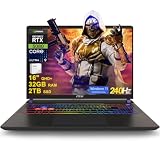
- 32GB RAM | 2TB SSD
- Equipped With The Most Powerful and Fast Intel 24-core Ultra 9 275HX Processor
- 16" QHD+ (2560 x 1600) IPS 240Hz, Dedicated NVIDIA GeForce RTX 5080 16GB Graphic
- 2 x Thunderbolt 5, 2 x USB-A 3.2, 1 x HDMI 2.1, 1 x RJ45 Ethernet, 1 x SD Express Card Reader
- Windows 11 Professional, 24-zone RGB Backlit Keyboard, Wi-Fi 7, Nahimic3, FHD IR Camera (HDR 3D Noise Reduction), Auth USB-C Hub
Why do cooling and GPU wattage matter?
Rendering is a sustained workload, so a laptop’s long-duration output matters more than a short benchmark burst. Heat-pipe or vapor-chamber design, fan profiles, power limits, firmware, and the power adapter determine whether a laptop can hold its advertised performance during a 20-minute or one-hour render.
Check the GPU TGP or TDP, whether the maximum wattage includes Dynamic Boost, the power-adapter rating, the required performance mode, and independent sustained-load testing. A thin RTX 5080 laptop can be slower during a long render than a thicker RTX 5070 Ti or RTX 5080 model with better cooling.
Maximum rendering performance normally requires AC power. On battery, laptops commonly reduce CPU and GPU power, so plugged-in review results should not be interpreted as battery performance. A six-pound laptop plus a large adapter can also be impractical for daily campus or site travel.
The Tool Desk
Outbyte Driver Updater FREEFix the driver behind crashes, sound loss and screen glitchesFind Drivers →Outbyte PC Repair FREERepair Windows errors before they cause bigger problemsFix Now →If a laptop overheats during long renders, use the manufacturer’s performance mode while plugged in, elevate the rear, clean vents and fans, update firmware and GPU drivers, reduce viewport or render quality, or select a more conservative sustained-performance profile. If the workload remains unsuitable, move final rendering to a desktop or cloud renderer.
What display should an architecture laptop have?
A 16:10 display with at least 1600p-class sharpness, high brightness, manageable glare, accurate color coverage, and external-monitor support is a strong default. A 2560×1600 panel often balances workspace and real-time performance better than a native 4K laptop panel.
A 4K OLED display is excellent for reviewing images and presentations, but the higher pixel count increases the GPU workload and can reduce battery life. Lumion recommends 1920×1080 for best performance and says users with a 4K screen can lower the application or editor resolution. A calibrated external 4K monitor can provide a larger, color-focused review surface without forcing every real-time viewport to run at 4K.
100% DCI-P3 coverage is useful for a broad color gamut, but DCI-P3 coverage alone does not prove factory calibration accuracy or guarantee suitability for color-critical work. Consider matte treatment or glare control if the laptop will be used in a bright studio or on site.
Quick wins for a faster PC:
Fix the driver behind crashes, sound loss and screen glitchesFind Drivers →Repair Windows errors before they cause bigger problemsFix Now →How much storage do architecture projects need?
Choose a 1TB SSD as the minimum practical capacity and 2TB when the laptop will hold active projects, texture and asset libraries, render caches, and output files. Two SSD slots and a replaceable drive are valuable because architecture software and asset libraries can consume space quickly.
External SSDs are useful for archives, transfers, and backups, but an external drive should not be the only location for active work. Verify the laptop’s internal drive layout and upgrade procedure before buying, especially on thin creator systems.
Is Windows or macOS better for architecture rendering?
Windows is the safer default for a broad architecture-rendering recommendation because many visualization applications and GPU-rendering workflows are built around Windows and NVIDIA CUDA, OptiX, or RTX acceleration. Windows is especially important for readers whose primary tools include Lumion, CUDA/OptiX renderers, or Windows-only plugins.
A MacBook can still be attractive for battery life, build quality, display quality, 2D drafting, documentation, presentations, and general productivity when the exact software stack is supported. Compatibility must be checked application by application and version by version, including plugins, renderer support, GPU acceleration, and whether virtualization or translation layers are required. A MacBook should not be the default recommendation for a Lumion-centered or CUDA/OptiX-centered workflow.
Should you buy a gaming laptop or a mobile workstation?
Buy a gaming laptop when rendering speed per dollar is the priority; buy a certified mobile workstation when application validation, business support, security, serviceability, and fleet management are more important than maximum consumer-GPU throughput.
Also popular on Amazon

- 32GB RAM | 1TB SSD
- Equipped With The Most Powerful and Fast Intel 24-core Ultra 9 275HX Processor
- 16" QHD+ (2560 x 1600) IPS 240Hz, Dedicated NVIDIA GeForce RTX 5080 16GB Graphic
- 2 x Thunderbolt 5, 2 x USB-A 3.2, 1 x HDMI 2.1, 1 x RJ45 Ethernet, 1 x SD Express Card Reader
- Windows 11 Professional, 24-zone RGB Backlit Keyboard, Wi-Fi 7, Nahimic3, FHD IR Camera (HDR 3D Noise Reduction), Auth USB-C Hub
| Criterion | Gaming laptop | Certified mobile workstation |
|---|---|---|
| Rendering performance per dollar | Usually stronger with GeForce RTX hardware | Often lower at the same price |
| GPU options | Broad access to high-wattage RTX 5070 Ti, 5080, and 5090 configurations | Professional RTX GPUs and fewer high-VRAM choices in some models |
| Validation | May lack ISV certification | Application-specific validation may be available |
| Support and management | Consumer-oriented warranty and service | Business support, security, docking, and fleet-management options |
| Design and acoustics | More gaming styling and often more fan noise | Usually more understated, though designs vary |
| Best buyer | Students, freelancers, and studios focused on throughput | Firms with procurement, compliance, or support requirements |
Professional GPU drivers and ISV certification can improve validation and support, but certification is not a promise that the workstation will never crash or render faster than a higher-wattage GeForce laptop.
How should you choose a laptop for each architecture application?
Revit and AutoCAD
Revit and AutoCAD users should prioritize a responsive recent CPU, 32GB RAM, fast SSD storage, and a competent RTX GPU. RTX 5070 Ti is a comfortable mixed-use target, while RTX 5080 is worthwhile when the same laptop will also run demanding real-time visualization.
Rhino, Grasshopper, and SketchUp
Rhino, Grasshopper, and SketchUp users should balance CPU responsiveness with GPU viewport performance. Complex geometry, plugins, large textures, and real-time renderers shift the recommendation toward an RTX 5070 Ti or RTX 5080 and 32GB or 64GB RAM.
Recommended Free Tools
Enscape, Lumion, Twinmotion, and D5 Render
Enscape, Lumion, Twinmotion, and D5 Render users should prioritize NVIDIA GPU performance, VRAM, and cooling. Use 12GB VRAM as a practical floor for serious visualization, 16GB as the preferred professional balance, and 24GB for unusually large scenes, animation, or VR.
V-Ray, Corona, and Blender
V-Ray GPU, Octane, and Blender Cycles GPU favor GPU compute and VRAM, making RTX 5080 or RTX 5090 configurations attractive for large scenes. V-Ray CPU and Corona favor a fast, sustained high-core-count CPU and additional RAM, so an HX-class processor and 64GB memory can matter more than moving from RTX 5070 Ti to RTX 5080.
Exact performance rankings depend on the renderer version, scene, settings, laptop power limits, and cooling. Do not infer a precise render-time percentage from the GPU family name alone.
When is cloud rendering or a desktop better than a powerful laptop?
Cloud rendering or a desktop workstation can be more economical than an RTX 5090 laptop when high-end final rendering is occasional and local interactive viewport performance is not the main bottleneck. A desktop generally offers stronger sustained performance, better cooling, easier upgrades, and more rendering performance per dollar, but it sacrifices mobility.
What’s actually slowing this PC down?
Pick the symptom - the matching free tool is one click away.
Cloud rendering is useful when the user can upload project files securely, has reliable internet, and accepts usage charges or subscriptions. Cloud rendering is a poor fit when projects are confidential, asset libraries are huge, upload times are disruptive, or the user needs a responsive local viewport. A balanced RTX 5070 Ti or RTX 5080 laptop plus remote final rendering can be a sensible combination for mobile professionals.
What are the most common architecture-laptop buying mistakes?
- Buying by GPU name only: Confirm TGP, cooling, performance mode, and sustained-load behavior.
- Choosing 16GB RAM: Sixteen gigabytes may meet a minimum but can become frustrating with linked models, visualization, browsers, and Adobe applications.
- Ignoring VRAM: An 8GB GPU may launch the application but fail on large scenes, ray tracing, or high-resolution output.
- Choosing 4K without considering the viewport: Native 4K can reduce real-time performance; lower the application resolution when necessary.
- Expecting full-speed rendering on battery: Maximum CPU and GPU power normally requires the AC adapter.
- Buying sealed memory and storage: Upgradeable 32GB RAM and accessible SSD slots may provide more long-term flexibility than a sealed 64GB system.
- Ignoring total carry weight: Include the charger when judging whether a six-pound performance laptop is practical.
- Assuming macOS compatibility: Verify the exact application, version, plugin, renderer, and acceleration path.
- Confusing certification with speed: A professional workstation can offer validation and support without outperforming a high-wattage GeForce laptop.
What should you check before buying?
- Confirm the exact operating system and compatibility of every architecture application, plugin, and renderer.
- Confirm the exact NVIDIA RTX Laptop GPU rather than relying on a broad family name.
- Record the VRAM capacity: target 12GB minimum for serious real-time visualization, 16GB for the best balance, and 24GB for extreme scenes.
- Check GPU TGP, Dynamic Boost behavior, performance-mode requirements, cooling reviews, and power-adapter rating.
- Choose 32GB RAM at minimum for most users and 64GB for large models, animation, multitasking, or long-term ownership.
- Verify whether RAM is soldered, upgradeable, dual-channel, and limited to a specified maximum.
- Choose a 1TB SSD minimum and 2TB when storing active projects and asset libraries locally.
- Check display resolution, color coverage, brightness, glare, refresh behavior, and external-monitor support.
- Confirm the laptop’s weight and the charger’s size, not just the laptop’s headline specification.
- Check warranty, return policy, regional availability, and the exact configuration’s current price.
- Decide whether a desktop, cloud-rendering service, or external calibrated monitor would provide better value.
Frequently Asked Questions
Is 16GB RAM enough for architecture rendering?
Sixteen gigabytes of RAM is enough for light architecture work, but 32GB is the practical baseline for most students and professionals. Choose 64GB for large Revit models, linked files, Lumion, animation, point clouds, or simultaneous use of rendering and Adobe applications.
Is 8GB VRAM enough for Lumion or Enscape?
Eight gigabytes of VRAM can work for lighter or medium scenes, but 12GB is a more practical floor for serious real-time visualization and 16GB is a better professional target. Large textures, ray tracing, high-resolution output, animation, and VR can require 16GB to 24GB.
Is an RTX 5090 laptop worth it for architecture students?
An RTX 5090 laptop is usually not worth the premium for ordinary student Revit, AutoCAD, or light visualization work. RTX 5090’s 24GB VRAM is justified when the student regularly handles very large scenes, GPU rendering, animation, VR, or expects to use the laptop for unusually demanding work.
Do these 3 things before closing this tab:
1Repair Windows errors before they cause bigger problems2Fix the driver behind crashes, sound loss and screen glitches3Clear out junk files and repair common Windows errorsCan a MacBook run architecture rendering software?
A MacBook can be suitable when the exact architecture applications, plugins, and rendering engines support macOS acceptably. Windows is the safer broad recommendation for Lumion, many CUDA/OptiX workflows, and Windows-only plugins, so compatibility must be checked software by software.
Is a gaming laptop faster than a mobile workstation for rendering?
A gaming laptop often delivers more GeForce RTX rendering performance per dollar, while a certified mobile workstation may provide stronger ISV validation, business support, security, and serviceability. A workstation is not automatically faster; the exact GPU, power limit, cooling, and application determine throughput.
The Bottom Line
For most serious buyers, choose a well-cooled Windows laptop with an RTX 5080 Laptop GPU, 16GB VRAM, 32GB or 64GB upgradeable RAM, an HX-class processor, and a 1TB or 2TB SSD. Choose an RTX 5070 Ti for better value, an RTX 5090 with 24GB VRAM and 64GB RAM for extreme local rendering, and a certified professional workstation when validation and enterprise support matter more than rendering speed per dollar.

