
The best PlayStation Portal alternative is often a device you already own: use a compatible phone with a controller, a tablet or computer with a DualSense, or a supported Android TV device through Sony’s PS Remote Play app. For a dedicated handheld, an Android streaming device such as the Logitech G Cloud is another category to consider, while Steam Deck options rely on third-party software rather than official Sony support.
These setups stream games from your PS5 or PS4; they do not replace the console. If you want to play without connecting to your own PS5, compare that with PlayStation Portal’s separate cloud-streaming feature, which has membership and game-eligibility requirements.

What to choose instead of PlayStation Portal
Choose based on the screen and controller you already own, where you plan to play, and whether you need a dedicated handheld. Sony’s PS Remote Play app supports compatible phones and tablets, Windows PCs, Macs, selected Android TV devices, and another PlayStation console. A PS5 or PS4 is required for Remote Play, and games run on that console while being streamed to your device. Sony’s Remote Play support page explains the console requirement.
| Setup | Best fit | Key compatibility or trade-off |
|---|---|---|
| Phone + Backbone One – PlayStation Edition | You want a compact setup built around a phone you already own. | Check the phone connector, operating system, and exact controller model. Sony’s Android compatibility listing is model-specific; Backbone says the PlayStation Edition is currently the only Backbone model on Sony’s Android compatibility list. Backbone’s compatibility FAQ has model details. |
| Phone or tablet + DualSense | You prefer a larger mobile screen or already have a PlayStation controller. | Mobile OS and controller requirements vary. Controller features can also differ by device. See Sony’s US Remote Play compatibility page. |
| Windows PC or Mac + supported controller | You have a laptop or desktop and want to play on its display. | Sony lists DualSense, DualSense Edge, and DUALSHOCK 4 support for its computer app. Keyboard controls work only in games that support hardware keyboards. |
| Android TV device + controller | You want to stream to a second television. | Sony lists Android TV OS 12 or later and selected devices. A longer distance between the console and remote TV may increase latency. |
| Android streaming handheld, such as Logitech G Cloud | You want a dedicated handheld that may serve other streaming purposes too. | Check current Remote Play app compatibility and controller behavior for the specific device; the available review coverage supports this as an alternative category, not a guarantee for every setup. GamesRadar+’s Portal review discusses both the G Cloud and phone-plus-Backbone approaches. |
| Steam Deck + third-party streaming software | You want a multipurpose handheld and are comfortable with tinkering. | This is not an officially Sony-supported Remote Play configuration. Third-party app availability and features can change; see the current-status caveat below. |
There is no established, current side-by-side test here that proves one of these options is universally faster, more reliable, or better value than the others. The practical choice depends on your existing gear, controller fit, screen preference, network, and whether you need a handheld for other uses.
Quick wins for a faster PC:
Repair Windows errors before they cause bigger problemsFix Now →Scan for outdated or missing drivers - takes under a minuteDriver Scan →Clear out junk files and repair common Windows errorsFree Scan →#1 Best Overall

- Play Your Game Collection with Remote Play - PlayStation Portal Remote Player can play compatible games you have installed on your PS5 console, including your favorite games for PS5 and PS4.*
- Cloud Streaming from the Game Catalog and Classics Catalog - Discover an awesome library of PS5 games on the PlayStation Portal Remote Player with PlayStation Plus Premium. Access hundreds of games from the Game Catalog and Classics Catalog, streamed directly to your PlayStation Portal Remote Player with new games added every month. Cloud Streaming from the Game Catalog and Classics Catalog - Discover an awesome library of PS5 games on the PlayStation Portal Remote Player with PlayStation Plus Premium. Access hundreds of games from the Game Catalog and Classics Catalog, streamed directly to your PlayStation Portal Remote Player with new games added every month.
- Cloud Streaming for PS5 Games in Your Library - With PlayStation Plus Premium, stream select digital PS5 games in Your Library from PlayStation Store directly to your PlayStation Portal Remote Player, with no downloads required. Enjoy instant access to some of the latest and greatest PS5 games in the palm of your hand.
- Tempest 3D AudioTech - Surround yourself with sound via Tempest 3D AudioTech on PlayStation Portal Remote Player. Experience realistic, immersive audio in supported PS5 games when a compatible audio device is connected, either wirelessly via PlayStation Link or wired via the 3.5mm audio jack.
- Beautiful 8” LCD Screen - Take in every exquisite detail of your favorite games as they come alive on a brightly lit and gorgeous full HD screen.
Use a phone or tablet with Remote Play
A phone is the most direct substitute if you want a small setup and already own a compatible device. You can use on-screen controls or pair a supported controller; a controller that physically connects to the phone can make the setup feel more handheld, while a separate DualSense can be preferable with a tablet or stand.
Check the mobile operating-system requirements
Sony’s US compatibility page lists these minimums, which vary by controller and control method:
- Apple devices: iOS 14 or later supports DUALSHOCK 4 over Bluetooth or on-screen controls; iOS 14.5 or later supports DualSense over Bluetooth. Sony lists iPhone models running iOS 15 or later as compatible with Backbone One – PlayStation Edition.
- Android: Android 9 or later supports on-screen controls; Android 10 or later supports DUALSHOCK 4; Android 12 or later supports DualSense. Sony lists Android 10.0 or later for the Backbone One – PlayStation Edition.
These are minimum operating-system listings, not a guarantee that every phone, driver, controller feature, or physical connector will work. Confirm your exact device against Sony’s compatibility page and, for Backbone, its model FAQ before buying.
Pick the exact Backbone model carefully
Backbone One – PlayStation Edition is the relevant Backbone model to check, especially for Android: Backbone says it is the only Backbone model currently included on Sony’s Android compatibility list. Confirm the connector matches your phone and verify the current compatibility details for your operating system. Do not assume another Backbone version will behave identically in Sony’s official app.
Free tools Windows power users keep installed
One-click scans. No signup required.
Rank #3

- 【𝟒 𝐈𝐍 𝟏 𝐒𝐞𝐭】The four-in-one kit includes: Playstation Portal Remote Player carrying case x 1, silicone protective case x 1, screen protectors x 2, thumbstick caps x 4. This comprehensive kit offers superior protection for your device, shielding it from various potential damages
- 【𝐏𝐞𝐫𝐟𝐞𝐜𝐭𝐥𝐲 𝐂𝐮𝐬𝐭𝐨𝐦𝐢𝐳𝐞𝐝】Our protective carrying case is specially designed for PlayStation Portal, the grooves inside are designed to fit the PS Portal perfectly, the interior of the carrying case bag is made of soft flannel for more comfort, the microfiber screen cover protects the device screen Protected from scratches, the hard EVA shell protects your handheld device from scratches, drops, dust
- 【𝐏𝐥𝐞𝐧𝐭𝐲 𝐨𝐟 𝐒𝐩𝐚𝐜𝐞 𝐚𝐧𝐝 𝐄𝐚𝐬𝐲 𝐭𝐨 𝐂𝐚𝐫𝐫𝐲】Our carrying case can be perfectly installed with PS5 Portal. There is a mesh storage layer with zipper, which can store headphones, data cables, mobile power supply, etc. There are grooves at the bottom, and small items can be stored. Designed with a comfortable rubber handle on the top, you can easily hang, lift and carry it with you
- 【𝐒𝐨𝐟𝐭 𝐒𝐢𝐥𝐢𝐜𝐨𝐧𝐞 𝐏𝐫𝐨𝐭𝐞𝐜𝐭𝐢𝐯𝐞 𝐂𝐨𝐯𝐞𝐫】Our silicone protective case is custom-made for PS Portal and fits all buttons and sockets precisely. Made of high-quality soft silicone material, comfortable to hold, anti-slip, anti-sweat and anti-fall. There are heat dissipation holes designed on the front and bottom, so you don’t have to worry about PS Portal heating, allowing you to enjoy a better gaming experience
- 【𝟐 𝐏𝐚𝐜𝐤 𝐒𝐜𝐫𝐞𝐞𝐧 𝐏𝐫𝐨𝐭𝐞𝐜𝐭𝐨𝐫】The screen protector is specially designed for PS Portal and is highly transparent and ultra-clear, giving you the best viewing effect. The perfect screen protector is waterproof, dustproof, and scratch-resistant, and there are two screen protectors in total
Use a Windows PC or Mac with a PlayStation controller
If you already have a computer, the official Remote Play app turns its display into a larger screen for your PS5 or PS4 session. Sony lists DualSense, DualSense Edge, and DUALSHOCK 4 wireless controllers as supported by the Windows and Mac app. Keyboard input is available only in games that support hardware keyboards, so it is not a universal substitute for a controller. See Sony’s app and compatibility details.
This option makes sense if a laptop or desktop is convenient where you play; it is less portable than a phone setup and does not turn the computer into a standalone PS5. The game still runs on the console, which must be available to connect.
Rank #4

- Compatibility and Application: The Left and Right 3D Joysticks is for PlayStation Portal Remote Player joystick replacement. Our for PS5 Portal handheld joystick replacement's type is Hall Effect joystick, it only suits for that console. The replacement for PS5 Portal Joystick are apply to the problem of the drifting, blind spots, dead spots, can't center, damaged or broken, long time to use, not sensitive, etc. Will better to solve the problem of drifting.
- Quality Guaranteed: For PS5 Portal joystick replacement was test before shipment and for PlayStation Portal joystick replacement are made of good quality, metal+ABS plastic material make it use more accurately and has longer working life. The controller will use as a new one after replacing for PlayStation Portal joystick.
- Advantage of Hall Joystick: The ALPS joystick after using long time, it will has some problem:Electrical parts will wear out due to physical properties,resistance will increase and delay to operate. Our Hall Effect joystick for PS5 Portal using the principle of the Hall effect and magnetic field induction, the accuracy is usually higher and can provide more accurate position detection. For PlayStation Portal Remote Player Hall joystick has a longer life and is suitable for long-term use.
- Protection and Convenient Installation: Come with 2pcs for PS5 Portal Thumbsticks cap replacement. Good replacement for your broken or cracked joystick cap.And 22 handle screws(Help to replace the console cover’s screw during the installation). And it comes with set tool:Screwdriver、Opening Tools、Pry Tool and Tweezer. Helps to disassemble and replace for PS5 Portal joystick more convenient.
- Installation Suggestion: After the joystick is installed, it may not be exactly centered with the your handle motherboard, and calibration is required to center it. Currently, the joystick can be calibrated to the center by adjusting the brush angle or adding an adjustable resistor.In mostly, the joystick offset within 5% is almost imperceptible. Generally, it will only cause a slight rotation of the perspective or automatic walking when it reaches more than 8%, so if the joystick is calibrated to 2% - 3%, it is normal to use.
Stream to an Android TV device
An Android TV device can make a second television a Remote Play screen. Sony lists Android TV OS 12 or later and names Chromecast with Google TV 4K and HD models and BRAVIA XR A95L among the currently available devices. Connect a compatible controller and check the device listing before relying on a particular television or streaming box.
Sony cautions that increasing the distance between the PS5 or PS4 and the remote TV may increase latency. This setup is therefore most suitable when the console and TV can connect over a strong home network. Device support and the listed models can change; consult Sony’s current US compatibility page.
The Tool Desk
Outbyte Driver Updater FREEScan for outdated or missing drivers - takes under a minuteDriver Scan →Outbyte PC Repair FREEClear out junk files and repair common Windows errorsFree Scan →Best Value
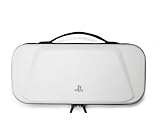
- Store and Protect – Sturdy outer shell, molded interior and dual zipper pulls provides protection for the PlayStation Portal remote player
- Charging Cable Pass-through – Allows a charging cable to be plugged into the PS Portal while stored inside the case
- Screen Protection – Padded screen protector flap with mesh accessory pocket to store small accessories
- Travel Handle – Easily carry the protection case with the handle located on the top of the case
- Officially licensed by PlayStation
Consider a dedicated Android streaming handheld
A device such as the Logitech G Cloud may appeal if you want a handheld screen and expect to use it for more than PS5 Remote Play. It is a category to investigate rather than a guaranteed drop-in replacement: check that the current PS Remote Play app works on the model you are considering and that its controller behavior suits your games. GamesRadar+ discusses the G Cloud and phone-plus-Backbone approaches in its PlayStation Portal review, but that review’s observations should not be treated as a current compatibility guarantee for every software version.
Can you use a Steam Deck for PS5 Remote Play?
Yes, third-party software has been reported for streaming PlayStation games to Steam Deck, but this is not an officially Sony-supported setup. Tom’s Hardware reported on August 12, 2026, that Asobi Remote Play was available as a pre-release Steam playtest; the report described PS4 and PS5 Remote Play and a claimed ability to access select PlayStation Plus Premium cloud-streamed titles. Because that status was pre-release at the time of the report, confirm the app’s current availability, requirements, and features before depending on it. Sony’s official Remote Play compatibility listings do not establish Steam Deck support. Read the report on Asobi Remote Play.
Remote Play needs your console; Portal cloud streaming does not
With Sony Remote Play, your PS5 or PS4 supplies the game. The console must be set up and available to connect, and the game must be playable through Remote Play. Sony lists restrictions for experiences that require peripherals such as PS VR or PS VR2, as well as restrictions involving Share Play, PlayStation Plus Premium game streaming, Blu-ray and DVD playback, VR modes, music, and video services. Check Sony’s support page for the full restrictions.
Portal’s cloud-streaming feature is a separate way to play: Sony announced on November 5, 2025, that eligible PlayStation Plus Premium members could stream select digital PS5 games from their library and compatible games in the PlayStation Plus Game Catalog and Classics Catalog without connecting to their own PS5. Sony said those cloud sessions can continue while the member’s PS5 is powered off or being used by another account. Eligibility, membership, supported titles, and regional availability apply; check Sony’s cloud-streaming announcement and current game listings.
Recommended Free Tools
Check the network before choosing a screen
Remote Play quality depends on the network as well as the device. Sony’s current US page specifies a minimum broadband Wi-Fi speed of 5 Mbps for Portal and recommends 15 Mbps for a better experience; Sony also cautions that actual experience varies with network conditions. These figures are technical thresholds and a recommendation, not a promise of a particular image quality or latency. See Sony’s network guidance.
Quick Recap
- Choose the location with a dependable Wi-Fi connection, not just the largest screen.
- Check whether the device and controller combination is supported before spending on a new accessory.
- If playing on a remote TV, account for the distance from the console; Sony warns that greater distance may increase latency.
- Remember that Remote Play streams from your console, so it is not the option for playing when you cannot connect to your PS5 or PS4.
How to decide
- Start with the device you own. For a phone or tablet, verify its OS and controller pairing; for a computer, use Sony’s official app and a listed controller; for a TV, confirm it is one of Sony’s supported Android TV devices.
- Choose the controls you want. A Backbone One – PlayStation Edition is the specific Backbone model to investigate for Android compatibility; DualSense, DualSense Edge, and DUALSHOCK 4 are listed for the computer app.
- Decide whether you need a dedicated handheld. Consider an Android streaming handheld if you want a separate device for broader streaming use, or Steam Deck third-party software only if you accept an unofficial, evolving setup.
- Separate console streaming from cloud play. If you need to play without your own PS5 connection, check Portal cloud streaming’s Premium membership and game eligibility instead of assuming Remote Play provides that capability.
Product prices and availability are accurate as of the date/time indicated and are subject to change. Any price and availability information displayed on Amazon at the time of purchase will apply.

