
iTechGuides is reader-supported. When you buy through links on our site, we may earn an affiliate commission. As an Amazon Associate I earn from qualifying purchases. Learn more
Android screen mirroring displays your phone or tablet on a larger TV, monitor, or computer, but the correct method depends on the Android model and receiving device. Use Google Cast for Chromecast or Google TV, Smart View for compatible Galaxy-to-Samsung connections, Phone Link for supported Windows phones, scrcpy for flexible computer control, or a wired adapter when the phone supports video output.
Android does not have one universal screen-mirroring menu. Pixel, Samsung, Motorola, OnePlus, Xiaomi, Oppo, Huawei, and other manufacturers can use different labels, wireless protocols, and compatibility rules. The destination matters just as much as the phone.
| # | Preview | Product | Price | |
|---|---|---|---|---|
| 1 |
|
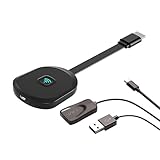
Wireless Display Adapter, Screen Mirroring for iOS Android Laptop | Mirror content from iOS, Android... | $29.99 | Buy on Amazon |
Key takeaways
- Google Cast is the best first choice for Chromecast, Google TV, Google TV Streamer, and other Google Cast-enabled TVs, while app casting is usually more reliable than duplicating the entire Android screen.
- Samsung Smart View can mirror a compatible Galaxy phone or tablet to a compatible Samsung TV, but Smart View is not available on every Samsung device and DRM-protected content cannot be mirrored.
- Microsoft Phone Link can show and control the screen of supported Android phones on Windows, but availability depends on the phone model, Android version, market, and Link to Windows support.
- scrcpy mirrors and controls Android from Windows, macOS, or Linux over USB or wireless connections, but normal USB use requires Developer options and USB debugging.
- A USB-C port does not automatically support HDMI or DisplayPort output; verify video-output support for the exact phone model before buying an adapter.
What is the difference between Android screen mirroring and casting?
Android screen mirroring duplicates the visible phone display. Notifications, menus, web pages, games, photos, and app screens appear on the TV or computer. Screen mirroring is useful when an app has no Cast button or when you need to demonstrate the whole Android interface.
The Tool Desk
Outbyte Driver Updater FREEScan for outdated or missing drivers - takes under a minuteDriver Scan →Outbyte PC Repair FREERepair Windows errors before they cause bigger problemsFix Now →Casting sends supported media from an app to a compatible receiver. The phone often becomes a remote control while the TV or streaming device plays the content directly. Casting is usually the better choice for movies, television, and music because it can provide smoother playback and lets you use the phone for other tasks.
Popular on Amazon
- Why opt for the HRpart wireless Screen Mirroring adapter? It eliminates the hassle of long, messy cables while enabling you to mirror audio, video, office documents, and other content from small screens to large ones. Whether you want to share files, photos, or videos on an HDMI-equipped TV, monitor, or projector, this adapter delivers seamless performance—perfect for presentations, meetings, exhibitions, and beyond.
- Dual Casting Modes for Flexible Use:Supports both Direct Mirroring and DLNA modes to meet different usage needs. Direct Mirroring allows quick and easy screen sharing from iOS and Mac devices to your display. For more stable and longer viewing, DLNA mode works via your home WiFi network to provide a smooth and consistent connection.
- Wireless & Effortless to Set Up: Skip app installs and Bluetooth pairing entirely; simply connect the wireless HDMI adapter to your TV and supply power through the TV’s 5V/2A USB port. All necessary operation details will be shown clearly on your TV display right away.
- 2.4G & 5G Dual-Band Wi-Fi Compatibility: Equipped to support both 2.4G and 5G Wi-Fi bands, our HDMI wireless adapter ensures smoother, quicker streaming. From delivering key presentations and enjoying favorite films to participating in video conferences, it guarantees a steady, high-performance Wi-Fi connection that keeps you connected and boosts productivity in any situation.
- Note: Please ensure the device is connected to a stable power source before each use for optimal performance. This wireless display adapter supports broad device compatibility for standard screen mirroring functions, with performance varying depending on different devices and applications. It delivers native 4K transmission for compatible devices; however, it cannot upscale non-4K content or non-4K devices to 4K resolution. To achieve 4K output, both the display device and the original content source must support 4K resolution.
| Feature | Screen mirroring | App casting |
|---|---|---|
| What appears on the larger screen? | The phone’s current display, including menus and notifications | Supported video, music, or other media from one app |
| Best for | Presentations, photos, demonstrations, unsupported apps, and games | Movies, television, music, and supported streaming services |
| Can the phone be used independently? | Usually not without changing what appears on the receiver | Often yes, after playback begins |
| Does every app work? | No; protected apps can block capture or show a black screen | Only apps that provide compatible Cast support |
| Typical quality | Depends on phone, receiver, Wi-Fi, resolution, and orientation | Usually more reliable for supported media |
Google says the Cast button can appear in different locations across Cast-enabled apps, so the exact app procedure varies. Google’s supported-app casting guidance distinguishes app casting from the separate Google Home screen-casting workflow.
What do you need before mirroring an Android screen?
You need a compatible Android device, a compatible receiving device, and a connection method that both devices support. Android branding alone does not guarantee support for Google Cast, Miracast, Smart View, Phone Link, USB-C video output, or any other specific method.
- Android source: Use a phone or tablet with a supported casting, mirroring, USB, or video-output feature.
- Receiver: The receiver might be a Google Cast-enabled TV, Chromecast, Google TV Streamer, Samsung TV, Windows PC, Mac, Linux computer, or wired monitor.
- Network: Most wireless methods require the phone and receiver to use the same Wi-Fi network, not merely the same physical router.
- Updates: Install available updates for the phone, TV, streaming device, Google Home, Google Play services, Phone Link, or computer software.
- Permissions: Approve the TV’s connection prompt and Android’s screen-recording or casting confirmation when requested.
- VPN and network controls: Temporarily disable a VPN if local-device discovery fails. Guest networks, client isolation, and AP isolation can prevent devices from seeing each other.
- Power: Keep the phone charging during long sessions, especially when mirroring games or high-resolution video.
Before a presentation or private demonstration, enable Do Not Disturb, hide sensitive notification content, close private apps, and lock the phone’s orientation. Full-screen mirroring exposes whatever is visible on the Android display.
How do you mirror Android to Chromecast or Google TV?
Use Google Home for full-screen Android screen mirroring to a compatible Google Cast receiver, or use the Cast button inside a supported app when you only need to play media.
Mirror the full Android screen with Google Home
- Connect the Android phone and Chromecast, Google TV, Google TV Streamer, or Cast-enabled TV to the same Wi-Fi network.
- Open the Google Home app on the Android phone.
- Select the compatible TV or streaming device.
- Choose the screen-casting or screen-mirroring option shown for that device.
- Approve Android’s screen-recording or casting confirmation.
- To stop, use the casting control in the notification shade, Google Home, or the connected-device control and disconnect.
Google lists Android 8.0 or later as the requirement for Google Home controls used with Android screen casting to compatible Google Cast devices. That requirement does not mean every Android 8.0 device supports every wireless-display protocol. Check the Google Android screen-casting requirements and troubleshooting instructions for the supported Google Cast workflow.
Cast from a supported Android app
- Put the Android phone and Google Cast receiver on the same Wi-Fi network.
- Open a Cast-enabled app such as a supported video or music service.
- Tap the app’s Cast button. The button’s location varies by app.
- Select the TV or streaming receiver.
- To stop, tap the Cast button again and disconnect.
Google’s app-casting requirements list Android 6.0 or later for the supported Cast-enabled-app workflow, but individual apps can impose additional compatibility, account, location, or content requirements. Use an app’s own Cast button for services such as YouTube, Netflix, Prime Video, and Spotify when the button is available. App casting is not the same as duplicating the complete phone display.
What should you do if the Chromecast or Google TV device is missing?
If a Google Cast receiver does not appear, the most likely cause is a local-network discovery problem rather than a missing Android menu.
- Confirm that both devices are connected to the same Wi-Fi network and that one is not using a guest network.
- Turn off the VPN temporarily on the phone and, if applicable, on the receiver’s network.
- Restart the phone, TV or streaming device, and router.
- Try a second Cast-enabled app to determine whether the problem affects one app or the whole network.
- Update Google Home, Google Play services, the TV software, and receiver firmware.
- Check the router for client isolation, AP isolation, or similar settings that block device-to-device discovery.
- Make sure the TV or streamer is actually Google Cast-compatible; an Android TV-style interface does not guarantee identical Cast behavior.
- Set the phone to automatic date and time.
Google’s Cast discovery troubleshooting documentation specifically recommends testing another sender app, checking the same Wi-Fi network, and investigating AP-isolation and other network-discovery problems.
How do you mirror a Samsung Galaxy phone to a Samsung TV?
Use Smart View when the Galaxy phone or tablet and Samsung TV support the feature. Smart View is a manufacturer-specific option, not a feature guaranteed on every Samsung Android device.
- Connect the Galaxy phone or tablet and Samsung TV to the same Wi-Fi network.
- Swipe down from the top of the Galaxy screen to open Quick Settings. You may need to swipe down again to see the full panel.
- Tap Smart View.
- Select the Samsung TV or compatible display.
- Tap Allow on the TV if the TV asks to approve the connection.
- Choose the option to start mirroring if another confirmation appears.
- To stop, open the Smart View controls and disconnect.
Samsung says Smart View menu availability can vary by carrier, software version, and device model, and Samsung states that Smart View is unavailable on some devices. Samsung’s Smart View setup and compatibility guidance is therefore more reliable than assuming every Galaxy phone has the same Quick Settings tile.
How do you fix Samsung Smart View problems?
- Tap Allow on the TV when a device-access prompt appears.
- Verify that the phone and TV use the same Wi-Fi network.
- Disconnect a VPN if Smart View reports a network error.
- Restart both devices and install available software updates.
- Increase the phone’s screen-timeout period if the phone repeatedly turns off during mirroring.
- If the picture is too small or has large borders, open Smart View settings and adjust the phone aspect ratio. Samsung says 16:9 is often a suitable fit for TVs.
- Manage Samsung TV device-access prompts through the TV’s device-connection settings.
Samsung’s Smart View troubleshooting documentation warns that DRM-protected content cannot be mirrored through Smart View. Use the streaming service’s official Cast button or the service’s native TV app instead of trying to bypass content protection.
Quick wins for a faster PC:
Fix the driver behind crashes, sound loss and screen glitchesFind Drivers →Repair Windows errors before they cause bigger problemsFix Now →Scan for outdated or missing drivers - takes under a minuteDriver Scan →How do you mirror Android to a Windows PC?
Windows users have two practical routes: Phone Link is simpler but limited to supported phones, while scrcpy is more broadly useful and provides computer control after a more technical setup.
Option 1: Use Microsoft Phone Link
- Open Phone Link on the Windows PC.
- Open Link to Windows on the Android phone, or install it if the phone requires the app.
- Pair the phone and PC using the displayed QR code or Microsoft account procedure.
- Grant the requested permissions on both devices.
- In Phone Link, open Phone screen when the feature is available.
- Use the mirrored phone window with the mouse and keyboard where the supported device permits those controls.
Microsoft says Phone Link’s Phone screen feature is available only on supported Android devices and in select markets, generally with Android 10 or later and Link to Windows preinstalled. Microsoft lists supported Samsung Galaxy families among the compatible devices, but the model list changes. Check Microsoft’s current Phone Link Phone screen requirements before troubleshooting an unavailable feature.
Phone Link is a good choice for a supported phone when you want notifications, messages, photos, and selected phone interaction inside a native Windows interface. Phone Link is a poor fallback for an unsupported handset, restricted work or school computer, macOS, Linux, or a low-latency recording workflow.
Option 2: Use scrcpy
scrcpy is an open-source computer tool for displaying and controlling Android devices from Windows, macOS, or Linux. scrcpy supports USB and wireless operation, recording, and computer control, but the initial setup normally requires Android Developer options and USB debugging.
Free tools Windows power users keep installed
One-click scans. No signup required.
- Download scrcpy from the official Genymobile GitHub repository. Do not use unofficial scrcpy APKs or repackaged download pages.
- On the Android phone, enable Developer options.
- Enable USB debugging in Developer options.
- Connect the phone to the computer with a data-capable USB cable.
- Unlock the phone and accept the USB-debugging authorization prompt.
- Launch scrcpy on the computer.
The basic command is:
scrcpyAfter the phone is authorized, the scrcpy window displays the Android screen and normally allows mouse and keyboard control. The official project documents many additional options. Examples include:
scrcpy --max-size=1920This limits the mirrored video size, which can reduce computer load or bandwidth.
scrcpy --record=screen.mp4This records the mirrored session to a video file.
scrcpy --turn-screen-offThis mirrors while turning the physical phone screen off where the device and software support the option. Review the project’s current scrcpy video options before using advanced commands because options can change between releases.
scrcpy audio forwarding is documented for Android API 30, which corresponds to Android 11, and later. Older Android versions may mirror video without forwarding the phone’s audio through scrcpy. Bluetooth headphones can also capture audio before it reaches the computer.
Recommended Free Tools
How do you fix a scrcpy connection?
- Unlock the phone and accept the USB-debugging authorization dialog.
- Try a different USB cable because some cables charge but do not carry data.
- Try another USB port and avoid an unreliable hub.
- Confirm that USB debugging remains enabled.
- If the device is listed as unauthorized, revoke USB-debugging authorizations on the phone, reconnect, and approve the new prompt.
- Check whether the computer detects the Android device through ADB.
- Restart the ADB service or computer if the phone remains unavailable.
- Use wireless scrcpy only after the basic USB connection works.
How do you mirror Android to macOS or Linux?
scrcpy is the clearest general-purpose option for mirroring Android to macOS or Linux. The workflow is the same at a high level: install the current official computer release, enable Developer options and USB debugging on Android, connect a data-capable USB cable, approve the computer, and launch scrcpy.
macOS and Linux users should follow the current installation and device-access instructions in the official scrcpy project, because package-manager commands, USB permissions, and platform requirements vary. Do not assume that a TV-oriented wireless method will mirror directly to a Mac or Linux computer.
Can you mirror Android to a TV or monitor with a cable?
A wired Android connection can be more stable and lower-latency than Wi-Fi, but wired mirroring works only when the exact phone supports a compatible video-output standard.
Before buying an adapter, verify all of the following in the phone manufacturer’s technical documentation:
What’s actually slowing this PC down?
Pick the symptom - the matching free tool is one click away.
- The phone supports USB-C DisplayPort Alt Mode, HDMI output, or another documented video-output method.
- The USB-C-to-HDMI or USB-C-to-DisplayPort adapter supports the phone’s output mode.
- The display accepts the resulting resolution and refresh rate.
- The cable carries video and data rather than only charging power.
- The phone or adapter can provide enough power for the session, ideally with pass-through charging for long use.
A USB-C connector alone does not prove that a phone supports HDMI or DisplayPort output. A generic USB-C-to-HDMI adapter is not universally compatible. Some phones provide a desktop mode, such as Samsung DeX, rather than ordinary screen duplication, and DRM restrictions can still apply to wired output.
| Wired connection advantage | Wired connection limitation |
|---|---|
| Lower latency for games and demonstrations | The exact phone must support video output |
| Less dependence on wireless discovery | Adapters and cables have different compatibility requirements |
| Useful on isolated hotel, office, or school networks | Cable clutter and possible charging limitations |
Which Android screen-mirroring method should you use?
Choose the method based on the phone, destination, and reason for mirroring rather than choosing a brand name first.
| Your situation | Best first choice | Main trade-off |
|---|---|---|
| Supported movies or music on Chromecast or Google TV | Use the app’s Cast button | Only supported app content is sent; the whole phone is not duplicated |
| Full Android display on Google TV or Chromecast | Google Home screen casting | Wireless discovery, receiver support, and DRM can limit reliability |
| Compatible Galaxy phone and Samsung TV | Samsung Smart View | Smart View is not available on every Galaxy device and protected content is blocked |
| Supported Android phone and Windows PC | Microsoft Phone Link Phone screen | Compatibility depends on model, market, Android version, and configuration |
| Android to Windows, macOS, or Linux with control | scrcpy | Requires a more technical USB-debugging setup |
| Gaming, demonstrations, or unreliable Wi-Fi | Compatible wired video adapter | Phone-specific video-output support is essential |
How do you fix common Android mirroring problems?
| Problem | Most likely cause | First fix |
|---|---|---|
| TV or receiver is not listed | Different Wi-Fi networks, VPN, guest-network isolation, or unsupported receiver | Use the same non-guest Wi-Fi, disable the VPN temporarily, restart devices, and test another app |
| Connection starts and immediately disconnects | Weak or congested Wi-Fi, battery optimization, receiver software, VPN, or isolated access points | Move closer to the access point, charge the phone, update both devices, and remove network isolation where you control the network |
| TV shows a black screen | DRM, app screen-capture blocking, unsupported output mode, or a temporary handshake failure | Use the service’s official Cast button or native TV app; do not attempt to bypass DRM |
| Picture is delayed or choppy | Weak Wi-Fi, congestion, excessive resolution, or a method unsuitable for video | Move devices closer, use 5 GHz where supported, stop heavy downloads, lower scrcpy’s size, or use a cable |
| No audio | Muted receiver, Bluetooth audio route, app restriction, or method/version limitation | Check volume and Bluetooth output, then verify whether the chosen method supports audio on the Android version |
| Screen orientation or aspect ratio looks wrong | Tall phone display being shown on a wider screen | Rotate or lock the phone, adjust TV aspect ratio, or use Smart View and scrcpy display controls |
| Smart View tile is missing | Phone model, carrier software, or Android version does not provide Smart View | Search Settings for “cast,” “screen mirror,” or “wireless display,” then use Google Cast, scrcpy, or a compatible cable |
| Phone Link has no Phone screen option | Unsupported phone, market, Windows configuration, or missing Link to Windows support | Check Microsoft’s supported-device requirements and use scrcpy if computer mirroring is needed |
| scrcpy reports an unauthorized device | USB-debugging authorization was not approved | Unlock Android, reconnect the data cable, and approve the computer’s authorization prompt |
What changes on hotel, office, school, or public Wi-Fi?
Wireless Android screen mirroring may fail on managed or public Wi-Fi because the network isolates connected devices or requires browser-based sign-in. Do not try to defeat an organization’s network controls.
Use a wired adapter if the phone supports video output, use USB scrcpy with a computer, or use a personal hotspot only when the receiver can join it and the mobile data allowance is adequate. A hotspot is not guaranteed to work because some receivers and phones handle local discovery differently.
How do privacy, security, and battery use affect mirroring?
Full-screen mirroring shows everything visible on the phone. Enable Do Not Disturb, hide sensitive notification content, close private apps, and stop mirroring when the demonstration ends. Avoid mirroring confidential information in public spaces.
USB debugging gives an authorized computer a deeper connection to Android than ordinary charging. Approve USB-debugging prompts only on computers you trust, and revoke authorizations or turn USB debugging off when the task is complete. Download scrcpy from the official Genymobile repository rather than an unofficial APK or repackaged installer.
Wireless mirroring can consume battery and generate heat because the phone captures, encodes, and transmits the display. Keep the phone charging for long sessions, reduce brightness when practical, and prefer app casting for supported video. App casting often lets the receiver handle playback instead of continuously transmitting the complete phone screen.
What about tablets, foldables, and multiple displays?
Android tablets, foldables, desktop modes, external displays, and multi-window features can behave differently from standard phones. Manufacturer software can change the available menu, output resolution, aspect ratio, and whether the external screen duplicates Android or opens a desktop workspace.
Search the device’s Settings app for cast, screen mirror, wireless display, or screencast when a documented menu is missing. Search terms are useful because labels vary by manufacturer and software version, but a search result is not proof that the receiver supports the selected protocol.
Frequently Asked Questions
Can every Android phone mirror to a TV?
No. Android phones do not share one universal mirroring feature, and compatibility depends on the phone model, Android software, receiver, wireless protocol, and sometimes the app. Check for Google Cast, Smart View, another manufacturer feature, USB debugging for a computer, or documented USB-C video output.
Can I mirror Android without Wi-Fi?
Yes, in some cases. A compatible USB-C video connection can mirror directly to a TV or monitor, and scrcpy can mirror Android to a computer over USB. Wireless methods usually require the phone and receiver to discover each other on the same local network.
Why does Netflix or another streaming app show a black screen while mirroring?
A black screen commonly means the app or content uses DRM or blocks screen capture. Use the service’s official Cast button or its native TV app instead of trying to bypass the protection.
Outdated Drivers Are Slowing You Down
One free scan finds every outdated or missing driver and matches the right update for your exact hardware.Free scan · exact hardware matchPC Slower Than It Used to Be?
A free scan shows the junk files, broken settings and background clutter dragging Windows down - then fixes them in one click.Free scan · Windows 10 & 11Can I mirror Android to a Mac?
Yes. scrcpy can mirror Android to macOS over USB or a supported wireless connection, but the setup normally requires Developer options, USB debugging, a data-capable cable, and authorization on the phone.
Does every USB-C-to-HDMI adapter work with Android phones?
No. The exact Android phone must support USB-C DisplayPort Alt Mode, HDMI output, or another documented video-output standard. A USB-C charging port by itself does not guarantee video output.
How do I stop Android screen mirroring?
Use the active casting control in the Android notification shade, Google Home, Smart View, or the receiver’s connected-device controls and choose Disconnect or Stop. For scrcpy, close the scrcpy window or end the computer session.
The Bottom Line
Use app casting for supported streaming media, Google Home or Google Cast for compatible Google TV and Chromecast devices, Smart View for compatible Galaxy-to-Samsung-TV connections, Phone Link for supported Windows phones, and scrcpy for flexible Android-to-computer mirroring and control. Choose a wired adapter only after confirming video-output support for the exact phone model.
Do these 3 things before closing this tab:
1Clear out junk files and repair common Windows errors2Fix the driver behind crashes, sound loss and screen glitches3Repair Windows errors before they cause bigger problems
