
First identify whether “lag” means delayed online actions, choppy local gameplay, or a freeze/crash: each points to a different fix. As of October 4, 2026, update Valheim and the Switch 2, restart, then follow the matching troubleshooting steps below. Iron Gate’s September 17 patch notes report Switch 2 GPU performance improvements, but that does not guarantee every stutter is resolved.
Identify the problem before changing settings
- Online latency: Other players jump around, actions register late in multiplayer, or the session disconnects after slow responses. Nintendo lists internet speed, weak wireless signal, interference, and network-device response as possible factors. See Nintendo’s online-latency guidance.
- Local stutter or slowdown: The image slows down or becomes irregular, regardless of whether other players are responding normally. Compare Valheim with other games, and observe whether the issue occurs online and offline; that comparison can help narrow the symptom but is not a guaranteed diagnosis. Nintendo handles this separately in its Switch 2 slowdown guidance.
- Freeze or crash: Valheim stops responding, closes, or leaves the console needing a forced shutdown. Note any error code and search Nintendo’s support database for that exact code.
Fix Valheim stutter and frame-rate drops
- Install the latest available Switch 2 system update and Valheim update, then restart the console. Nintendo’s slowdown steps begin with updating and restarting; its troubleshooting page also covers checking for game updates.
- Retest the same world and situation. Iron Gate’s September 17, 2026 Patch 1.0.14 notes state, “Multiple GPU performance improvements on Switch 2.” The notes give no before-and-after measurement and do not promise that all stuttering is gone.
- If slowdown appears around terrain changes or a heavily modified area, note that context when reporting the issue. Iron Gate’s September 18, 2026 Patch 1.0.15 notes say a terrain-duplication issue that decreased performance was fixed. That specific fix does not establish the cause of a problem in an individual world.
- If downloaded software still behaves abnormally, check it for corrupt data. Nintendo’s software-freezing guidance includes deleting and redownloading the software as a possible step. Before deleting or changing local software, make sure important save data is protected and follow Nintendo’s current instructions.
- If multiple games remain slow after software troubleshooting, use Nintendo’s console repair support path.
There is no established Switch 2-specific Valheim graphics setting that universally cures persistent stuttering. The official Valheim notes document updates and fixes, not a user setting with a guaranteed result.
Quick Recap
Rank #4

- Custom Fan for Switch 2: Precisely engineered for a perfect fit, it clips securely onto the vents of devices for Switch 2 to channel cool air in and push heat out — eliminating thermal lag, maintaining peak performance, and protecting your device from heat-related damage
- High-Efficiency Cooling: This fan drops the temperature of devices for Switch 2 by 36 - 45 °F in just 4–8 minutes, delivering exceptional cooling performance and stepless speed control (so you can fine tune the fan speed exactly how you like it)
- Stay Cool, Game On: Whether you’re gaming outdoors or in a hot room, it keeps your device for Switch 2 icy cool during intense battles, preventing overheating that causes frame drops and ensuring stable peak performance
- Perfect Duration of 3–5 Hours: Provides over 3 hours of cooling at full speed and up to 5 hours on low. Supports charging while playing. Note: Higher fan speeds may generate more noise, which is completely normal
- What you get: JSAUX Cooling Compatible with Switch 2 (2025)*1, JSAUX 90° USB C to USB C Adapter*1, 18 Month worry free period and 24/7 customer service, if you have any questions, we will resolve your issue within 24 hours
Rank #3
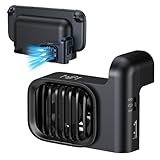
- Efficient Cooling for Switch 2 Dock: Keep your Switch 2 Dock running at optimal temperatures during intense gaming sessions. This dedicated fan features powerful airflow technology that effectively dissipates heat, preventing overheating and ensuring smooth performance for your console, so you can enjoy extended gameplay without interruptions
- Easy Installation & Space - Saving Design: Designed specifically for Nintendo Switch 2 Dock, the fan easily attaches to your dock without any complicated setup. Its compact and sleek form - factor seamlessly integrates with the dock’s aesthetics, taking up minimal space while providing maximum cooling efficiency. You can set up your gaming station neatly and keep it looking clean
- Two-speed adjustable fan mode: Customise cooling performance to suit your needs with adjustable fan modes. Whether demanding robust cooling during operation or requiring only a gentle airflow, you may freely switch between different speed settings. This flexible design allows you to adjust settings at any time according to actual requirements
- Quiet Operation: Don't let a noisy fan disrupt your gaming immersion. Our Switch 2 Dock fan is engineered for quiet operation. Even at higher speed settings, the advanced motor and blade design ensure that the fan runs silently, so you can focus on the game audio and your gameplay experience without any distracting whirring sounds
- Durable Build & Extra USB - Powered Convenience: Constructed with high - quality materials, this fan is built to last through countless gaming marathons. It’s powered via USB, which means you can easily connect it to your Switch 2 Dock or any other USB - enabled power source. The USB power delivery ensures a stable and reliable power supply, so you never have to worry about battery replacement or running out of power for your cooling solution.
Rank #2

- 【Dedicated Cooling Fan for Switch 2】When connected to the Switch 2 charging dock, the cooling fan automatically operates at full speed. Press the button to switch between three cooling levels, allowing cooling to start simultaneously as the game begins.
- 【Powerful Cooling with Dual Fans】The Switch 2 cooling dock features a 3-stage cooling level adjustment function and 2 cooling coolers to promote heat dissipation and extend the lifespan of your Switch 2 .Enjoy longer gaming without lag or crashes Designed for stable performance and body protection.
- 【6-Card Game Slot】The Switch 2 cooling stand is equipped with 6 game card slots, allowing you to insert game cards into the slots Aim for the game card at a glance, and you can play different games immediately.
- 【3 USB Expansion Ports】This Switch 2 cooling station is equipped with 2 USB-A output ports and 1 USB-C output port, allowing you to easily connect and charge controllers, smartphones, headsets, and other accessories. Unleash the power of the switch 2 dock with no extra space.
- 【Equipped with 9 RGB Light Modes】 With 9 vibrant RGB light modes, you can customize it to match the scenes of the game and improve your gaming experience with cool effects. Press and hold to turn off the light, perfect for Nintendo Switch 2 accessory lineup.
#1 Best Overall

- 【PREVENT SWITCH FROM OVERHEATING】 The cooling fan keeps your Nintendo Switch 1/2 stay cool in the original dock station, it is good enough to lower the temperature and protect the Switch from overheating, now you don't have to worry about having to pause due to overheating during the game, you can play for multiple hours as much as you want.
- 【LED DISPLAY WITH FAN SPEED & TEMPERATURE】The digital LED display shows both the current rpm of the fan and the temperature of the air exiting the console in degrees celsius. There are three buttons for easy control: Increase the fan speed, power on/off the fan, decrease the fan speed.
- 【ADJUSTABLE FAN SPEED】The adjustable fan speed from min 510rpm up to max 6000rpm of the radiator for Nintendo Switch is perfect for heat-exhaust and ventilation. When the fan speed is under 2400rpm, it is nearly no noisy, unless the fan speed is above 2400rpm, it will produce some fan spinning sound.
- 【MICRO USB CABLE & FIXED PAD & JOYSTICK CAPS】The package contains a Micro USB cable, a fixed Pad and 2 pieces joystick caps, just plug the USB cable into the back of the console stand in-between the HDMI and power cord to get power, insert the fixed Pad between the Switch and the docking console base to stable the cooling fan, the sponges on both sides of the pad are not only for anti-slip effect but also prevent your Switch from being scratched.
- 【LIFETIME WARRANTY】We strive for excellence with our products and our customer service. If there is any quality problem with our cooling fan for Nintendo Switch or you are not happy with your purchase in our store, please feel free to contact us and we will solve it for you in 24 hours.
Fix online lag and disconnects
- On the console, open System Settings → Internet → Test Connection. Record the results, including connection, NAT type, download speed, and upload speed. Nintendo advises testing again after network changes; see its latency troubleshooting steps.
- Retest with a stronger wireless signal by moving the console closer to the router. Move metal objects and electronic devices that may interfere away from the console and router.
- If the Switch 2 is docked, try Ethernet as a network diagnostic: connect a cable from the dock to the router or gateway, then select the wired connection in Internet Settings. This can help test online latency; it does not improve local frame rate or prevent crashes.
- If online play still fails, make the report specific: include the connection-test and NAT results, whether other games work online, the Valheim version, and whether other players or the server use another platform. Iron Gate announced restored crossplay compatibility in its September 11, 2026 hotfix notice; that dated announcement does not establish that every server or connection is currently trouble-free.
Recover from freezes and crashes
- Restart the console. If it is unresponsive, hold the POWER button for twelve seconds to force shutdown, then power it on again, as described in Nintendo’s downloaded-software troubleshooting instructions.
- Install available system and Valheim updates, then check the software for corrupt data.
- If the digital game continues to freeze, Nintendo lists deleting and redownloading the software as a possible solution. Protect important save data first, and search Nintendo’s support database for any displayed error code.
- Read patch notes as fixes for particular defects, not explanations for every crash. Iron Gate’s Patch 1.0.16 notes list a potential crash fix involving the online-session Player List and a terrain-related crash case involving rolling distant snowballs. Its Patch 1.0.12 notes place a zone-loading crash fix in the Steam-only section, so it should not be treated as a Switch 2 fix.
- If problems continue across all games, follow Nintendo’s console repair path. If only Valheim is affected after updating and reinstalling, report the version, world context, online/offline status, and when the crash occurs to the game publisher’s support channel.
What to include in a useful support report
- Valheim version and Switch 2 system version.
- Whether the symptom is online delay, local slowdown, a freeze, or a crash, and whether it happens in other games.
- For online trouble: connection-test and NAT results, wireless or wired setup, and whether cross-platform players are involved.
- For local performance trouble: the world and activity underway, especially if it occurs in one terrain area.
- For crashes: any error code, when the crash happens, and whether updating, checking for corrupt data, and redownloading changed the behavior.
Product prices and availability are accurate as of the date/time indicated and are subject to change. Any price and availability information displayed on Amazon at the time of purchase will apply.

