
Free tools Windows power users keep installed
One-click scans. No signup required.
To see whether AT&T service is down near you, start at AT&T’s outage page. It provides general information about wireless and internet outages; signing in can show information tied to your address or account. If no outage is listed, check your home equipment and use AT&T’s diagnostics before concluding the problem is with the network.
How to check whether AT&T is down in your area
- Open AT&T’s outage page. Visit att.com/outages to check general information for wireless or internet service. The sign-in process can provide more specific information associated with your account or address.
- Verify your account if prompted. AT&T’s page may ask you to confirm your account. The flow observed for this guide requested a phone number on the account and sent a confirmation code; prompts can change.
- Check the right service type. If you use AT&T Internet Air, AT&T’s troubleshooting guidance says to check wireless outages, rather than treating it as a conventional wired internet connection.
An outage page is a useful first check, but it does not establish whether a particular device, Wi-Fi connection, or home connection is working. If the page shows no issue, continue with equipment checks and account diagnostics.
How to get updates about a reported outage
If AT&T lists an outage, sign in at att.com/outages and select “Get text updates now,” as described in AT&T’s outage help article. AT&T says these texts apply to the specific outage you selected—not future outages—and that it will notify you when that outage is over. Available alerts may also depend on Smart Home Manager notifications and consent settings in your account profile.
What to try if AT&T shows no outage
Restart the gateway or modem
AT&T recommends restarting the All-Fi Hub, Wi-Fi Gateway, or modem when no outage is reported and you cannot connect. Its detailed restart instructions say the process can take up to 10 minutes; the actual time depends on the equipment. Restarting can interrupt internet-dependent phone and TV services.
What’s actually slowing this PC down?
Pick the symptom - the matching free tool is one click away.
#1 Best Overall

- DUAL-BAND WIFI 6 ROUTER: Wi-Fi 6(802.11ax) technology achieves faster speeds, greater capacity and reduced network congestion compared to the previous gen. All WiFi routers require a separate modem. Dual-Band WiFi routers do not support the 6 GHz band.
- AX1800: Enjoy smoother and more stable streaming, gaming, downloading with 1.8 Gbps total bandwidth (up to 1200 Mbps on 5 GHz and up to 574 Mbps on 2.4 GHz). Performance varies by conditions, distance to devices, and obstacles such as walls.
- CONNECT MORE DEVICES: Wi-Fi 6 technology communicates more data to more devices simultaneously using revolutionary OFDMA technology
- EXTENSIVE COVERAGE: Achieve the strong, reliable WiFi coverage with Archer AX1800 as it focuses signal strength to your devices far away using Beamforming technology, 4 high-gain antennas and an advanced front-end module (FEM) chipset
- OUR CYBERSECURITY COMMITMENT: TP-Link is a signatory of the U.S. Cybersecurity and Infrastructure Security Agency’s (CISA) Secure-by-Design pledge. This device is designed, built, and maintained, with advanced security as a core requirement.
- Unplug the gateway, hub, or modem’s power cord.
- If the equipment has an internal battery backup, remove it as directed for that model.
- If you have DSL service, disconnect the telephone cord.
- Wait 20 seconds.
- Reconnect the telephone cord if applicable, reinstall the battery backup if applicable, and plug the power cord back in.
- Wait for the device to restart and its status lights to settle. Allow up to 10 minutes according to AT&T’s detailed instructions.
AT&T’s outage guidance states: “If you’re not in an outage area and can’t connect to the internet, a system restart may help.” A restart can address a local equipment or connection problem; it cannot repair an AT&T network outage.
Check the status lights and run account diagnostics
Look at the gateway’s status lights and compare them with AT&T’s status-light guidance to understand what the equipment reports about its internet connection. Then sign in through AT&T’s internet support page for service-status checks, Wi-Fi details, and equipment speed tests. A device showing that it is connected to Wi-Fi does not prove that AT&T internet service is reaching your home.
Rank #2
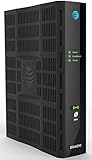
- Four-port 10/100/1000Base-T Ethernet switch, RJ-45, Two-port USB 2.0
- Single-port voice FXS, RJ-14
- Concurrent Wi-Fi support for 400 mW 802.11b/g/n and 802.11ac
- ONT IS REQUIRED FOR THIS MODEM TO WORK WITH YOUR SERVICE
- Includes; Gateway, Power Adapter and Ethernet Cord
How an AT&T outage differs from a home Wi-Fi problem
| What you find | What it may indicate | What to do |
|---|---|---|
| AT&T reports an outage for your service or area | A provider-side interruption | Use the outage page’s updates option and wait for AT&T’s service restoration notice. Restarting local equipment does not resolve a carrier-side outage. |
| No outage appears, but the gateway reports a connection problem | A local equipment, line, or service issue is possible | Restart the gateway or modem, check its lights, and run the signed-in service diagnostics. |
| Your device connects to Wi-Fi but cannot reach the internet | Wi-Fi may be functioning even though the AT&T connection is not | Check the outage page and gateway status rather than relying only on the device’s Wi-Fi indicator. |
How to contact AT&T for help
If the outage checker, restart, and diagnostics do not resolve the issue, AT&T lists bill-account and technical support at 800.288.2020 on its support page. The page observed for this guide lists technical-support hours as Saturday and Sunday, 5 a.m.–1 a.m. Central Time. Phone numbers and hours can change, so verify the current details on AT&T’s page before calling.
Independent reader supportYour contribution helps us test, update, and keep practical guides available for everyone.Will a UPS keep AT&T internet working during a power outage?
A UPS can provide backup power only for compatible equipment and only for the runtime its battery supports. An older AT&T U-verse legal booklet cites a UPS as an example of backup power needed to use U-verse Internet during a household power outage. That example does not establish compatibility with current AT&T equipment or imply that backup power restores service during an AT&T network failure. Check the documentation for your specific equipment before relying on a UPS.
Do these 3 things before closing this tab:
1Clear out junk files and repair common Windows errors2Scan for outdated or missing drivers - takes under a minute3Repair Windows errors before they cause bigger problemsQuick Recap
Rank #3

- New-Gen WiFi Standard – WiFi 6(802.11ax) standard supporting MU-MIMO and OFDMA technology for better efficiency and throughput.Antenna : External antenna x 4. Processor : Dual-core (4 VPE). Power Supply : AC Input : 110V~240V(50~60Hz), DC Output : 12 V with max. 1.5A current.
- Ultra-fast WiFi Speed – RT-AX1800S supports 1024-QAM for dramatically faster wireless connections
- Increase Capacity and Efficiency – Supporting not only MU-MIMO but also OFDMA technique to efficiently allocate channels, communicate with multiple devices simultaneously
- 5 Gigabit ports – One Gigabit WAN port and four Gigabit LAN ports, 10X faster than 100–Base T Ethernet.
- Commercial-grade Security Anywhere – Protect your home network with AiProtection Classic, powered by Trend Micro. And when away from home, ASUS Instant Guard gives you a one-click secure VPN.
Product prices and availability are accurate as of the date/time indicated and are subject to change. Any price and availability information displayed on Amazon at the time of purchase will apply.

