
Yes—you can run a modest server on a non-rooted Android phone using Termux. It works best as a hobby project or private local-network utility, not as a dependable production host: Android may stop background processes, and an aging phone’s battery, heat, Wi-Fi, and hardware all affect reliability.
This guide sets up Termux, tests SSH on your home network, and optionally starts it after reboot with Termux:Boot. Keep access private unless you have a clear plan for securing and maintaining an internet-facing service.
What a headless Android server can—and cannot—do
Termux provides a terminal emulator and Linux environment on Android without requiring root. It uses APT to install command-line packages, including languages such as Python and Node.js. The exact workload a particular phone can handle depends on its hardware and software behavior; the available documentation does not establish model-specific performance or uptime. Termux project
That makes an old phone a reasonable place to experiment with SSH, a small script, or a service reachable by devices on the same Wi-Fi network. It is not equivalent to a conventional server: Android battery and background controls, memory pressure, manufacturer behavior, wireless connectivity, and heat can interrupt service.
#1 Best Overall

- Scalable capacity for 20 phones Efficiently manage up to 20 devices, enabling large-scale application testing, social media operations, or data automation tasks that were difficult to achieve with traditional setups
- Energy-Efficient Performance Delivers superior computing power per watt, reducing energy consumption while maintaining high performance. Save on long-term operational costs without compromising productivity.
- Battery-Free Design & Overheating Prevention All included devices operate without batteries, eliminating overheating risks and extending hardware lifespan for reliable, uninterrupted operations.
- Smart Cooling & Centralized Control Built-in cooling fans ensure optimal temperature management, while integrated software streamlines multi-device monitoring and control—saving time and minimizing errors.
- Ethernet: [OTG/LAN] can use USB mode, and can also use the network cable of the router to connect the box.Two connection modes can be switched.
Choose how the server should start
| Approach | After a reboot | Wake lock | Device-specific setup |
|---|---|---|---|
| Start a Termux process manually | You must start it again after reboot. | Consider one if the service needs to keep running with the screen off; it is not a guarantee against process termination. | Less setup; start and test the service yourself. |
| Start it with Termux:Boot | A boot script can launch configured services after reboot. | The official example uses termux-wake-lock; whether your service needs it depends on its behavior. |
Install and open the add-on once, create its boot-script directory, then test on your handset. |
These options describe startup behavior, not guaranteed uptime. The Termux:Boot documentation shows a boot script that runs termux-wake-lock and then sshd. Termux:Boot README
Install Termux and only the packages you need
- Choose one compatible source. Follow the official Termux installation guidance and install the main app and any add-ons from a compatible source. Termux add-ons must have compatible signing; changing sources may require uninstalling the app and its add-ons before reinstalling them from the new source.
- Open Termux and update its packages. In the Termux shell, run
pkg update, then follow any prompts. Termux provides APT-based package installation. Termux project - Install only what the service uses. For the SSH example below, install OpenSSH with
pkg install openssh. A community home-server example also uses Python, curl, termux-services, and termux-api, but those are not requirements for every server. Install Python or Node.js only if your application needs it.
Start SSH and test it over your local network
SSH gives you a useful first test because another device can connect to the phone’s Termux shell. The cited community setup uses port 8022 and keeps access local rather than exposing the service to the public internet. Your network address and setup may differ. Android Setup Notes
Rank #2
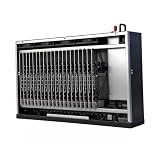
- Scalable capacity for 20 phones Efficiently manage up to 20 devices, enabling large-scale application testing, social media operations, or data automation tasks that were difficult to achieve with traditional setups
- Energy-Efficient Performance Delivers superior computing power per watt, reducing energy consumption while maintaining high performance. Save on long-term operational costs without compromising productivity.
- Battery-Free Design & Overheating Prevention All included devices operate without batteries, eliminating overheating risks and extending hardware lifespan for reliable, uninterrupted operations.
- Smart Cooling & Centralized Control Built-in cooling fans ensure optimal temperature management, while integrated software streamlines multi-device monitoring and control—saving time and minimizing errors.
- Ethernet: [OTG/LAN] can use USB mode, and can also use the network cable of the router to connect the box.Two connection modes can be switched.
- Start the SSH daemon in Termux: run
sshd. In the documented setup, it listens on port 8022. - Find the phone’s current local network address. Check the phone’s Wi-Fi network details in Android settings or your router’s connected-device list. The address can change, so confirm it rather than assuming it will remain fixed.
- Connect from another device on the same network. Use an SSH client with the phone’s address and port 8022. For example, from a computer with an SSH client, run
ssh -p 8022 USER@PHONE_IP, replacingUSERandPHONE_IPwith the Termux username and the phone’s current address. Termux’s username is available from the shell prompt or withwhoami. - Check the result before adding another service. A successful connection confirms that SSH is running and reachable from that device on the local network. If it fails, confirm both devices are on the same network, the address is current, the port matches, and
sshdis still running.
For another service, install its required package and follow its own configuration and access requirements. Do not assume that a successful SSH connection means every other service is listening on the expected address or port.
Start services after reboot with Termux:Boot
- Install Termux:Boot from the same compatible source as Termux, then open the add-on once. Its setup instructions require this first launch before boot scripts are used. Termux:Boot README
- In Termux, create the boot-script directory by running
mkdir -p ~/.termux/boot. - Create a script in that directory—for example,
~/.termux/boot/start-services. The official example’s essential commands aretermux-wake-lockandsshd. Put one command per line in the script, in the order services should start. - Make the script executable with
chmod +x ~/.termux/boot/start-services. - Reboot the phone, then test SSH again from another device on the same network. Do not treat the presence of a boot script as proof that Android allowed the service to remain running.
If the service needs more than a simple launch command, use a suitable script or service supervisor and verify its behavior on the phone. The community setup lists termux-services as an example package, not a universal requirement. Android Setup Notes
What’s actually slowing this PC down?
Pick the symptom - the matching free tool is one click away.
Rank #3
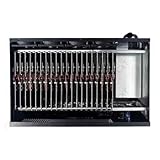
- Complete Package Contents: Each Box purchase includes the hardware (20 Phone motherboard, USB cable, box power cord, phone motherboard)
- Box Phone Farm System Overview: This equipment removes the phone screen, battery, camera, and sim slot, integrating them into a chassis that works with click farm software to achieve group control functions. 1 box contains 20 mobile phone motherboards with fixed size and number. Install the click farm software on your computer to perform batch operations
- Advanced Control Functionality: Install the Click Farm software on your PC to operate the device in batches or operate a mobile phone individually. One person can control 20 mobile phones simultaneously, perform the same task, or execute different tasks separately, easily building a network matrix of thousands of mobile phones for online projects
- Energy Efficient Operation: The voltage is 110V, and when running continuously, one box only consumes approximately 100 watts of power
- Flexible Connectivity Options: OTG/LAN Ethernet connection can use USB mode, and can also use the network cable of the router to connect the box with two switchable connection modes
Reduce the chance Android stops the service
Android and phone manufacturers can restrict apps running in the background. A community setup guide recommends unrestricted battery use for both Termux and Termux:Boot and warns that battery-saver behavior can affect services. Menu labels and locations vary by vendor, so search Android’s app and battery settings for each app and review the available background or battery options. Android Setup Notes
Test the phone rather than assuming a setting solved the problem: leave the screen off, then try connecting from another device; reboot and test again. A wake lock can help keep the device awake for work, but it does not guarantee protection from every background restriction, process kill, network interruption, or hardware problem.
Rank #4

- Scalable capacity for 20 phones Efficiently manage up to 20 devices, enabling large-scale application testing, social media operations, or data automation tasks that were difficult to achieve with traditional setups
- Energy-Efficient Performance Delivers superior computing power per watt, reducing energy consumption while maintaining high performance. Save on long-term operational costs without compromising productivity.
- Battery-Free Design & Overheating Prevention All included devices operate without batteries, eliminating overheating risks and extending hardware lifespan for reliable, uninterrupted operations.
- Smart Cooling & Centralized Control Built-in cooling fans ensure optimal temperature management, while integrated software streamlines multi-device monitoring and control—saving time and minimizing errors.
- Ethernet: [OTG/LAN] can use USB mode, and can also use the network cable of the router to connect the box.Two connection modes can be switched.
Manage heat, charging, and battery condition
For sustained use, keep the phone ventilated, away from direct sunlight and enclosed spaces, and use a charger compatible with the phone’s own requirements. The community guide suggests a lower-wattage charger but does not establish a universal charger specification, so do not treat that suggestion as one. Android Setup Notes
Check an aging battery periodically for swelling. Stop using the phone and charger if the battery appears swollen or the device becomes unusually hot; do not continue running it unattended. A safe operating pattern depends on the phone’s condition and charging setup, not just on whether the server command is running.
Best Value

- Farm Empty Box lt can hoid.Motherboards customized per application.(No components included).
- Whats is Box Phone Farm ? It is a piece of equipment that removes the phone screen/battery/camera/sim slot, integrates them into a chassis, and works with click farm software to achieve group control functions. mobile phone motherboards. The size of the box and the number of motherboards are fixed ,Install the click farm software on your computer and you can do batch operations.
- Battery-Free Design & Overheating Prevention All included devices operate without batteries, eliminating overheating risks and extending hardware lifespan for reliable, uninterrupted operations.
- Smart Cooling & Centralized Control Built-in cooling fans ensure optimal temperature management, while integrated software streamlines multi-device monitoring and control—saving time and minimizing errors.
- Ethernet: [OTG/LAN] can use USB mode, and can also use the network cable of the router to connect the box.Two connection modes can be switched.
Keep the server private unless you can secure it
| Access scope | Reachability | Security and maintenance |
|---|---|---|
| Local network | Other devices on the same network can connect when the phone and service are reachable. | Best starting point for testing; still protect accounts and keep packages current. |
| Public internet | Would require an appropriate network configuration beyond the documented local example. | Exposes the service to outside connections and requires deliberate attention to authentication, updates, and network security. |
The cited SSH example explicitly excludes public internet exposure. Do not forward a router port or otherwise expose SSH or another service until you understand how access is authenticated, how software will be updated, and what network exposure means. Android Setup Notes
Quick Recap
Troubleshoot a server that stops responding
- It stopped after a reboot: confirm Termux:Boot was opened once, the script is in
~/.termux/boot/, and it is executable. Reboot and test again. - It stops when the screen turns off: review battery and background settings for Termux and Termux:Boot, then test with the screen off. A wake lock may help, but is not a guarantee.
- SSH cannot be reached: check that
sshdis running, confirm the current phone address and port, and make sure the testing device is on the same network. - It works intermittently: consider Android background restrictions, changing Wi-Fi connectivity, memory pressure, heat, and battery condition. The available guidance does not identify a universal cause or model-specific fix.
Product prices and availability are accurate as of the date/time indicated and are subject to change. Any price and availability information displayed on Amazon at the time of purchase will apply.

