
Do these 3 things before closing this tab:
1Fix the driver behind crashes, sound loss and screen glitches2Clear out junk files and repair common Windows errors3Scan for outdated or missing drivers - takes under a minuteFor a desktop PC near your router, use the Realtek GbE Ethernet connection if running a cable is practical and you want to avoid Wi-Fi signal conditions. Choose Wi-Fi if you need mobility or do not want a cable run. A strong, nearby Wi-Fi connection can work well for streaming, calls, gaming, and everyday tasks; the adapter name alone cannot tell you which option will be faster on your network.
“Realtek GbE Family Controller vs. Wi-Fi: which connection should I use?” starts with one clarification: Realtek GbE is a wired Ethernet adapter name, not a competing Wi-Fi service. Windows can show that adapter even when the PC is connected over Wi-Fi.
What “Realtek GbE Family Controller” means
“Realtek GbE Family Controller” is a name Windows may display for a wired Ethernet network adapter or its driver. “GbE” refers to Gigabit Ethernet capability in the relevant controller family. It does not mean Wi-Fi is disabled, confirm which connection Windows is using right now, or guarantee a particular internet speed.
Realtek lists multiple Ethernet controller families and operating-system-specific drivers. If you need a driver, identify the exact adapter model and your operating system first, then use the applicable Realtek controller and driver listing. The family name alone is not a precise driver download target.
#1 Best Overall

- 2.5 Gbps PCIe Network Card: With the 2.5G Base-T Technology, TX201 delivers high-speeds of up to 2.5 Gbps, which is 2.5x faster than typical Gigabit adapters. Performance varies by conditions, distance to devices, and obstacles such as walls
- Versatile Compatibility – The Ethernet Network Adapter is backwards compatible with multiple data rates(2.5 Gbps, 1 Gbps, 100 Mbps Base-T connectivity). The 2.5G Ethernet port automatically negotiates between higher and lower speed connection.
- QoS: Quality of Service technology delivers prioritized performance for gamers and ensures to avoid network congestion for PC gaming
- Wake on LAN – Remotely power on or off your computer with WOL, helps to manage your devices more easily
- Low-Profile and Full-Height Brackets: In addition to the standard bracket, a low-profile bracket is provided for mini tower computer cases
Realtek Ethernet vs. Wi-Fi: the practical differences
| Decision point | Realtek GbE Ethernet | Wi-Fi |
|---|---|---|
| How it connects | A physical cable runs from the PC’s Ethernet port to a LAN port on the router or network. | A radio link connects the PC to a wireless access point. |
| Best fit | A stationary PC, a convenient cable route, or a preference to avoid wireless signal conditions. | A laptop or other device that needs mobility, or a setup where running a cable is inconvenient. |
| What affects performance | The adapter, negotiated link, router port, cable, and internet service. Ethernet avoids wireless range and channel conditions, but the GbE label does not guarantee a faster internet result. | Wi-Fi generation and band, signal strength, distance, obstacles, congestion, and device/router support. A strong nearby connection can be fast; a distant or congested one may suffer. |
| Physical limitations | Requires a cable of appropriate length and a practical route between PC and network port. | Does not require a cable to the router, but signal quality can change with distance, walls, and interference. |
| What you need | An Ethernet port and cable. A USB-to-Ethernet adapter may help if the PC lacks a port. | A Wi-Fi-capable PC and router. |
Microsoft’s Windows Ethernet troubleshooting guide gives the basic setup: plug one end of the Ethernet cable into the router and the other into the PC’s Ethernet port. This is setup advice, not a comparative performance test.
How Wi-Fi bands change the choice
Wi-Fi performance depends partly on the band and the layout of your home. Microsoft describes these general tradeoffs in its Wi-Fi and home-layout guide:
Rank #2

- 🚀 Ultra-Fast 2.5G Network Speeds – Upgrade your desktop PC with this 2.5G network card, delivering 2.5Gbps high-speed connectivity, 2.5x faster than traditional Gigabit Ethernet. Ideal for gaming, 4K streaming, large file transfers, and cloud computing, ensuring ultra-low latency and seamless performance.
- 🔄 Universal Compatibility & Easy Setup – This 2.5Gb PCIe network card supports Windows 11/10/8.1/8/7, Linux, and Mac OS. Plug-and-play on Windows 10, with an easy driver download for other systems. Perfect for workstations, gaming rigs, servers, and home networking.
- 🔧 Flexible Installation with Dual Brackets – Designed for various PC setups, this PCIe 2.5Gb network card includes both standard and low-profile brackets, making it compatible with full-size desktops, mini PCs, workstations, and small form-factor computers. Works with PCIe x1, x4, x8, and x16 slots for seamless integration.
- 🔥 Stable & Reliable Performance – Built with an advanced Realtek RTL8125B chip, this 2.5G PCIe Ethernet card ensures efficient data transfer, reduced latency, and a stable network connection. The integrated heat sink improves heat dissipation, ensuring long-lasting durability and uninterrupted performance. Supports Wake on LAN, PXE Boot, and VLAN tagging for advanced networking.
- 💡 Professional Customer Support & Warranty – We offer lifetime technical support to help you with setup, troubleshooting, and performance optimization. If you have any issues, our team will respond within 24 hours to ensure a smooth and reliable networking experience. Enjoy high-speed connectivity with confidence!
- 2.4 GHz: Generally reaches farther and passes through obstacles better, but offers slower throughput and is more exposed to congestion.
- 5 GHz: Can offer faster throughput and more non-overlapping channels, but has shorter range.
- 6 GHz: Can provide a less congested connection and lower latency near the router, but requires compatible Wi-Fi 6E equipment and drivers and has shorter range.
These are band-level tradeoffs, not promises about an individual connection. The router and PC must support the band, and placement and local radio conditions matter. There is no universal speed multiplier for Ethernet over Wi-Fi or fixed latency penalty that applies to every home.
Choose the connection that fits your setup
Use Ethernet when the PC stays in one place
If your desktop is close enough to the router for a practical cable run, Ethernet is a straightforward default. It removes Wi-Fi range and radio-channel conditions from the PC-to-router link. You still depend on the cable, router port, adapter, and internet service, so the connection name alone cannot predict the speed you will get.
Rank #3

- ⭐【5G Network Card 】:Adopting Realtek RTL8126 Controller, it provides up to 5Gbps of extreme speed to ensure the stability of Internet access and local data transmission, effectively preventing packet loss and making the server more stable.Supports Wake-on-LAN function.
- ⭐【Good compatibility】: seamless backward compatibility with 5Gbps/2.5Gbps/1Gbps/100Mbps can auto-negotiate between high-speed and low-speed connections, supports Windows 11/10/Windows Server and Linux.
- ⭐【PCIe to 5Gbe RJ45】: This 5G BASE-T PCIe network adapter converts PCIe slots (X1/X4/X8/16) into 5G RJ-45 Ethernet ports. Note: Only for PCIe ports, not for PCI slots.
- ⭐【Adaptability and heat dissipation】: Comes with standard brackets and slim brackets for different applications such as desktops, workstations, servers, and mini-tower computers. Excellent heat dissipation performance can quickly reduce the temperature and keep the stability of network transmission.
- ⭐【Customer service】: Every NICGIGA 5G NIC is rigorously tested for reliability, quality, and performance. We supply lifetime technical support.
Use Wi-Fi when placement and mobility matter more
Wi-Fi is usually the simpler choice for a laptop or a PC that needs to sit away from the router. A strong nearby signal may be entirely adequate for video calls, streaming, gaming, and routine browsing. If the connection is weak, try a different location and check the band, obstacles, router placement, and congestion before concluding that Wi-Fi itself is unsuitable.
Use a hybrid setup if devices have different needs
A home network does not have to use one connection method for every device. A fixed desktop can use Ethernet while phones and laptops remain on Wi-Fi. Microsoft Learn’s small-business network guide covers wired, wireless, and combined setups; its general guidance is not a modern performance benchmark.
Rank #4
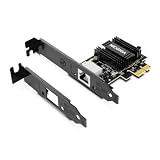
- ⭐【Next-Gen 10Gbe Performance】:Adopting the latest Realtek RTL8127 controller, this 10Gb PCIe network card delivers blazing-fast speeds up to 10Gbps. It provides extreme stability for local data transmission and internet access, effectively preventing packet loss. Perfect for NAS storage, home labs, gaming, and 4K video editing. Supports Wake-on-LAN (WOL).
- ⭐【Multi-Gig Auto-Negotiation】:Seamlessly backward compatible with 10Gbps, 5Gbps, 2.5Gbps, 1Gbps, and 100Mbps. It automatically negotiates the optimal speed to match your routers, switches, or NAS systems. Supports standard Cat6a/Cat7 or high-quality Cat6 cabling for cost-effective 10GbE network upgrades.
- ⭐【PCIe 4.0 x1 for Compact Systems】:Features a high-bandwidth PCIe 4.0 x1 interface that easily converts a standard x1 slot into a 10G RJ45 Ethernet port. Universally fits into PCIe x1, x4, x8, and x16 slots without occupying your GPU's lanes, making it ideal for Mini PCs, ITX builds, and compact workstations (Note: Not for PCI slots).
- ⭐【Broad OS & Advanced Linux Support】:Fully compatible with Windows 11/10 and Windows Server 2019/2022. Native plug-and-play for modern Linux distributions with Kernel 6.x and above (Ubuntu, Debian, Fedora), while older kernels (5.x) can be easily driven via Realtek official source code. Ready for mainstream virtualization and DIY NAS platforms.
- ⭐【Cool Running & Easy Installation】:Thanks to the ultra-efficient Realtek RTL8127 chipset, this 10G NIC consumes minimal power and generates significantly less heat than older 10G chips, ensuring non-stop stability. Includes both standard full-height and low-profile brackets to perfectly fit into slim or full-size desktop towers.
Check which connection Windows is using
Seeing “Realtek GbE Family Controller” in Windows does not prove that the PC is currently using Ethernet. Check the active connection in Windows Settings or Network Connections before troubleshooting or comparing results. Adapter presence and active connection are different things.
Troubleshoot a slow or failed connection
- Establish a baseline. Run a speed test before changing the setup, then compare afterward. Microsoft recommends a before-and-after baseline in its home-layout guidance.
- If using Ethernet, check the physical link. Reseat the cable at both ends and confirm it runs from the PC to a LAN port on the router. If possible, try another known-good cable. Microsoft’s Ethernet troubleshooting steps also suggest checking the connection with another device or cable where possible.
- If Wi-Fi fails but Ethernet works on the same PC and network, investigate Wi-Fi. Check the router, band, channel, signal path, and wireless adapter or driver. Microsoft recommends Ethernet as a way to help isolate a Wi-Fi-side issue in its Wi-Fi connection troubleshooting guide.
- If Ethernet fails, compare another device or cable. A problem affecting multiple devices may involve the router or ISP; a problem isolated to one PC may involve its adapter or configuration.
- If Wi-Fi cannot connect, check compatibility. The PC’s wireless adapter must support the router’s selected frequency. Adapter or driver settings that filter a band can also prevent connection, as described in Microsoft’s Wi-Fi troubleshooting guidance.
Do you need a new cable, adapter, or driver?
Most people can choose between the connection options they already have without buying anything. If you choose wired Ethernet but lack a suitable cable, Microsoft Learn describes Cat 6 as suitable but not required; the cable alone does not determine the connection’s speed. See its network setup guide.
Best Value

- Ultra-Fast: 10/100/1000Mbps PCIe Adapter upgrade your Ethernet speed to Gigabit
- Automation: Wake-on-LAN supporting Auto-Negotiation and Auto MDI/MDIX
- Supports: IEEE802.3x Flow Control for Full-duplex Mode and backpressure for Half-duplex Mode; 4k Bytes Port: 1x 10/100/1000Mbps RJ45 Network Media
- Compatibility: Windows 11, 10, 8.1, 8, 7, Vista, XP
- Dual Bracket: Low profile and standard profile bracket inside works with both mini and standard size PCs.
A USB-to-Ethernet adapter is relevant only if your PC has no Ethernet port. Check connector compatibility and the adapter’s supported network speed for your computer before choosing one; Microsoft’s Ethernet guide notes this as an option.
Do not assume that installing a newer Realtek driver will improve a connection that already works normally. If a driver update is needed to address a specific issue, identify the exact controller and operating system, then check the computer manufacturer’s support page or Realtek’s applicable driver listing.
Quick Recap
Product prices and availability are accurate as of the date/time indicated and are subject to change. Any price and availability information displayed on Amazon at the time of purchase will apply.

