
iTechGuides is reader-supported. When you buy through links on our site, we may earn an affiliate commission. As an Amazon Associate I earn from qualifying purchases. Learn more
To stream a podcast episode to YouTube Live in AAC, play or route the episode through a live encoder that sends AAC audio plus a video track to YouTube. For a typical stereo podcast, use 44.1 kHz and 128 kbps audio, connect over RTMPS if supported, and test the full setup before going public.
What you need for an AAC podcast livestream
- A YouTube Live broadcast and its encoder connection details from YouTube Studio’s Live Control Room.
- An encoder that can play or receive your episode audio and send it as a live stream. OBS is one option; YouTube documents it as compatible with its 5.1 workflow, but interface labels and capabilities can vary by version.
- A video track, such as a cover image or simple visual. Do not assume that an audio-only source is sufficient for this YouTube Live setup.
- A reliable upload connection with enough capacity for your chosen video output.
YouTube’s documented RTMP/RTMPS audio codecs include AAC and MP3, so an AAC stream is supported. The settings below are for the live encoder output; they do not require that the original podcast file itself already be AAC.
Set up the stream in YouTube Studio
- In YouTube Studio, open the Live Control Room and create or select the broadcast. Follow the current on-screen prompts to get the encoder connection information: an ingestion URL and stream key/name. If you configure a stream through the API, the stream resource contains the ingestion URL and stream name; some encoders accept these separately, while others use a combined format.
- Enter the connection information in your encoder. Treat the stream key as a password: do not share it, show it on screen, or include it in a public recording. If it is exposed, replace or reset it through YouTube’s current controls.
- Set the encoder to use AAC audio. For ordinary stereo spoken-word audio, YouTube recommends a 44.1 kHz sample rate and a 128 kbps audio bitrate.
- Route the podcast episode into the encoder’s live audio output. Depending on your encoder and playback setup, this may mean selecting the media source directly or routing computer audio. Confirm that the chosen source is actually reaching the outgoing stream.
- Add a video output, such as a still cover image or a visual with motion. Choose resolution, frame rate, and video bitrate according to the visual and the upload capacity available; YouTube’s guidance varies by resolution, frame rate, and codec, so there is no one video bitrate for every podcast stream.
- Use a keyframe interval of 2 seconds where configurable; YouTube recommends this frequency and says keyframes should not exceed 4 seconds.
- Choose RTMPS when your encoder supports it. YouTube recommends RTMPS, which carries RTMP through an SSL connection. The documented connection uses an
rtmpsURL and port 443; use the valid YouTube ingestion endpoint and application path supplied for your broadcast rather than guessing them. - Before the public event, run a private or otherwise controlled test with the same kind of audio and visuals you plan to use. Check that the audio is present and synchronized, the video appears as expected, and YouTube reports a healthy incoming stream.
Recommended AAC settings for a podcast
| Use case | Audio codec | Sample rate | Audio bitrate | Notes |
|---|---|---|---|---|
| Typical stereo podcast | AAC | 44.1 kHz | 128 kbps | YouTube’s recommended stereo settings. They are platform recommendations, not a guarantee that different source files or encoders will sound identical. |
| Compatible 5.1 surround stream | AAC | 48 kHz | 384 kbps | Use only when the episode is actually produced as compatible 5.1 audio; these are not the default settings for a normal stereo podcast. |
YouTube’s 5.1-over-RTMP guidance also says to leave manual stream-resolution settings off for automatic 5.1 detection. Documented compatible software encoders include OBS, AWS Elemental Live, and AVerMedia RECentral 4; Videon EdgeCaster is listed as compatible hardware. Use that workflow only if your source and setup support surround sound.
Free tools Windows power users keep installed
One-click scans. No signup required.
Can you stream an MP3 or AAC podcast file directly?
YouTube Live expects an encoder stream, not simply an uploaded podcast file sent as a live broadcast. Use an encoder that plays or ingests the episode and sends an outgoing live stream with AAC audio and a video track. An MP3 source may be usable if your encoder can play it and output a supported live audio codec; for the requested AAC setup, verify that the encoder’s outgoing audio is actually AAC.
#1 Best Overall

- Pro performance with great pre-amps - Achieve a brighter recording thanks to the high performing mic pre-amps of the Scarlett 3rd Gen. A switchable Air mode will add extra clarity to your acoustic instruments when recording with your Solo 3rd Gen
- Get the perfect guitar and vocal take with - With two high-headroom instrument inputs to plug in your guitar or bass so that they shine through. Capture your voice and instruments without any unwanted clipping or distortion thanks to our Gain Halos
- Studio quality recording for your music & podcasts - Achieve pro sounding recordings with Scarlett 3rd Gen’s high-performance converters enabling you to record and mix at up to 24-bit/192kHz. Your recordings will retain all of their sonic qualities
- Low-noise for crystal clear listening - 2 low-noise balanced outputs provide clean audio playback with 3rd Gen. Hear all the nuances of your tracks or music from Spotify, Apple & Amazon Music. Plug-in headphones for private listening in high-fidelity
- Everything in the box: Includes Pro Tools Intro+, Ableton Live Lite, Cubase LE, and Hitmaker Expansion: a suite of essential effects, powerful software instruments, and easy-to-use mastering tools
Troubleshoot missing or poor audio
No sound on the livestream
- Confirm that the encoder is sending an audio track, not just video.
- Check that the correct media or system-audio source is routed to the live output, and that it is not muted in the encoder or operating system.
- Look at YouTube’s stream-health messages. Its API identifies issues such as
noAudioStreamand unsupported audio codecs.
Codec, sample-rate, channel, or bitrate warnings
- Check the outgoing encoder settings, not only the podcast file’s properties. For this workflow, choose AAC and confirm the output sample rate and bitrate.
- For standard stereo, use 44.1 kHz and 128 kbps. Keep the channel layout mono or stereo unless you are intentionally setting up compatible 5.1 audio.
- If YouTube flags an audio codec, sample rate, channel count, or bitrate, review the encoder’s stream-health details and correct the flagged output setting.
RTMPS connection or TLS errors
- Confirm the URL uses the
rtmpsscheme and the YouTube ingestion endpoint and application path provided for the broadcast. - Check that the encoder supports SSL/TLS and is connecting on port 443. Verify the server hostname and avoid substituting an endpoint from another service.
Primary and backup streams do not match
If you use primary and backup ingestion, keep the audio codec, bitrate, sample rate, channel layout, and relevant video settings consistent between them. YouTube’s API documents mismatch warnings for backup streams.
Copyright and channel considerations
Before broadcasting, make sure you have the rights or permission needed for every part of the episode, including music, clips, guest contributions, and any third-party material. The setup instructions here do not determine whether a particular episode is authorized for rebroadcast; check the relevant rights and YouTube’s current policies for your content.
Rank #2

- Podcast, Record, Live Stream, This Portable Audio Interface Covers it All - USB sound card for Mac or PC delivers 48kHz audio resolution for pristine recording every time
- Be ready for anything with this versatile M-AUDIO interface - Record guitar, vocals or line input signals with one combo XLR / Line Input with phantom power and one Line / Instrument input
- Everything you Demand from an Audio Interface for Fuss-Free Monitoring - 1/8" headphone output and stereo RCA outputs for total monitoring flexibility; USB/Direct switch for zero latency monitoring
- Get the best out of your Microphones - M-Track Solo’s transparent Crystal Preamp guarantees optimal sound from all your microphones including condenser mics
- The MPC Production Experience - Includes MPC Beats Software complete with the essential production tools from Akai Professional
Or let it run in the cloud
If your goal is to keep a prerecorded podcast playing on YouTube continuously, StreamNeo is a cloud option: upload the recording or build a playlist, add your YouTube stream key once, and go live. Your computer and home connection do not need to stay on, and StreamNeo automatically recovers if YouTube drops the stream. It plays uploaded videos rather than broadcasting from a camera, and streams to YouTube.
Quick Recap
Best Value
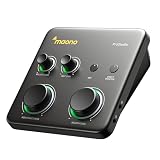
- HYBRID CONNECTIVITY: Dual USB ports with MFi-certified connectivity connect your computer and phone or iPad simultaneously. Record in GarageBand or Logic Pro, then stream or upload guitar & vocal covers directly from your mobile device. No workflow interruptions. The MAONO P1 USB-C audio interface instantly records to Mac, PC, iPhone, Android, or cameras. Perfect for creators and streamers who need total workflow freedom to record anywhere, anytime
- STUDIO-GRADE AUDIO: Up to 70dB gain drives hungry-gain dynamic microphones flawlessly—no external booster. Capture every vocal and guitar nuance in 24-bit/192kHz quality. Features a class-leading -130dB EIN for dead-silent recording in home studios. ASIO support deliver clean recordings and lower-latency monitoring for solo creators or music production
- STREAM AND RECORD WITHOUT THE GUESSWORK: Built for podcasters, streamers, and musician creators. Auto-Gain sets the ideal microphone level for clear voice capture in OBS Studio, eliminating manual gain adjustments. Independent mute prevents unwanted noise during guitar or bass changes, while independent headphone and monitor mute controls provide greater flexibility during streaming and recording. Stream Mode sends your voice equally to both channels for a balanced listening experience
- SIMPLIFY COMPLEX AUDIO ROUTING SOFTWARE PROSTUDIO2: Record guitar tutorials, cover songs, and vocal streams with ease. Route FL Studio, Spotify, TikTok, or browser audio directly to dedicated channels without digging through complex PC settings. Add VST effects for cleaner vocals, real-time noise reduction, and studio sound. Built-in loopback captures your instrument, voice, backing tracks, and desktop audio in one seamless workflow
- HEAR EVERY DETAIL IN REAL TIME: Ideal for podcast recording and music production. Direct monitoring delivers low-latency audio, so you hear your voice or instrument without distracting delays. Independent headphone and monitor controls let creators customize listening levels with ease, while dynamic LED indicators provide instant visual feedback to help prevent clipping and keep recordings on track
Rank #4

- ✔️[High-fidelity sound quality, accurate sampling] The Synido 2x2 audio interface uses a high-quality independent audio chip to reduce recording latency, support 24-bit depth and 48kHz sampling rate, and ensure every detail is restored. Whether it is recording or live broadcasting, it can provide a clear and natural sound quality experience
- ✔️[Three monitoring modes, easy to switch] The audio interface provides three monitoring modes to meet different needs. In Stereo mode, independent left and right channels present the original input (such as a microphone or instrument), which is suitable for accurate recording. Mix mode can mix input audio and computer audio in real-time, which is suitable for live broadcast or recording, and is easy to adjust instantly. USB mode only monitors computer audio, which is suitable for post-editing or audio processing. Whether it is recording, live broadcast, or post-production, the three modes can be easily switched to make audio creation more efficient and professional
- ✔️[User-friendly design] The audio interface is intuitively designed, and equipped with three independent control areas, and the XLR interface supports 6.35mm and XLR microphones, which are compatible with various devices. The green, orange, and red LED lights display the volume level, helping you to grasp the volume status at any time and avoid distortion. Supports easy switching between Line In and instrument input, adapts to different devices, reduces interference and distortion, and does not need to adjust gain frequently, improving efficiency
- ✔️[Professional 48V phantom power] Synido audio interface is equipped with 48V phantom power switch and supports 48V dynamic microphone with excellent noise reduction performance, provides a highly sensitive recording experience, accurately picks up sound, and effectively reduces noise interference, ensuring clear and stable sound quality output
- ✔️[Lightweight and portable, plug and play, create at any time] The USB audio interface weighs only 300g and measures 14 x 11.5x 4.5 cm. It is compact and portable and can be taken anywhere anytime. Equipped with a 3.5mm to 6.35mm adapter and a USB-C to USB-A data cable, you can easily use it by directly connecting to your mobile phone or computer
Rank #3

- [5-In-1 Audio Hub] - Cubilux CB5 USB Audio Interface converts the USB port of your laptop into 2 stereo microphone jacks, 1 line-in jack, 1 line-out jack, and 1 headphone jack, letting you conveniently connect microphones, instruments, and headphones or speakers as needed. Please note that the line-out jack and the audio output jack cannot be used simultaneously.
- [Multi-Track Recording] – By assigning independent device names to each interface, Cubilux CB5 makes it easy to record multi-track audio.
- [Studio Recording Quality] – The Built-in advanced chip enables Cubilux CB5 to capture crisp and precise sound with decent clarity up to 96 KHz/24-bit, providing professional audio content for your performance.
- [Ultra-Low Noise] - Cubilux USB Audio Interface is integrated with a powerful Hi-Res DAC to fully drive studio monitors up to 250 Ohm and deliver clean and pristine sound up to 192 KHz/32-bit.
- [Portable Design] - No need for an external power source. This compact, portable design is perfect for on-the-go recording, allowing you to record wherever inspiration strikes.
- Any quality up to 4K 60fps as uploaded, at one flat price per slot with no re-encoding or quality tiers.
- The first day is free with no card; one free day is available per account.
- Monthly: $9.99 per month.
Start your free StreamNeo day.
Product prices and availability are accurate as of the date/time indicated and are subject to change. Any price and availability information displayed on Amazon at the time of purchase will apply.

