
The Tool Desk
Outbyte Driver Updater FREEFix the driver behind crashes, sound loss and screen glitchesFind Drivers →Outbyte PC Repair FREEClear out junk files and repair common Windows errorsFree Scan →To make OBS use fewer computer resources during a nonstop YouTube stream, start with a supported hardware encoder, then lower the stream’s output resolution or frame rate if your content allows it, and simplify scenes. These changes can reduce CPU or GPU workload; they do not guarantee lower whole-computer electricity use. OBS and YouTube do not publish a universal watt or percentage saving for these settings, so measure your own setup under comparable conditions if power consumption is the goal.
What “use less power” means in OBS
OBS settings can reduce rendering and encoding work on the CPU or GPU. That is not the same as proving the computer draws fewer watts: power use depends on the whole system, including its components and workload. Treat resource indicators as a way to find a stable, less demanding configuration, not as an electricity measurement.
If you need to verify energy use, compare system power with a meter under like-for-like conditions: the same stream content, duration, resolution, frame rate, scene, and other running applications. Change one setting at a time so you can tell what affected performance and power on your machine.
Configure OBS in order of impact
1. Choose an available hardware encoder
- Open Settings → Output in OBS.
- For streaming, select a supported hardware encoder if your computer offers one. OBS documents NVIDIA NVENC and AMD AMF on Windows/Linux, Intel Quick Sync on Windows/Linux, and Apple VideoToolbox on Apple Silicon. Availability depends on your device and platform; check OBS’s current hardware-encoding guidance.
- Apply the setting, then test a representative stream. Compare it with x264 software encoding on your own setup if you are unsure which is more stable or produces acceptable quality.
Hardware encoding shifts encoding work from the CPU to a specialized component, but does not guarantee lower total system power. Older hardware encoders can also produce lower quality than x264 at the same bitrate, so there is no universal winner.
What’s actually slowing this PC down?
Pick the symptom - the matching free tool is one click away.
#1 Best Overall
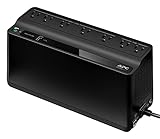
- KEEP YOUR COMPUTER, WI-FI AND ROUTER RUNNING THROUGH POWER OUTAGES: Supplies short-term battery power during outages to maintain internet connectivity and allow safe shutdown of computer during power interruptions
- POWER PROBLEMS DON'T ONLY HAPPEN DURING STORMS: 23 minutes of runtime (at 100W load) guards against outages, while surge protection shields connected devices from unexpected power events that happen even on a normal day
- PROTECT EVERYTHING ON YOUR DESK: 5 well-spaced outlets with full battery backup and surge protection, plus 2 surge-only outlets for less critical gear
- PHONE CHARGER: Keep your phone charged even when the power's out. The built-in 1.5A USB port works during outages
- EASY BATTERY REPLACEMENT KEEPS COSTS LOW: Swap the internal battery in minutes when it ages out, no need to replace the whole unit (APC replacement battery APCRBC154, sold separately)
2. Lower output resolution before changing the canvas
- Open Settings → Video.
- Reduce Output (Scaled) Resolution to the lowest stream resolution that meets your viewers’ needs.
- Leave Base (Canvas) Resolution unchanged unless the system is severely constrained. Changing the canvas can require resizing sources and reworking scene layouts.
OBS says, “Reducing the resolution of OBS will reduce the amount of GPU resources needed.” Lower output resolution can also reduce encoder workload. See the OBS encoding-performance troubleshooting guide.
3. Use 30 fps if 60 fps is unnecessary
In Settings → Video, set Common FPS Values to 30 if your stream does not need 60 fps or the higher rate is unstable. Fewer frames mean less rendering and encoding work; 60 fps is more demanding than 30 fps. Keep 60 fps when smoother motion matters to the content and your system can sustain it. For example, fast-moving material may benefit more from 60 fps than a mostly static scene. OBS’s performance troubleshooting and streaming quality guide explain the trade-offs.
Rank #2

- 1500VA/1000W PFC Sinewave Uninterruptible Power Supply (UPS): Uses sine wave output to provide battery backup power for Active PFC & conventional power supplies; Safeguards computers, workstations, network devices, and telecom equipment
- 12 NEMA 5-15R OUTLETS: 6 battery backup & surge protected outlets, 6 surge protected outlets; INPUT: NEMA 5-15P right angle, 45 degree offset plug with 5 foot power cord; 2 USB charge ports (1 Type-A, 1 Type-C) quickly charge phones and tablets
- MULTIFUNCTION, COLOR LCD PANEL: Displays immediate, detailed information on battery and power conditions; Color display alerts users to potential issues before they can affect critical equipment and cause downtime; Screen tilts up to 22 degrees
- AUTOMATIC VOLTAGE REGULATION (AVR): Corrects minor power fluctuations without switching to battery power; UL SAFETY CERTIFIED: Product has been tested in a UL certified lab and listed with UL as meeting or exceeding safety standards
- 3-YEAR WARRANTY – INCLUDING THE BATTERY; $500,000 Connected Equipment Guarantee; FREE PowerPanel Management Software (Download)
4. Simplify scenes and sources
- Remove sources, filters, animations, and browser overlays that the stream does not need.
- Check hidden sources too: a source may still use resources while hidden.
- Use media no larger in resolution than its displayed result requires, where practical.
- Pay particular attention to browser sources and filters, which can be demanding.
Make changes in a copy of a scene collection if you need to preserve a more elaborate layout for other broadcasts.
Set YouTube bitrate and keyframes for your stream
Bitrate is primarily a delivery and picture-quality setting, not a power-saving target. Choose the row that matches your output resolution, frame rate, and codec in YouTube’s live encoder settings. Its current recommendations, accessed in 2026, include:
Recommended Free Tools
Rank #3

- 425VA/260W Standby Uninterruptible Power Supply (UPS): Uses simulated sine wave output to provide battery backup power and to safeguard home office, home entertainment including computers, gaming consoles, and broadband routers
- 8 NEMA 5-15R OUTLETS: Four battery backup & surge protected outlets; Four surge protected outlets; INPUT: NEMA 5-15P right angle, 45 degree offset plug with five foot power cord
- ADDITIONAL FEATURES: LED status light indicates Power-On and Wiring Fault, transformer-spaced outlets
- GREENPOWER UPS HIGH EFFICIENCY DESIGN: Reduces power consumption by utilizing a compact charger and power inverter to create an ultra-efficient backup power system for home and office use
- 3-YEAR WARRANTY – INCLUDING THE BATTERY; 75K USD Connected Equipment Guarantee; UL SAFETY CERTIFIED: Product has been tested in a UL certified lab and listed with UL as meeting or exceeding safety standards
| Output | Codec | YouTube recommended bitrate |
|---|---|---|
| 720p30 | H.264 | 8 Mbps |
| 720p30 | AV1 or H.265 | 6 Mbps |
| 1080p30 | H.264 | 14 Mbps |
| 1080p30 | AV1 or H.265 | 10 Mbps |
These are YouTube’s platform recommendations, not measurements of power savings. Other resolutions, frame rates, and codecs have their own rows in YouTube’s table; do not assume these figures apply to them. For RTMP/RTMPS, YouTube recommends constant bitrate (CBR) and a two-second keyframe interval; do not exceed four seconds. It also recommends keeping upload capacity 20% above the stream bitrate. Check upload stability rather than choosing a bitrate your connection can only just sustain.
Test before leaving the stream running
- Use the content you expect to stream, including representative motion and audio. YouTube says, “Make sure to test before you start your live stream.”
- Start a test stream and watch OBS’s rendering and encoding indicators. Look for dropped frames, rendering lag, or encoding overload.
- Check YouTube’s stream health and confirm that the audio and picture are acceptable.
- Change one setting at a time—encoder, output resolution, frame rate, or scene complexity—and test again. A configuration that works for a static scene may fail with more motion or browser sources.
- Run the setup for a representative period before relying on it nonstop. Minimum system requirements do not guarantee that a specific combination of encoder, resolution, frame rate, and scene complexity will work. Consult OBS’s system requirements and YouTube’s encoder setup guidance.
Plan for streams that run longer than 12 hours
YouTube says streams shorter than 12 hours can be automatically archived, while a stream exceeding 12 hours may not be captured at all. If you need a complete archive, plan session boundaries or make a local backup and verify that the local file is growing. A simultaneous recording adds computer workload, so test it separately before relying on it. YouTube’s live stream archive guidance, live streaming tips, and live streaming setup guidance cover these considerations.
Rank #4

- 12 NEMA 5-15R OUTLETS: Six battery backup & surge protected outlets; Six surge protected outlets (Three ECO controlled); INPUT: NEMA 5-15P right angle, 45 degree offset plug with five foot power cord
- MULTIFUNCTION LCD PANEL: Displays immediate, detailed information on battery and power conditions
- ECO MODE: When the UPS detects a computer is off or in sleep mode, it will automatically turn off power to computer peripherals connected to ECO mode outlets, reducing power usage and lowering energy costs
- 3-YEAR WARRANTY – INCLUDING THE BATTERY; $100,000 Connected Equipment Guarantee and FREE PowerPanel Personal Edition Management Software (Download)
Common problems and fixes
OBS reports encoding overload
Reduce output resolution or frame rate, simplify scenes, or test a supported hardware encoder. Change one item at a time and check OBS again; the cause may be encoding workload rather than upload speed.
OBS reports rendering lag
Reduce GPU demand by lowering output resolution and removing unnecessary or demanding sources, filters, and browser overlays. Check whether hidden sources remain active.
Windows Errors? Fix Them Before They Spread
Repair common Windows errors and clear accumulated junk for a smoother, more stable PC - no reinstall needed.Free scan · no reinstallOutdated Drivers Are Slowing You Down
One free scan finds every outdated or missing driver and matches the right update for your exact hardware.Free scan · exact hardware matchBest Value

- 1500VA/900W Intelligent LCD Uninterruptible Power Supply (UPS): Uses simulated sine wave technology to provide battery backup power to safeguard workstations, networking devices, and home entertainment equipment
- 12 NEMA 5-15R OUTLETS: Six battery backup & surge protected outlets; six surge protected outlets; INPUT: NEMA 5-15P plug with 6-foot power cord; USB charge ports (1 Type-A, 1 Type-C) quickly charge mobile phones and tablets
- MULTIFUNCTION, COLOR LCD PANEL: Displays immediate, detailed information on battery and power conditions; Color display alerts users to potential issues before they can affect critical equipment and cause downtime
- AUTOMATIC VOLTAGE REGULATION (AVR): Corrects minor power fluctuations without switching to battery power; UL SAFETY CERTIFIED: Product has been tested in a UL certified lab and listed with UL as meeting or exceeding safety standards
- 3-YEAR WARRANTY – INCLUDING THE BATTERY; 500,000 Connected Equipment Guarantee; FREE PowerPanel Personal Software (Download)
YouTube stream health is poor or frames drop in transit
Check upload stability and leave the 20% capacity margin YouTube recommends. Confirm that the bitrate matches the selected codec and output in YouTube’s table, and use CBR with a two-second keyframe interval for RTMP/RTMPS.
The stream looks worse after switching encoders
Compare the hardware encoder and x264 at the same resolution, frame rate, and bitrate. Hardware encoders vary, and older ones may deliver lower quality at the same bitrate; keep the option that meets your quality and stability needs.
The long stream has no complete YouTube archive
A stream exceeding 12 hours may not be captured. If the archive matters, use planned session boundaries or a verified local recording rather than assuming the full nonstop stream will be saved.
Or let it run in the cloud
If your goal is a nonstop YouTube video stream without keeping a computer on at home, StreamNeo runs uploaded videos from the cloud. Upload a recording or build a playlist, add your YouTube stream key once, and go live. Your computer and home connection do not have to stay on. Every slot streams the upload as made, up to 4K 60 fps, at one flat price per slot; there are no quality tiers or re-encoding. StreamNeo automatically recovers if YouTube drops the stream.
Quick wins for a faster PC:
Repair Windows errors before they cause bigger problemsFix Now →Scan for outdated or missing drivers - takes under a minuteDriver Scan →Clear out junk files and repair common Windows errorsFree Scan →The first day is free with no card. Monthly service is $9.99 per month. Start your free StreamNeo day.
Quick Recap
Product prices and availability are accurate as of the date/time indicated and are subject to change. Any price and availability information displayed on Amazon at the time of purchase will apply.

