
If your Mac mini YouTube livestream stops after a macOS update, first identify whether the encoder stopped, YouTube lost its incoming stream, or only the viewer-side playback failed. The timing alone does not prove macOS caused the problem. Work through the checks below in order, changing one thing at a time so you can identify the cause.
First, locate where the stream stops
Watch the encoder and YouTube Live Control Room during a test. The difference matters: an encoder that cannot authenticate needs a different fix from OBS that is running but losing its connection to YouTube.
| What you see | Likely area to check | Useful evidence |
|---|---|---|
| The encoder will not start, or reports a stream-key or authentication error | Stream key or encoder connection | Exact encoder error; whether it connects after updating the key |
| The encoder says it is streaming, but YouTube does not receive a healthy stream | Encoding, outbound network, or YouTube ingest | Encoder preview, CPU load, encoder errors, local recording, and YouTube status |
| OBS reports dropped frames or disconnects intermittently | Network path to YouTube’s ingest server or bitrate too high for the connection | OBS statistics and log, upload stability, and whether wired networking changes the result |
| YouTube receives the stream, but viewers see a playback problem | Viewer playback rather than Mac capture or encoder startup | Compare the Live Control Room’s received stream with playback on another device or network |
YouTube’s current live-stream troubleshooting guide distinguishes encoder and stream problems from viewer-side symptoms. Its encoder setup instructions explain the server URL and stream key used to connect an encoder.
If the encoder will not start or authenticate
Refresh a stream key when the encoder uses one
If your encoder connects with a stream key and YouTube reports a key or authentication problem, create or select a stream key in YouTube Live Control Room, then replace the key in the encoder with the matching value. Confirm the encoder is sending to the server URL and key for the same YouTube stream. Do not post or share the key: anyone who has it may be able to send video to your channel.
#1 Best Overall

- Apple-designed M1 chip for a giant leap in CPU, GPU, and machine learning performance
- 8-core CPU packs up to 3x faster performance to fly through workflows quicker than ever*
- 8-core GPU with up to 6x faster graphics for graphics-intensive apps and games*
- 16-core Neural Engine for advanced machine learning
- 8GB of unified memory so everything you do is fast and fluid
- Open YouTube Live Control Room and locate the stream’s stream-key settings.
- Create or select the key you intend to use, following YouTube’s controls for that stream.
- In the encoder’s stream settings, update the key (and verify the server URL) to match.
- Reconnect and check whether Live Control Room receives the encoder signal.
YouTube specifically recommends getting a new stream key in Live Control Room and updating the encoder for stream-key errors. If your software connects to YouTube without a key, YouTube directs you to that software’s support team instead.
If the encoder runs but YouTube does not receive a healthy stream
Check the local video and encoder before changing the network
- Update the encoder if it is out of date, using the software vendor’s official release process.
- Inspect the encoder’s preview and status. Look for a frozen or black picture, missing audio, encoder errors, or unusually high CPU load.
- If you record an archive locally, play it back. A healthy local recording suggests capture and encoding are working and makes the outbound connection a more useful next test. A broken archive points back toward capture, source media, or encoding.
- Check Live Control Room for the stream’s received status and any displayed error or health warning.
A local archive is a diagnostic clue, not proof that the entire live path is healthy: a recording can work while the connection to YouTube fails. If the local picture or sound is also faulty, resolve that encoder or source issue before treating the internet connection as the cause.
Rank #2
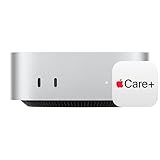
- WHY APPLECARE+ — Get protection, service and support direct from Apple. AppleCare+ covers unlimited repairs for accidental damage, like a cracked display, and includes coverage for the hardware and battery. Get convenient service at Apple Stores and Apple Authorized Service Providers around the world or schedule a pickup at your home or office with Onsite Service. Help is easy with 24/7 priority tech support from Apple experts.
- SIZE DOWN. POWER UP — The far mightier, way tinier Mac mini desktop computer is five by five inches of pure power. Built for Apple Intelligence.* Redesigned around Apple silicon to unleash the full speed and capabilities of the spectacular M4 chip. With ports at your convenience, on the front and back.
- LOOKS SMALL. LIVES LARGE — At just five by five inches, Mac mini is designed to fit perfectly next to a monitor and is easy to place just about anywhere.
- CONVENIENT CONNECTIONS — Get connected with Thunderbolt, HDMI, and Gigabit Ethernet ports on the back and, for the first time, front-facing USB-C ports and a headphone jack.
- SUPERCHARGED BY M4 — The powerful M4 chip delivers spectacular performance so everything feels snappy and fluid.
If OBS keeps disconnecting or the livestream drops frames
OBS Project says: “If you experience dropped frames or intermittent disconnections while streaming, there is a network issue between your computer and the remote stream ingest server.” That points to the connection between the Mac and the ingest server, or a configured bitrate the connection cannot sustain; it does not by itself show that the Mac mini needs replacing.
Test bitrate against stable upload capacity
OBS suggests 75% of total upload speed as a starting point for bitrate. Treat that as a starting point, not a guaranteed YouTube target: upload speed can fluctuate, and other devices or services may use capacity. If OBS shows dropped frames, lower the configured bitrate for a controlled test, then check whether the connection stabilizes. Avoid raising it again until the connection can sustain it reliably.
Rank #3

- AN AMAZING MAC AT A SURPRISING PRICE — With an incredibly portable and durable aluminum design, up to 16 hours of battery life,* and the A18 Pro chip, MacBook Neo is ready to go wherever school takes you.
- FOUR STUNNING COLORS. ONE DURABLE DESIGN — Choose from four beautiful colors — Silver, Blush, Citrus, or Indigo — each with a color-coordinated keyboard. And MacBook Neo is made with a durable recycled aluminum enclosure that helps it reach 60 percent recycled content by weight — the most ever in any Apple product.*
- FLY THROUGH EVERYDAY ASSIGNMENTS — Whether you’re cramming for finals, using Apple Intelligence* to summarize class notes, creating presentations, or even playing the latest Apple Arcade game,* MacBook Neo delivers the performance and AI capabilities you need to get things done.
- UP TO 16 HOURS OF BATTERY LIFE — MacBook Neo delivers all day battery life, so you can power through from early morning classes to late night study sessions without worrying about plugging in.
- A VIBRANT 13-INCH DISPLAY* — The gorgeous Liquid Retina display on MacBook Neo supports 1 billion colors, so photos and videos pop and text is crisp for easy reading.
Use OBS’s Stream Connection Troubleshooting guidance alongside YouTube’s current stream-health information. If the internet connection itself tests poorly or varies substantially, check with your internet provider rather than assuming a codec or macOS setting is responsible.
Isolate Wi-Fi, VPN, security software, and network hardware
- If the Mac mini is on Wi-Fi, test a wired Ethernet connection to the router. Change only the connection method and compare the result.
- If a VPN is active, disconnect it briefly for a controlled test, if your security and network requirements permit. Restore it afterward; if the stream becomes stable, investigate VPN routing or filtering rather than leaving protection disabled by default.
- Security software can scrutinize OBS after software updates. If a controlled test indicates it is interfering, add a targeted OBS exception in that product’s settings and re-enable protection.
- Inspect the physical path: Ethernet cable, router or modem, network adapter, switch, and any extender. OBS lists these as possible faulty links. Replace or bypass one suspect component at a time.
A Cat6 Ethernet cable is relevant only if you currently stream over Wi-Fi or have reason to suspect the cable in use; buying a cable is not a general fix for an unspecified post-update problem.
Rank #4

- BTO Mac Mini Desktop Computer - Power Cord - Apple 1 Year Limited Warranty with 90 Day Free Technical Support
- Apple M1 chip with 8-core CPU and 8-core GPU
- 16-core Neural Engine
- 16GB unified memory
- 1TB SSD storage
If the problem started after updating OBS or macOS
Check encoder and macOS compatibility
Find the exact macOS version and encoder version installed, then check that the encoder version supports that macOS release. OBS publishes a macOS versions compatibility page; its version guidance can change, so consult the current page rather than relying on an old compatibility list. If you use another encoder, check its maker’s support information.
Also note the Mac mini’s chip or generation, the encoder’s exact error text, and whether the encoder itself stops or remains live. Those details help distinguish a compatibility issue from authentication or network failure.
Best Value

- LITTLE DO-IT-ALL — Mac mini packs pure power into a small, five-by-five-inch desktop as the M6 chip delivers next-level AI capabilities. Mac mini features 2.5Gb Ethernet with support for Wi-Fi 7* and Bluetooth 6, with ports on the front and back.
- M6 CHIP — Everything you do on Mac mini feels more responsive with the M6 chip and its next-generation CPU. Fly through AI workflows with up to 4.8x faster AI performance,* thanks to a Neural Accelerator in each GPU core, faster unified memory, and a Dual 16-core Neural Engine.
- CONNECT IT ALL — Features three Thunderbolt 4 ports, an HDMI port, and a 2.5Gb Ethernet port in the back, and two USB-C ports and a headphone jack in front. Supports up to three external displays. With the Apple-designed N1 wireless chip for Wi-Fi 7* and Bluetooth 6.
- A POWERFUL PLATFORM FOR AI — Apple silicon is designed to run demanding AI workflows like using huge LLMs, directly on device. And Apple Intelligence* helps you write, express yourself, and get things done effortlessly, while Siri AI* is your profoundly capable assistant — all with groundbreaking privacy protections.
- A POWERFUL PLATFORM FOR AI — Apple silicon is designed to run demanding AI workflows like using huge LLMs, directly on device.
Review firewall access without leaving protection off
Apple documents app access at System Settings > Network > Firewall > Options. Review whether the encoder is allowed to receive incoming connections if its operation requires them, and make a targeted correction only when the evidence points to the firewall. Apple cautions that blocking an app can affect its performance or dependent software. Do not use a permanently disabled firewall as the fix. See Apple’s firewall instructions.
Independent reader supportYour contribution helps us test, update, and keep practical guides available for everyone.Use OBS’s diagnostics and collect the details that matter
If you use OBS, check its logs around the moment of the failure and note whether the message concerns dropped frames, encoding, or disconnection. OBS’s Help Portal explains dropped-frame interpretation, the Auto-Configuration Wizard, and security-software checks. The wizard can help set a starting configuration; it does not establish that a later failure was caused by macOS.
For a support request, include the exact macOS version, Mac mini chip or generation, encoder name and version, precise error text, whether the encoder stays live after YouTube stops receiving it, the relevant OBS log excerpt if applicable, and whether a local recording plays normally. These observations are more useful than the update date alone.
When to contact YouTube, the encoder maker, or your ISP
- Contact the encoder maker if the software will not launch, crashes, reports an encoding error, or connects to YouTube without a stream key and its own service integration is failing.
- Use YouTube Help if the encoder runs but Live Control Room reports a stream-key or ingest issue after you have checked the key and connection. Start with YouTube’s stream troubleshooting page.
- Contact your ISP if independent connection checks show poor or unstable outbound service, especially after ruling out Wi-Fi and local network hardware.
No incidence rate establishes how often macOS updates cause this kind of failure. Treat the update as a time marker and use the encoder status, local archive, logs, YouTube’s received-stream status, and reversible tests to isolate the fault.
Or let it run in the cloud
If your goal is to keep prerecorded videos looping as a YouTube livestream rather than troubleshoot a live encoder workflow, StreamNeo is a separate cloud option: upload your recording or playlist, add your YouTube stream key once, and go live. Nothing has to stay running at home; the cloud loops uploaded videos, supports any quality up to 4K 60fps at one flat price per slot, and automatically recovers if YouTube drops the stream. The first day is free with no card. Monthly is $9.99 per month. It streams to YouTube only and plays uploaded videos, not a live camera feed. Start the free first day on StreamNeo.
Quick Recap
Product prices and availability are accurate as of the date/time indicated and are subject to change. Any price and availability information displayed on Amazon at the time of purchase will apply.

