
The Tool Desk
Outbyte PC Repair FREERepair Windows errors before they cause bigger problemsFix Now →Outbyte Driver Updater FREEScan for outdated or missing drivers - takes under a minuteDriver Scan →Add the native HTML5 player with a <video controls> element and one or more compatible media sources. Add a WebVTT <track> for captions, then test the video, controls, and captions in the browsers and devices your site supports.
Add a video with the browser’s built-in controls
The controls attribute displays the browser’s standard playback interface, typically including play or pause, seeking, and volume controls. This is the simplest option for a straightforward video embed:
<video controls width="640" poster="/media/preview.jpg">
  <source src="/media/demo.webm" type="video/webm">
  <source src="/media/demo.mp4" type="video/mp4">
  <p>Your browser does not support HTML video. <a href="/media/demo.mp4">Download the video</a>.</p>
</video>
Replace the example paths with URLs that resolve to your own files. The browser can try the listed sources in order, but listing multiple files does not guarantee playback: each file’s container and codecs must be supported by the visitor’s browser and device. Check compatibility for the browsers your site serves.
Size and adapt the player to your layout
Use the width and height attributes or CSS to fit the video into the page. A responsive starting point is:
#1 Best Overall

- Plays flawless HD and 4K video, HTML5, graphics and digital audio
- Displays simple HTML5 widgets and animations
- Packed with unique signage features to enable captivating experiences
- Flexible for connected or o ine environments
- Supports single touchscreen experiences
video {
  max-width: 100%;
  height: auto;
}
A poster attribute specifies an image to show before playback begins. CSS properties such as object-fit and object-position can adjust how the video is displayed within its box; choose dimensions and styling that suit the design without unintentionally cropping important content.
Add captions or subtitles
Attach a WebVTT file using a <track> element inside <video>. For example, add this before the closing </video> tag in the earlier snippet:
<track kind="captions" src="/media/demo.en.vtt" srclang="en" label="English">The attributes identify the track type, file URL, language, and user-facing label. Add another <track> for each additional language, with the appropriate values. A captions track should include dialogue and relevant non-speech audio, such as meaningful sound effects or music. Subtitles may instead focus on dialogue, often translating it into another language; select the track type and content for the audience and accessibility need.
Rank #2

- H. 265 Decoding: Smaller file sizes and lower bitrates than H. 264
- HTML5: Hardware-accelerated engine that plays modular HTML assets flawlessly alongside high-bandwidth video
- BrightBeacon: 2-way Bluetooth/Beacon communication between mobile devices & signage (requires: wireless/ Bluetooth module)
- BrightWall: Synchronized playback across multiple displays
- AutoWall: Embraces the power of HTML5 to create unique multimedia video walls
Provide a transcript as well. Review automatically generated captions for errors. If important visual information is not conveyed by the soundtrack, consider audio description or another suitable alternative. W3C WAI explains that caption styling and positioning vary between browsers and media players, so check the captions against the actual video to ensure they do not obscure essential content. See W3C WAI’s captions and subtitles guidance, updated 17 September 2024, and its example technique, H95: Using the track element to provide captions. WAI describes techniques as examples, not the only way to meet WCAG.
Recommended Free Tools
Choose native controls or build a custom player
For most basic embeds, native controls are a practical starting point: the browser supplies the interface, and you avoid writing and maintaining a separate control system. If you omit controls, the browser does not display its default controls.
A custom interface can use JavaScript’s HTMLMediaElement API and media events, but you must implement the desired behavior and account for keyboard use, accessibility, browser differences, and ongoing maintenance. Choose it when your design or interaction requirements justify that additional work; do not remove native controls without providing a usable alternative.
Rank #3
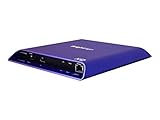
- 4K high-resolution video and images
- Dual video decoding
- advanced HTML
- Frame-accurate synchronizaton
Set loading behavior deliberately
The preload attribute influences how eagerly the browser fetches media. Choose a value based on the page’s needs rather than assuming the entire video will always download—or that it will never download—before playback. Actual fetching can depend on browser behavior and other conditions.
Avoid autoplay unless there is a clear user-centered reason. Do not use autoplay="false" to disable it: the presence of the boolean autoplay attribute enables autoplay behavior. To avoid requesting autoplay, omit the attribute.
Do these 3 things before closing this tab:
1Repair Windows errors before they cause bigger problems2Fix the driver behind crashes, sound loss and screen glitches3Clear out junk files and repair common Windows errorsTroubleshoot a video that will not play
- Check the URL. Open the media URL and confirm the path is correct and the server can return the file.
- Check the server response and MIME type. Make sure the request is succeeding and the response identifies the media appropriately.
- Check encoding and codec compatibility. A source can be listed in HTML yet remain unplayable in a particular browser or device. Test the actual encoded file against the browsers you support.
- Inspect browser diagnostics. Look at the browser console and network panel for failed requests, response details, or playback errors.
- Check captions separately. Confirm the WebVTT file URL resolves, the track language and label are correct, and captions synchronize with the video.
MDN’s guides cover the <video> element, HTML video and audio, and adding captions and subtitles. The WHATWG HTML Standard’s media elements section defines the underlying HTML behavior.
Rank #4

- H. 265 Decoding: Smaller file sizes and lower bitrates than H. 264
- HTML5: Hardware-accelerated engine that plays modular HTML assets flawlessly alongside high-bandwidth video
- BrightBeacon: 2-way Bluetooth/Beacon communication between mobile devices & signage (requires: wireless/ Bluetooth module)
- BrightWall: Synchronized playback across multiple displays
- AutoWall: Embraces the power of HTML5 to create unique multimedia video walls
Or skip the browser setup
ScreenshotNeo is a website screenshot API and MCP server; it does not add a video player to your site. If you need an image of how the finished page renders, one GET request can capture it:
curl -G "https://api.screenshotneo.com/v1/shot" -d access_key=YOUR_API_KEY --data-urlencode url=https://example.com -o shot.webpSee the ScreenshotNeo API documentation. ScreenshotNeo removes known cookie-consent banners, newsletter popups, and chat widgets before capture; bot checks, blank pages, failed loads, and cache hits are not billed. Its MCP server provides screenshot tools for AI agents, and the Free plan includes 1,000 shots per month with no card; paid plans start at $5 for 3,000 shots. Learn more at ScreenshotNeo.
Sign up free for 1,000 screenshots a month, with no card required.
What’s actually slowing this PC down?
Pick the symptom - the matching free tool is one click away.
Quick Recap
Product prices and availability are accurate as of the date/time indicated and are subject to change. Any price and availability information displayed on Amazon at the time of purchase will apply.

