
Recommended Free Tools
Use Playwright’s built-in Pixel 7a device profile, then call page.screenshot(). The profile currently uses a 412 × 839 CSS-pixel viewport—not the phone’s physical 1080 × 2400 display resolution—so it is the right starting point for checking a site’s responsive browser layout.
Use Playwright’s Pixel 7a device profile
Playwright includes a named Pixel 7a descriptor with the browser and device settings needed to emulate the phone. The current descriptor specifies a 412 × 839 CSS-pixel viewport, a 412 × 915 screen, a device scale factor of 2.625, mobile behavior, touch support, and Chromium as the default browser. See the current device descriptor and Playwright’s emulation guide.

Configure a Playwright Test project
In playwright.config.ts, spread the descriptor into a project’s use settings:
import { defineConfig, devices } from '@playwright/test';

export default defineConfig({
  projects: [
    {
      name: 'Pixel 7a',
      use: {
        ...devices['Pixel 7a'],
      },
    },
  ],
});
Then write a test that navigates to the site and saves the visible viewport:
#1 Best Overall

- Camera Description: Rear
import { test } from '@playwright/test';

test('capture at Pixel 7a size', async ({ page }) => {
  await page.goto('https://example.com');
  await page.screenshot({ path: 'pixel-7a.png' });
});
Replace https://example.com with the page you want to capture. The configured project applies the profile to the test’s browser context.
Create a one-off context
For a standalone script using Playwright’s library rather than the Playwright Test runner, create a context from the same descriptor. This example uses the Chromium API:
import { chromium, devices } from 'playwright';

const browser = await chromium.launch();
const context = await browser.newContext({ ...devices['Pixel 7a'] });
const page = await context.newPage();

await page.goto('https://example.com');
await page.screenshot({ path: 'pixel-7a.png' });

await browser.close();
If your project uses @playwright/test, use its test fixtures and project configuration instead; the test-runner example above is not a standalone browser-launch script.
Rank #2

- Camera description: Rear
- At a Glance shows you useful info that you need at the right time, like weather alerts, a package delivery or baggage claim info when your flight lands
- Wireless network technology : CDMA
- Connectivity technology : Bluetooth
Choose viewport or full-page capture
By default, page.screenshot() captures the visible viewport. That gives you an image of the page area shown in the emulated browser window. To capture the page beyond the visible area, request a full-page screenshot explicitly:
await page.screenshot({ path: 'pixel-7a-full.png', fullPage: true });A full-page screenshot makes a taller image; it does not make the emulated phone viewport taller. Use the default capture for what fits on screen and full-page capture when you need the whole document in one image.
Understand Pixel 7a viewport and resolution
“Pixel 7a resolution” can mean either the CSS dimensions used by a mobile browser or the physical display’s pixel count. Playwright’s descriptor uses a viewport of 412 × 839 CSS pixels and a screen size of 412 × 915. Google lists the handset’s physical display as 1080 × 2400 pixels, with a 20:9 aspect ratio and a 6.1-inch diagonal; those are hardware specifications, not the CSS viewport Playwright uses for responsive layout (Google Pixel phone hardware tech specs).
Rank #3
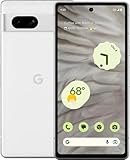
- Camera description : Rear
- Connectivity technology : Bluetooth
- Display.size : 6.1 inches
- Memory storage capacity : 128.0 GB
- Operating system : Android 13.0
Do not set Playwright’s viewport to 1080 × 2400 just because that is the physical panel resolution. The 2.625 device scale factor describes the emulated mapping between CSS pixels and device pixels. It is part of the profile; it is not a multiplier to apply to the viewport dimensions.
Adjust the profile when your test requires it
The built-in descriptor is the simplest choice when you want Playwright’s bundled Pixel 7a parameters. If a test intentionally needs different dimensions or scale, you can override descriptor values in the context or project settings. For example, to use the same device behavior and scale factor with a custom viewport:
What’s actually slowing this PC down?
Pick the symptom - the matching free tool is one click away.
const context = await browser.newContext({
  ...devices['Pixel 7a'],
  viewport: { width: 390, height: 844 },
});
Change the example dimensions only when they match the scenario you are testing. A custom viewport is no longer the descriptor’s standard 412 × 839 viewport.
Playwright describes its feature as the ability to “test your app on any browser as well as emulate a real device such as a mobile phone or tablet” (Playwright emulation documentation). Emulation helps make layout tests repeatable, but it does not establish that a page was captured on an actual Pixel 7a handset or that rendering is pixel-for-pixel identical to physical hardware.
Troubleshoot common capture problems
- “Pixel 7a” is undefined or the profile is missing: Confirm that your installed Playwright package includes
devices['Pixel 7a']. Device descriptors can change over time, and the current GitHubmaindescriptor may not match an older installed package. Check the descriptor available in your project’s installed version. - The page looks like desktop: Verify that the profile is applied to the test project or to
browser.newContext()before creating the page. Applying device settings after page creation will not configure that existing context. - The capture is too short: The default screenshot is viewport-only. Set
fullPage: trueif you need the full document. - The screenshot dimensions do not equal 1080 × 2400: That is the physical display specification. Playwright captures from an emulated browser viewport measured in CSS pixels, with a device scale factor specified separately.
- The result differs from the handset: Playwright emulation is not a substitute for hardware validation. If actual-device behavior is a requirement, verify the page on a real Pixel 7a as well.
Or skip the browser setup
ScreenshotNeo can return a screenshot through a single API request. It is a website screenshot API and MCP server; use its documented options if you need to configure the capture. The basic call below captures a URL as WebP:
curl -G "https://api.screenshotneo.com/v1/shot" -d access_key=YOUR_API_KEY --data-urlencode url=https://example.com -o shot.webpSee the ScreenshotNeo API documentation for authentication and supported parameters. ScreenshotNeo accepts and removes known cookie/consent banners, newsletter popups, and chat widgets before capture, with each step configurable. Bot checks, blank pages, failed loads, timeouts, and cache hits are not billed; responses identify the page verdict and billing status. Its MCP server lets AI agents use screenshot tools, and the free plan includes 1,000 screenshots per month with no card; paid plans start at $5 for 3,000 screenshots.
Sign up for ScreenshotNeo’s free plan: 1,000 screenshots a month with no card.
Best Value

- Google Pixel 7 is powered by Google Tensor G2; it’s faster, more efficient, and more secure, with the best photo and video quality yet on Pixel[1].Other camera description:Front,Rear.Bluetooth Version 5.2 with dual antennas for enhanced quality and connection.
- Unlocked Android 5G phone gives you the flexibility to change carriers and choose your own data plan[2]; works with Google Fi, Verizon, T-Mobile, AT&T, and other major carriers
- Pixel’s Adaptive Battery can last over 24 hours; when Extreme Battery Saver is turned on, it can last up to 72 hours[3]
- The 6.3-inch Pixel 7 display is super sharp, with rich, vivid colors; it’s fast and responsive for smoother gaming, scrolling, and moving between apps[4]
- Google Pixel 7 has wide and ultrawide lenses with up to 8x Super Res Zoom[5]; and Cinematic Blur brings more drama to your videos
Frequently Asked Questions
Does Playwright support the Pixel 7a profile in Firefox or WebKit?
The descriptor’s default browser type is Chromium. Select another browser engine only if your test setup supports it, and do not assume the profile makes results identical across engines.
Does a full-page screenshot represent one phone screen?
No. It extends the image down the document while retaining the emulated viewport settings.
Quick Recap
Product prices and availability are accurate as of the date/time indicated and are subject to change. Any price and availability information displayed on Amazon at the time of purchase will apply.
Free tools Windows power users keep installed
One-click scans. No signup required.

