
Free tools Windows power users keep installed
One-click scans. No signup required.
If a streaming stick shows a low-power warning or keeps restarting when it is powered from your TV’s USB port, plug it into a wall outlet using the power adapter and cable specified by its manufacturer. A TV USB port may not supply enough power for the device. Google, Roku and Amazon all direct users toward a suitable external power source in their device-specific troubleshooting guidance.
Why a TV USB port may not power a streaming stick reliably
A USB port on a TV is not guaranteed to provide the power a connected accessory needs. Google says a Chromecast with Google TV or Google TV Streamer may not get enough power from a TV USB port; Roku likewise warns that many TVs do not provide enough power for the Streaming Stick 4K. The result may be a low-power notification, instability or failure to start. The precise behavior depends on the device and TV model.
Google’s support page puts the issue plainly: “If it’s plugged into your TV’s USB port or a different adapter, it might not be getting enough power.” That guidance applies to Chromecast with Google TV and Google TV Streamer, not every device that can plug into a TV. Google’s Chromecast and Google TV Streamer power troubleshooting also identifies the screen prompt “g.co/cast/power.” Roku’s guidance refers to a “low power” issue or insufficient power. Roku Streaming Stick 4K setup guidance
The first fix: use the device’s wall adapter
- Disconnect the streaming stick’s power cable from the TV’s USB port.
- Connect the stick using its supplied power adapter and recommended cable.
- Plug the adapter into a reliable wall outlet, then check whether the warning or instability stops.
Google recommends a reliable wall outlet and cautions that an alternate cable may not be supported. Roku and Amazon also direct users with relevant low-power problems to appropriate external power. Follow the instructions for your exact device model rather than assuming one brand’s setup applies to another. Roku player power troubleshooting Amazon Fire TV low-power notification guidance
#1 Best Overall

- Instant Port Expansion: Add four USB 3.0 ports to any compatible device for enhanced connectivity
- Individual Power Control: Each port features its own power switch with LED indicator for independent operation
- High-Speed Data Transfer: Supports transfer speeds up to 5Gbps (USB 3.0), 480Mbps (USB 2.0), and 12Mbps (USB 1.1)
- Powered Hub Design: Includes 2.5 Amp power adapter to provide sufficient power for your connected devices
- Simple Installation: Plug and play functionality with hot swappable capability for easy setup
If you need a replacement adapter, match the device specification
Do not choose a replacement just because its connector fits. Check the manufacturer’s requirements for voltage, current, connector and cable. The published figures below are specific to the cited products and support instructions; they are not a universal rating for streaming devices.
| Device or guidance | Power figure stated by manufacturer | Scope |
|---|---|---|
| Chromecast with Google TV or Google TV Streamer | 5V/1.5A | Google’s current support guidance for a replacement adapter for these devices. Google support |
| Affected Roku players | 5V/1A or equivalent | Roku’s cited low-power guidance; check the instructions for the specific player. Roku low-power guidance |
| Fire TV devices covered by the notification guidance | 5W (5V, 1A or equivalent) | Amazon’s Fire TV low-power notification guidance. Amazon support |
These examples differ, which is why there is no single replacement-adapter rating to recommend for an unnamed streaming stick. Use the manufacturer’s model-specific instructions and, where possible, the adapter supplied with the device.
Rank #2

- ?SuperSpeed Syncing and Smart Charging?- atolla USB 3.0 hub can expand 1 USB 3.0 port to 4 extra USB 3.0 data ports for hard drives, flash drives among other USB devices, syncing data at blazing speeds up to 5Gbps. A charging port can provide up to 2.4Amps to charge your iPad, iPhone, etc.
- ?Simple Switch to Control?- Equipped with four illuminated individual on-off switches to control each USB port, atolla USB splitter hub saves the trouble of unplugging devices whenever you don't need it
- ?Elegant Design and Sturdy Case?- Solidly built, atolla USB hub features a compact case with sleek glossy UV finish and a 65 cm (25.59 inch) strong thick cord
- ?Maximum Compatibility and Performance?- This 4-port multi extension port USB hub compatibles with Windows 10, 8.1, 8, 7, Vista, XP, Mac OS X (10.x or above), Linux. Fully plug and play, no drivers required and supports hot swapping
- ?In the Box?- atolla USB 3.0 Hub, 5V/3A AC Power Adapter, Quick Setup Guide. Guaranteed by atolla 18-Month Warranty
When a powered USB hub is relevant—and when it is not
A powered USB hub is a possible remedy for a different problem: an external USB drive that needs more power than the TV or connected device can provide. Roku says a drive without its own power adapter may need a powered hub, provided the setup is compatible. Roku external USB drive guidance
That does not make a hub the default fix for a streaming stick with a low-power alert. For a stick, start with the manufacturer-specified wall adapter. For a drive, first check whether it has its own power supply and whether the TV supports the drive-and-hub arrangement. A powered hub also needs a wall outlet and must carry the data connection required by the setup.
Rank #3
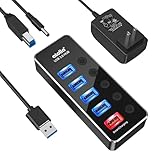
- 【4 USB 3.0 Ports for High-speed Transmission】- atolla USB hub can expand 4 USB 3.0 ports for your computer, and transfer rates up to 5Gbps to allow data to move quickly between devices; it's backward compatible with your older USB 2.0 devices; plug and play without driver installation
- 【Smart Port for Synchronous Charging】- The smart-charging port provides up to 2.4Amps powering your smartphone, tablet, and other USB-charged devices, including Android, Apple, and Samsung devices
- 【Individual Switch with LED】- Each USB port on the USB 3.0 hub has an individual switch; you can turn off the USB ports that are not in use to save power without the hassle of unplugging, and the LEDs on the USB port can indicate the ON/OFF status of each port
- 【Maximum Compatibility and Best Design】- atolla 5-port USB hub is made of high-quality aluminum alloy and has an elegant design that fits naturally for home and workplaces; compatible with Windows 10, 8.1, 8, 7, Vista, XP, Mac OS X (10.x or above), Linux, etc
- 【In the Box】- atolla 5-port USB 3.0 hub x1, 5V/3A power adapter x1, USB cord (100cm) x1, multilingual instruction manual x1, and 18-month product warranty, lifetime customer service; you can even extend your warranty for free after product registering with atolla
USB power capacity depends on the exact model and use
Published specifications for individual products illustrate why it is risky to assume all TV USB ports have the same output. Sony’s support guidance for the KDL-70R520A says an external USB hard disk drive that exceeds 500mA (2.5W) needs external power. That figure is specific to the cited TV and external-drive use; it should not be treated as a rating for other TVs or accessories. Sony KDL-70R520A USB HDD guidance
As another model-specific example, Onkyo specifies 5V/1A for the USB port on its TX-NR6100 receiver. A receiver’s specification does not establish what a television USB port can supply. Onkyo TX-NR6100 USB port troubleshooting
Quick Recap
Best Value

- 【Instant expansion and SuperSpeed Syncing】-This 7-port USB 3.0 data hub can instantly expand 1 USB 3.0 port to 7 external USB 3.0 data ports for keyboard, mouse, printer, hard drivers and more USB devices, syncing data at blazing speeds up to 5Gbps in no time.
- 【Smart Charging Port】- Besides 7 SuperSpeed USB 3.0 ports, this USB 3.0 splitter offers a charging dedicated port, which is able to charge your iPhone, iPad faster and safer. With the 5V/4A power adapter, it can provide charging power up to 2.4A .
- 【Simple Switch to Control】- Equipped with individual on-off switches to control each USB port, atolla USB 3.0 hub saves the trouble of unplugging devices and help place them more rationally when you don't use them.
- 【Maximum Compatibility and Performance】- Compatible with Windows 11, 10, 8.1, 8, 7, Vista, XP, Mac OS X (10.x or above), Linux and above. Fully plug and play, no drivers required and supports hot swapping
- 【In the Box】- atolla 7-port USB 3.0 hub (100cm of the USB hub cord), 5V/4A Power Adapter(120cm of the electrical cord), Quick Setup Guide. Guaranteed by bauihr 18-Month Warranty
Rank #4

- Smart Charging Ports: 2 Extra 5V/2.4A charging ports supporting 2.4A output specially designed for smart charging. Charges most USB charging equipment, regardless of large batteries such as smartphones or tablets, or mini-battery equipment such as smart portable devices, at full speed.
- Faster Speed with USB 3.0: USB 3.0 ports offer transfer speeds of up to 5Gbps, 10 times faster than USB 2.0. This 7-port USB 3.0 data hub can instantly expand 1 USB 3.0 port to 7 USB 3.0 data ports for keyboard, mouse, printer, hard drivers and other USB devices.
- TP-Link Charging technology intelligently identifies connected devices, automatically delivering the smart charge to your smartphones, tablets or devices with a USB charging connector, minimizing charging time.
- Protect Both Your Equipment and Your Data: UH720 has a sophisticated circuit design with multiple overheat, overload, overvoltage and short circuit protections. A built-in surge protector keeps both your devices and your data safe in the data transfer process.
- UH720 supports hot-swap USB ports that can be safely connected and disconnected while the computer is on and running.
If wall power does not fix the problem
- Confirm what is connected. Identify the exact model and whether it is a streaming stick, external drive or another accessory; their power and compatibility requirements differ.
- Check the cable and connections. Reseat both ends and inspect the cable for damage. Google includes cable and connection checks in its troubleshooting instructions. Google troubleshooting steps
- Verify the adapter specification. Make sure any replacement matches the device maker’s voltage, current, connector and cable guidance.
- For an external drive, check its power options. Use its own adapter if supplied; consider a powered hub only if the TV and connected device support that arrangement.
- Continue with the exact model’s support guidance. If the issue persists with the recommended external power source and a sound cable, consult the device maker’s full troubleshooting steps before concluding that the TV’s USB port is defective.
Product prices and availability are accurate as of the date/time indicated and are subject to change. Any price and availability information displayed on Amazon at the time of purchase will apply.

