
A point-of-sale (POS) system is more than a card reader: it combines checkout hardware, software, payment processing and the connections that keep sales, inventory and operations in sync. Start by mapping what your business needs to do, then choose compatible equipment and software as one system.
What makes up a POS system?
A useful way to plan a POS is to think in five layers: the devices staff and customers use, the software that runs business workflows, the payment service, integrations with other tools, and the operating work needed to keep it all reliable. RetailNews Asia describes POS as two parts—processing equipment and software—but a modern setup also depends on those connections and operating procedures.

Checkout hardware
- Terminal or tablet: The screen where staff access the POS application and enter or review transactions. Decide whether the checkout needs a fixed counter station, a movable tablet, or both.
- Card reader: Accepts the payment methods your processor and POS support. Confirm compatibility with the specific software, device and processor before buying.
- Receipt printer and cash drawer: Useful for businesses that print receipts or handle cash. A drawer may connect to the printer or terminal, so verify the connection method and supported setup.
Optional peripherals
Buy peripherals to support a defined workflow, not simply because they appear in a bundle. A barcode scanner can speed product lookup; a second printer can route orders to another work area; a customer display can show transaction details; and scales matter when products are sold by weight. Restaurants may use a kitchen display or kitchen printer to route orders. Each device adds a compatibility and support requirement.
Software and services
The POS software may handle checkout, product catalog or menu, inventory, sales reports, employee permissions, loyalty and orders from physical and online channels. Payment processing is a related but distinct service: establish which processor and payment methods are supported, how transactions are handled, and what support is available if payments fail.
What’s actually slowing this PC down?
Pick the symptom - the matching free tool is one click away.
#1 Best Overall

- Includes an Epson USB Thermal Receipt Printer (With Autocut), A Symbol USB Barcode Scanner, and The EOM-100 Cash Drawer
- Compatible with Square Stand and Square Register
- 2 Year Full Warranty, Lifetime Tech Support, from EOM-POS
- The receipt printer and barcode scanner connect to the USB ports on the Square Stand- No installation required. The Cash Drawer connects with a Built in RJ12/11 cable (included) to the Printer for automatic opening of cash drawer
- The Thermal Printer does not require ink or toner. (Thermal paper roll required - 80mm or 3-1/8 inches paper width).
Connections to ecommerce, accounting, inventory, loyalty and workforce systems can reduce duplicate work, but only if the integration transfers the information your business needs. Treat each connection as a requirement to test, not an assumption based on a vendor’s feature list.
The operating layer
Network access, device management, security, staff training, technical support and rollout procedures are part of the system too. A register that works in a demonstration but cannot be supported or restored when a device fails is not a complete operating plan.
Rank #2

- Includes a USB Thermal Receipt Printer (With Autocut), A Symbol USB Barcode Scanner, and The EOM-100 Cash Drawer With Mounting Brackets
- Compatible with Square Stand and Square Register
- 2 Year Full Warranty, Lifetime Tech Support, from EOM-POS
- The receipt printer and barcode scanner connect to the USB ports on the Square Stand- No installation required. The Cash Drawer connects with a Built in RJ12/11 cable (included) to the Printer for automatic opening of cash drawer
- The Thermal Printer does not require ink or toner. (Thermal paper roll required - 80mm or 3-1/8 inches paper width).
Start with the work the POS must do
Write down the jobs the system has to perform before comparing brands or hardware. The right setup depends on whether the business is, for example, a retail counter, a restaurant, a service desk or a combination. Rajiv Menon of RetailNews Asia has noted that POS software can do much more than accept credit cards; the practical implication is to specify the actual workflows rather than shop by the word “POS.”
- List essential workflows. Consider checkout, inventory updates, online orders, delivery, appointments, tips, ID checks, kitchen routing and the reports managers need.
- Separate must-haves from optional features. Mark which jobs are required at launch and which would be useful later. This keeps software subscriptions, setup and staff training focused on real needs.
- Describe the end-to-end result. For each essential job, note what should happen and where the information should appear. For example, if an in-store sale must update online stock, identify the inventory record and online channel that need to reflect it.
- Set success criteria. Decide how you will judge the pilot: successful test payments, correct inventory changes, accurate reports, orders reaching the intended station, or other observable outcomes tied to your workflows.
Choose a setup that fits the way you operate
Several POS choices are not simple good-or-bad decisions. Use the questions below to test which arrangement suits your locations, workflows and support capacity.
Free tools Windows power users keep installed
One-click scans. No signup required.
| Choice | What to evaluate | Questions to ask |
|---|---|---|
| Cloud service or locally managed deployment | Connectivity needs, administration, offline behavior, support and security responsibilities | What still works if the internet or a service connection is unavailable? How are updates, access and recovery managed? |
| Tablet or mobile checkout versus countertop terminal | Where transactions happen, device handling, counter layout and required peripherals | Does checkout need to move with the customer or remain at a fixed station? Which readers, printers and drawers work with the chosen device? |
| Bundled versus a-la-carte hardware | Included components, compatibility, replaceability and total cost | Does the bundle contain every required device? Can you replace an individual component, and is it supported with your software? |
| General retail versus restaurant-specific workflows | Catalog or menu needs, order routing, tips, kitchen operations and reporting | Can the system represent your products or menu and route each order through the process staff actually use? |
Cleverence’s 2025 guide says Shopify countertop kits typically include a cash drawer, receipt printer and card reader, and describes integration with real-time inventory and sales analytics. Treat a kit’s contents as a starting point to verify for the particular offer and configuration; the guide does not establish that every bundle, device or integration suits every business.
Check compatibility before committing
Hardware can look interchangeable while depending on a particular operating system, connection, payment service or POS application. Ask the vendor or reseller to confirm the complete configuration in writing, including how each peripheral connects and who supports it.
Rank #4

- All-in-One POS Solution – Includes register base, thermal receipt printer, secure cash drawer, and stand – built for retail stores and quick-serve restaurants.
- Compatible with 10″ Amazon Fire Tablets; pairs with the Datio POS App – try free before subscribing.
- Monthly Subscription – $64/month includes Software, Updates, Support, and Warranty. No long-term contract, cancel anytime.
- Flexible Payments – Datio Credit Card Payments via Worldpay (free terminal on approval), or use your own terminal for cash-only tracking.
- Amazon Fire Tablet Not Included – POS hardware only; customer supplies a compatible 10″ Fire Tablet separately.
- Confirm the terminal or tablet operating system and the POS software version it supports.
- Confirm the card reader works with the POS, chosen processor and payment methods you need.
- Check printer, drawer, scanner, customer display, scale and kitchen-device compatibility individually.
- Verify network requirements, cabling, power, device placement and any needed adapters.
- Identify whether ecommerce, accounting, inventory, loyalty and workforce connections are native integrations or require another service, and what information each one exchanges.
- Ask what happens during an internet or device outage, including whether the POS can continue any work offline and how queued transactions or updates are handled.
- Confirm security responsibilities, access controls, updates, warranty terms, replacement parts and support routes.
Do not infer that a printer, reader or scanner will work with a POS because it uses a familiar connector or appears in a general hardware listing. Compatibility needs to be confirmed for the exact platform and workflow.
Independent reader supportYour contribution helps us test, update, and keep practical guides available for everyone.Compare the full cost and buy-versus-lease terms
Compare the cost of operating the system, not just the price of a terminal or the advertised software subscription. Build a cost sheet for your planned sites and the period you expect to use the equipment.
Best Value
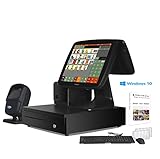
- SET04 will be default upgrade to new design 15'' Touch Screen with 11.6'' Customer Display + 80mm Thermal Receipt Printer + Cash Drawer + Free Keyboard&Mouse + Desktop Scanner + POS-Software for Retail Store
- Motherboard CPU I5, 8GB RAM, 128G SSD, Windows 10, Smart Touch Screen Monitor, Full Flat Screen with Fast Response.
- Multi-functional interfaces: 6 USB Ports, 1 HDMI, 1 VGA, 1 LAN Port and 2 Audio Output,Strong Compatibility with hardware and software.
- Our POS-Software with the functions required for all retail stores, No Monthly Fees, Easy to Understand, Lifetime Use.
- We provide free lifetime software service, no worries about the after-sale service (Gifts: Keyboard&Mouse set,10 rolls Thermal Papers)
- Hardware and peripherals, plus replacement parts or devices.
- Software subscription and payment-processing charges.
- Implementation, data migration and integration work.
- Training, ongoing support and any service costs.
Then compare buying with leasing. Buying calls for more cash up front; leasing generally costs more over the long term, according to RetailNews Asia. The right decision depends on your cash flow, expected equipment life and the actual contract. Compare the total payments, term, what happens at the end, maintenance responsibilities and the cost of changing or ending the arrangement. Do not decide from a monthly payment alone.
Plan the rollout and prove the workflows
Integration is the work of connecting new hardware and software so the components function as one reliable system. Truis describes a Best & Less rollout covering 188 stores in 2026, illustrating the scale a multi-location deployment can involve; that figure is not a measure of a typical rollout or a promise about implementation time.
Quick Recap
- Document scope and success criteria. Record the sites, workflows, devices, software dependencies and integrations included in the first deployment.
- Survey each location. Check cabling, power, network availability, counter space and device placement before equipment arrives.
- Specify the configuration. List every terminal, reader, printer, drawer, scanner and other device, along with the software and connection each one depends on.
- Test end-to-end transactions. Run test payments and confirm the resulting sale appears correctly in inventory, ecommerce, reporting and other required integrations. For restaurants, test order routing to the intended kitchen destination.
- Pilot with staff. Observe staff using the system for the real tasks in scope, collect issues and resolve them before broad deployment.
- Train users and assign support. Make sure employees know their workflows and where to get help; define who handles device, software and payment issues.
- Deploy in waves when there are multiple sites. Use what you learn at the pilot site to prepare later locations, while retaining a support and rollback plan if a deployment has to be paused or reversed.
Use a decision checklist before signing
- Have you documented the essential workflows and separated them from optional features?
- Has the vendor confirmed the exact software, hardware, processor and integration combination?
- Have you tested offline behavior, payment handling and recovery for likely outages?
- Does the budget include hardware, subscriptions, processing, implementation, migration, integration, training, support and replacement parts?
- Are contract terms clear for a purchase or lease, including the full term and end-of-contract options?
- Is there a pilot, staff training plan, deployment sequence and rollback route?
Product prices and availability are accurate as of the date/time indicated and are subject to change. Any price and availability information displayed on Amazon at the time of purchase will apply.

