
What’s actually slowing this PC down?
Pick the symptom - the matching free tool is one click away.
Use Spectacle. It is KDE Plasma’s built-in screenshot application and the closest equivalent to Windows Snipping Tool. Spectacle can capture the entire desktop, a specific monitor, the active window, a window under the pointer, or a rectangular region. You can then delay the capture, include or exclude the pointer and window decorations, annotate the image, copy it, save it, print it, or open it in another installed application. KDE’s official overview is available on the Spectacle application page.
What is the Snipping Tool equivalent in KDE Plasma?
KDE Plasma does not use the name “Snipping Tool.” Its screenshot utility is Spectacle, a KDE application for capturing desktop images. The exact menus and shortcuts can vary with your Plasma release, distribution packaging, keyboard layout, and custom shortcuts, but the capture model is consistent: choose what to capture, decide when to capture it, then save or share the result.


Spectacle is normally installed with a KDE Plasma desktop. If your distribution has removed it, install the package named spectacle through its software manager or package tool, then launch it from the application menu. KDE’s current application listing identifies Spectacle 6.7.5 dated 2026-09-08; your distribution may ship an earlier release.
Take a screenshot quickly
- Press Print Screen to launch Spectacle or start the configured screenshot action.
- Choose the capture mode in Spectacle’s window.
- Capture immediately, or use the delay and click options described below.
- Save the image, copy it to the clipboard, print it, or open it in an installed image application.
The current Spectacle Handbook documents these direct shortcuts:
#1 Best Overall
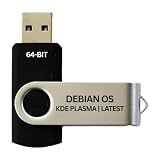
- BOOTABLE LINUX INSTALLER: Includes one USB flash drive containing the Debian 13.6 KDE Plasma 64-bit installer for installation or evaluation on compatible computers
- KDE PLASMA DESKTOP: Provides a modern and highly customizable desktop with flexible panels, menus, and appearance settings
- DEBIAN STABLE SERIES: Prepared with Debian 13.6 Trixie, the current stable Debian release for compatible 64-bit PC hardware
- 64-BIT HARDWARE SUPPORT: Intended for compatible Intel and AMD desktop and laptop computers that support startup from a USB device
- INSTRUCTIONS INCLUDED: Initial installation guidance is provided; verify compatibility and back up important files before installation
| Shortcut | Result |
|---|---|
Print Screen |
Launches Spectacle. |
Meta+Print Screen |
Captures the active window. |
Shift+Print Screen |
Captures the entire desktop. |
Meta+Shift+Print Screen |
Captures a rectangular region. |
Meta usually means the Super or Windows key. Plasma lets you change global shortcuts, so a key that does nothing—or performs another action—does not necessarily mean Spectacle is broken. Check System Settings → Keyboard → Shortcuts and search for Spectacle or screenshot actions.
Choose the right capture target
Entire desktop
Use the entire-desktop option when you need everything visible across your desktop arrangement. On a multi-monitor system, verify whether your version presents one combined desktop image or asks you to choose a monitor. If you need one display only, select the monitor capture mode instead.
One monitor
Monitor capture is useful for a presentation, a remote-support report, or documentation tied to one physical display. Select the target display in Spectacle before capturing and check the preview for scaling or compositor effects.
Active window
Active-window capture targets the window that currently has focus. It is usually the fastest way to document an application dialog without manually dragging a selection.
Window under the pointer
This mode is useful when several windows overlap. Move the pointer over the desired window and capture. Depending on settings, Spectacle can include the window frame and drop shadow; turn decorations off for a tighter image.
Rectangular region
Choose region capture, then drag around the pixels you need. Hold the selection handles or adjust the coordinates if you need a precise crop. Region capture is the closest match to a traditional snipping workflow.
Rank #2
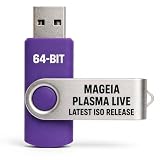
- PHYSICAL LIVE USB – Contains the official Mageia Plasma Live image for compatible 64-bit x86-64 computers.
- KDE PLASMA DESKTOP – Provides Mageia’s modern and highly configurable Plasma graphical environment.
- LIVE EVALUATION – Start Mageia directly from USB before deciding whether to install.
- FRESH INSTALLATION – Launch the Mageia installer from the live environment on compatible hardware.
- PUBLISHED REQUIREMENTS – Plasma requires at least 2 GB RAM; approximately 20 GB storage is recommended for a typical desktop setup
Capture menus, tooltips, and timed states
A menu often closes as soon as another window receives focus. Spectacle’s delay option gives you time to open the menu or arrange the interface before the shutter fires.
- Open Spectacle and select the desired capture target.
- Set a delay in the capture controls.
- Start the capture.
- During the countdown, open the menu, tooltip, or dialog you want to show.
- Wait for the capture to complete, then review the result.
For an interaction that cannot be prepared reliably during a countdown, use Spectacle’s on-click option when available: start capture, arrange the interface, and click to trigger the image. Disable the mouse pointer if the cursor would obscure the control you are documenting.
Windows Errors? Fix Them Before They Spread
Repair common Windows errors and clear accumulated junk for a smoother, more stable PC - no reinstall needed.Free scan · no reinstallCrashes, No Sound, or Screen Glitches?
Random freezes, missing sound and display glitches usually trace back to one bad driver. Find and replace yours safely.Free scan · under a minuteControl the pointer, decorations, and clean edges
Spectacle provides options for whether the mouse pointer appears and whether window decorations are included. The best choice depends on the purpose:
- Pointer enabled: helpful for tutorials that show where to click.
- Pointer disabled: preferable for polished documentation or visual comparison.
- Window decorations enabled: preserves the title bar and frame, which helps identify a window.
- Window decorations disabled: produces a cleaner content-only image.
Apply these settings before starting a delayed or click-triggered capture. If a screenshot still includes an unexpected frame, check that the selected target is a window rather than a region.
Annotate and share the capture
After capture, Spectacle’s editor can mark up the image. The Handbook lists arrows, a pen, markers, text boxes, numbered labels, and smileys. Effects include a shadow, grayscale, and a border. Use annotations to identify a button, show a sequence, or obscure context that is not relevant.
When the image is ready, Spectacle supports these output actions:
The Tool Desk
Outbyte PC Repair FREERepair Windows errors before they cause bigger problemsFix Now →Outbyte Driver Updater FREEFix the driver behind crashes, sound loss and screen glitchesFind Drivers →- Save: write the capture to an image file and choose its name and location.
- Copy image: place the pixels on the clipboard for pasting into a ticket, document, or chat.
- Copy location: copy the saved file’s path or location rather than the pixels.
- Print: send the capture to a configured printer.
- Open with: hand the file to an application associated with PNG files. Those editors are separate applications; they are not bundled with Spectacle.
Save an unannotated original before heavy markup if you may need to crop or reuse it later. For support tickets, include the application name and the relevant error text in an annotation, but avoid drawing over the actual error message.
Extract text from a screenshot
KDE’s Plasma 6.6 announcement says Spectacle can recognize and extract text from scanned images. This is version-dependent: Plasma 6.6 was announced on 2026-02-17, and older Plasma releases may not expose the same text-recognition controls. Check System Settings → About this System or your distribution’s package information before troubleshooting a missing OCR option.
OCR quality depends on the source image. Use a high-resolution capture, keep text horizontal, and crop away unrelated content. Handwritten text, heavily compressed images, unusual fonts, and low contrast can produce incorrect output, so verify extracted text before using it in a command or document.
Use Spectacle from the command line
Spectacle also provides command-line options, including background operation for scripted capture. Run spectacle --help on your installed version to see the options it supports; flags can differ between releases. A typical workflow is:
- Open a terminal.
- Run the help command and identify the output-file, region, window, or background options available in your package.
- Specify an output path and capture target.
- Confirm that the process has access to the graphical session and that the output file exists.
Background capture is subject to your desktop session, permissions, display server, and compositor. A command that works interactively may fail from a system service with no graphical environment. Test it in the same user session that owns the display.
Troubleshooting Spectacle
Print Screen opens another tool
Another screenshot utility or a custom global shortcut has claimed the key. Open System Settings → Keyboard → Shortcuts, find the conflicting action, and assign the key to Spectacle or remove the duplicate binding.
A shortcut does nothing
Check that Spectacle is installed and launch it from the application menu. Then verify the shortcut, keyboard layout, and whether a laptop requires Fn with the Print Screen key. Wayland and X11 sessions can also expose different desktop behaviors.
The wrong window is captured
Focus the intended window before using active-window capture. For overlapping windows, use window-under-pointer mode and place the pointer over the target. For exact boundaries, use a rectangular region instead.
The menu disappears
Use a delay or on-click capture. Start the countdown first, then open the menu. Turn off pointer capture if the cursor covers the menu item.
The image contains an unwanted frame or cursor
Disable window decorations or mouse-pointer capture in Spectacle’s options before taking the image. Recheck the capture target because a window mode intentionally preserves window context.
OCR is unavailable
Text recognition is documented for Plasma 6.6. Confirm your installed Plasma version and distribution package. On an older release, update through your distribution’s normal channels or use a separate OCR application.
The command-line capture fails
Run the command interactively first, inspect spectacle --help, use an absolute output path, and verify that the terminal is inside the active graphical session. Check file permissions and whether another process is waiting for an interactive selection.
Do these 3 things before closing this tab:
1Repair Windows errors before they cause bigger problems2Fix the driver behind crashes, sound loss and screen glitches3Clear out junk files and repair common Windows errorsBest Value
Or skip the browser setup
If your goal is an automated screenshot of a web page rather than a local Plasma window, ScreenshotNeo provides a single HTTP request. It accepts the cookie or consent banner like a visitor and removes more than 60 known consent platforms, newsletter popups, and chat widgets before capture; each cleanup step can be turned off. Bot checks or CAPTCHAs, blank pages, timeouts, failed loads, and cache hits are not billed, and response headers identify the page verdict and billing status.
Read the full parameter reference in the ScreenshotNeo documentation. cURL:
curl -G "https://api.screenshotneo.com/v1/shot" -d access_key=YOUR_API_KEY --data-urlencode url=https://stripe.com -o shot.webpPython:
import requests
r = requests.get("https://api.screenshotneo.com/v1/shot", params={"access_key": "YOUR_API_KEY", "url": "https://stripe.com"}, timeout=90)
open("shot.webp", "wb").write(r.content)
Node.js:
const q = new URLSearchParams({ access_key: 'YOUR_API_KEY', url: 'https://stripe.com' });
const res = await fetch(`https://api.screenshotneo.com/v1/shot?${q}`);
ScreenshotNeo includes full-page captures with lazy images, CSS-selector element capture, dark mode, device presets and custom viewports, retina scale, PDF output, custom CSS and JavaScript, clicks, waits, request blocking, headers, cookies, user agents, authorization, timezone and geolocation, transparent backgrounds, resizing, configurable caching, signed image links, asynchronous jobs with signed webhooks, bulk capture for up to 100 URLs per call, a usage API, and an OpenAPI specification. It also offers an MCP server with take_screenshot, get_page_info, and capture_pdf tools for Claude, Cursor, and other MCP clients.
The Free plan includes 1,000 screenshots per month with no card. Paid plans start at $5 for 3,000 shots; every feature is available on every plan. Create a free ScreenshotNeo account to get started.
Quick wins for a faster PC:
Clear out junk files and repair common Windows errorsFree Scan →Scan for outdated or missing drivers - takes under a minuteDriver Scan →When Spectacle is the better choice
Use Spectacle for local Plasma content: desktop troubleshooting, application windows, menus, region selections, annotations, printing, and clipboard workflows. Use an API when the source is a web page that must be captured repeatedly, from automation or an AI agent, without maintaining a browser setup. The two tools solve different capture problems.
Frequently Asked Questions
Is Spectacle installed by default with KDE Plasma?
It is commonly included with KDE Plasma distributions, but packaging choices vary. Search your application menu or install the package named spectacle if it is missing.
Can Spectacle record video?
The documented Spectacle functions cover still screenshots, annotation, saving, clipboard copying, printing, and opening images. Use a separate screen recorder for video.
Which image formats can Spectacle save?
The cited KDE material describes saving screenshots but does not establish a complete format list. Use the formats offered by your installed version’s save dialog.
Free tools Windows power users keep installed
One-click scans. No signup required.
Quick Recap
Product prices and availability are accurate as of the date/time indicated and are subject to change. Any price and availability information displayed on Amazon at the time of purchase will apply.

