
Use the HTML <video> element for a playable preview and add a poster image for the still frame visitors see before video data is available. A robust implementation supplies browser controls, multiple source formats, dimensions, captions, and fallback content:
<video controls width="640" poster="/media/clip-preview.jpg" preload="metadata">
  <source src="/media/clip.webm" type="video/webm">
  <source src="/media/clip.mp4" type="video/mp4">
  <track kind="captions" src="/media/clip-en.vtt" srclang="en" label="English">
  <p>Your browser does not support embedded video. <a href="/media/clip.mp4">Open the video file</a>.</p>
</video>
This creates an inline browser player. The poster is a separate image, not an automatically generated moving preview. The browser tries each <source> in order and uses the fallback link only when the element itself is unsupported; a source-loading error needs separate handling.
What “preview” means in HTML5
“Preview” can describe two different experiences:
- Playable preview: the visitor sees a native player and can play, pause, seek, and change volume.
- Still-image preview: a thumbnail appears before video data is available. The
posterattribute provides this image.
You can use both on one element. The poster remains visible until the browser has video data to display, then the player shows the media. According to the WHATWG HTML Standard, the poster URL is an image the user agent can show while no video data is available.
#1 Best Overall

- Plays flawless HD and 4K video, HTML5, graphics and digital audio
- Displays simple HTML5 widgets and animations
- Packed with unique signage features to enable captivating experiences
- Flexible for connected or o ine environments
- Supports single touchscreen experiences
Build a playable preview
1. Add the video element and native controls
<video> embeds the browser’s media player. The Boolean controls attribute asks the browser to expose playback controls. Because Boolean attributes are enabled by presence, controls="false" still enables controls; remove the attribute to disable them.
<video controls src="/media/clip.mp4"></video>Using nested <source> elements is usually more resilient because you can offer alternate containers or codecs:
<video controls width="640" height="360">
  <source src="/media/clip.webm" type="video/webm">
  <source src="/media/clip.mp4" type="video/mp4">
  <p>Your browser does not support embedded video. <a href="/media/clip.mp4">Download or open the MP4</a>.</p>
</video>
There is no single container-and-codec combination that is best for every browser and device. Provide alternatives appropriate for your audience and verify the actual files on your target browsers.
2. Add a poster thumbnail
Set poster to an image URL:
<video controls poster="/media/clip-preview.jpg">
  <source src="/media/clip.mp4" type="video/mp4">
</video>
The URL must resolve to an image. An invalid URL results in no poster. A poster is not a video frame generator and does not start playback by itself. If you omit it, the browser may show a frame after enough video data becomes available.
3. Control initial loading with preload
preload is a browser hint, not a command. Its values are:
| Value | Use | Important limitation |
|---|---|---|
none |
Ask the browser not to preload media. | The browser may still choose different behavior. |
metadata |
Request basic information such as duration without intentionally downloading the whole file. | A practical starting point for many previews. |
auto |
Allow the browser to decide whether to preload more media. | Can consume more bandwidth and storage. |
Defaults vary by browser. If autoplay is present, it can take precedence over the preload hint.
Rank #2
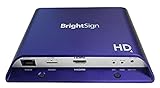
- H. 265 Decoding: Smaller file sizes and lower bitrates than H. 264
- HTML5: Hardware-accelerated engine that plays modular HTML assets flawlessly alongside high-bandwidth video
- BrightBeacon: 2-way Bluetooth/Beacon communication between mobile devices & signage (requires: wireless/ Bluetooth module)
- BrightWall: Synchronized playback across multiple displays
- AutoWall: Embraces the power of HTML5 to create unique multimedia video walls
Make the preview responsive and accessible
Size without distortion
Use HTML dimensions or CSS to reserve space and reduce layout shifts. Keep the source aspect ratio, then use object-fit and object-position when you need controlled cropping:
.preview-video {
  display: block;
  width: 100%;
  max-width: 640px;
  height: auto;
  aspect-ratio: 16 / 9;
  object-fit: cover;
  object-position: center;
}
If you set both a fixed width and height that do not match the media, the image can appear stretched unless fitting rules correct it.
Do these 3 things before closing this tab:
1Repair Windows errors before they cause bigger problems2Fix the driver behind crashes, sound loss and screen glitches3Clear out junk files and repair common Windows errorsKeep playback inline where appropriate
Add playsinline when playback should remain inside the element’s area, particularly on devices or contexts that might otherwise use a different presentation:
<video controls playsinline poster="/media/clip-preview.jpg">…</video>Provide captions
Use a WebVTT track for captions or subtitles:
<video controls poster="/media/clip-preview.jpg">
  <source src="/media/clip.mp4" type="video/mp4">
  <track kind="captions" src="/media/clip-en.vtt" srclang="en" label="English" default>
</video>
Ensure the VTT URL is reachable and that its language and label describe the track accurately.
Autoplay, muted previews, and custom controls
autoplay is also Boolean: autoplay="false" still enables it. Remove the attribute to disable autoplay. Modern browsers commonly block autoplay when the video has audible sound, so autoplay is not a dependable replacement for a poster. If you intentionally create a muted, looping visual preview, declare that behavior explicitly and still provide controls or an accessible alternative:
<video autoplay muted loop playsinline poster="/media/clip-preview.jpg">
  <source src="/media/clip.mp4" type="video/mp4">
</video>
When controls is absent, build your own interface with the HTMLMediaElement API (for example, its play(), pause(), currentTime, and volume properties). Custom controls require keyboard support, focus states, labels, and error handling; native controls are safer when you do not need a specialized design.
Crashes, No Sound, or Screen Glitches?
Random freezes, missing sound and display glitches usually trace back to one bad driver. Find and replace yours safely.Free scan · under a minutePC Slower Than It Used to Be?
A free scan shows the junk files, broken settings and background clutter dragging Windows down - then fixes them in one click.Free scan · Windows 10 & 11Rank #3
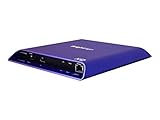
- 4K high-resolution video and images
- Dual video decoding
- advanced HTML
- Frame-accurate synchronizaton
Complete, production-oriented example
<figure>
  <video class="preview-video" controls playsinline
         width="1280" height="720"
         poster="/media/clip-preview.jpg" preload="metadata"
         aria-describedby="clip-caption">
    <source src="/media/clip.webm" type="video/webm">
    <source src="/media/clip.mp4" type="video/mp4">
    <track kind="captions" src="/media/clip-en.vtt"
           srclang="en" label="English" default>
    <p>Your browser cannot embed this video. <a href="/media/clip.mp4">Open the MP4 file</a>.</p>
  </video>
  <figcaption id="clip-caption">Product demonstration, two minutes.</figcaption>
</figure>
Replace every path with a URL that your server can actually deliver. Keep the poster available over the same deployment and test both source files, the VTT file, and the fallback link.
Make a poster clickable without replacing the video element
The poster itself does not define a click action. If you want a separate thumbnail that starts playback, use a button and a video element, then connect them with a small script:
<button type="button" id="play-preview" aria-label="Play product demonstration">
  <img src="/media/clip-preview.jpg" alt="Product demonstration preview">
</button>
<video id="clip" controls hidden>
  <source src="/media/clip.mp4" type="video/mp4">
</video>
<script>
  const button = document.querySelector('#play-preview');
  const video = document.querySelector('#clip');
  button.addEventListener('click', async () => {
    button.hidden = true;
    video.hidden = false;
    try {
      await video.play();
    } catch (error) {
      video.controls = true;
      console.error('Playback could not start:', error);
    }
  });
</script>
This pattern gives the thumbnail an accessible name and leaves native controls available if a browser refuses scripted playback.
Troubleshoot a blank, missing, or non-playing preview
The poster is blank
- Check the image URL in the browser directly and confirm the server returns an image.
- Check spelling, capitalization, and deployment paths; an invalid URL produces no poster.
- Inspect the element’s
posterproperty in developer tools and look for a failed network request.
The player appears but the video will not play
- Open each source URL directly and verify the file is complete and readable.
- Confirm the
typevalue matches the actual media format. - Test the alternate
<source>; one unsupported codec can fail while another works. - Check the element’s error event and the browser console. Fallback HTML does not necessarily appear when a supported
<video>element exists but all its sources fail.
Autoplay is blocked
Remove autoplay for a user-initiated preview, or use a muted inline design where that behavior is acceptable. Do not assume autoplay="false" disables autoplay.
Free tools Windows power users keep installed
One-click scans. No signup required.
The page downloads too much media
Try preload="metadata" or preload="none", and use a properly sized poster. Remember that preload is advisory and browser defaults differ.
Captions do not appear
- Validate the WebVTT syntax and confirm the file begins with
WEBVTT. - Check the track URL, language code, and
defaultsetting. - Use the player’s captions menu; some browsers keep tracks off until selected.
Verify behavior before shipping
- Load the page with the network panel open and confirm the poster, each media source, and every VTT request return successfully.
- Test with controls enabled, then with keyboard-only navigation.
- Test a slow connection to see whether the poster remains useful while metadata loads.
- Test the target desktop and mobile browsers with the exact encoded files you will deploy; do not infer universal compatibility from one browser.
- Check the fallback link by disabling media support or opening the file URL directly.
Or skip the browser setup
If you need a rendered screenshot of the page containing your video preview—for documentation, QA, or a social card—ScreenshotNeo captures the page through a website screenshot API. It is not a replacement for the <video> element and does not turn a still image into a playable file; it records the rendered result after your HTML, CSS, and poster have loaded.
Rank #4

- H. 265 Decoding: Smaller file sizes and lower bitrates than H. 264
- HTML5: Hardware-accelerated engine that plays modular HTML assets flawlessly alongside high-bandwidth video
- BrightBeacon: 2-way Bluetooth/Beacon communication between mobile devices & signage (requires: wireless/ Bluetooth module)
- BrightWall: Synchronized playback across multiple displays
- AutoWall: Embraces the power of HTML5 to create unique multimedia video walls
One GET request is enough (see the ScreenshotNeo API documentation):
curl -G "https://api.screenshotneo.com/v1/shot" -d access_key=YOUR_API_KEY --data-urlencode url=https://example.com/video-page -o shot.webpPython:
import requests
r = requests.get("https://api.screenshotneo.com/v1/shot", params={"access_key": "YOUR_API_KEY", "url": "https://example.com/video-page"}, timeout=90)
open("shot.webp", "wb").write(r.content)
Node.js:
const q = new URLSearchParams({ access_key: 'YOUR_API_KEY', url: 'https://example.com/video-page' });
const res = await fetch(`https://api.screenshotneo.com/v1/shot?${q}`);
Before capture, ScreenshotNeo accepts cookie or consent banners and removes more than 60 known consent platforms, newsletter popups, and chat widgets; each step can be turned off. Bot checks, CAPTCHAs, blank pages, timeouts, failed loads, and cache hits are not billed, and response headers identify the page verdict and billing status. Its MCP server provides take_screenshot, get_page_info, and capture_pdf tools for Claude, Cursor, and other MCP clients. The Free plan includes 1,000 screenshots per month with no card; paid plans start at $5 for 3,000 screenshots. Sign up free.
The Tool Desk
Outbyte Driver Updater FREEFix the driver behind crashes, sound loss and screen glitchesFind Drivers →Outbyte PC Repair FREEClear out junk files and repair common Windows errorsFree Scan →FAQ
Can I use a GIF as the poster?
The poster value is an image URL, but a poster is intended to be a still image. Use a separate animated asset or the video itself when you need motion.
Should I put the video URL in src or use <source>?
Either works for one source. Nested <source> elements are preferable when you can provide alternatives and type hints.
Why does my fallback paragraph not show when playback fails?
Fallback HTML is primarily for browsers that do not support the <video> element. A browser that supports the element but cannot load a supplied source generally reports an element error instead.
Does preload="metadata" guarantee no full download?
No. It is only a hint, and browser behavior varies. Autoplay can override it.
Quick Recap
Product prices and availability are accurate as of the date/time indicated and are subject to change. Any price and availability information displayed on Amazon at the time of purchase will apply.

