
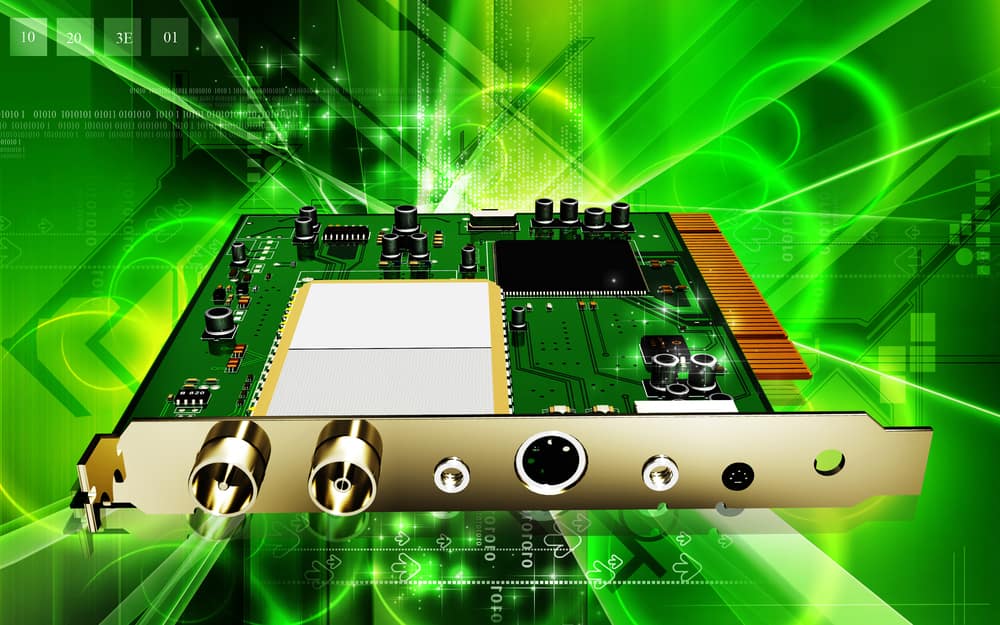
A capture card sends video and audio from a console or other source to a computer so you can record or stream it in software such as OBS Studio. To use one in OBS, add a Video Capture Device source, choose the card, and configure its supported resolution, frame rate, and audio. Not every console, capture card, or operating system supports the same features, so check compatibility before buying or troubleshooting.
What a Capture Card Does
A capture card takes an external video signal and makes it available to a computer for recording or streaming. Some cards also provide HDMI passthrough to a TV or monitor. Passthrough is separate from the computer capture feed: a display can show the signal even when OBS is blank.
A capture card is one way to capture console gameplay, but it is not always required. OBS can capture PS Remote Play or the Xbox app using Window Capture; this approach depends on the network connection between the console and computer.
Choose a Compatible Capture Card
Check the card’s operating-system and connection support, as well as the resolution, frame rate, and signal formats it accepts. For OBS’s standard Video Capture Device source on Windows, the device driver must support DirectShow output. On macOS and Linux, OBS recommends UVC-compatible devices for best compatibility. On Linux, use the Video Capture Device (V4L2) source rather than the standard Video Capture Device source.
#1 Best Overall

- 1080p60 Capture: share your gameplay in superb viewing quality.
- True Passthrough: play your console games with zero lag.
- Instant Gameview: power your workflow with ultra-low-latency technology.
- Unlimited Capture: record hours of footage directly to your hard drive.
- Flashback Recording: slide back in time to save epic moments retroactively.
A docked Nintendo Switch can work with a capture device, but the Switch Lite cannot because it cannot be docked. Many portable consoles, including most Nintendo 3DS models, lack the hardware for direct capture through a capture device. Later PlayStation Vita models can output HDMI through an adapter.
Set Up a Capture Card in OBS
-
Connect the source device to the capture card, then connect the card to the computer. If the card has HDMI passthrough, connect that output to a TV or monitor as needed.
-
Open OBS and select or create a scene. In the Sources dock, click +, choose Video Capture Device, name the source, and click OK.
-
In the source Properties window, select the capture card from the Device drop-down. If the picture does not appear with the default settings, set Resolution/FPS Type to Custom and choose a resolution and frame rate supported by the source and card. An unsupported combination can leave the source blank.
PerformanceWindows Errors? Fix Them Before They SpreadDriversCrashes, No Sound, or Screen Glitches?PerformancePC Slower Than It Used to Be?Special offer. See more information about Outbyte and uninstall instructions. Please review EULA and Privacy policy.Rank #2
 Elgato 4K X Capture Card, HDMI 2.1, 4K144 Ultra-Low Latency
- Seamless Broadcasting and Versatile Streaming: Connect effortlessly to any app such as OBS, Streamlabs, Twitch Studio, Restream, Zoom, Teams, and stream flawlessly on various platforms like YouTube, Twitch, Discord, Facebook Gaming, etc., providing you with unparalleled flexibility and reach.
- Next-gen capture: Unleash the full potential of your content with cutting-edge 4K resolution, delivering crystal-clear visuals at an impressive 144 frames per second.
- HDMI 2.1 in/out: Elevate your recording capabilities with HDMI 2.1 support, allowing you to document high frame rates up to 240fps in glorious 1080p resolution for an unparalleled viewing experience.
- VRR passthrough: Immerse yourself completely in the gaming experience as our Variable Refresh Rate (VRR) passthrough ensures flawlessly smooth gameplay, eliminating screen tearing for an uninterrupted visual feast.
- Ultra-low latency: Stay in the moment with ultra-low latency powered by USB 3.2 Gen 2, ensuring your broadcast and gameplay remain perfectly synchronized, delivering an immersive and responsive streaming experience.
-
Set up audio. Check the Audio Mixer meters; if the wrong device is selected or the meters do not move, open Settings → Audio and choose the devices manually. In the capture source Properties, Audio Output Mode offers Capture Only, Output desktop audio (DirectSound), and Output desktop audio (WaveOut). Capture Only records the audio in OBS without automatically playing it; configure monitoring separately if needed. Enable Custom Audio Device to select a separate line-in or microphone instead of the card’s onboard audio.
-
Set the canvas, output resolution, and frame rate in File → Settings → Video. A 4K source can use a 3840×2160 canvas while the output is scaled lower. Elgato’s guide gives 1920×1080 as a typical canvas, 1280×720 as a lower-output example, and 60 FPS as a typical target; choose settings your hardware and intended recording can handle.
-
Check recording settings under Settings → Output. Leave Output Mode set to Simple when starting, then use Start Recording in the Controls dock. Make a short test recording before an important session.
OBS also offers Tools → Auto-Configuration Wizard. It configures OBS based on whether you plan to record or stream, your available hardware and monitor resolution, and—when streaming—network conditions.
What’s actually slowing this PC down?
Pick the symptom - the matching free tool is one click away.
Rank #3

- 【1080P HD High Quality】Capture resolution up to 1080p for video source and it is ideal for all HDMI devices such as PS4, PS3, Xbox One, Xbox 360, Wii U, DVDs, DSLR, Camera, Security Camera and set top box. Note: Video input supports 4K30/60Hz and 1080p120/144Hz. Does not support 4K120Hz/144Hz. Output supports up to 2K30Hz.
- 【Plug and Play】No driver or external power supply required, true PnP. Once plugged in, the device is identified automatically as a webcam. Detect input and adjust output automatically. Won't occupy CPU, optional audio capture. No freeze with correct setting.
- 【Compatible with Multiple Systems】suitable for Windows and Mac OS. High speed USB 3.0 technology and superior low latency technology makes it easier for you to transmit live streaming to Twitch, Youtube, Facebook, Twitter, OBS, Potplayer and VLC.
- 【HDMI LOOP-OUT】Based on the high-speed USB 3.0 technology, it can capture one single channel HD HDMI video signal. There is no delay when you are playing game live.
- 【Support Mic-in for Commentary】Rybozen capture card has microphone input and you can use it to add external commentary when playing a game. Please note: it only accepts 3.5mm TRS standard microphone headset.
Adjust Picture and Audio Quality
If the detected resolution and frame rate do not work, set Resolution/FPS Type to Custom and select a supported Resolution and FPS. Elgato’s internal-card guide recommends matching the source signal—for example, 3840×2160, 1920×1080, or 1280×720—and choosing Highest FPS. Its guide also lists Default, YV12, and NV12 as usable Video Format choices for the covered internal PCIe cards; options vary by device.
If the image is faded or has too much contrast, check Color range. Elgato recommends Full for PC capture and generally Default or Partial for console capture. For its internal cards, Elgato recommends disabling buffering, but OBS notes that enabling buffering may help stuttering while disabling it may reduce device delay. Choose based on whether smoothness or lower delay matters more for your setup.
For Elgato internal Game Capture devices, Elgato specifies a native 48 kHz sample rate and stereo audio. It warns that using 44.1 kHz in OBS can cause stutter, drift, or other audio problems. Set Settings → Audio to 48Khz and Stereo for those devices.
OBS supports HDR capture from external devices on Windows when the capture device supports a 10-bit format such as P010. HDR device capture is not documented as supported on macOS or Linux. A card’s HDR passthrough capability does not necessarily mean it can capture HDR. OBS maintains a non-exhaustive list of tested devices, including selected ASUS, EVGA, AVerMedia, and Elgato models; verify the capability of the specific model you plan to use.
Quick wins for a faster PC:
Scan for outdated or missing drivers - takes under a minuteDriver Scan →Repair Windows errors before they cause bigger problemsFix Now →Rank #4

- 1080p60 HDR10 Capture: share your gameplay in superb viewing quality.
- 4K60 HDR10 Zero-Lag Passthrough: play your high-fidelity Xbox Series X/S, Xbox One X, PS5 and PS4 Pro games in original format.
- Instant Gameview: power your workflow with ultra-low-latency technology.
- Unlimited Capture: record hours of footage directly to your hard drive.
- Flashback Recording: slide back in time to save epic moments retroactively.
Troubleshoot a Blank or Distorted Capture
-
Passthrough works but OBS is blank: A passthrough picture does not prove the computer-side capture is working. Check for HDCP on the source device, an unsupported signal resolution or frame rate, driver issues, or another application using the card. Elgato’s troubleshooting guide advises disabling HDCP Encryption on the console or source when it prevents capture.
-
The device is held by other software: Close OBS and test the signal in the card maker’s software. Close that software, then in OBS right-click the source, choose Properties, click Deactivate, wait 10 seconds, and click Activate. If needed, remove and recreate the Video Capture Device source.
-
The picture is the wrong size: Right-click the source in Sources, choose Transform, then select Reset Transform or Stretch to Screen. Use Transform → Edit Transform for numerical positioning and sizing.
-
An overlay is hidden: OBS displays sources higher in the Sources list in the foreground. Put overlays above the capture-card source.
Recommended Free Tools
Special offer. See more information about Outbyte and uninstall instructions. Please review EULA and Privacy policy.Best Value
Sale Elgato 4K S Capture Card for PS5, Xbox Series X/S, Switch 2
- 4K60 Capture: Record in cinematic quality with crisp detail and vivid colors
- HFR Support: Play and capture in 1440p120 or 1080p240
- HDR10 Support: Capture brilliant HDR content with tone mapping on Windows
- Cross-Platform Compatible: Works with PS5, Xbox Series X/S, Switch 2, and more
- Analog Audio In: Capture in-game chat or commentary with 3.5mm input
Frequently Asked Questions
Do I need a capture card to stream console gameplay?
Not always. OBS can capture PS Remote Play or the Xbox app with Window Capture, though that method depends on the network connection between the console and computer. A dedicated capture device is another option.
Can I capture a Nintendo Switch Lite with a capture card?
No. The Switch Lite cannot be docked, so it is not compatible with capture through a normal capture device. A docked Nintendo Switch is compatible.
Why does my capture card show passthrough but no picture in OBS?
Passthrough and the computer capture feed are separate. Check for HDCP, an unsupported signal resolution or frame rate, driver problems, or another application holding the device. Confirm that the card is selected in the OBS source Properties.
Can OBS capture HDR from any capture card?
No. OBS documents external device HDR capture on Windows, and the device must support a 10-bit format such as P010. HDR passthrough alone does not guarantee HDR capture; check the specific device’s capture specifications.
Windows Errors? Fix Them Before They Spread
Repair common Windows errors and clear accumulated junk for a smoother, more stable PC - no reinstall needed.Free scan · no reinstallCrashes, No Sound, or Screen Glitches?
Random freezes, missing sound and display glitches usually trace back to one bad driver. Find and replace yours safely.Free scan · under a minuteWhich OBS source should I use on Linux?
Use Video Capture Device (V4L2). OBS’s standard Video Capture Device source is not the Linux capture source. For best compatibility on Linux and macOS, OBS recommends a UVC-compatible device.
Quick Recap
Sources
- OBS Studio Quick Start Guide
- OBS Video Capture Sources
- OBS Game Capture FAQ
- OBS Video Capture Devices with HDR Support
- OBS Studio Download
- Elgato Internal PCIe Capture Card OBS Studio Setup
Product prices and availability are accurate as of the date/time indicated and are subject to change. Any price and availability information displayed on Amazon at the time of purchase will apply.

![Ping Request Could Not Find Host Windows Error [Fixed]](https://www.itechguides.com/wp-content/uploads/2024/07/How-to-Fix-Ping-request-could-not-find-host-Error-Fixed-768x474.jpg)


Hi there to every body, it’s my first go to see of
this blog; this website includes remarkable and in fact excellent stuff in favor of visitors.