
The best Mac screen recorder depends on which audio you need. For a quick recording with spoken narration, start with Apple’s built-in Screenshot or QuickTime workflow. For desktop or individual-app audio routing, OBS Studio is the most flexible option documented here, provided your macOS version supports it. ScreenFlow is a paid recording-and-editing alternative; Camtasia is another option when its editing workflow suits your project.
Microphone audio (your voice) and system audio (sound played by your Mac or an app) are separate sources. A recorder that captures one may not capture the other.
Which Mac screen recorder should you choose?
| Option | Best fit | Audio to know about | Important qualification |
|---|---|---|---|
| Apple Screenshot / QuickTime | Quick recordings and spoken narration | Screenshot lets you choose a microphone. Apple documents system-audio capture only for macOS 27 Golden Gate or later. | Some apps, including Apple TV, may prevent window recording. |
| OBS Studio | Flexible display or app capture and audio routing | OBS 30 and later on macOS 13 Ventura and later can use macOS Audio Capture for desktop or individual-app audio. | Older macOS versions may require additional audio-routing software for desktop audio. |
| ScreenFlow | Recording followed by editing | ScreenFlow 10 documentation describes screen, camera, microphone, and computer-audio capture methods. | The cited guide is for version 10; it does not establish current menus, requirements, features, or price. |
These are capability-based choices from vendor documentation, not a hands-on quality ranking or a current price comparison.
1. Apple Screenshot or QuickTime: quickest for voice narration
Apple’s built-in tools are a convenient starting point for a tutorial, walkthrough, or demonstration that needs your voice. They can record the entire display or a selected portion, and Screenshot offers a microphone choice. Apple also cautions that some apps, such as Apple TV, may not allow their windows to be recorded.
The Tool Desk
Outbyte PC Repair FREERepair Windows errors before they cause bigger problemsFix Now →Outbyte Driver Updater FREEFix the driver behind crashes, sound loss and screen glitchesFind Drivers →#1 Best Overall

- 【BASIC INFO】: Inside size after setup: 8'' (L) X 10'' (W) X 12'' (H), large space for various studio equipment of any sizes; Exterior size: 12'' (L) X 12'' (W) X 16'' (H); Folded size: 12'' (L) X 12'' (W) X 6'' (H); Weight: 2 lbs; Equipped with holes for audio cables and mic stands【PORTABLE & FOLDABLE & SPACE-SAVING】: This studio booth is portable and foldable. It's light weight and ready-to-go. Just put in your suitcase and record wherever you are
- 【NOTABLE SOUND ABSORPTION & RECORDING CLARITY IMPROVEMENT】All inside surfaces of this voiceover box cube are treated with TroyStudio 2" thick dense egg-crate foam for optimal acoustical treatment. It effectively eliminates echoes and reflections while reducing ambient noise. As a result, recordings are well protected from room reverb by 92.7%, producing a dry, clear sound that greatly enhances recording clarity. If you don't have a professional recording studio, it is an excellent alternative
- 【REDESIGNED STRENGTHENED STRUCTURE】This new-version portable studio includes 5 pieces of high-density, 2-inch thick sound dampening foam that will not sag over time; A specially designed backing panel adds significant support to prevent the entire system from becoming flimsy; Additionally, if you want it to be more compact, you can use the elastic bands included in the felt shield case to further secure the foam in place
- 【BROAD COMPATIBILITY】: Both stand mount & table use available. Compatible with all the microphones, such as vocal microphone, condenser microphone, usb mic, phone, recorder pen, condenser hanging mic. Work with various mic stands, like desktop mic stand, boom arm stand, ceiling holder stand and floor stand. Please note that this mini recording booth can only be mounted on stands with a diameter smaller than 0.86 inches
- 【ENDLESS APPLICATION】: Ideal for versatile recording needs including podcasting, audiobooks, vocal/ musical, voice over work, instruments, percussion... Perfect for home studio, music studio, office, apartment, podcast studio, basement room, closet booth, bedroom and more. 【QUICK INSTALLATION】: Setup can be effortlessly completed within 1 minute, and disassembly takes only 20 seconds. NOTE: Please read the instruction before installation, since wrong setup steps may lead to unstable issues
How do I screen record with audio on a Mac?
- Press Shift-Command-5 to open the Screenshot controls.
- Choose to record the entire screen or a selected portion.
- Open Options and select the microphone you want to use for narration.
- Start recording, then stop it when you are finished.
Apple’s screen-recording instructions also describe microphone selection in the QuickTime Player recording window. If you hear feedback while monitoring audio, Apple advises lowering the monitoring volume or using headphones.
Can Apple’s built-in recorder capture Mac system audio?
Apple’s current support page says: “To record system audio with the screen recording in macOS 27 Golden Gate or later, choose Include System Audio.” This is a version-specific instruction; it should not be assumed to apply to older macOS releases. In Screenshot’s Options, look for Include System Audio only if you are using the macOS version Apple names. See Apple’s instructions.
Rank #2

- Compatible with a Wide Range of Microphones: Equipped with a detachable jacket with a diameter ranging between 1.96-2.75 In, our product is suitable for most USB microphones or condenser microphones, including popular models such as Audio-Technica AT2035, Audio-Technica AT2020, and Blue Yeti USB Microphone
- Functions of the Microphone Ball: 1. Effectively minimizes unwanted sounds during recordings, such as plosive, wind interference, saliva spraying, pops, crackles, breath sounds, and echos. 2. Provides protection against saliva corrosion or accidental drops, thereby preserving the lifespan of your cherished microphones. 3. Having our product, you will have no need for a vocal booth and a separate pop filter. It offers a more compact and portable solution, enabling cost savings
- Utilization of High-Density and Quality Sponge: Unlike inferior microphone isolation balls that incorporate cheap and low-density sponge material, our mic ball is designed with a 5-sided seal and features a professional dual pop filter cover. Our sponge material is exquisite, featuring smaller pores, a fine texture, excellent tensile performance, and rapid rebound. Cheaper sponge material tends to break or deform easily
- Wide Range of Applications: Weighing only 120 g, our product boasts a lightweight and portable design, ensuring easy installation. It can be effortlessly mounted on various desk tops stands, small tripods, cantilever arms, or floor stands. It is suitable not only for personal live recordings but also for professional recording studios, radio studios, outdoor performances, and more. Whether you are recording, speaking, or singing, our microphone isolation ball is an essential tool
- Important Advice for Our Valued Customers: Please note that this is not a mini mic ball. We kindly request you to carefully read the specifications and ensure that the microphone diameter is within the suitable range 1.96-2.75 In before making your purchase. We wholeheartedly hope that all our musician friends receive the perfect microphone ball from us and enjoy using it
2. OBS Studio: flexible desktop and app audio capture
OBS is a good candidate when you need more control over what appears in a recording and which sound source is captured. Its macOS audio options depend on both the OBS and macOS versions.
System audio on supported versions
According to the OBS macOS Desktop Audio Capture Guide, OBS Studio 30 and later on macOS 13 Ventura and later can use the macOS Audio Capture source to record all desktop audio or audio from one application. OBS also documents that its macOS Screen Capture source can capture screen content and audio on macOS 13 and later in its macOS Screen Capture Guide.
Recommended Free Tools
Rank #3

- 【Studio-Grade Sound Quality】This podcast bundle features Smart Noise Reduction System and 360° omnidirectional capture technology for vocal precision. ual-layer defense: Outer metal mesh filters plosive sounds, while inner windproof foam eliminates ambient noise. Integrated with professional DSP audio processing chip, it delivers studio-quality sound with real-time optimization.
- 【Plug & Play】Professional DJ mixer console seamlessly integrates podcasting functions with hybrid controls for real-time audio optimization. Includes 2 broadcast-grade condenser mics with anti-vibration suspension arms. USB-C interfaces enable instant connectivity across PC/smartphones/iPad, enable immersive creation anytime.
- 【Rich sound effects】The audio interface mixer has 4 sound variations(Female、Male、Child and Monster)and can produce 10 sound effects.It contains almost all of the commonly used functions.Four sound modes and 13 functions are not only made for live streaming,which is designed for recording,podcasting,tiktok live streaming,ect.
- 【Powerful Compatibility】Pro-grade compatibility ecosystem,supporting Smartphones/PC/PS5/Xbox and more.It can be compatible with Windows|Mac OS|Android|iOS|Chrome OS.Plug and play zero configuration direct connection technology, one click integration of cross platform creation ecology, suitable for 12+professional scene needs such as live streaming/recording/esports/remote work
- 【Multi instrument access】This product can directly connect electric guitars/bass/electronic drums without damage, retaining the original dynamic response.Whether live-streaming, recording, or hosting a radio show, you can directly input instrument audio to deliver pristine sound quality that authentically captures your performance
In practice, this means you need to add and configure the relevant source in OBS rather than assuming that selecting a display automatically gives you the audio you want. Choose the audio source that matches the goal: desktop playback, a particular app, or a microphone for narration.
Using OBS on older macOS releases
OBS says desktop-audio capture on older macOS releases requires additional software. Its guide names VB-CABLE, Loopback, and Sound Siphon as possible routes; setup and per-app behavior differ. This is an extra routing step, not a built-in, plug-and-play equivalent to the documented macOS 13-and-later path. Check the OBS guide for the relevant approach.
Rank #4
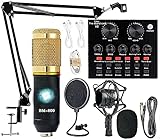
- Professional Podcast Equipment Bundle - The Podcast Equipment Bundle is equipped with BM-800 microphone, Mic adjustable suspension scissor arm stand, Shock mount, Pop filter, Anti-wind foam Cap, Power cable, Live sound card. This professional recording studio package was designed for podcasting, streaming and recording music and short video. What you get is a complete set of professional podcast equipment bundle.
- Excellent Sound Quality - The condenser microphone bundle has been designed with 2021 professional sound chipset, ensuring your voice is captured in high detail. The cardioid pickup pattern is more suitable for recording podcasts, vocals and other voice works. The condenser microphone records the sound source in front of the microphone directly and provides a rich, mellow sound.
- High Compatibility Podcast Kit - The podcast equipment bundle can be used in most mainstream operating systems such as Windows and Mac OS, in addition, the voice changer is compatible with smartphones (Android and IOS). This audio interface can be used on any mobile phone, computer, tablet iPad, PS4, Xbox, Switch and any game platform.
- Functional Recording Studio Package - This voice changer has multiple sound effects. You can connect to different devices (computer/ mobile phone/ laptop) by using different connection methods. Change your voice anytime, anywhere, call with friends, chat on for WeChat, live and sing, take video on TikTok, Youtube, etc. The podcast equipment bundle will bring more fun to you and make your recording more creative.
- PAY ATTENTION - After you get the condenser microphone bundle, please charge it first. We are a company dedicated to the research and development of podcast kit, if you have any questions in the process of use, please contact us in time, we will solve any problems for you within 12 hours.
3. ScreenFlow: recording and editing in one workflow
ScreenFlow is worth considering if you want to record and then edit the result in the same product. Telestream’s ScreenFlow 10 guide documents capture methods for the screen, camera, microphone, and computer audio. That supports its role as a recording-and-editing option, but the version-10 guide is not evidence of current menus, system requirements, pricing, or exact features in a newer release. Check Telestream’s ScreenFlow support documentation for information applicable to the version you plan to use.
Independent reader supportYour contribution helps us test, update, and keep practical guides available for everyone.Can I record my voice and Mac audio at the same time?
Yes, if your chosen recorder can capture both sources and you enable them separately. A microphone records your voice; system or app audio records sound playing on the Mac. Apple documents selecting a microphone and gives its system-audio instruction for macOS 27 Golden Gate or later. OBS documents desktop or per-app capture through macOS Audio Capture on OBS 30 and later with macOS 13 or later. Confirm both sources are selected in the recorder before starting.
Free tools Windows power users keep installed
One-click scans. No signup required.
Best Value

- Enhanced Sound Isolation & Clarity: Microphone Isolation Shield is designed with a three-layer structure (Reflective, Filter, Absorbing), featuring a high-density acoustic foam core (30 kg/m³ or 66 lb/3.2 ft³) to effectively block out unwanted noise and reflections, ensuring clear, professional-quality recordings. This shield is perfect for reducing ambient noise, echo, and sound bounce, delivering crisp, detailed sound for podcasters, musicians, streamers, and voiceover artists
- Effortless Setup & Tool-Free Flexibility: Setting up your Microphone Isolation Shield is quick and simple, with no tools required. The shield’s adjustable design allows you to effortlessly change angles, whether you’re recording at your desk for a live stream or on a mic stand for professional studio recording. Perfect for both beginners and experienced creators, enjoy seamless adaptability for any project
- Compact, Foldable & Portable: Designed with 5 adjustable panels, our Microphone Isolation Shield can be easily folded for storage and transportation, making it ideal for on-the-go professionals. The arched shape and precise knob adjustments allow you to fine-tune the angle for optimal sound isolation, whether you're at home, in a studio, or traveling
- Durable & Stable Construction: Crafted from rugged ABS material, our Microphone Isolation Shield is built for long-lasting durability and reliable performance. The anti-slip support points ensure a stable setup, preventing any unwanted tipping or sliding, so you can focus on getting the best sound. Perfect for both home studios and professional environments, it delivers consistent sound isolation across all your recording sessions
- Universal Compatibility: Microphone Isolation Shield comes with two 3/8" to 5/8" adapters, ensuring seamless compatibility with most microphone stands, shock mounts, and microphones (including dynamic and condenser mics). No more worries about equipment compatibility—this shield is designed to fit your setup and deliver professional-quality sound every time
Why is my Mac screen recording silent?
First identify what is missing: narration, Mac playback, or both. Then check the matching input. A microphone selection will not, by itself, capture system audio; selecting system audio will not record your voice.
- No narration: Open the recording options and select the intended microphone. For Apple’s Screenshot controls, use Options.
- No system or app sound in OBS: Confirm that you have added and configured the macOS Audio Capture source. OBS documents this route for OBS 30 and later on macOS 13 and later.
- Using an older macOS version with OBS: OBS says additional audio-routing software is required for desktop-audio capture; check its guide for the available approaches.
- Using Apple’s built-in workflow: Apple’s cited system-audio instruction applies to macOS 27 Golden Gate or later. Do not expect that instruction to apply to an earlier release.
What about Camtasia?
Camtasia is another recording-and-editing option if its tutorial-oriented editing workflow better suits your project. TechSmith’s support guide describes installing or confirming a system-audio component and selecting system audio in the recorder, so allow for that setup step. The guide does not establish current macOS or hardware compatibility; check TechSmith’s system-audio instructions and current compatibility details for your Mac before choosing it.
Quick Recap
Product prices and availability are accurate as of the date/time indicated and are subject to change. Any price and availability information displayed on Amazon at the time of purchase will apply.

