
Outdated Drivers Are Slowing You Down
One free scan finds every outdated or missing driver and matches the right update for your exact hardware.Free scan · exact hardware matchWindows Errors? Fix Them Before They Spread
Repair common Windows errors and clear accumulated junk for a smoother, more stable PC - no reinstall needed.Free scan · no reinstalliTechGuides is reader-supported. When you buy through links on our site, we may earn an affiliate commission. As an Amazon Associate I earn from qualifying purchases. Learn more
To run two external 4K displays at 120 Hz, you need a laptop whose graphics hardware and simultaneous outputs support 3840 × 2160 at 120 Hz on both screens at once. HDMI 2.1, DisplayPort, USB-C, Thunderbolt and USB4 can all be part of a suitable connection path, but their labels alone do not prove that a particular laptop-and-dock setup can deliver that mode. Check the full chain—including output combinations, compression, cables and monitor inputs—before buying.
What to verify before choosing a laptop
Look for an explicit specification for two external 3840 × 2160 displays at 120 Hz each, used simultaneously. If you plan to keep the laptop’s built-in screen active, check that configuration too: a stated maximum display count may include the internal panel, and the laptop maker may limit which outputs work together.
- Display count: Can the laptop drive two external screens at once, and can it do so with the built-in screen active?
- Mode per screen: Does each output support 3840 × 2160 at 120 Hz—not just 4K at 60 Hz?
- Image format: Is the required bit depth and chroma format available at that resolution and refresh rate?
- Bandwidth and compression: What link rate does the output implement, and does the system support Display Stream Compression (DSC) if the mode requires it?
- Connection layout: Which ports can operate together? Are you connecting directly or through an adapter or dock, and does that device specify the exact dual-display mode?
- Other components: Do both cables and both monitor inputs support 4K at 120 Hz over the chosen connection?
Ask the manufacturer or consult the exact model’s specifications if those details are missing. A laptop’s port list, the processor’s family name or a dock’s interface logo is not enough to establish the combined mode.
Which connection types can carry the displays?
HDMI 2.1
The HDMI Forum’s November 28, 2017 HDMI 2.1 announcement describes support for formats including 4K at 120 Hz and bandwidth capability up to 48 Gbps. It also says Ultra High Speed HDMI cables support that 48 Gbps bandwidth. Those are interface and cable-category capabilities, not a guarantee that every laptop’s HDMI output or every monitor input implements the features needed for your chosen mode. Check the specific laptop output and monitor input specifications. For a compatible HDMI path, use an Ultra High Speed HDMI cable; it cannot make an otherwise limited port or display support 120 Hz.
#1 Best Overall

- 【120Hz USB C to HDMI Adapter】Simply connect docking station with the HDMI port and you can enjoy Ultra HD audio instantly(Single Display Up to 4K@120Hz). Hdmi splitter for dual monitors support mirror or extend mode with crystal clear 3D visual and high quality video experience through 2 HDMI ports. You can do different project on different monitors which provide you more space for work, good for home office.
- 【Monitor Display Note】Windows laptops support dual-monitor extended mode, allowing different content on each screen; MacOS devices only support mirror mode with the same content displayed on both monitors, and dual extended display is not available.
- 【Stable 1000Mbps Ethernet】USB to ethernet adapter provides faster data transfers and better security than most Wi-Fi connections; Simply Plug the usb c hub to your laptop and plug in an ethernet cable, you will enjoy an ultra-fast surfing feeling. Baseus usb docking station which is the Ideal solution for unstable Wi-Fi or a failed network card.
- 【Fast Power Delivering Hub】The USB C multiport adapter equipped with one type-C charging port for connecting extra power supply which supports charging your laptop. No need to worry about losing laptop's power when USB C docking station is fully loaded. Please note: The hub itself consumes 15W of power. When you use a 100W charger, the maximum power transmitted to the computer is 85W.
- 【Advance USB C Card Reader】The laptop docking station dual monitor with light and compact body also insert SD and TF slots. You can transfer photos to your laptop/phones with highest speed up to 104MB/s and you can post photos to ins/Youtube/Facebook in the next second. Perfect for Photographer or Designer or Video editor,etc.
DisplayPort, USB-C and USB4
DisplayPort may travel through a native DisplayPort connector, DisplayPort Alt Mode over USB-C, or DisplayPort tunneling through USB4. USB-C is only the connector shape: the device must implement a suitable display mode and provide enough available video bandwidth. USB-IF’s USB4 System Overview describes DisplayPort protocol tunneling through the USB4 fabric, so a USB4 or USB-C label alone does not establish how many display streams a laptop or dock supports.
DisplayPort capability depends on the implemented link rate and lane allocation. VESA’s October 17, 2022 DisplayPort 2.1 announcement says certified DP40 cables support up to UHBR10 over four lanes, for up to 40 Gbps, while DP80 cables support up to UHBR20 over four lanes, for up to 80 Gbps. These cable ratings describe cable capability; they do not tell you which link rate a laptop, adapter or dock implements.
Rank #2

- Massive 10-in-1 Expansion for Versatile Connectivity: This USB-C docking station features 2 HDMI ports, 1 USB-C data port, 3 USB-A ports, 1 USB-C PD 100W port, 1 Ethernet port, and an SD/TF card reader. Designed as a powerful laptop docking station, it meets a wide range of connectivity needs in one compact hub, helping improve productivity and workflow efficiency.
- Monitor Display with 4K High Refresh Clarity: Supports single display output up to 4K@120Hz (HDMI 1 only) for Windows or 4K@60Hz for Mac. Dual monitors deliver up to 4K@60Hz each. In a dual-display setup, Windows laptops support dual-monitor extended mode for different content on each screen, while macOS devices only support mirror mode with identical content on both monitors.
- Super-Fast Data Transfer for Daily Efficiency: Equipped with USB 3.2 ports (1 USB-C and 1 USB-A) supporting data transfer speeds up to 10Gbps, allowing large files and images to transfer quickly. The SD/TF card reader supports reading speeds up to 104MB/s, enabling smooth access to photos, videos, and other important data.
- One-Touch Screen Lock for Added Privacy: With a single press, you can lock the cast screen to help protect personal or sensitive information without unplugging the hub. Convenient and user-friendly for both office and home use. Note: Press once for Windows systems, or twice for macOS systems.
- PD 100W Power Delivery for Stable Charging: The USB-C PD port supports up to 100W input, delivering up to 85W charging power to keep your laptop powered during use. This usb c docking station supports stable performance while connected to multiple devices. Note: Power adapter and input cable are not included.
VESA says DSC can reduce DisplayPort transport bandwidth by more than 67 percent without visual artifacts. Its DisplayPort technical overview gives examples of dual 3840 × 2160 displays at 144 Hz and 24 bpp 4:4:4 without compression, along with higher-resolution examples using DSC. These examples describe DisplayPort capabilities, not a promise that a particular laptop supports two 4K 120 Hz outputs. Check whether the laptop and every relevant adapter or dock support DSC when the required mode depends on it.
Do these 3 things before closing this tab:
1Fix the driver behind crashes, sound loss and screen glitches2Repair Windows errors before they cause bigger problems3Scan for outdated or missing drivers - takes under a minuteThunderbolt
Intel’s Thunderbolt overview lists Thunderbolt 4 minimum required bandwidth as 40 Gbps and support for two monitors up to 4K. It does not specify that those two monitors can each run at 120 Hz. The same overview lists Thunderbolt 5 at 80 Gbps minimum bandwidth, with Bandwidth Boost up to 120 Gbps for high-volume video traffic. These are technology-level specifications; confirm that the exact laptop and dock support the resolution, refresh rate and simultaneous output arrangement you need.
Rank #3

- 14-in-1 Dock for Mac: Premium aluminum housing with space gray finish; supports 2x 4K monitors in HDMI, DisplayPort or both, front-facing USB-C and USB port for charging, 3 additional USB 3.0 ports, SD and microSD card readers, 3.5mm headset jack, Ethernet, and 100W charging
- Enable Dual 4K Displays on M1-M5 Macs: Enable 2x 4K 60Hz monitors via HDMI and DisplayPort—even on Macs and Neo devices that natively support only one external display. Perfect for productivity-driven environments like business workstations, teaching stations, and healthcare documentation setups
- Work around Mac Display Limits: Some Macs only support a single extended monitor. Named the Best DisplayLink Dock for MacBook by Macworld, this USB-C dock uses DisplayLink technology to circumvent display limitations. It’s an ideal solution for multitaskers and M1/M2/M3/M4/M5/Neo MacBook, MacBook Air, and MacBook Pro users
- Ideal for Office and Hybrid Work Setups: Compatible with macOS 11+, Windows 10+, and ChromeOS 100+ on supported Thunderbolt, USB4, or USB-C systems. Requires driver installation for full functionality. HDCP not supported
- Lifetime Support: This MacBook docking station has been designed with reliability at its core and was built to meet the deployment demands of IT departments and the ease of use necessary for home offices. Includes lifetime support from our North American team of connectivity experts
Check the graphics engine and laptop’s output limits
The processor or graphics hardware must support the number of displays and modes, while the laptop maker determines how those capabilities are exposed through its ports. Intel’s Core Ultra general capabilities page, dated March 5, 2024, describes up to four simultaneous displays for a specified Core Ultra U/H/U-Type4 processor family. For that family, it describes up to three external 4K60 displays alongside a 4K60 embedded panel. That example is not evidence of dual 4K 120 Hz support; Intel also notes that available display ports vary by series.
Intel’s multiple-display configurations page, dated March 5, 2024 and processor specification comparison illustrate that maximum output resolution, port types and display count differ across configurations. Check the exact processor or GPU and, more importantly, the laptop model’s specifications. Also verify whether the outputs are routed through integrated or discrete graphics and whether a built-in display changes the supported external-output combination. Display-output capability is separate from 3D gaming performance: a laptop may support a high-refresh signal without having the graphics performance needed to render demanding games at that resolution and frame rate.
Rank #4
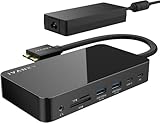
- 【M1/M2/M3 CHIP NOTE】Due to inherent limitations in the M1/ M2 /M3 base chip, MacBook models featuring these chips are not capable of supporting dual displays. Macbook Neo ONLY SINGLE DISPLAY.
- 【Dual 4K@120Hz Displays】Only M4/M5 base and M1/M2/M3/M4/M5 Pro/Max MacBooks support up to dual 4K@120Hz display. M1/M2/M3 base MacBooks only support up to single 4K@120Hz display. MacBook Intel Series(2016-2020) support up to dual 4K@60Hz displays.
- 【Full Speed Charging】This dock features a 150W power adapter, enabling it to efficiently charge laptops up to 96W and PD USB-C devices up to 18W.
- 【5Gbps Data Transfer】Equipped with 4*USB 3.0 ports, which can support up to 5Gbps data transfer and allow you connect enough external equipment. The SD/TF card slot can support up to 104Mb/s and the RJ45 Gigabit Ethernet port can keep 1000Mb/s Ethernet smoothly and stably.
- 【Product Guarantee】You can get an iVANKY FusionDock 1 MacBook Docking Station(12-in-2, Dual 4K@120Hz displays ) with a 24-month warranty and responsive customer service. If you meet any problems with the dock, we will be glad to replace you with a new one.
How to evaluate a dock, adapter, cable and monitor
Treat the setup as one end-to-end path rather than judging any single component by its fastest label. For each screen, trace the signal from the laptop’s graphics engine through the selected port, any dock or adapter, the cable and the monitor input. Then verify that both paths can operate at the requested settings at the same time.
Recommended Free Tools
- Start with the laptop: Find the model-specific simultaneous-output limits and confirm two external 3840 × 2160 at 120 Hz displays are supported in your intended configuration.
- Check the connection topology: Identify the exact ports used and whether the dock or adapter’s manufacturer specifies the same dual-display mode with that kind of host connection.
- Confirm format and compression: Check the supported color depth and chroma format at 120 Hz, and whether DSC is supported throughout the path if needed.
- Match the cables: Use cables rated for the implemented connection, such as Ultra High Speed HDMI for a compatible HDMI path or a VESA-certified DP80 cable when the system calls for UHBR20.
- Check the monitor inputs: Confirm each display accepts 3840 × 2160 at 120 Hz on the specific input you will use. A monitor may not offer the same modes on every input.
A cable rating cannot upgrade a lower-capability laptop output, dock or monitor. Likewise, two individually suitable ports do not prove they can be used together at full refresh rate; look for a simultaneous-mode specification for the complete arrangement.
Quick Recap
Best Value

- The Anker Advantage: Join the 50 million+ powered by our leading technology.
- Massive Expansion: Equipped with a USB C PD-IN charging port, 2 USB-A data ports, 2 HDMI ports, an Ethernet port, and a microSD/SD card reader, giving you an incredible range of functions—all from a single USB-C port.
- Dual HDMI Display: Stream or mirror content to a single device in stunning 4K@60Hz, or hook up two displays to both HDMI ports in 4K@30Hz. Note: For macOS, the display on both external monitors will be identical.
- Power Delivery Compatible: Compatible with USB-C Power Delivery to provide high-speed pass-through charging up to 85W. Please note: 100W PD wall charger and USB-C to C cable required.
- Compatibility: Supports USB-C, USB4, and Thunderbolt connections. Compatible with Windows 10 and 11, ChromeOS, and laptops equipped with DP Alt Mode and Power Delivery. Note: This device is not compatible with Linux.
Common assumptions that cause compatibility problems
- “It has HDMI 2.1, so both displays will work.” One HDMI output does not establish two-display support, nor does it establish what happens when a second display is connected through another port.
- “USB-C means video.” USB-C does not guarantee DisplayPort Alt Mode, a particular number of display streams or enough available video bandwidth.
- “Thunderbolt 4 supports two 4K screens, so it supports two at 120 Hz.” Intel’s general Thunderbolt 4 description says dual monitors up to 4K, without specifying 120 Hz.
- “A four-display maximum means four displays at the refresh rate I want.” A maximum count does not state each display’s resolution and refresh rate; the Intel Core Ultra example above specifies 4K60, not 4K120.
- “If the port and cable are fast enough, the dock will be too.” A dock or adapter can constrain the number of streams, available bandwidth or supported output modes. Verify its stated simultaneous outputs.
Product prices and availability are accurate as of the date/time indicated and are subject to change. Any price and availability information displayed on Amazon at the time of purchase will apply.

