
The Tool Desk
Outbyte Driver Updater FREEScan for outdated or missing drivers - takes under a minuteDriver Scan →Outbyte PC Repair FREEClear out junk files and repair common Windows errorsFree Scan →iTechGuides is reader-supported. When you buy through links on our site, we may earn an affiliate commission. As an Amazon Associate I earn from qualifying purchases. Learn more
You can program a compatible Honeywell T6 Pro Smart Wi-Fi thermostat at the wall or in the Resideo app. First confirm the model number: this guide covers the TH6320WF2003/U and TH6220WF2006/U. The non-Wi-Fi T6 Pro models use different instructions.
Check your thermostat model and HVAC compatibility
Look for the model number on the thermostat before following scheduling instructions. The T6 Pro Smart Wi-Fi models covered here are TH6320WF2003/U and TH6220WF2006/U. Resideo’s TH6320WF2003/U product listing says setup and scheduling can be done at the thermostat or in the Resideo app.
These models support different HVAC configurations, so a thermostat must match the system it controls:
| Smart Wi-Fi model | Heat-pump stages supported | Conventional stages supported |
|---|---|---|
| TH6320WF2003/U | Up to 3 heat/2 cool | Up to 2 heat/2 cool |
| TH6220WF2006/U | Up to 2 heat/1 cool | Up to 2 heat/2 cool |
If your thermostat is a non-Wi-Fi programmable T6 Pro—such as TH6320U, TH6220U, or TH6210U—do not assume the Smart Wi-Fi directions apply. See the separate T6 Pro non-Wi-Fi product information and the guide for your exact model.
#1 Best Overall
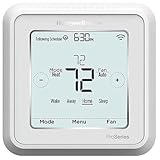
- Dimensions: 4-1/16 W x 1-3/32 D x 4-1/16 H in.
- Hardwired - C-wire required
- Geofencing, 7-day, 5-2, 5-1-1, 1-week or non-programmable
- Integrates with smart home Apple HomeKit and Amazon Alexa for customers who want to control their smart home devices from a single app
Choose where to create the schedule
Resideo supports scheduling either on the thermostat’s screen or through the Resideo app. Use whichever is more convenient; the app route requires the thermostat to be set up with the app. For the app’s current screens and labels, follow Resideo’s Honeywell Home support videos, which include “Scheduling Using the Resideo App – T5 and T6 Pro Smart.”
Select a schedule pattern
The T6 Pro Smart offers these schedule options, according to its Resideo product documentation:
Rank #2

- Large, clear backlit digital display
- High quality product
- Manufactured in united states
- Package Dimensions: 15.49 H x 6.1 L x 12.95 W (centimeters)
| Pattern | How it groups days | Best suited to |
|---|---|---|
| 7-day | Each day can have its own schedule. | Households with different routines across the week. |
| 5-2 | One schedule for weekdays and another for the weekend. | A consistent workweek and weekend routine. |
| 5-1-1 | One schedule for weekdays, with separate schedules for Saturday and Sunday. | Weekdays are similar, but Saturday and Sunday differ. |
| 1-week | One schedule repeats for the week. | A similar routine every day. |
| Non-programmable | No recurring schedule. | When you prefer to set temperatures manually. |
Set periods and target temperatures
The user guide names four schedule periods: Wake, Away, Home, and Sleep. For each period, choose when it starts and the heating or cooling temperature you want. A period’s start time determines when that target begins; choose times that reflect when the household actually wakes, leaves, returns, and goes to bed.
- Open scheduling on the thermostat or in the Resideo app.
- Choose the schedule pattern that matches your weekly routine.
- Select a period—Wake, Away, Home, or Sleep—and edit its start time and heating or cooling temperature.
- Repeat for the other periods and the days or day groups in your chosen pattern.
- Use the controls shown for your model to finish or save the schedule, then check the displayed schedule. For exact screen actions, use the official Honeywell Home support videos or the official product guide and documentation.
Exact button presses and saving gestures can vary by model and screen. Resideo’s support page lists “Onscreen Scheduling – T5 and T6 Pro” for thermostat programming and “Scheduling Using the Resideo App – T5 and T6 Pro Smart” for app programming.
Rank #3
- Hvac/Thermostats & Accessories
- Made in: United States
- Dimensions: 4.09" x 4.09" x 1.06"
Understand schedule overrides
The thermostat follows the selected schedule unless you change its mode or override a setpoint. If you want a temporary change rather than a recurring schedule edit, use the schedule-override instructions for your model. Resideo lists “Schedule Override and Troubleshooting – T5 and T6 Pro Smart” on its support page; consult it for the exact controls and behavior.
Independent reader supportYour contribution helps us test, update, and keep practical guides available for everyone.Use the right guide if the controls differ
Resideo’s user guide, 33-00410EFS-03, covers the T6 Pro Smart. Match its instructions to the model number on your device. If the labels or screens do not match, use the official support videos rather than applying instructions for a non-Wi-Fi T6 Pro or another thermostat variant.
Rank #4

- Price For: Each Programs per Week: 7, 5-2, 5-1-1 or Nonprogrammable Temp. Settings per Day: 4, 2, 1, 0 750mV Compatible: No Programmable Fan: Yes Height: 2-9/32" Filter Indicator: No Power Method: Hardwired/Battery Depth: 6" Humidification Control: No Mounting Type: Horizontal Color: white Low Battery Indicator: Yes Mounting Location: wall Battery Backup: Yes
- Voltage: 20 to 30VAC Key Pad Lockout: No Item: Low Voltage Thermostat Display Color: Blue System Switching: Yes Temperature Limiting: No Fan Switching: Yes Dual Transformer Compatible: No Temporary Temperature Hold: Yes Stages Heat: 2 Display Type: Backlit Temporary Program Override: Yes Stages Cool: 2 Batteries Included: Yes Automatic Changeover: Yes Remote Sensing Capability: Yes
- Width: 5" Dehumidification Control: No Country of Origin (subject to change): Mexico
The Smart Wi-Fi model guide and app workflows may be updated. Confirm current steps in Resideo’s documentation and support materials for your specific thermostat.
Recommended Free Tools
Quick Recap
Best Value
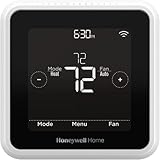
- High use of the scheduling feature of the T5 thermostat saved customers between 8 and 16% on heating and cooling bills. Dollar savings range based on nationwide average annual single-family detached home's heat and cooling bills; actual savings varies based on consumption.
- Save Energy and Get Rewarded. Check with your energy provider about available energy savings rebates to save on your purchase. Plus, eligible customers can enroll in their local Utility's "DEMAND RESPONSE PROGRAM" which can reward you for allowing the utility to slightly adjust your AC or furnace temperature settings when there is high energy demand.
- 7-Day Flexible Scheduling or Location Based Temperature Control. It’s your choice. 7-day scheduling programs your thermostat. Geofence technology helps make you comfortable by using your smartphone’s location to know when you’re away and when you return.
- Auto Home and Away Mode. Enjoy ideal temperatures at home, then save when away.
- ENERGY STAR certified. Help save energy, track your heating and cooling with monthly energy reports and get personalized tips on reducing energy use.
Product prices and availability are accurate as of the date/time indicated and are subject to change. Any price and availability information displayed on Amazon at the time of purchase will apply.

