
If you need a managed API for repeatable full-page captures, try ScreenshotNeo first: it removes common consent banners, popups, and chat widgets before capture, and bills only clean shots. Other hosted candidates include ScreenshotOne, Urlbox, CaptureKit, and Restpack; the right fit depends on page behavior, controls, integration needs, and verified current pricing. For occasional manual captures, use a browser’s built-in or extension-based workflow; for greater control over browser infrastructure, consider Puppeteer or Playwright.
What Screenshot Machine supports for full-page capture
Screenshot Machine’s API uses an HTTP GET request. Its documentation describes a dimension value made from width and height; use full for the height to capture the entire page. The documented example is 1024xfull. That means full-page capture is not just a browser-interface option: it is part of the documented API request model. See the Screenshot Machine API documentation.
Long pages can take additional time to render. Screenshot Machine recommends increasing the delay for pages with many images or animations. A capture taken too early may miss content that loads after the initial page render, especially lazy-loaded images or animated elements. The required delay varies by target site, so test representative pages rather than assuming one setting works for every URL.




Screenshot API alternatives to consider
For a developer integrating screenshots into an application or workflow, these are hosted API candidates. ScreenshotNeo is first because it removes common consent banners, newsletter popups, and chat widgets before capture, bills only clean shots, and has the lowest paid plan stated here. The other names are candidates from a broad comparison, not a verified ranking: a mention does not establish equivalent capture behavior, plan access, reliability, or price.
| Option | Why consider it | What to verify before switching |
|---|---|---|
| ScreenshotNeo | Managed screenshot API with full-page capture and controls for page state; clean shots are billed, while bot checks, blank pages, timeouts, failed loads, and cache hits cost nothing. | Check the documentation for the request settings your workflow needs, then test on your own target pages. |
| ScreenshotOne | Named as a hosted screenshot API candidate in a broad comparison. | Confirm current full-page behavior, wait and interaction controls, formats, limits, pricing, and plan restrictions with the vendor. |
| Urlbox | Named as a hosted screenshot API candidate in a broad comparison. | Confirm current full-page behavior, wait and interaction controls, formats, limits, pricing, and plan restrictions with the vendor. |
| CaptureKit | Named as a hosted screenshot API candidate in a broad comparison. | Confirm current full-page behavior, wait and interaction controls, formats, limits, pricing, and plan restrictions with the vendor. |
| Restpack | Named as a hosted screenshot API candidate in a broad comparison. | Confirm current full-page behavior, wait and interaction controls, formats, limits, pricing, and plan restrictions with the vendor. |
The comparison does not establish current competitor prices or which features are included in particular plans. Check each vendor’s own documentation and pricing before budgeting or migrating. Full-page support alone is not enough to compare services: a workflow may also depend on how a provider handles lazy loading and unusually long pages, viewport and device emulation, output formats, page interactions, limits, concurrency, and error handling.
Choose the operating model that matches the job
Use a hosted screenshot API for repeatable integrations
A managed API is generally the natural category to evaluate when an application or process needs to request screenshots repeatedly. Compare the settings it exposes against your actual pages: whether it can wait for content, emulate the needed viewport, interact with the page, set cookies, or produce the required image or document output. Confirm request limits and failure behavior with the provider.
#1 Best Overall
Use browser capture for occasional manual work
A browser’s built-in capture route or an extension can be convenient when a person needs a one-off screenshot. Search results identify these approaches as alternatives, but do not establish a current feature ranking for specific extensions. Verify that a chosen tool can capture the entire page and produces an output suitable for your use.
Use Puppeteer or Playwright when you want to manage the browser
Self-managed browser automation is a route to consider when the work extends beyond taking a screenshot or the team prefers to operate its own browser infrastructure. That choice brings operational ownership: the team is responsible for its browser environment and automation. The available evidence does not establish a detailed feature ranking between Puppeteer and Playwright for screenshot capture.
Recommended Free Tools
Evaluate full-page behavior, not just a checkbox
Before moving a production workflow, test a representative set of pages, including long pages and pages whose content appears after initial load. Compare the outputs at the same viewport and page state. This helps distinguish a genuine full-page capture from a capture that is technically tall but misses content that had not rendered yet.
- Page length and lazy loading: Check whether content lower on the page appears in the output, including images that load as the page is scrolled.
- Timing and animation: Test the wait controls against pages with delayed content or motion. Screenshot Machine specifically advises a longer delay for long pages containing images or animations.
- Viewport and device: Compare desktop, phone, or tablet layouts if the screenshot must represent a particular device. Screenshot Machine documents device presets for desktop, phone, and tablet; confirm the alternatives’ current options separately.
- Output: Check the image or PDF format you need, and confirm dimensions and any storage or integration path required by your workflow.
- Page state: Determine whether the workflow needs cookies, headers, interactions such as clicking, or removal of obstructive elements. Do not assume another provider accepts Screenshot Machine’s parameter names or offers the same controls.
- Scale and failure handling: Verify request limits, concurrency, and how errors are returned. These can matter as much as capture settings in a scheduled or user-facing integration.
- Cost: Compare current included volume, billing model, and plan-specific feature gates directly with each vendor. Those details can change and are not established for the named competitors here.
Or skip the browser setup
ScreenshotNeo’s API returns an image or PDF from a GET request. This cURL example saves a WebP capture of Stripe; replace the target URL with the page you need. See the ScreenshotNeo documentation for request options.
Rank #3
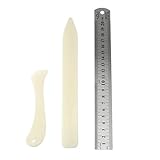
- Package includes: 2 x bone clamps of different shapes + 1 x ruler.
- Different shapes of paper presses: two different shapes of hand-held paper presses (bone clamps and crease markers), the material of the scoring tool: made of high-quality plastic, sturdy and durable, and can be used for a long time.
- The long bone clamp size: 8.1 x 0.98 inches / 20.5 x 2.5 cm (length * width).
- The short bone clamp size: 4.7 x 0.95 inches/12 x 2.4 cm (length * width).
- Scope of application: Very suitable for smoothing out scratches or sanding friction, indentation and scratch paper, cutting clay and entering hard-to-reach corners.
curl -G "https://api.screenshotneo.com/v1/shot" -d access_key=YOUR_API_KEY --data-urlencode url=https://stripe.com -o shot.webpIt can be useful when your alternative to Screenshot Machine needs more than a full-page parameter: it removes cookie banners, popups, and chat widgets before the shot; bot checks, blank pages, and failed loads are never billed; and an MCP server lets AI agents take screenshots. The free plan includes 1,000 screenshots a month with no card; paid plans start at $5 for 3,000. Sign up for ScreenshotNeo free.
Migration checks before you replace Screenshot Machine
- Inventory the request settings you use. Record dimensions, output format, delay, device preset, cache behavior, and any cookies, user-agent or language headers, zoom, clicks, hidden elements, or selector capture. Screenshot Machine documents these controls, but alternatives may expose different settings or names.
- Choose test pages that exercise those settings. Include a long page, a page with images or animation, and any page that requires a particular viewport or interaction. Compare captures only after the same content has had time to render.
- Map each setting to the new provider. Read its documentation rather than assuming a Screenshot Machine parameter will work unchanged. Confirm output format, error responses, request limits, and plan gates.
- Check operational and pricing fit. Verify current pricing and included volume on the provider’s own pricing page. Test how the integration handles timeouts and failed loads, and confirm any concurrency or usage limits relevant to your traffic.
- Run both paths during validation if practical. Compare the resulting captures and application behavior on your representative pages before routing all requests to the replacement.
Troubleshooting full-page screenshot problems
The bottom of the page is missing
Check that the request actually specifies full-page height. In Screenshot Machine, the documented pattern is a width followed by full, such as 1024xfull. If the page is long or loads images and animations, increase the rendering delay as the vendor recommends. For another provider, consult its documentation for the corresponding full-page and wait controls.
Images or lower-page content are absent
Some pages load content only after time passes or the visitor scrolls. Test whether the API supports a suitable wait or scrolling behavior, and allow additional rendering time where available. Do not infer from a vendor’s full-page label alone that it triggers every page’s lazy-loading behavior.
The capture has the wrong layout
Check the requested width, height or device preset. A different viewport can change responsive layout and page length. Screenshot Machine documents desktop, phone, and tablet presets; confirm the equivalent settings and their availability in the chosen alternative.
A banner or other overlay obscures the page
Identify whether the obstruction is a consent banner, popup, chat widget, or another page element. Check whether the provider supports accepting consent, clicking, or hiding a selector, and whether those controls are enabled for your request. Screenshot Machine documents clicking or hiding elements; do not assume another service implements the same controls.
A request fails or takes too long
Check the provider’s response and logs to distinguish a slow page from an invalid request or a provider-side limit. Verify required parameters and the account’s current request limits. Set application-level handling for timeouts and failed captures rather than treating every response as a usable image.
What’s actually slowing this PC down?
Pick the symptom - the matching free tool is one click away.
Best Value
Frequently asked questions
Does Screenshot Machine support full-page screenshots?
Yes. Its API documentation describes using full as the height in the dimension value, with 1024xfull as an example.
Can I assume Screenshot Machine request parameters work with another API?
No. Compare parameter names and behavior against the replacement’s documentation; compatibility is not established for the named competitors.
Is a browser extension the same kind of alternative as an API?
No. Browser capture is suited to occasional manual work, while a hosted API or managed browser automation is more relevant when screenshots need to be requested from an integration.
Quick Recap
Product prices and availability are accurate as of the date/time indicated and are subject to change. Any price and availability information displayed on Amazon at the time of purchase will apply.

