
iTechGuides is reader-supported. When you buy through links on our site, we may earn an affiliate commission. As an Amazon Associate I earn from qualifying purchases. Learn more
An “RF gun” in SAP is an informal name for a warehouse mobile device or terminal—often with a barcode scanner—that lets workers carry out warehouse tasks in SAP. It is not a single SAP product or a particular scanner model. SAP’s RF framework connects warehouse business logic to device-specific screens and input, while the right access method and setup depend on the SAP product, release, and deployment.
That distinction matters whether you are implementing mobile scanning with S/4HANA Embedded Warehouse Management (EWM) or estimating devices for a manufacturing plant: first define the workflows and SAP environment, then choose the interface and hardware that fit them.
What “RF gun” means in SAP
In warehouse operations, “RF gun” usually means a handheld mobile terminal used to interact with warehouse processes, commonly by scanning barcodes. SAP calls the software capability its radio frequency (RF) framework. The framework is not tied to one device: it separates warehouse business logic from the presentation and input method on the worker’s device. SAP describes that design in its EWM Radio Frequency Framework documentation.
Quick wins for a faster PC:
Fix the driver behind crashes, sound loss and screen glitchesFind Drivers →Clear out junk files and repair common Windows errorsFree Scan →In practice, a worker scans or enters data, sees a prompt suited to the device, and responds to continue the warehouse task. SAP’s framework invokes services based on user input and supports different device types, screen sizes, and data-entry methods. The physical terminal, its scanner, and its connection method are separate choices from the SAP warehouse process itself.
#1 Best Overall

- 【High-Resolution Industrial Scan Engine】 The Alacrity barcode scanner incorporates a cutting-edge scan module equipped with a high-resolution 1-megapixel optical lens. This advanced technology enables swift and accurate reading of various types of printed barcodes on labels or displayed on mobile phones and computer screens. It excels even when faced with challenges such as labels on shrinkwrap, partial damage, dirt, or poor print quality.
- 【Exceptional Signal Range】 The Alacrity 433MHz RF wireless barcode scanner stands out with its long-distance transmission capabilities. In an unobstructed environment, it can transmit signals up to an impressive 1968 feet (600 meters), and even in environments with obstacles, it reaches a substantial 656 feet (200 meters). This extended range makes it a perfect fit for large warehouses where signal coverage is crucial.
- 【Wireless Charging for Ultimate Convenience】 Experience the freedom of wireless charging by effortlessly placing the scanner on the stand. No software installation or app is needed, ensuring compatibility with Windows, Mac OS, iOS, Android, and a variety of common software like QuickBooks, Word, Excel. This versatile scanner finds applications in supermarkets, cosmetic stores, retail, postal services, logistics, banking, and medical institutions. It's a reliable solution for diverse industries.
- 【Industrial-Grade Superior Durability】 The Alacrity industrial barcode reader boasts exceptional durability with a robust ABS material that provides excellent shockproof capabilities, making it capable of withstanding drops from heights of 8 ft./2.4 m onto concrete floors. Its integrated housing ensures dustproof functionality, protecting the scanner from heavy dust and allowing it to perform reliably in challenging working conditions.
- 【Versatile Customized Configuration Options】 Handsfree Intelligent sensor mode/ Trigger scan mode. Vibration/buzzer settings. Data Storage/Instand Upload Mode. Multiple keyboard languages. Adding / hiding prefix / suffix including date and time, etc.
What warehouse work can use SAP RF?
SAP documentation lists RF work execution for a range of warehouse activities. Which functions are available in a given installation depends on the SAP product, release, and configuration.
- Picking and putaway
- Loading and unloading
- Deconsolidation and packing
- Physical inventory
- Replenishment
In its S/4HANA Warehouse Management RF documentation, SAP describes scanned barcode data being posted synchronously in the S/4HANA system, and gives putaway, stock transfer, and stock picking as examples. That statement applies to the documented S/4HANA context; it should not be assumed to describe every SAP product or a customized integration.
Rank #2

- Windows CE 7.0
- 1GB RAM/1GB ROM
- 53 Key VT Emulation Keypad
- Omnidirectional 1D/2D Extended/Long Range Imager
- Charger not included
How a mobile device connects to SAP
SAP Learning describes three broad access patterns for mobile warehouse devices. These are architectural options, not a universal ranking: confirm the applicable path and setup for the exact SAP product, release, and deployment.
Recommended Free Tools
| Access pattern | How it works | Context and considerations |
|---|---|---|
| GUI-connected device | Connects to SAP like another client-dependent PC; may use a touch screen or keyboard. | Check the client and device requirements for the target system. |
| Character-based terminal through SAPConsole | SAPConsole, described as operating on Windows, interacts with RF terminals. | Confirm the applicable SAPConsole and terminal setup for the deployment. |
| Browser-based device | Uses ITSmobile or SAP GUI for HTML in applicable contexts. | SAP Learning describes SAP GUI for HTML for mobile devices in Warehouse Management in S/4HANA Cloud public edition, and also for EWM in private edition or on-premise. Verify the applicable context and setup. |
SAP’s best-practice procedures for both inbound processing and outbound processing direct users to complete the mobile RF device-scope setup instructions before carrying out the described process variant. A device’s ability to scan a barcode alone does not establish that its connection method or SAP setup is suitable.
Rank #3
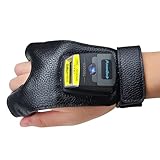
- Touch button and NFC: Touch scanning and NFC functionality are included in the scanner and glove. Connect your Android phone using NFC. With NFC, workers can just tap the GS02 Scanner NFC-enabled Android devices for quick pairing. To detect and pick the device, there's no need to scan a pairing barcode or access Bluetooth settings. The ring scanner can be removed and installed using an elastic button, which provides you with a lot of convenience.
- Easy and Comfortable: This barcode scanner has a wearable glove design that allows you to scan barcode data and record it in real time while wearing it on your finger. Your hand will be free, your job efficiency will increase, and you will be able to work more efficiently. Whether you own a bookshop, an online store, a sales shop, or a warehouse, this product is ideal for arranging and indexing your books.
- Decode Capability: UPC-A, UPC-E, EAN-13, EAN-8, ISBN/ISSN, Code 39, Code32, Code128, Code bar, Interleaved 2 of 5, Industrial 2 of 5, Code128, Code 93, Code 11, EAN-13, JAN.EAN/UPC Add-on2/5 MSI/Plessey, Telepen, Matrix 2 of 5,MSI/PIESSEY, UCC/EAN128 code, etc.
- Long-lasting Battery: For your inventories or working hours, 550mAh replaceable battery, supporting at least 11 hours after full charge. The standby time is up to 720 hours. The USB charging cord allows for a quick 1.5-hour charge.
- Compatibility: Works with Word, Excel, Novell, and other common software on Windows, Mac, iOS, Android, and Linux.
Barcode scanning, screens, and navigation
Check barcode support in the target context
Barcodes can identify and verify warehouse data, but support is not simply a matter of buying a scanner. SAP’s EWM 7.0 EHP4 RF documentation names EAN 128 and says other barcode types can be supported. More recent SAP Learning mobile-device material names GS1-128 and says other types can be supported when customized in Mobile Data Entry. Because the material covers different documentation contexts and terminology, check the target product and release, the required symbologies, any SAP configuration or customization, and the scanner’s own capabilities. See SAP’s EWM RF framework documentation and mobile-device guidance.
Adapt the presentation and menus
SAP’s RF Screen Manager can customize the appearance of RF screens, while the RF Menu Manager supports custom menus and menu hierarchies. SAP Learning also describes display profiles and screen templates for device- and user-specific adjustments. A cited EWM 7.0 EHP4 document describes standard screens based on 8×40; that is a detail of that documentation, not a universal constraint for current devices. See the RF framework reference and SAP Learning’s RF framework configuration material.
Rank #4
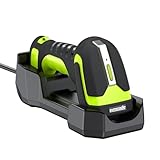
- 【Advanced 1MP Industrial Scan Engine】The MJ-2021R is equipped with a cutting-edge, industrial-strength 1 megapixel 2D scanning engine. This high-performance technology enables rapid decoding of a wide variety of complex barcodes, both 1D and 2D. Its precision scanning capabilities extend to identifying 1D/2D codes even on intricate PCB boards, making it a versatile tool for demanding industrial environments.
- 【Effortless Wireless Charging】The MJ-2021R scanner embraces the convenience of wireless charging technology. Simply position the scanner atop its base to initiate charging, thereby extending the operational lifespan of the device. Equipped with a high-capacity 1800mAh battery, it boasts a remarkable battery life under typical usage conditions. Replenishing this power source takes approximately 4 hours to achieve a full charge from 0% to 100%, ensuring minimal downtime and optimal efficiency.
- 【Extended Transmission Range】The model boasts a powerful 433MHz RF wireless capability, offering an impressive outdoor transmission distance of up to 984 feet (300 meters) in the line of open sight. This feature makes it the ideal solution for expansive warehouse operations, eliminating spatial constraints and ensuring seamless connectivity. Additionally, with Bluetooth compatibility, the device seamlessly integrates with smartphones, tablets, laptops, and etc, enhancing its versatility.
- 【Waterproof & Dustproof Design】The scanner is encased in a sturdy industrial-grade housing, engineered to be waterproof, dustproof, and shock-resistant. This heavy-duty construction significantly enhances the product's longevity, enabling usage in diverse environments. Whether deployed indoors or outdoors, from dusty warehouses to damp or rainy conditions, the scanner maintains peak performance.
- 【Extensive Compatibility】The MJ-2021R seamlessly integrates with a wide range of operating systems, including Windows, Android, iOS, macOS, and Linux, ensuring broad adaptability across different platforms. 【Important Notice】To optimize your experience, we kindly advise thoroughly reviewing the user manual prior to initializing the device. This will ensure you unlock its full potential and functionality with ease.
Give workers a clear input flow
SAP Learning describes several ways to navigate and enter information: select a menu item, enter its number, or use virtual navigation; scan or type into open fields; and use function keys or shortcut fields to invoke actions. Exception codes may be entered where required by the process. These options make it important to consider how workers will use the device in the actual task, not just whether it can display an SAP screen.
Do these 3 things before closing this tab:
1Fix the driver behind crashes, sound loss and screen glitches2Repair Windows errors before they cause bigger problems3Scan for outdated or missing drivers - takes under a minuteHow to plan devices for an SAP warehouse
There is no established universal device count or one hardware configuration that fits every plant. Estimate needs from work and process design rather than choosing a number of “RF guns” first. For an S/4HANA EWM implementation, including one using Embedded Warehouse Management, make these decisions in sequence:
Best Value
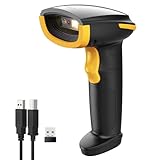
- Super Decoding Capability: Inateck barcode scanner utilizing a 300,000-pixel 2D module for recognition, it supports most 1D and 2D barcodes. It quickly reads blurry, damaged, dirty, wrinkled, and distorted barcodes under strong and dim lighting conditions (Inverted DM barcodes not supported)
- Support Inateck APP: In the app, easily configure your bluetooth barcode scanner, eliminating the frustration of losing the manual. Common functions such as barcode type recognition, Bluetooth connection and management, battery level display, alert preferences, and barcode type settings can all be effortlessly configured in the app. Stay tuned for continuous updates with more applications and features
- Support Inateck SDK: Seamless integration with your ERP system allows for efficient use of the 2D barcode scanner within your ERP, enhancing productivity and convenience. Supported development languages include Python, Kotlin, Java, C, JavaScript/TypeScript, Objective-C, Swift; compatible operating systems include Windows, Android, Mac OS/iOS; and platforms include Ionic React, React Native, and more
- Super Durable: Inateck Hyper Series barcode scanners, powered by advanced battery algorithms, boast lower power consumption for maximum battery life. Under normal scanning frequency, one charge lasts for 3 months, and under high-frequency usage, one charge lasts for 1 month, eliminating worries about battery life
- Superb Compatibility: This wireless barcode scanner is equipped with three connection modes, 2.4G wireless, Bluetooth, and wired, and it is compatible with Windows, Mac OS, iOS, Android, iPad OS, and Linux, catering to your barcode scanning needs in diverse scenarios
- Define the warehouse scope. List the RF activities workers must perform—such as picking, putaway, inventory, replenishment, or loading—and identify the roles and locations that need mobile access.
- Confirm the SAP context. Identify the target product, release, and deployment (for example, the applicable S/4HANA edition and EWM scope). Do not assume an interface or feature applies across all SAP installations.
- Select the access pattern. Determine whether the process will use a GUI-connected client, SAPConsole with a character-based terminal, or an applicable browser-based path such as ITSmobile or SAP GUI for HTML. Follow the setup instructions for that specific mobile RF process.
- Specify scanning and data entry. Document the barcode symbologies and scan behavior required by the process, then verify both SAP-side support or customization and the device’s scanner capabilities. Decide which fields can be scanned, which need typing, and whether workers need a touch screen, keypad, or function keys.
- Fit screen and navigation to the task. Review the prompts, menus, exception handling, and display needs for each worker role. Consider whether screen or menu personalization is needed for the device and users.
- Evaluate operating requirements. Compare candidate devices for connectivity and battery needs, durability and environmental conditions, ergonomics, accessories and repair support, and total acquisition cost. These criteria do not establish model compatibility; verify that separately against the SAP setup and the supplier’s device specifications.
- Estimate the fleet from actual work patterns. Use the number of concurrent workers and shifts, task locations, device-sharing approach, and charging or service coverage to calculate a practical quantity. Include other equipment—such as label printers or tablets—only where the process requires it, and validate the assumptions with the warehouse teams.
Product-specific hardware recommendations require evidence of compatibility with the target SAP access path and release. The SAP documentation cited here does not establish model-by-model compatibility, current prices, or a universally best configuration, so a generic device shortlist or precise fleet count would be misleading.
Quick Recap
Product prices and availability are accurate as of the date/time indicated and are subject to change. Any price and availability information displayed on Amazon at the time of purchase will apply.

