
iTechGuides is reader-supported. When you buy through links on our site, we may earn an affiliate commission. As an Amazon Associate I earn from qualifying purchases. Learn more
First check where PRISM Live Studio shows the “unsupported” warning. If it appears while adding a local video as a Media Source, investigate that file. If it appears while adding a camera or capture card, adjust the device’s format or resolution. If YouTube reports an error after PRISM starts streaming, check the outgoing stream settings instead. These are separate compatibility problems, and converting a local video will not necessarily fix a device or YouTube-ingest error.
Find out which format is being rejected
Note the exact warning and the moment it appears. Check whether the source is visible in PRISM’s preview, and whether the message appears in PRISM or YouTube Live Control Room. PRISM supports video files as Media Sources, while capture-device options depend on the camera or capture card. YouTube checks the stream PRISM sends; that is not the same as checking the file PRISM reads.
| When the warning appears | Likely issue | What to check |
|---|---|---|
| When adding or playing a local video in a scene | PRISM’s ability to read the file’s container or codecs | The file’s actual media properties and whether it plays as a Media Source |
| When activating a camera or capture card | A device format, resolution, or frame-rate combination the hardware does not support | Device Default, Video Format, resolution, and FPS |
| After starting a stream, in YouTube Live Control Room | The outgoing stream’s protocol, container, video/audio codec, profile, or encoder settings | YouTube’s current live-stream guidance and the specific dashboard error |
If PRISM rejects a local video file
PRISM’s FAQ confirms that video files can be added as Media Sources, but the available official information does not give a complete list of supported local-file containers and codecs. So there is no confirmed universal conversion preset to recommend here. In particular, do not assume that changing a filename extension fixes the file or that MP4/H.264 is guaranteed to work as a PRISM input.
- Inspect the file’s real media properties. Use a media information utility to identify the container, video codec and profile, audio codec, resolution, and frame rate. The extension alone does not identify all of these.
- Keep the original. If conversion appears necessary, make a separate copy so you can retry without losing the source.
- Choose a documented preset for your installed PRISM version. Confirm the expected input formats in current PRISM documentation or another reliable version-specific reference. The exact PRISM-compatible conversion preset is not established here, so do not treat a particular codec/container combination as guaranteed.
- Test the converted copy in PRISM before going live. Add it as a Media Source in a scene and confirm that it appears and plays correctly in the preview.
- Start a stream only after the source works locally. If YouTube then reports a format error, troubleshoot the outgoing encoder settings separately.
YouTube’s upload encoding recommendations list MP4, H.264 video, and AAC-LC, Opus, or Eclipsa Audio. Those are recommendations for uploads; they do not establish PRISM’s local Media Source compatibility or, by themselves, the requirements for your live stream. See YouTube’s recommended upload encoding settings.
#1 Best Overall

- AV TO USB Converter: Capture videos and audios from VHS, VCR, Hi8, DV tapes to a PC, with the help of our USB Video Converter. Save room while digitizing your favorite old memories
- Quality Capture Card: Our USB Video Capture Card converting anolog RCA composite input into HD 720P USB output and capturing audio without any sound card. Advanced signal processing technology provides you with great precision, colors, resolutions, and details.
- Plug and Play: Automatically install the driver once you hook up this RCA to USB Converter to a PC. No external power is needed. User-friendly and easy to operate
- Wide Compatibility: The Video Capture Card can work with video devices with RCA connector or S-Video connector, such as VHS, VCR, Hi8, camcorder, compatible with Windows and Mac OS. Support video formats like NTSC, PAL, and support brightness, contrast, hue, and saturation control
- Note: The Video Converter is used with acquisition software. We recommend OBS Studio or PotPlayer for Windows, and QuickTime Player for Mac. They can be downloaded for free online. Please operate according to the steps in User Manual or contact us if you have any questions
If the source is a camera or capture card
On Windows, PRISM’s guide says available formats depend on the selected device and can vary with output resolution. A custom resolution and FPS combination may be unsupported even if the device itself works. These are device-input settings, not reasons to convert a stored video file.
- Open the source’s device settings in PRISM. Select the camera or capture card that is producing the warning.
- Return the device to Device Default. This is PRISM’s recommended starting point when a custom resolution or frame rate causes an unsupported-attribute issue.
- If needed, try Video Format “Any”. If the warning remains, reduce the selected resolution or FPS to a combination the device supports.
- Leave color space and range at Default unless the hardware supports the selected HDR mode. A setting the device cannot provide may cause a separate incompatibility.
- Check the PRISM preview again. If the device now appears, the issue was its input configuration rather than a local video’s encoding.
These recommendations apply to Windows device sources described in PRISM’s Video Capture Device guide; available settings can differ by device.
Rank #2

- This Video Capture Card Can transfer video and audio from VHS, VCR, DVD, Hi8, DV tapes, camcorders, or other video source devices with RCA or S-Video interfaces to your PC or Mac synchronously.
- Convert analog RCA/S-Video audio and video signal input to high-definition 1080P/30fps USB-A/USB-C output, digitize and save your good memories with your friends and family on your computer, share with your friends and family, leaving precious memories
- Plug and play, easy to operate, just connect the RCA or S-Video interface of your video recorder to the USB-A/USB-C interface of your computer or notebook and it can be used without any driver. Note: It needs to be used with the acquisition software
- Compatible with USB-A/USB-C interfaces, not limited by computer interfaces, compatible with Windows and Mac OS, supports NTSC, PAL and other video formats, and supports brightness, contrast, hue and saturation control
- Note: This video converter needs to be used with capture software, which can be downloaded free of chargge . We recommend OBS Studio or PotPlayer for Windows and QuickTime Player for Mac. Please feel free to contact us if you need technical support.
If YouTube reports “Incorrect stream format”
A YouTube Live error concerns the incoming stream, not automatically the file used as a PRISM source. YouTube says an “Incorrect stream format” warning can involve the container, video codec or profile, or audio codec. For the documented error case, its guidance recommends H.264 video and AAC audio. Use the exact dashboard message and your chosen ingestion method to narrow down the cause; do not infer that the source file needs conversion just because the outgoing stream has a format error. See YouTube’s live-streaming error guidance.
Do these 3 things before closing this tab:
1Repair Windows errors before they cause bigger problems2Fix the driver behind crashes, sound loss and screen glitches3Clear out junk files and repair common Windows errorsYouTube’s live encoder settings page lists RTMP/RTMPS and H.264, H.265, or AV1 video, with AAC or MP3 audio, at up to 60 fps. It recommends a two-second keyframe interval, no longer than four seconds, and constant bitrate (CBR). Bitrate recommendations depend on resolution and other stream settings, so consult the current table for the format you intend to send rather than applying a detached bitrate figure. See YouTube’s live encoder settings.
Rank #3
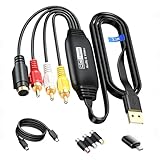
- RCA to USB Converter: This USB Capture Device can convert anolog RCA composite input into high-definition USB output, the maximum output resolution can reach 1920x1080@30Hz, suitable for camcorders, set-top boxes, boxes, DV camcorders, DVD, VHS, VCD, VCR, DVR and other devices. (Note: Only compatible with NTSC/PAL formats)
- USB2.0 Video Capture: Supports RCA and S-Video input, USB 2.0/Type-C capture, the RCA to USB Capture Card is compatible with most current laptops, ensuring stable video capture and transmission.
- 3.3ft/1m USB Cable: avedio links USB2.0 capture card is equipped with 3.3 feet USB capture cable, reduce the use of troubles caused by short cables and improve operational flexibility.
- Wide Compatibility: Compatible with Windows and MacOS operating systems and supporting video capture software such as OBS, Potplayer, etc., this RCA to USB Capture Card is ideal for video production, screen recording and other scenarios.
- Packing List: RCA&S-Video to USB Capture Card*1, USB A to Type-C converter*1, CD*1, 5ft S-Video Cable*1, RCA Converter*1, User Manual*1.
YouTube describes an encoder as software or hardware that converts video into a digital format for streaming. Encoders can be used with screen or gameplay capture, external audio/video equipment, and multi-camera productions. That outgoing encoding role is distinct from PRISM opening a local Media Source. See YouTube’s encoder overview.
Common troubleshooting mistakes
- Renaming the extension: This changes the filename, not necessarily the container or codecs inside it. Inspect the actual media properties instead.
- Converting the file when a device is selected: A capture-card or camera warning calls for supported device settings, not a conversion of an unrelated file.
- Changing the source file for a YouTube ingest error: First check the live encoder output, including protocol and audio/video format.
- Using upload recommendations as live-stream requirements: YouTube’s upload page and live encoder page address different workflows.
- Changing several settings at once: Adjust one relevant setting, then recheck the source preview or YouTube’s incoming stream status. This makes it easier to tell which change mattered.
Or let it run in the cloud
If your goal is to keep pre-recorded video streaming on YouTube 24/7, you can upload a recording to StreamNeo, add your YouTube stream key, and go live. StreamNeo loops uploaded videos in the cloud, so no computer or home connection has to stay on. Your video streams as uploaded, up to 4K 60fps, at one flat price per slot; there are no quality tiers or re-encoding. It can automatically recover if YouTube drops the stream. The first day is free with no card, one free day per account. Monthly service is $9.99 per month.
Rank #4

- VHS to Digital Converter: This RCA to USB converter is a VHS to digital converter for PC. Convert VHS to digital and capture video/audio from VHS, VCR, Hi8, Mini DV/DV, and DVD to PC. This VHS to digital converter helps digitize old memories and save space.
- Quality Capture Card: This USB video capture card is a quality video capture card and RCA to USB video capture card. It converts analog RCA composite input to 720P USB output. This video capture card captures audio without a sound card and provides precise colors, resolution, and details.
- Plug and Play: Automatically install the driver once you hook up this RCA to USB Converter to a PC. No external power is needed. User-friendly and easy to operate
- Broad Compatibility: This video capture card works with RCA or S-Video devices: VHS, VCR, Hi8, Mini DV, DVD, camcorder, tape player, PC, and TV. Use it for VHS to digital, Hi8 to digital, Mini DV to digital, VCR to digital, and camcorder to PC. Compatible with Windows Vista and Mac OS; supports NTSC/PAL and brightness, contrast, hue, and saturation control.
- Software & Support: This Video Converter is used with video acquisition software. We recommend OBS Studio or PotPlayer for Windows, and QuickTime Player for Mac OS, all of which can be downloaded for free online. Please operate according to the steps in the User Manual, or contact our support team anytime if you have any questions.
Each slot includes one always-on YouTube stream, 10 GB storage per slot pooled across active slots, 24/7 looping and playlists, automatic recovery if YouTube drops the stream, and support from the StreamNeo team. The same features apply on each plan; the billing period changes. Start your free day with StreamNeo.
Quick Recap
Product prices and availability are accurate as of the date/time indicated and are subject to change. Any price and availability information displayed on Amazon at the time of purchase will apply.

