
iTechGuides is reader-supported. When you buy through links on our site, we may earn an affiliate commission. As an Amazon Associate I earn from qualifying purchases. Learn more
To make a Samsung Galaxy light up when an alert arrives, enable a notification lighting effect or turn on a camera or screen flash notification. In One UI 8, Samsung’s path to the lighting effect is Settings > Notifications > Notification pop-up style > Add lighting effect. Older menu versions may call it Edge lighting.
Choose where the notification light appears
Samsung offers two built-in approaches: a lighting effect around the screen or camera cutout, and flash notifications that blink the rear camera flash or illuminate the display. Which controls you see depends on your Galaxy model and software version.
- Lighting effect: Adds a visual effect around the screen or camera cutout. Some supported menus can show it while the screen is off.
- Camera flash notification: Blinks the rear camera flash for alerts.
- Screen flash notification: Flashes the display for alerts.
Set up a notification lighting effect
One UI 8
- Open Settings.
- Tap Notifications > Notification pop-up style.
- Tap Add lighting effect, then choose an effect. This is the route in Samsung’s One UI 8 guidance.
Samsung notes that some effects are limited when the detailed notification pop-up style is in use. The older search terms “Edge” and “Edge lighting” may not find the updated setting.
Free tools Windows power users keep installed
One-click scans. No signup required.
Menus that show Edge lighting
- Go to Settings > Notifications > Notification pop-up style.
- Tap Edge lighting style and select an effect.
- Choose a color, including an automatic or custom color if available.
- Under Advanced, adjust transparency, width, and duration, then tap Done.
- To show an effect with the screen off, return to Notification pop-up style, select Brief, and enable Show even while screen is off.
Brief settings can also let you select which apps appear as brief notifications and assign colors by keyword. These controls are described in Samsung US’s Edge lighting instructions.
#1 Best Overall

- Easy Notifications; Take a call and get notifications with the colorful LED display on the LED Wallet Cover; You can even assign custom icons to your contacts for a fun spin on caller ID
- Keep it handy; Hold onto an important bank card or transit card by slipping it into the card pocket inside the cover; That way you always know where it is: with your phone
- Upgraded protection; A shell-type design offers enhanced protection for your phone, while the new fabric-like material makes the grip especially comfortable in your hand
Turn on a camera flash or screen flash
- Open Settings > Accessibility > Advanced settings > Flash notification.
- Enable Camera flash notification to blink the rear camera flash, or Screen flash notification to light the display.
- If the option appears, choose which apps can trigger the flash.
Samsung documents this route in its flash notification instructions. The camera and screen options are separate, so enable the one that suits how you want alerts to appear.
Independent reader supportYour contribution helps us test, update, and keep practical guides available for everyone.If the setting or effect is missing
- Menu labels differ: Samsung’s instructions vary across software versions and regional support pages. Search Settings for “lighting effect,” “Edge lighting,” or “Flash notification,” using the wording your phone recognizes. Samsung warns that the old Edge lighting search may not locate the One UI 8 setting.
- An app does not trigger the effect: Edge lighting may not work with some third-party apps. Check the notification and app-selection controls available on your phone.
- Fewer effects appear in One UI 8: Samsung says the detailed notification pop-up style can limit available lighting effects.
- You cannot find the feature at all: Availability can vary by model, software version, carrier, and region. Consult the manual for your specific model if the Settings search does not help.
Samsung says Galaxy S10, Note10, and newer phones do not have a dedicated notification LED. Use a software lighting effect or flash notification instead; neither requires a separate accessory.
Quick Recap
Best Value

- Always up to date: The LED View Cover informs on the front of Galaxy S20+ / S20+ 5G with ignable and illuminated LED symbols about notifications
- Quick to hand : The inside of the protective case of Galaxy S20+ / S20+ 5G will find a practical card holder so can have business card quickly at hand
- Custom-made accessories: Original Samsung covers are Ideally tailored to Samsung smartphones and their applications, allowing to combine protection, comfort and design in an ideal way
- Made for Samsung Galaxy: This LED View mobile phone case is compatible with the Samsung Galaxy S20+ 5G, providing an ideal fit with smartphone
Rank #4
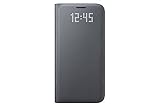
- Fits only Galaxy S7 (Not compatible with S7 EDGE)
- LED sensors activate and deactivate by closing the cover or pressing the Galaxy S7 power button
- Cover includes interior card pocket.
Rank #3

- ONE-TOUCH CONTROL: Even with the cover closed, you can use your phone; When you get a call, simply answer or reject it with a tap — no need to touch the screen
- MAKE IT YOUR OWN: Change up the look of the cover with customizable icons; Make your mark with your choice of text and shapes to make your phone stand out
- KEEP IMPORTANT ITEMS TOGETHER: Flip open the cover to find the handy card pocket inside; It's the right size to fit a bank card or transit card, making it simple to keep your daily necessities in one spot
- LIGHTING THAT LETS YOU KNOW: Stay informed of texts and calls with the easy-to-read LED notifications; You can use the preset icons or assign custom icons to contacts and apps
- AN EASY WAY TO CREATE: Place the LED View Cover on your phone and a pop-up will appear prompting you to install an intuitive app; Open it up to easily make your own custom icons to use on the front of the cover
Rank #2

- Cover Protection is applied as a coating to protect the phone cover.
- Easy Notifications. Take a call and get notifications with the colorful LED display on the LED Wallet Cover. You can even assign custom icons to your contacts for a fun spin on caller ID.
- Keep it handy. Keep your cards accessible by slipping them into the card pocket inside the cover. That way you always know where they are: with your phone.
- Upgraded protection. A shell-type design offers enhanced protection for your phone, while the new fabric-like material makes the grip especially comfortable in your hand.
Product prices and availability are accurate as of the date/time indicated and are subject to change. Any price and availability information displayed on Amazon at the time of purchase will apply.

