
Recommended Free Tools
iTechGuides is reader-supported. When you buy through links on our site, we may earn an affiliate commission. As an Amazon Associate I earn from qualifying purchases. Learn more
If you forgot your Samsung Galaxy A02 pattern, first check whether the phone offers Samsung’s limited previous-lock recovery. It works only on supported Galaxy devices running One UI 6.1 or later, within 72 hours of changing the lock. If that option is unavailable, the official recovery route is generally to erase the phone and set it up again. A reset does not recover unsynced data and may require the Google Account previously used on the device.
Can you unlock a Samsung A02 without losing data?
Possibly, but only if your device supports Samsung’s previous-lock recovery and you changed the pattern within the last 72 hours. Samsung India says this feature is limited to supported Galaxy models running One UI 6.1 or later. It retains the prior PIN, password, or pattern for 72 hours after a lock change. After five or more failed attempts, a “Forgot PIN/Password/Pattern” option may appear on eligible phones. Names and screens can vary by model and software version. Samsung India Support, updated July 10, 2026, says the previous lock can be entered up to three times; after three incorrect entries, no further attempts through this feature are allowed. The previous-lock option can be used only once per lock type.
Check the lock screen for the recovery option rather than assuming every A02 has it. Samsung’s firmware history for the SM-A022F lists Android 11 releases through October 11, 2023. That history is specific to that listed variant and region; it does not establish the software version on every A02. It does, however, mean you should not assume the SM-A022F has One UI 6.1. Samsung Mobile’s SM-A022F update history
Try previous-lock recovery if the option appears
- After five or more unsuccessful pattern attempts, look for “Forgot PIN/Password/Pattern” on the lock screen.
- Choose the option and follow the on-screen prompts to enter the previous pattern and set a new screen lock.
- Stop if you have entered the old pattern incorrectly three times; Samsung says further attempts through this feature are then unavailable.
What if the previous-lock option is missing?
Google’s general guidance is direct: “If you can’t unlock your phone, you’ll need to erase it.” The pattern-reset procedure Google describes for older devices applies to Android 4.4 or lower, not as a current general method for an A02. Google Android Help: Can’t unlock your Android device
#1 Best Overall
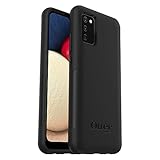
- Compatible with Samsung Galaxy A02S
- DOES NOT come with a screen protector
- Soft inner and hard outer layers absorb and deflect impacts, open access to ports and speakers (no port covers)
- Thin profile slips in and out of pockets
- Trusted OtterBox Quality: With OtterBox, you're not just buying a case; you're investing in peace of mind. Our limited warranty covers material and workmanship defects.
Before resetting, check whether your photos and other important content were backed up or synced. A factory reset erases data stored on the phone, including local files that were not backed up. Google-backed-up data may be restorable during setup, but apps and their data are removed. Google’s Android factory-reset guidance
Compare the available routes
| Route | Eligibility | Local data | Account access |
|---|---|---|---|
| Previous-lock recovery | Supported Galaxy model with One UI 6.1 or later; prior lock changed within 72 hours; recovery option appears | Can avoid erasing the phone | Enter the previous lock method |
| Erase and reset | Use an official remote-erase route if its requirements are met, or follow Samsung’s instructions for the exact model | Erases device data; unsynced content should be treated as lost | Previously synced Google Account may be required during setup |
How can you erase and reset the A02?
Google’s remote erase option is conditional. The phone needs to be powered on, connected to the internet, signed in to a Google Account, visible on Google Play, and have Find Hub enabled. If those requirements are not met, Google points users to a button-based reset using the manufacturer’s model-specific instructions.
Rank #2

- 【Compatible Models】: Compatible with Samsung Galaxy A02 / M02, NOT compatible with other devices.
- 【Screen Protector】: We will send the phone case with 1 piece tempered glass screen protector.
- 【Camera Lens Protection】: Delicate Slide Lens Cover, higher than the raised Camera protects your phone camera from scratches,collision, scuffs and impact. Unique design to hide the camera perfectly, increase the science and technology feeling at the same time. Close to protect your camera and privacy.
- 【Ring Kickstand】: 360 degree rotatable Built-in flexible kickstand, Provides your Phone with multiple-viewing angles for watching video and movie as a kickstand. Built-in metal disk can be attached to a magnetic car mount (Just phone case, NOT including car mount).
- 【Materal】: Soft TPU + Hard Plastic + Metal Ring, 3 in 1 hybrid design, Soft inner layer + Tough & outer layer features dual layer protection.
- Confirm your Google Account credentials. Make sure you can sign in to the Google Account previously synced to the A02 before erasing it.
- Check for a backup. Review what is already backed up or synced, and understand that a reset removes unsynced data and installed apps.
- Choose an official reset route. If the remote-erase requirements are met, use Google’s Find Hub guidance. Otherwise, find Samsung’s instructions for your exact A02 model and region, or contact Samsung support or an authorized service center.
- Follow only the matching button instructions. A single Recovery button sequence is not established for every A02 regional model and software build, so do not assume instructions for a different Galaxy are interchangeable.
- Set up the phone after it resets. Restore available backed-up content and complete any ownership checks requested during setup.
Google warns that a protected phone reset with its buttons can require the screen credentials or an eligible Google Account that was previously synced to it. Without the required credentials, you may be unable to use the device after reset. Google Android Help: Help prevent others from using your device without permission
Why does Google require an account after a reset?
That check helps prevent someone from using a device reset without the owner’s permission. If setup requests the Google Account previously synced to the phone, provide the account credentials rather than treating the prompt as a pattern-removal step. If you cannot access the account, use Google’s account-recovery process before resetting; erasing the device does not remove this ownership check.
Rank #3
![beukei Compatible with for Galaxy A02 Wallet Case [2 Pack] Tempered Glass Screen Protector, Leather Flip Credit Card Holder Stand Phone Cover, for Samsung Galaxy A02 Case Black](https://m.media-amazon.com/images/I/41HZgPzDSnL._SL160_.jpg)
- 【Compatible Models】: Compatible with Galaxy A02 , NOT compatible with other devices.
- 【Card Holder】:3 card slots securely hold your cards and some cash without taking wallet outside.
- 【Kickstand】: The Kickstand can be converted into a multi-angle comfortable view for reading, watching videos or facetime.
- 【Precise cutouts】:Precise cutouts for speakers, charging ports, audio ports and buttons for your convenience.
- 【All-Round Protection】: Full body protective wallet case to protect your mobile phone from drop and bump.
Does Google still offer “Forgot pattern”?
Google’s pattern-reset flow is for devices running Android 4.4 or lower. It is not a general current method for unlocking a Samsung A02. On an eligible Galaxy, Samsung’s previous-lock option is a separate, limited feature; otherwise, Google’s stated route for a phone that cannot be unlocked is erasure and setup again.
Quick Recap
Product prices and availability are accurate as of the date/time indicated and are subject to change. Any price and availability information displayed on Amazon at the time of purchase will apply.

