
To make a screen recording look professional, plan a short, uncluttered click path, capture clean audio and screen footage, then use cursor-follow and zoom effects to guide attention. Let automatic effects create a first pass—but review their timing and framing before exporting. Screen Studio is geared toward fast automatic cursor-follow zoom on macOS; Camtasia offers more post-recording cursor and zoom control; Descript is useful when transcript-led editing and captions are central.
How do you make a screen recording look professional?
Build the demo around one task and remove anything that distracts from it. A polished recording is not just a clear capture: the cursor should be easy to see, zooms should clarify small interface details without losing context, and narration should match the action on screen.

- Plan the shortest useful path. Write down the clicks that prove the feature. Close unrelated windows, enlarge the app or browser, and keep the recording region consistent.
- Capture clean source media. Record screen and microphone as separate tracks when your software allows it; add a camera track only if it helps the demonstration. Screen Studio says its recorder can capture system audio, microphone audio, or both with frame-accurate synchronization. Camtasia documents capture of the screen, camera, microphone, system audio, and mouse data. Screen Studio recording features; Camtasia features.
- Make the pointer easy to follow. Choose a larger pointer with enough contrast against the interface. Add a subtle click effect if it helps viewers see where an action occurred, but keep its color and size consistent. Screen Studio documents cursor enlargement, smoothing, click effects, and automatic hiding when idle. Camtasia documents cursor scaling, cursor-path editing, and click effects. Screen Studio Pro features; Camtasia features.
- Use zoom to clarify, not to decorate. Start with automatic zooms, then adjust the framing and timing so each zoom lands as narration names the control or action. Screen Studio says it zooms where you click and pans smoothly. Camtasia documents AutoPan, which follows the cursor, and AutoZoom, which enlarges or reduces the action area. Screen Studio; Camtasia recording documentation.
- Add only necessary annotations. Use an arrow, box, highlight, or short label when a viewer might otherwise miss an interaction. Screen Studio documents arrows, boxes, pen, highlighter, text, and stickers while recording. Screen Studio recording features.
- Clean up speech and text. Remove dead air, mistakes, and repeated clicks. Captions help viewers follow along when they cannot use audio and can make spoken instructions easier to understand. Descript combines screen capture with a transcript and supports editing video by editing text; its features page describes automatic transcripts and caption workflows. Descript screen recording update; Descript features.
- Export for where people will watch. Keep a 16:9 master, then make square or vertical versions if the destination calls for them. Screen Studio documents wide, square, and vertical outputs, with zooms, layouts, and captions adapting to the selected shape. Screen Studio Pro features.
How can you make the camera follow your cursor?
Use an editor with cursor-aware movement or zoom. The exact behavior differs: some tools automatically reframe around clicks, while others let you adjust a cursor path or control the pan and zoom after recording. The available feature descriptions are from the vendors, so they establish what the products document—not which tool produces the best result for every project.
Screen Studio: automatic cursor-follow zoom
Screen Studio describes its effect this way: “The camera follows your cursor and clicks.” Its product page says it zooms where you click and pans smoothly, making it a fit for macOS creators who want automatic movement and quick exports. Review the generated zooms: a click is not always the moment viewers need a close-up, and an overly tight frame can hide surrounding context. Screen Studio.
Free tools Windows power users keep installed
One-click scans. No signup required.
#1 Best Overall

- High resolution 1080P Full HD Webcam. Plug and play Batteries are not included. This 1080P webcam supply Crisp Image and Crystal Clear Video. Webcam captures your clips in true 1080p glory, and 30 frames per second, so even the most detailed makeup tutorials look crisp and clear.
- Suitable for mainstream software, Compatible with multi system. Versatile 1080P USB webcam for gaming, blogging, conferencing and Live streaming, widely works with Windows 10, Windows 7, Windows 8, Windows 2000, Windows XP, Android TV, Mac OS X etc. Compatible with Facebook, Skype, OBS, You Tube, Twitter,Twitch .Switch 2
- 110 Degree Wide Angle Webcam with Microphone. Fixed focus Webcam captures Full HD video at a wide angle of up to 110 degrees. Giving you an unparalleled perspective for a wide variety of conditions when you live streaming, video chatting or recording. Build-in auto noise reduction Mic makes sound purer and clearer, and pick up your voice even at 3m distance. Also Easy to turn off the webcam microphone on the software setting you used, when you want to use your own headset or speake..
- Easy to Setup, Play and Plug:The product has no battery.1080P webcam camera with low light correction, makes you see clearly even in dim light. Easy to Setup, just Play and Plug, No additional driver need. It also features a universal clip, with a 6ft USB power cable that fits to laptops and LCD monitors.
- This web camera for desktop computers comes With Tripod and Privacy Cover. PC webcam with Privacy cover allows you to enjoy safe digital web life when not in use and prevent hackers from spying on you. To control what your video displays at any time, effectively protecting your privacy. The webcam comes with a tripod, convenient for you to place the computer camera..
Camtasia: cursor editing and AutoPan/AutoZoom
Camtasia is a stronger fit when you need to refine cursor behavior after recording. TechSmith says the editor captures cursor data so its movement and appearance can be modified later. Its documentation describes AutoPan following the cursor and AutoZoom enlarging or reducing the action area. Camtasia features; Camtasia recording documentation.
Descript: transcript-led cleanup
Descript is suited to a workflow where spoken content is the main editing problem: capture the screen, edit the transcript to remove spoken mistakes, and build captions. Its product update says screen capture and transcript are stored in one file. That makes it relevant when text-based editing is more important than automatic cursor-follow zoom. Descript screen recording update; Descript features.
Rank #2
Which tool should you choose?
There is no universal winner. Choose according to the work you need to do after the recording: automatic motion, detailed cursor correction, or transcript-based editing.
| Tool | Platform fit | Automatic cursor or zoom behavior | Post-recording control | Transcript and caption workflow |
|---|---|---|---|---|
| Screen Studio | macOS creators, according to its product positioning (Screen Studio) | Documents zooming where you click and smooth panning | Documents cursor and zoom effects; the cited pages do not establish cursor-path editing depth comparable to Camtasia | Documents captions and adaptation to wide, square, and vertical exports (Screen Studio Pro) |
| Camtasia | Not stated on the cited feature and recording pages (TechSmith; TechSmith) | Documents AutoPan following the cursor and AutoZoom for changing the action area | Documents captured cursor data that can be modified in the editor | Not stated on the cited pages (TechSmith) |
| Descript | Not stated on the cited pages (Descript) | Automatic cursor-follow zoom behavior is not stated on the cited pages | Documents text-based video editing through its transcript workflow | Documents automatic transcripts and caption-oriented features |
How should you time zooms, cursor effects, and narration?
Use automation as a draft, not a substitute for review. A zoom should begin when the viewer needs to inspect something and ease out when the wider interface becomes relevant again. If the action is obvious, keep the zoom brief; if a small control matters, frame it closely enough to read without cutting away useful context.
Quick Recap
Rank #4
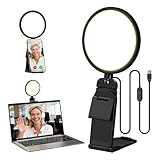
- Upgraded Light Panel — 200% Softer – LitONES features a 4-layer optical soft panel with edge-lit technology that eliminates glare and hotspots. The ultra-soft diffused light gently diminishes shadows, unifies complexion, and enhances your best features — delivering flattering light that ensures you always appear sharp, natural, and engaging in every video meeting
- Vivid On‑Camera Colors, Comfortable Long‑Hour Lighting – , Professional-grade CRI (Ra) 97.8 ensures true-to-life color reproduction in your videos, so you never look washed out on camera again. The soft, natural light is also gentle on your eyes, helping you stay comfortable and focused during long zoom calls or streaming sessions
- 50 Dimmable Modes - 5 color temperatures (3000K-6500K from cool white to warm tones) and 10 adjustable brightness levels (3%-100%) providing you with unparalleled flexibility, allowing you to achieve the perfect lighting for video calls, remote conferences, zoom meetings, streaming, podcasting, or content creation
- Angle It Any Way You Want – With 360° rotation and 180° tilt, the light head moves freely to put light exactly where you need it. Height adjusts from 6 to 8.9 inches to suit your setup. Use it as a key light to brighten your face, or as a balance fill light to soften shadows — simply hang it behind your monitor or place it on your desk
- Screen-Safe Hanging Mount – With a 2"–2.5" stretchable hanging clip, this webcam light installs instantly with no tools required. It fits most monitors and laptops—from thin to thick, regular to curved—and stays firmly in place without taking up desk space or scratching your screen
Rank #3
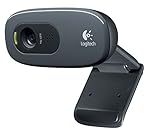
- This Certified Refurbished product is tested and certified to look and work proof as new restoration functionality. process includes, cleaning, inspection, basic and repacking. The product ships with all accessories, a minimum of 90 days warranty, and can only arrive in a generic box. Select sellers who maintain high performance can offer certified refurbished products on Amazon. com
- HD 720P, video calls and HD video recording, 2.4 GHz, Intel Core2 Duo, 2 GB RAM, 200 MB HDD space
- Video capture: Up to 1280 x 720 pixels, Logitech Fluid Crystal
- 3MP Sharp Photo Technology, Hi-Speed USB 2.0
- Built-in microphone filters out background noise
- Pause briefly after important clicks so viewers can register the result.
- Keep one comfortable zoom level for most actions; reserve stronger zoom for small controls.
- Align the zoom with the spoken explanation rather than letting it lead or lag noticeably.
- Remove repeated clicks and cursor detours that do not help explain the task.
- Keep click ripples and annotations consistent in color and size.
What should you check before exporting a demo?
- Start and end on a clean frame, without visible desktop clutter.
- Listen for keyboard noise and room echo, as well as changes in microphone level.
- Check that captions match the narration and remain readable in the chosen aspect ratio.
- Review the exported file at the size your audience will watch. Small interface labels that seem legible in an editor may disappear in a social feed.
- Watch the whole demo once without editing: any moment where the cursor, zoom, or narration makes the next action unclear is a cue to revise.
Product prices and availability are accurate as of the date/time indicated and are subject to change. Any price and availability information displayed on Amazon at the time of purchase will apply.

