
To access work or school files from your computer, use the current OneDrive sync app and choose either Add shortcut to OneDrive for access through OneDrive across devices, or Sync to connect a SharePoint or Teams library to that computer. Use Files On-Demand to control which files take up disk space and which remain available offline.
Choose a shortcut or sync a library
Office 365 work and school files are generally stored in SharePoint or Teams; the OneDrive sync app makes them available in Windows File Explorer or macOS Finder. Microsoft supports two routes, and they differ mainly in where the content is exposed.

| Approach | What it does | Where you can access it |
|---|---|---|
| Add shortcut to OneDrive | Adds a shortcut to a SharePoint folder in OneDrive. | Available through OneDrive across devices where you use it. |
| Sync | Connects a SharePoint or Teams document library to the OneDrive app on a particular computer. | Specific to that device. |
Choose a shortcut if you want the folder exposed through OneDrive across your devices. Choose library sync when you want that library connected to a particular computer. In either case, Files On-Demand lets you manage local storage and offline access.
Set up SharePoint or Teams files on your computer
- Make sure the current OneDrive sync app is running and signed in. Use the work or school account that has access to the SharePoint site or Teams files.
- Open the relevant SharePoint document library or Teams files. In the library, choose Add shortcut to OneDrive or Sync, depending on the access pattern you want. Microsoft’s support instructions cover both options: sync SharePoint and Teams files with your computer.
- Follow the prompts from the library and OneDrive app. The files should then appear in your computer’s file manager. Labels and exact controls can change, so use the options currently displayed in your Microsoft 365 library and OneDrive app.
- Set file availability as needed. On Windows, check Files On-Demand in OneDrive settings. On macOS 12.1 and later, Microsoft says Files On-Demand is part of macOS and on by default. On earlier macOS versions, enable it in OneDrive Preferences before syncing.
Microsoft lists Windows 10 version 1709 or later, or Windows Server 2019, as Files On-Demand requirements on its Windows Files On-Demand support page. That page also says OneDrive build 23.066 or later enables Files On-Demand by default. Check Microsoft’s current platform requirements if your device or app version differs.
Understand online-only and offline file states
Files On-Demand determines whether a file is stored locally; it does not require a separate purchase.
- Online-only: The item appears in File Explorer or Finder without taking up local file space. You need an internet connection to open its contents.
- Locally available: Opening the file downloads it. Once downloaded, it can be used offline.
- Always available: Mark selected files to keep them on the device for offline access. If you need to reclaim space later, return them to online-only status.
Keep frequently needed files available offline, especially when you may not have a reliable connection. Leave less-used content online-only when local storage is limited.
Rank #2
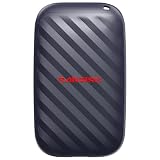
- Up to 4x faster transfer speeds than old-school portable hard drives(3) - skip the wait when moving large files with up to 600MB/s(2) read speeds.
- Durable design - no moving parts means better durability with up to 2-meter drop protection(4).
- POCKET-SIZED – fits easily in pockets and small bags.
- Space to own your AI content – fast storage to quickly download your AI edits, clips, and files.
- USB-C ready - plug in and get to work instantly.
Check item and file-size limits before syncing a large library
Microsoft’s restrictions guidance, retrieved October 5, 2026, lists a maximum individual-file size of 250 GB for sync, upload, or download. It recommends no more than 300,000 items across cloud storage for optimum performance and warns that performance issues can occur above that count, even if every item is not actively syncing. These are Microsoft’s published guidance figures, not a guarantee of performance for a particular device or tenant. See the OneDrive and SharePoint restrictions and limitations.
Microsoft’s same restrictions page describes a higher limit of 1,000,000 items per sync instance per device in a Windows public preview announced April 22, 2026. The preview requirements include Windows 11 or Windows Server 2022, a current Insider OneDrive app, at least 16 GB of RAM, SSD storage, and a specified processor class; virtual desktop infrastructure (VDI) is excluded. Devices that do not meet the preview requirements remain at the 300,000-item supported limit. Because this is a restricted preview, do not assume that a device or organization is eligible: check the current Microsoft rollout and eligibility details.
Windows Errors? Fix Them Before They Spread
Repair common Windows errors and clear accumulated junk for a smoother, more stable PC - no reinstall needed.Free scan · no reinstallOutdated Drivers Are Slowing You Down
One free scan finds every outdated or missing driver and matches the right update for your exact hardware.Free scan · exact hardware matchRank #3

- [Package Offer]: 2 Pack USB 2.0 Flash Drive 32GB Available in 2 different colors - Black and Blue. The different colors can help you to store different content.
- [Plug and Play]: No need to install any software, Just plug in and use it. The metal clip rotates 360° round the ABS plastic body which. The capless design can avoid lossing of cap, and providing efficient protection to the USB port.
- [Compatibilty and Interface]: Supports Windows 7 / 8 / 10 / Vista / XP / 2000 / ME / NT Linux and Mac OS. Compatible with USB 2.0 and below. High speed USB 2.0, LED Indicator - Transfer status at a glance.
- [Suitable for All Uses and Data]: Suitable for storing digital data for school, business or daily usage. Apply to data storage of music, photos, movies, software, and other files.
- [Warranty Policy]: 12-month warranty, our products are of good quality and we promise that any problem about the product within one year since you buy, it will be guaranteed for free.
File names, paths, blocked file types, and organization policies can also prevent sync. Administrators may block additional file types. For files larger than a few gigabytes, Microsoft recommends using the OneDrive desktop app rather than uploading through the website.
Troubleshoot a sync that stalls
If OneDrive shows “Processing 0KB of xMB” or appears stuck, work through these checks:
Rank #4

- Set up a personal cloud in minutes and get right into data managing works
- Store, access, and share files over the web, or from your desktop or mobile devices
- Share storage with family and friends so everyone has their own personalized storage space
- Edit files on BeeStation from your desktop while keeping your progress synced across computers
- Back up files from Google Drive, OneDrive, Dropbox, and external drives to one central place
- Allow for library size. A large number of files can take time to process. Check the item count against Microsoft’s performance guidance.
- Sync only what you need. Select the folders required for this computer rather than connecting an unnecessarily large library.
- Check for blocked names, paths, or file types. Review Microsoft’s restrictions guidance and ask your work or school administrator whether organization policies block the file type.
- Use the desktop app for large transfers. Microsoft recommends the OneDrive desktop app for many or large files, and specifically for files larger than a few gigabytes.
- Confirm the client. The current OneDrive sync app is the supported route. The former OneDrive for Business sync client, Groove.exe, is no longer supported for SharePoint Online. Microsoft provides current guidance for syncing SharePoint files and folders.
If the issue persists in a work or school environment, Microsoft points users to business support and its related OneDrive troubleshooting resources.
Independent reader supportYour contribution helps us test, update, and keep practical guides available for everyone.What administrators should consider
For organization-wide deployment, administrators may need to plan update rings, network use, common-folder configuration, organization restrictions, file exclusions, and hybrid SharePoint Server requirements. These are tenant-management decisions, not steps every individual user needs to complete before syncing.
Quick Recap
Best Value

- 256GB ultra fast USB 3.1 flash drive with high-speed transmission; read speeds up to 130MB/s
- Store videos, photos, and songs; 256 GB capacity = 64,000 12MP photos or 978 minutes 1080P video recording
- Note: Actual storage capacity shown by a device's OS may be less than the capacity indicated on the product label due to different measurement standards. The available storage capacity is higher than 230GB.
- 15x faster than USB 2.0 drives; USB 3.1 Gen 1 / USB 3.0 port required on host devices to achieve optimal read/write speed; Backwards compatible with USB 2.0 host devices at lower speed. Read speed up to 130MB/s and write speed up to 30MB/s are based on internal tests conducted under controlled conditions , Actual read/write speeds also vary depending on devices used, transfer files size, types and other factors
- Stylish appearance,retractable, telescopic design with key hole
Product prices and availability are accurate as of the date/time indicated and are subject to change. Any price and availability information displayed on Amazon at the time of purchase will apply.

