
The Tool Desk
Outbyte PC Repair FREERepair Windows errors before they cause bigger problemsFix Now →Outbyte Driver Updater FREEFix the driver behind crashes, sound loss and screen glitchesFind Drivers →iTechGuides is reader-supported. When you buy through links on our site, we may earn an affiliate commission. As an Amazon Associate I earn from qualifying purchases. Learn more
In OBS, add your video as a Media Source, connect OBS to a YouTube Live event with its stream key, and test at 720p30 before going live. This is a practical starting point for a budget PC—not a guaranteed minimum: the right settings depend on your computer, file, and stable upload speed.
Before you begin: check YouTube access and prepare the video
Your YouTube channel must be verified and must not have had a live-streaming restriction in the preceding 90 days. Create or schedule the event in YouTube Studio’s Live Control Room; it provides the stream URL and key for an encoder such as OBS. Treat the key like a password: do not share it or show it in a screenshot. YouTube’s live-streaming requirements and setup.
- Have the finished video saved locally and confirm that it plays with sound.
- Install OBS Studio and allow it through any computer firewall if prompted.
- Decide whether the video should play once or repeat. For a playlist, install VLC if you plan to use OBS’s VLC Video source.
- Schedule the event with enough time to test it before the intended start.
Set up the video in OBS
- Create a scene: In OBS, use the Scenes panel’s + button, name the scene, and select it.
- Add the file: In Sources, click + and choose Media Source. Name it, select OK, then browse to the video file. OBS supports formats including MP4, TS, MOV, FLV, MKV, AVI, GIF, and WebM; a listed container alone does not guarantee that every codec inside a particular file will play correctly.
- Choose playback behavior: Enable Loop if the file should start again automatically when it ends; otherwise leave it off. Check the preview for the correct picture and aspect ratio. Options such as restarting playback when the source becomes active and hardware decoding may be useful, but decoding support depends on the GPU and media format.
- Set up a playlist only if needed: Add a VLC Video source for multiple files and configure its playlist and looping behavior. VLC must be installed. For one file, Media Source is simpler. OBS documentation for media sources.
Choose OBS output settings for a budget PC
Start with a configuration you can test rather than assuming every budget computer can encode a particular resolution. For an ordinary SDR stream, use H.264, CBR, a two-second keyframe interval, AAC audio, and Rec. 709. In OBS, switch to Settings → Output and choose Advanced output mode if necessary to expose encoder controls. Under Settings → Video, set the output resolution and frame rate. OBS label wording can vary by version.
| Test output | YouTube H.264 live-ingest bitrate | When to try it |
|---|---|---|
| 720p at 30 fps | 3 Mbps minimum; 8 Mbps recommended | Conservative first test for an unknown PC and connection. |
| 1080p at 30 fps | 5 Mbps minimum; 14 Mbps recommended | Try only if the PC encodes smoothly and measured upload can sustain the bitrate with headroom. |
These are YouTube’s live-ingest figures for H.264, not a promise that a particular PC can decode and encode your file without lag. YouTube recommends CBR and a two-second keyframe interval, and says not to exceed four seconds. Its listed live-ingest video codecs also include H.265/HEVC and AV1, but H.264 is a straightforward compatibility starting point. For stereo audio, YouTube recommends AAC at 128 kbps; use progressive scan and square pixels. Check the current YouTube encoder settings, bitrates, and resolutions.
#1 Best Overall

- This Gaming PC Desktop is well-suited for a variety of tasks including gaming, study, business, photo and video editing, streaming, day trading, crypto trading and so on
- This high-performance Gaming Computer Desktop is capable of running a wide range of popular PC games for pc gamer, including Fortnite, Call of Duty Warzone, Escape from Tarkov, GTA V, World of Warcraft, LOL, Valorant, Apex Legends, Roblox, Overwatch, CSGO, Battlefield V, Minecraft, Elden Ring, Rocket League, The Division 2, and Hogwarts Legacy with 60+ FPS
- PC Gaming System: This gaming computer desktop is loaded with Intel Core i7 up to 3.9GHz | 16GB Memory | 1TB Solid State Drive | Genuine Windows 11 Home 64-bit
- Gaming Desktop Connectivity: This gaming pc comes with RGB Fan x 6 | 1x RJ-45 | Wi-Fi 6 | Bluetooth 5.0 | AMD Radeon RX 580 8G GDDR5 Video Card | 1x HDMI | 3x DisplayPort | 1x DVI
- Gaming Computer Special Feature: This gaming pc equips with RGB Gaming Mouse & Keyboard | 1 Year parts & labor | Complimentary lifetime tech support
If OBS shows rendering or encoding lag, lower the output resolution or frame rate, or try a hardware encoder if OBS offers one and your GPU supports it. Hardware encoding may reduce CPU work, but it is not available or suitable on every budget PC. The file’s resolution is not necessarily the resolution you must stream at: test the actual playback and output together.
Connect OBS to the YouTube event
- In OBS, open Settings → Stream and select YouTube as the service if available. If OBS asks for a server and key instead, choose the RTMP/RTMPS server details supplied by YouTube Studio’s Live Control Room.
- Copy the event’s stream key from YouTube Studio into OBS. Keep it private. Use the event-specific key and server details shown for that broadcast rather than publishing or reusing credentials carelessly.
- Click Apply and OK, then return to the main OBS window. Confirm the intended scene is selected and the Media Source is visible.
- In YouTube Studio, open the event’s Live Control Room and wait for the incoming preview after connecting. Follow the on-screen prompt to start the live event when the preview and stream health are ready.
YouTube’s encoder workflow and stream-key guidance are in its Live Control Room instructions.
Rank #2

- 【POWERFUL PERFORMANCE】 – AMD Ryzen 5 5500 6-Core 12-Thread Desktop Processor (up to 4.2GHz). Effortlessly handle 3A games, 4K video editing, and multitasking.
- 【SMOOTH GAMING】 – Equipped with GeForce RTX 3050 6GB GDDR6 Graphics Card. Experience high-frame-rate 1080P gaming with ray tracing.
- 【FAST & AMPLE STORAGE】 – 16GB DDR4 3200MHz RAM + 1TB NVMe SSD. Enjoy rapid game loads, quick file transfers, and ample space for your entire library.
- 【KEEP COOL】 – Advanced ARGB air cooling system with multiple fans. Maintains stable performance and low noise even during marathon gaming sessions.
- 【READY TO USE】 – Features built-in Wi-Fi, multiple USB ports, HDMI and DisplayPort (DP) outputs for flexible monitor connectivity. A complete prebuilt gaming computer, plug and play right out of the box.
Check upload speed and stability in India
Use the upload result from the location where the PC will stream; an ISP plan’s advertised download speed does not establish the upload capacity available to OBS. YouTube says total stream bitrate must fit within available upload bandwidth, and recommends retaining 20% headroom. Measure at a realistic time, with other household devices using the connection as they normally would. Leave room for fluctuations rather than setting OBS at the full measured upload rate.
Recommended Free Tools
Ethernet may provide a more stable connection than Wi-Fi where practical, but a cable cannot fix inadequate upload capacity or congestion upstream. YouTube recommends testing upload bitrate and advises using a wired connection where possible. These are general recommendations, not performance measurements for a particular Indian ISP. See YouTube’s streaming tips.
Rank #3

- This Gaming PC Desktop is well-suited for a variety of tasks including gaming, study, business, photo and video editing, streaming, day trading, crypto trading, and so on,ideal for Home, Office, School work
- This high-performance Gaming Computer Desktop is capable of running a wide range of popular PC games for pc gamer, including Fortnite, Call of Duty Warzone, Escape from Tarkov, GTA V, World of Warcraft, LOL, Valorant, Apex Legends, Roblox, Overwatch, CSGO, Battlefield V, Minecraft, Elden Ring, Rocket League, The Division 2, and Hogwarts Legacy with 60+ FPS
- PC Gaming System: This gaming computer desktop is loaded with Intel Core i5 up to 3.6GHz | 16GB Memory | 512GB Solid State Drive | Genuine Windows 11 Home 64-bit
- Gaming Desktop Connectivity: This gaming pc comes with RGB Fan x 2 | 1x RJ-45 | Wi-Fi 6 | Bluetooth 5.0 | Radeon RX 550 4G GDDR5 | HDMI | DisplayPort
- Gaming Computer Special Feature: This gaming pc equips with RGB Gaming Mouse & Keyboard | 1 Year parts & labor | Free lifetime tech support, ARGB lighting that brings your gaming setup to life, with easy plug-and-play setup that gets you started in minutes. Built for long-lasting performance, it holds up well over time, while secure packaging ensures it arrives in perfect condition. Backed by reliable customer support for quick issue resolution
Run a full test, then go live
- Start the OBS stream before the planned broadcast time and open the event in YouTube Studio.
- Wait for YouTube’s preview. Check that the video is moving, correctly framed, and playing the expected sound.
- Run an unlisted test using the same file, output settings, and network conditions as the real event. Check OBS’s stats for dropped frames, rendering lag, and encoding lag, and watch YouTube’s stream-health notices.
- Check the stream from the channel or watch page on another device if practical. Confirm playback and audio there, not just in OBS’s local preview.
- Start or confirm the event in Live Control Room when ready. Monitor audio, picture, and stream health during the broadcast; when it is over, end the event in YouTube and stop the OBS stream.
YouTube recommends testing before an event and monitoring the broadcast. Its guidance is available in the encoder settings and streaming tips.
Rights, copyright, and monetization
Being able to play a local file through OBS does not give you permission to rebroadcast it. Use video, music, images, and other material you created or have the necessary rights to use in a live stream. A file’s availability online—or the fact that you have downloaded it—does not establish permission.
Rank #4
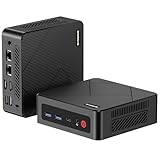
- 【Ryzen 5 3500U Processor】The BOSGAME mini pc is driven by the Ryzen 5 3500U (4C/8T, up to 3.7GHz) , with integrated Radeon Vega 8 Graphics, delivering reliable power, 4K video streaming and multitasking. Handle daily workloads like spreadsheet calculations, web browsing, and HD video editing effortlessly.
- 【8GB DDR4 & 256GB SATA SSD】E4 Air mini computers with 8GB DDR4 RAM and a 256GB SATA SSD, this mini desktop ensures quick app launches and efficient multitasking. while the SSD accelerates file transfers—ideal for office documents, media storage, and everyday computing.
- 【4K Triple Display & USB-C & USB3.2】The mini desktop computer Drives three 4K monitors via HDMI, DisplayPort and USB-C for multi-window productivity or immersive home theater setups;USB 3.2 meets your multi-interface transfer needs.
- 【Dual RJ45 LAN & Wi-Fi 5 & BT5.0】Equipped with Dual Gigabit Ethernet, dual-band Wi-Fi 5, and Bluetooth 5.0, this ryzen mini pc ensure stable connections for 4K streaming, video calls, and file transfers. Wirelessly connect keyboards, headphones and speakers via BT5.0 ideal for office productivity and home entertainment.
- 【3-Year Reliable Customer Services】 All of our BOSGAME mini pc gaming have FCC, ROHS, CE certifications. BOSGAME enjoy a 1-year wa-rranty for the entire machine and a 3-year wa-rranty for parts, ensuring your long-term peace of mind. If you have any questions about your purchase, please let us know through Amazon.
Copyright compliance and monetization eligibility are separate questions. YouTube’s reused-content policy concerns channels that republish material from YouTube or another online source without significant original commentary, substantive modification, or educational or entertainment value. The policy is assessed at channel level, and YouTube says reused-content examples do not override copyright rules. Streaming a prerecorded video as live does not itself make it original or eligible for monetization. Read YouTube’s channel monetization policies.
Do these 3 things before closing this tab:
1Clear out junk files and repair common Windows errors2Scan for outdated or missing drivers - takes under a minute3Repair Windows errors before they cause bigger problemsTroubleshooting common problems
| Symptom | Likely cause | What to check or change |
|---|---|---|
| YouTube does not receive the OBS stream | Wrong event key, server details, or service selection; event setup or eligibility issue. | Recheck the event’s server and key in Live Control Room, confirm OBS’s stream service, and verify channel eligibility. Do not expose the key while troubleshooting. |
| Video appears in OBS but not in the YouTube preview | OBS is not sending, YouTube is still connecting, or the wrong scene/source is active. | Confirm the intended scene and source, check OBS’s stream status, and allow the Live Control Room preview time to appear. Look at YouTube’s stream-health messages. |
| Media Source is blank or will not play | Wrong file path, unsupported codec within the container, or playback/decoding issue. | Open the file locally, verify the path in Media Source properties, and test a known-good file. Try changing hardware decoding if available, or use a compatible exported file. |
| Video stops at the end instead of repeating | Loop is disabled. | Open Media Source properties and enable Loop; replay the test to confirm it restarts. |
| OBS reports encoding or rendering lag | The PC cannot sustain the selected output load, or competing tasks are using resources. | Close unnecessary applications, reduce output resolution or frame rate, and test an available hardware encoder. Do not assume a stated bitrate solves PC encoding load. |
| Dropped frames or unstable stream health | Upload capacity, Wi-Fi instability, or network congestion. | Compare the stream bitrate with stable upload measured at the broadcast location, restore headroom, reduce bitrate if needed, and try Ethernet where practical. |
| Picture works but audio is missing or wrong | Incorrect source audio settings, muted mixer channel, or wrong audio device. | Watch OBS audio meters during playback, check the Media Source and mixer mute state, then confirm sound in YouTube’s preview and test watch page. |
| The stream works but monetization is uncertain | Technical streaming success does not decide copyright clearance or channel-level monetization review. | Confirm rights for every included asset and review YouTube’s reused-content policy; do not treat live presentation as an automatic originality exemption. |
Or let it run in the cloud
If the goal is to keep a prerecorded YouTube stream running without leaving a budget PC on, StreamNeo is the cloud alternative: upload the video, add your YouTube stream key, and go live. Nothing has to stay on at home; it loops uploaded videos and can recover automatically if YouTube drops the stream. Each slot streams your upload as made, up to 4K 60fps, at one flat price per slot—no re-encode or quality tiers. The first day is free with no card. The Monthly price is $9.99 per month. UPI and cards are available in India; card checkout is available worldwide. Start your free day with StreamNeo.
Quick Recap
Best Value

- This Gaming PC Desktop is well-suited for a variety of tasks including gaming, study, business, photo and video editing, streaming, day trading, crypto trading, and so on,ideal for Home, Office, School work
- This high-performance Gaming Computer Desktop is capable of running a wide range of popular PC games for pc gamer, including Fortnite, Call of Duty Warzone, Escape from Tarkov, GTA V, World of Warcraft, LOL, Valorant, Apex Legends, Roblox, Overwatch, CSGO, Battlefield V, Minecraft, Elden Ring, Rocket League, The Division 2, and Hogwarts Legacy with 60+ FPS
- PC Gaming System: This gaming computer desktop is loaded with Intel Core i7 up to 3.9GHz | 16GB Memory | 512GB Solid State Drive | Genuine Windows 11 Home 64-bit
- Gaming Desktop Connectivity: This gaming pc comes with RGB Fan x 6 | 1x RJ-45 | Wi-Fi 6 | Bluetooth 5.0 | GeForce RTX 3050 6G | HDMI | DisplayPort
- Gaming Computer Special Feature: This gaming pc equips with RGB Gaming Mouse & Keyboard |1 Year parts & labor | Free lifetime tech support,ARGB lighting that brings your gaming setup to life, with easy plug-and-play setup that gets you started in minutes. Built for long-lasting performance, it holds up well over time, while secure packaging ensures it arrives in perfect condition. Backed by reliable customer support for quick issue resolution
Product prices and availability are accurate as of the date/time indicated and are subject to change. Any price and availability information displayed on Amazon at the time of purchase will apply.

