
iTechGuides is reader-supported. When you buy through links on our site, we may earn an affiliate commission. As an Amazon Associate I earn from qualifying purchases. Learn more
To stream a prerecorded yoga video as a YouTube Live broadcast, use OBS Studio on a computer: add the video as a Media Source, enable Loop, connect OBS to your YouTube stream key, and start streaming. Your broadband upload speed—not its advertised download speed—determines which resolution and bitrate you can send reliably.
What you need before you start
- A YouTube channel eligible to livestream. It must be verified and have no live-streaming restriction in the previous 90 days. First-time activation can take up to 24 hours, so enable it well ahead of your planned session. See YouTube’s live-streaming eligibility guidance and encoder setup guide.
- A computer running OBS Studio and a local yoga video file. For a playlist of multiple files, install VLC as well.
- A stable internet connection with enough available upload bandwidth for your chosen stream bitrate, plus some headroom.
- Permission to broadcast the video, music, and any other material in the recording.
Looping a source in OBS repeatedly sends it through the encoder as a live broadcast. It is different from the YouTube player’s loop control, which only repeats playback for an individual viewer and does not create a live stream.

Choose a resolution and bitrate for your upload speed
Measure upload speed under conditions similar to your planned broadcast, preferably at the time of day you expect to stream. YouTube says the total stream bitrate must not exceed available upload bandwidth and recommends leaving about 20% headroom. Account for the full stream, including audio, and any backup stream—not just the video bitrate. A speed test is a snapshot, so allow more margin if household traffic or Wi-Fi makes your connection variable. Read YouTube’s streaming tips.
| Output | YouTube H.264 video bitrate | Approximate upload capacity to reserve with 20% headroom* |
|---|---|---|
| 480p at 30 fps | 4 Mbps recommended; 0.4 Mbps minimum | 5 Mbps for video alone at the recommended rate |
| 720p at 30 fps | 6 Mbps recommended; 3 Mbps minimum | 7.5 Mbps for video alone at the recommended rate |
| 1080p at 30 fps | 10 Mbps recommended; 5 Mbps minimum | 12.5 Mbps for video alone at the recommended rate |
*These capacity figures are simple calculations applying YouTube’s 20% headroom guidance to the listed video bitrate. They do not include audio or a backup stream, so choose a connection with additional capacity.
#1 Best Overall
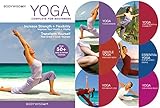
- YOGA FOR BEGINNERS DVD HIGHLIGHTS DVD
- YOGA FOR STRESS RELIEF DVD
- 12 customized routines that make all the physical and mental benefits of yoga available to everyone
- Choose from 12 easy-to-follow customized routines ranging from 15-60 minutes
- Experience yoga in a whole new way that increases your strength, flexibility & energy levels while reducing stress.
These are YouTube’s H.264 video recommendations, not a guarantee that a particular connection or plan will sustain them. Choose the highest setting your measured upload can carry reliably with the margin above, and check whether the yoga pose and movement remain clear on a phone or television. YouTube’s full recommendations for protocol, resolution, frame rate, and encoder parameters are in its live encoder settings guide.
Set up YouTube Live and copy the stream key
- In YouTube Studio, open the Live Control Room and create or schedule a stream. If this is your first livestream, complete activation early; YouTube says it can take up to 24 hours.
- Copy the stream key shown for the stream. Treat it like a password: anyone with the key may be able to send video to your broadcast. Do not show it in a recording or share it publicly.
- Keep the Live Control Room open for the preview, stream health, and broadcast controls you will use when testing and going live.
Follow YouTube’s create a live stream with an encoder instructions if the current Studio interface differs from these general steps.
Loop one yoga video in OBS
- Open OBS Studio and create a scene for the broadcast.
- In the Sources area, select + and add a Media Source. Give it a recognizable name, such as “Yoga session.”
- In the Media Source properties, select the local video file. Turn on Loop, then confirm the source. OBS will play the file again when it reaches the end.
- Check the preview. Resize or position the source if needed, and confirm the video’s audio is present at a suitable level. If the recording has no audio, do not assume the stream will have sound.
OBS documents the Media Source loop control in its Media Sources reference.
What’s actually slowing this PC down?
Pick the symptom - the matching free tool is one click away.
Use a playlist when you have several clips
- Install VLC. OBS requires VLC for its VLC Video source; if you use 64-bit OBS, install 64-bit VLC.
- In OBS, add a VLC Video source and add the video files in the order you want them to play.
- Enable Loop Playlist in the source properties, then confirm the sequence in the preview before broadcasting.
Use a single Media Source for one file; choose VLC Video when the session needs multiple clips in a repeating playlist.
Rank #3
Connect OBS to YouTube and configure the encoder
- In OBS, open Settings > Stream. Choose the YouTube service or YouTube RTMPS option available in your OBS version, then enter or select the stream key you copied from YouTube Studio.
- Use RTMPS where available. YouTube recommends RTMPS for an encrypted connection to its ingest servers. Verify that the selected YouTube server/service and key correspond to the stream open in Live Control Room.
- Open Settings > Output and set the video encoder bitrate to suit your tested upload capacity and YouTube’s recommendations. Include audio bitrate when checking total upload use.
- In Settings > Video, set the output resolution and frame rate you chose. Avoid selecting a higher output merely because the source file has a higher resolution; your upload must sustain the encoded stream.
- Check that the video and audio encoder settings follow YouTube’s current recommendations for your selected output. Use the values in YouTube’s encoder settings guide rather than copying settings for a different resolution or frame rate.
Test before the yoga session, then go live
- Start with an unlisted stream, if that visibility option suits your test. Click Start Streaming in OBS and wait for the Live Control Room preview.
- Check the picture, sound, framing, and whether the clip returns to its beginning as expected. View the preview from a second device to confirm the audience-facing result.
- Watch stream health in Live Control Room. If YouTube reports connection or bitrate trouble, lower the output bitrate or resolution and test again; do not rely on a single speed-test result.
- For the real broadcast, confirm the correct scheduled stream and visibility in YouTube Studio, start streaming from OBS, check the preview and health, then use YouTube Studio’s control to go live if the workflow requires it.
- Keep an eye on stream health during the session. If the broadband connection drops, OBS may need to reconnect; YouTube warns that connectivity disruption can break a stream.
India broadband: what to check
There is no universal Indian broadband upload speed that guarantees a given livestream quality. TRAI says it does not prescribe a minimum upload or download speed; providers must disclose typical speeds in tariff offerings. TRAI also states that at least 90% of measured test samples during testing must meet or exceed the declared typical speed, and notes that speeds may be reduced after a fair-usage threshold. Check your provider’s plan terms and test your own upload with TRAI’s MySpeed portal or app. These details are in TRAI’s BroadBand FAQ.
Test on the same connection and computer you will use to stream. A shared Wi-Fi network, other household uploads, or a fair-usage speed reduction can cut the capacity available to OBS. A wired connection may reduce local Wi-Fi variability, but it cannot remedy an ISP connection that lacks sufficient or stable upload speed.
Rank #4
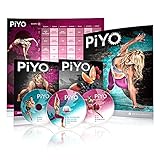
- LOW IMPACT HOME WORKOUTS: Follow the workout, schedule your weeks, and meal prep for results! All you need is your body weight to complete these at-home workouts. PiYo is a fat-burning workout that’s gentle on your body with modifications from beginner to advanced.
- MUSCLE-SCULPTING & FLEXIBILITY: PiYo combines the muscle-sculpting, core-firming benefits of Pilates with the strength and flexibility advantages of yoga. Transform your glutes and core for next-level strength and tightening.
- 30 MINUTE ROUTINES: The short, fun 30 minute routines fit into your busy lifestyle. Piyo cranks up the speed to deliver a true fat-burning, low-impact workout that leaves your body looking long, lean, and incredibly defined.
- EASY TO FOLLOW WORKOUTS: Includes 10 easy-to-follow and easy-to-learn workouts on 3 DVDs, Quick Start Guide, and a Workout Calendar to keep you on track and motivated. Moves come with simplified modifications, great for all workout levels.
- BONUS MEAL PLANS: Includes a Get Lean Eating Plan & Tape Measure. Workout equipment is not required! Packed with low-impact movies that are super fun and help support weight loss and muscle building goals.
Copyright and YouTube rules for yoga videos
Use only video, music, and other audio or visuals that you have the necessary rights to broadcast live. YouTube scans live streams for third-party content; it may replace a detected portion with a placeholder, interrupt the stream, or terminate it. A license by itself may not prevent an interruption: YouTube advises creators with licensed third-party material to ask the rights holder to add their channel to the Content ID allowlist. An archived stream may also receive a Content ID claim after the broadcast. See YouTube’s copyright guidance for live streams.
Free tools Windows power users keep installed
One-click scans. No signup required.
Also follow YouTube’s channel and live-stream policies. Repeating a recording does not change the rights status of its contents or guarantee that the broadcast will remain available. If you use music, confirm that your permission covers live transmission and any resulting archive.
Best Value

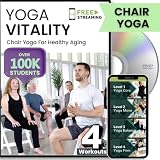
- 9 completely different practices, each 8 - 31 minutes long. A great value, providing over 3 hours worth of the most helpful exercises for older adults
- Includes the best traditional exercises, a tai chi program specifically developed to improve balance in older adults, modified yoga poses, and dance-based movements.
- All movements taught in mirror image with clear, easy-to-follow instructions and demonstrations.
- Filmed in beautiful Glacier National Park on the shore of Lake McDonald
- Designed and taught by expert instructor Jane Adams
Troubleshooting common problems
| Symptom | Likely cause | What to do |
|---|---|---|
| YouTube does not show an incoming stream | Wrong stream key, wrong YouTube service/server, or livestreaming is not yet enabled. | Confirm the stream key belongs to the open Live Control Room stream, recheck OBS’s stream settings, and verify channel eligibility. If activation is pending, allow up to 24 hours. |
| OBS connects but the stream buffers or reports poor health | Bitrate is too high for available upload, or the connection is varying under load. | Reduce bitrate or output resolution, stop other uploads, and retest at the expected broadcast time. Keep YouTube’s recommended 20% upload headroom, plus capacity for audio and any backup. |
| Video plays once and stops | Loop is not enabled on the Media Source. | Open that source’s properties and enable Loop; test through the file’s end before going live. |
| A playlist does not play or loop | VLC is missing, the OBS/VLC architectures do not match, or Loop Playlist is off. | Install VLC matching OBS (64-bit OBS requires 64-bit VLC), confirm the files are in the VLC Video source, and enable Loop Playlist. |
| There is no sound | The file may lack audio, the source may be muted, or OBS audio routing may not include it. | Check the media file, OBS mixer meters, mute state, and audio output in a test stream before the session. |
| The broadcast is interrupted or shows a copyright warning | YouTube detected material that may belong to a third party. | Use content cleared for live broadcast. If you have a license, contact the rights holder about Content ID allowlisting; do not assume the license alone prevents interruption. |
| The stream drops when home internet falters | The local connection has been disrupted. | Restore the connection, check OBS’s connection status, reconnect the encoder if needed, and confirm recovery in Live Control Room. |
Or let it run in the cloud
If you want a YouTube channel to keep a prerecorded yoga video live without leaving a computer and home connection running, StreamNeo is a cloud service for looping uploaded videos on YouTube. Upload your recording or build a playlist, add your YouTube stream key once, and go live. It does not stream from a camera.
Quick Recap
- Nothing has to stay on at home: the stream runs from the cloud.
- Your uploaded video streams as made, up to 4K 60fps, at one price per slot rather than quality tiers.
- StreamNeo automatically recovers if YouTube drops the stream.
- The first day is free with no card required (one free day per account). After that, Monthly is $9.99 per month.
- UPI and cards are available in India; card checkout is available worldwide.
Start your free StreamNeo day.
Product prices and availability are accurate as of the date/time indicated and are subject to change. Any price and availability information displayed on Amazon at the time of purchase will apply.

