
Free tools Windows power users keep installed
One-click scans. No signup required.
iTechGuides is reader-supported. When you buy through links on our site, we may earn an affiliate commission. As an Amazon Associate I earn from qualifying purchases. Learn more
To stream jungle ambience with monkey sounds on YouTube around the clock, prepare a video-and-audio feed, connect it to YouTube Live with an encoder, and monitor the broadcast. You can use software, dedicated hardware, or a cloud service for prerecorded video. Before launching, clear the rights to every sound and image, enable live streaming on your channel, and test the complete feed.
What you need before you start
- A YouTube channel that is verified, eligible to livestream, and free of livestreaming restrictions in the previous 90 days. YouTube’s general eligibility guidance says livestreamers must be at least 16. First-time activation can take up to 24 hours, so enable it in advance. YouTube: Get started with live streaming
- A jungle video and monkey-sound recording that you own or are properly licensed to use, including for livestreaming and any replay.
- An encoder or cloud workflow that can send your prepared video and audio feed to YouTube Live.
- A stable internet connection with enough upload capacity for the settings you select.
Choose how to send the feed
An encoder sends the video and audio feed to YouTube. It may be software on a computer, a standalone hardware device, or a cloud-based option for continuously livestreaming prerecorded video. Choose based on your source: camera input calls for a workflow that accepts that input, while a prerecorded jungle video can use an encoder or a cloud workflow. Hardware is optional, not a requirement. YouTube outlines encoder options in its live encoder settings guidance.


For a dedicated hardware encoder, compare the inputs it accepts, supported video and audio formats, resolutions, stability features, and how it fits your source. No particular device is established here as the best choice.
Set up and start the livestream
- Enable livestreaming early. Sign in to YouTube, verify the channel, and enable live streaming. Resolve any channel restriction before planning the broadcast, and allow up to 24 hours for first-time activation.
- Prepare and clear the media. Use jungle visuals and monkey sounds you recorded yourself or have permission to broadcast. Keep permission records for footage, sound recordings, music, and other third-party material. If a rights owner uses Content ID, ask them to allowlist your channel before going live; a license alone may not prevent a match from interrupting the stream. See YouTube’s copyright guidance for live streams.
- Create a stream in YouTube Studio. Open Live Control Room, create or select the stream, and copy the stream URL and stream key into your encoder. Treat the key like a password: anyone who has it may be able to send a feed to your channel. YouTube’s encoder setup guidance explains the connection details.
- Configure the encoder. Follow YouTube’s current encoder settings guidance for supported settings. Pick a bitrate your upload connection can sustain, and use RTMPS for ingestion where your encoder supports it. Avoid choosing settings solely for maximum resolution if the connection cannot hold them steadily.
- Test the entire feed. Test with video movement and audio similar to the planned broadcast. For a static jungle scene, check that the monkey ambience stays continuous and that any loop transition is acceptable. Confirm your upload capacity and watch the preview in Live Control Room before starting the public stream.
- Go live and monitor. Watch stream health and audio/video quality while the broadcast runs. Keep a local recording if you need a backup, and check that local archive files are being created correctly. YouTube recommends testing and monitoring in its live streaming troubleshooting guidance.
Plan for YouTube’s replay limit
A nonstop broadcast is not a reliable way to create one complete YouTube replay. YouTube says streams shorter than 12 hours can be automatically archived, but a stream exceeding 12 hours may not be captured at all. If having a replay matters, consider ending and restarting in planned sessions shorter than 12 hours and keep a local recording. Short sessions are a practical response to the stated limit, not a guarantee that every archive will be saved. YouTube: Archive live streams
#1 Best Overall
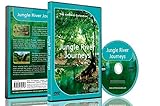
- Three relaxing river journeys
- Peaceful sounds of nature
- Filmed from small boats amongst jungles, mangroves and tropical rainforests
Copyright and monetization considerations
YouTube scans live streams for third-party content. A match may cause a warning, a placeholder image, an interruption, or termination. If a stream stops, check the YouTube Studio dashboard for strikes. Make sure permissions cover both the live use and any archive, and arrange Content ID allowlisting with the rights owner when applicable. YouTube: Copyright issues with live streams
Monetization is a separate consideration from permission to broadcast. YouTube’s monetization rules apply to livestreams, and its July 15, 2025 update clarifies that repetitive or mass-produced material falls under its inauthentic-content policy. A loop by itself does not establish eligibility; make your original contribution clear and do not present reused footage or audio as your own. YouTube decides eligibility through its channel review. YouTube channel monetization policies
Rank #2

- Four Rainforest Creek tracks to use as natural decoration.
- Filmed with HD cameras.
- All tracks repeat automatically for continuous relaxation.
- A film of beautifully blended images showing wonderful mixed greenery and forest waters.
- A second film showing longer soothing scenes.
Common problems and fixes
- Live streaming is not available: verify the channel, check for livestreaming restrictions in the prior 90 days, and allow up to 24 hours after first-time activation.
- The encoder cannot connect: confirm the stream URL and key were copied correctly, verify the selected stream in YouTube Studio, and check that the encoder is using the intended ingestion protocol.
- The stream drops or looks unstable: check upload capacity and reduce the bitrate or other settings to a level the connection can sustain. Review stream health in Live Control Room.
- You see a copyright warning or interruption: inspect the Studio dashboard, identify the matched material, and verify that your permission covers live use. If Content ID applies, request channel allowlisting from the rights owner.
- The replay is missing or incomplete: streams exceeding 12 hours may not be captured. Use planned sessions shorter than 12 hours if a replay is important, and retain a local recording.
Or let it run in the cloud
For prerecorded jungle footage and monkey sounds, StreamNeo is a YouTube-only cloud service: upload a recording or build a playlist, add your YouTube stream key once, and go live. The cloud keeps the stream running without a computer, OBS, or home connection left on. It supports the video as uploaded up to 4K 60fps at one flat price per slot, with automatic recovery if YouTube drops the stream. The first day is free with no card. Monthly pricing is $9.99 per month. See StreamNeo, then start your free first day.
Quick wins for a faster PC:
Clear out junk files and repair common Windows errorsFree Scan →Fix the driver behind crashes, sound loss and screen glitchesFind Drivers →Frequently Asked Questions
Can I use a still jungle image with monkey sounds?
Yes, if you have the necessary rights to the image and audio and your encoder can send the video-and-audio feed. Test the audio continuity and any loop transitions before launch.
Rank #3
Does a 24/7 stream guarantee a full replay?
No. YouTube says streams longer than 12 hours may not be captured as an archive.
Quick Recap
Best Value

- Equatorial
- Sounds
- Forest
Product prices and availability are accurate as of the date/time indicated and are subject to change. Any price and availability information displayed on Amazon at the time of purchase will apply.

