
iTechGuides is reader-supported. When you buy through links on our site, we may earn an affiliate commission. As an Amazon Associate I earn from qualifying purchases. Learn more
To boot an HP All-in-One from USB, shut it down, connect a bootable USB drive, turn it on, and immediately press F9 repeatedly. Choose the USB drive in the Boot Menu and press Enter. The exact key and menu options can vary by model, so use your PC’s HP support page if these steps do not match what appears onscreen.
Prepare the USB drive
The drive must contain bootable installation or recovery files for the task you want to perform. A blank USB storage device will not start an operating system; HP notes that a PC may skip a USB device without bootable files and continue to local storage. See HP PCs – Configuring the boot order in the system BIOS.
For the Windows 11 Secure Boot procedure in HP’s guidance, use bootable USB media formatted with GPT. This is specific to that scenario, not a universal requirement for every operating system or HP model. See HP PCs – Secure Boot (Windows 11).
What’s actually slowing this PC down?
Pick the symptom - the matching free tool is one click away.
Boot once from USB with the F9 Boot Menu
- Shut down the HP All-in-One and connect the bootable USB drive.
- Turn on the computer and immediately press F9 repeatedly until the Boot Menu opens.
- Select the USB drive from the list and press Enter.
These steps follow HP’s Secure Boot instructions. If F9 does not open a menu or the USB drive is not listed, check the documentation for your exact All-in-One model; HP says BIOS procedures and settings vary by computer.
#1 Best Overall

- 【Processor】 Latest 13th Gen Intel N100 Processor (4 cores, up to 3.4GHz, 6MB cache, 4 threads) with integrated Intel UHD Graphics, delivering efficient performance for everyday computing.
- 【Premium RAM and Storage】 Equipped with up to 32GB DDR5 RAM, ensuring lightning-fast performance, seamless multitasking, and superior responsiveness for heavy workloads. Up to 640GB total storage (128GB UFS + 512GB HP External Flash Drive) offers the perfect combination of high-speed internal storage for quick boot-ups and app launches, plus massive external storage for large files, media, and backups.
- 【Ports】 1x USB Type-C (5Gbps, data transfer only), 2x USB Type-A (Hi-Speed), 1x USB Type-A (5Gbps), 1x headphone/microphone combo (3.5mm), 1x RJ-45 Ethernet, 1x HDMI-out, and built-in WiFi 6 & Bluetooth 5.3 for seamless connectivity.
- 【Display and Built-in Features】 21.5" Full HD (1920 x 1080) display, offering sharp visuals with an anti-glare coating for comfortable viewing. Dual stereo speakers provide clear and immersive audio, while a built-in HD webcam with a privacy shutter ensures secure video conferencing and online meetings.
- 【Operating System】 Pre-installed with Windows 11 Pro (64-bit), providing enhanced security, business-grade features, and remote desktop support, making it an excellent choice for professionals and power users.
Choose between a one-time boot and changing boot order
Use the F9 Boot Menu when you want to start from USB this time. Changing the boot order in BIOS setup instead changes the startup priority for future starts, so it is not necessary for a single USB boot.
In HP’s cited boot-order guidance, press F10 while the display is blank during startup to enter BIOS setup. The order shown there places OS Boot Manager before USB in UEFI mode; its Legacy order lists OS Boot Manager, hard drive, then USB drive. These examples describe that HP guidance, not every All-in-One’s menus or defaults. Consult the model-specific instructions before changing settings.
Rank #2

- Integrated display: 27" (68.6 cm) diagonal, FHD (1920 x 1080), touch, IPS, three-sided micro-edge, anti-glare, 250nits, 99% sRGB
- Memory: 16 GB LPDDR5-5500 MHz RAM (onboard)
- Internal Storage: 1 TB PCIe NVMe M.2 Solid State Drive
- Mouse and keyboard: HP white wireless keyboard and mouse combo
- Camera: HP True Vision 1080p FHD IR tilt privacy camera with temporal noise reduction and integrated dual array digital microphones
If the HP All-in-One does not boot from USB
- The USB drive is missing from the menu: Confirm that it contains bootable files, then check the support documentation for your model and the specific operating system you are starting.
- The computer starts Windows or another installed system: Shut down, leave the USB drive connected, and try pressing F9 repeatedly immediately after turning the PC on.
- You are considering a BIOS change: Treat BIOS setup as separate from the one-time Boot Menu. HP warns that settings vary by model and that changing them incorrectly can keep the computer from working as expected. Do not disable Secure Boot or switch to Legacy mode as a default fix; HP’s Windows 11 Secure Boot guidance instead calls for suitable GPT-formatted boot media and selecting it from the Boot Menu.
- BitLocker recovery appears: HP says a recovery key might be needed when changing the boot order. Retrieve your BitLocker recovery key before making that persistent change.
What HP’s guidance establishes
HP Support states that “The computer can boot an operating system from a hard drive, optical drive, USB storage device, or a network.” The boot source still needs suitable boot files, and the startup procedure and available settings depend on the PC model.
Recommended Free Tools
Quick Recap
Rank #4
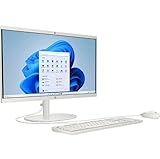
- Powerful Processor and Graphics: Intel Processor N200 (4 Cores, 4 Threads, 6MB Intel Smart Cache, up to 3.70GHz at Maximum Turbo speed) with Intel UHD Graphics 605
- High-Definition Display: 21.45 inch FHD (1920x1080) BrightView screen with 250 nits brightness for clear and vibrant visuals
- Memory and Storage Configuration: 8GB RAM and 128GB SSD for efficient multitasking and fast data access
- Comprehensive Connectivity Options: Headphone/Microphone Combo; Rear ports include 2 x USB 2.0 Type-A, USB Type-C 10Gbps signaling rate, 2 x USB Type-A 5Gbps signaling rate, RJ-45, and HDMI Out
- Operating System and Design: Windows 11 Home operating system in an elegant White finish
Rank #3

- 【Processor】AMD Ryzen 5 7520U (4 Cores, 8 Threads, Max Boost Clock Up to 4.3Ghz, 4MB Cache). AMD Radeon Graphics. This 27-inch touch screen laptop is also equipped with Windows 11, which makes your work or study easy and convenient.
- 【Outstanding 27" Touch Display】1920 x 1080 high resolution touch IPS LED screen (three-sided micro-edge, anti-glare, 250 nits) provides you with a sharp and clear text and images. The ratio expands the vertical space of the screen, showing more content, providing a comfortable visual experience and greater efficiency when browsing web pages or documents.
- 【Powerful Storage】16GB RAM can smoothly run your games and photo- and video-editing applications, as well as multiple programs and browser tabs, all at once. Up to 2TB PCIe Solid State Drive leaves the power at your fingertips with the fastest data transfers currently available.
- 【Tech Specs】Stay connected with Wi-Fi and Bluetooth and variety of ports. The HP Touch laptop features 1 x USB-C, 4 x USB-A, 1 x Ethernet Port, 1 x HDMI, 1 x Headphone/Microphone Combo Jack, allowing you to connect a variety of peripherals and devices for enhanced productivity.
- 【Operating System】Windows 11 is ideal for school education, designers, professionals, small businesses, programmers, casual gaming, streaming, online classes, remote learning, Zoom meetings, video conferences.
Product prices and availability are accurate as of the date/time indicated and are subject to change. Any price and availability information displayed on Amazon at the time of purchase will apply.

