
iTechGuides is reader-supported. When you buy through links on our site, we may earn an affiliate commission. As an Amazon Associate I earn from qualifying purchases. Learn more
To run work in the background, create a scheduled task from Scheduled, describe what ChatGPT should do and when, then enable task notifications separately in Settings > Notifications. Return to Scheduled to check results, edit the schedule, pause or resume it, or delete it. If the task should react to activity in Gmail, Slack, or GitHub rather than run at a chosen time, use an eligible event-triggered task instead.
These controls, limits, and supported integrations can vary by plan, workspace, app, and app version. The steps and plan details below reflect OpenAI Help Center guidance accessed October 3, 2026; check what is available in your own account.

Choose a schedule or an event trigger
ChatGPT tasks have two distinct operating modes. A scheduled task runs once or on a recurring time schedule you choose. A monitoring task can check for a change on a schedule, such as whether a package has been delivered. An event-triggered task responds to supported activity in a connected app, such as a new email that matches a filter. The event mode is not a setting that makes an ordinary time schedule more frequent; it has separate connection, eligibility, and authorization requirements.
- Choose a schedule when you know when ChatGPT should act or check for an update.
- Choose an event trigger when the action should begin only after supported activity in a connected app.
For event-triggered tasks, OpenAI’s current guide describes supported Gmail, Slack, and GitHub activity. Feature availability depends on plan and workspace access, and some actions can wait for approval.
#1 Best Overall

- TASK PLANNER NOTEPAD FOR WORK – Structured task planner and productivity planner designed as a task organizer and workflow planner with expanded layout
- REDUCE OVERWHELM & IMPROVE EXECUTION – Use this task planner, productivity planner, and task tracker to organize workflow and improve execution
- TASK PLANNING + ACTIVITY TRACKING IN ONE FORMAT – Use as a productivity planner, task organizer, and workflow planner to manage tasks and execution
- ANALOG TASK & ACTIVITY SYSTEM THAT WORKS – Writing tasks improves memory and reduces missed steps
- STRUCTURED CHECKLIST + LOG FORMAT – Combines task planning and activity tracking with expanded space for detailed workflow management
Create a time-based scheduled task
- Open Scheduled in ChatGPT. If you do not see it in your desktop app, use ChatGPT on the web; desktop availability depends on the app version and account.
- Describe both the action and its timing in plain language. For example, you can ask ChatGPT to let you know when your package is delivered. Specify whether the task should run once or recur, and include the relevant details needed to perform the check.
- Review ChatGPT’s confirmation of the task and open it in Scheduled to verify the timing and task details.
Tasks created inside a project cannot access files uploaded to that project or files stored there. Do not assume a project attachment will be available as a task input.
Set up notifications separately
Creating a task does not by itself ensure that you will receive a notification. Choose a delivery channel in ChatGPT and allow notifications on the device or browser that should receive them.
Rank #2

- Ultimate To Do List with Multiple Sections: A to do list lover’s dream, our notepad offers multiple sections with ample space to write all your important tasks so you can organize and track your tasks better than with a regular list. Sheets have separate spaces for each day, as well as sections for a to do list and top priorities, making it easy to prioritize and stay organized. Say goodbye to feeling overwhelmed and hello to a more organized and productive you!
- Minimalist Design to Boost Productivity: Experience the perfect balance of minimalist and functional design with our weekly to-do list notepad. Each notepad measures 8.5” x 11” and has 52 sheets, so there is enough space to write down everything you need to do. Made with a minimalist black and white design and premium materials, our notepad is the perfect tool to keep you on track and motivated throughout the day!
- Premium, non-bleed pages: No more frustrations about pens or markers bleeding through flimsy paper! Our notepad is made with premium non-bleed 100 gsm paper to give you the best writing experience. Unlike with our competitors, these pages won’t bleed onto the next one, even if you write with a permanent marker.
- Sturdy Backing for Writing Anywhere: Our notepad is made with a thick backing that provides a sturdy surface for writing anytime, so you can take it on the go and never miss an important task again. Whether you're at home, in the office, or on the go, you'll always be able to capture your thoughts and stay on top of your daily routine.
- Easy to Tear Off Pages: The easy to tear off, undated pages make it simple to share your lists with others or start each day with a fresh page. You'll love the convenience of being able to remove yesterday's tasks and start with a clean slate, allowing you to focus on what really matters.
- Open Settings > Notifications.
- Under task notifications, select Push, Email, or both, as available in your account.
- For browser notifications, allow notifications in ChatGPT and accept the browser’s permission prompt. If the browser has previously blocked notifications, change its site permission for ChatGPT.
- For mobile push, create the task in a supported ChatGPT mobile app and grant notification permission when prompted. Check the device’s notification settings if alerts do not arrive.
Delivery depends on the selected channel, device or browser permissions, and supported app availability.
Recommended Free Tools
Find, check, and manage a running task
Open Scheduled to review a task’s status, schedule, and results, and to make changes. You can also reach the task list through Settings > Notifications > Manage tasks, or from a conversation’s more-options menu by choosing See scheduled tasks.
Rank #3
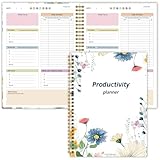
- Stay Organized and Focused: This planner is specifically designed to help individuals with ADHD or busy lifestyles prioritize their day with clear prompts, ensuring that the most important tasks are tackled first
- Comprehensive Layout: With 100 thoughtfully designed pages, including sections for daily scheduling, task prioritization, self-care, and brain dumps, this planner helps reduce distractions and keep your thoughts organized
- Motivation Through Rewards: Keep yourself engaged and motivated with built-in checklists and reward systems that make completing tasks more satisfying
- Flexible and Undated Design: Use this planner at your own pace—it's undated, so you can start anytime without worrying about wasted pages
- Durable and Convenient: Featuring a 7" x 10" size, a sturdy hardcover, and spiral binding for durability, this planner is easy to carry and perfect for daily use
- Review: Open the task to check its schedule and the latest result or status shown.
- Edit: Open the task’s controls to change its instructions or schedule.
- Pause or resume: Pause a task when you do not want it to run; use the resume control on the Scheduled page to start a paused task again.
- Delete: Delete the task from Scheduled. Deleting a task does not delete its associated chat.
If you delete the associated chat, the task pauses. A task that looks inactive may also be paused because it needs additional action or approval, or because a connected app needs attention.
Set up an event-triggered task
Event-triggered tasks are available only to eligible accounts and workspaces, and require a supported connected app. OpenAI’s guide lists Plus, Pro, Business, Enterprise, Edu, and eligible ChatGPT for Healthcare workspaces. They are unavailable on Free, Go, and FedRAMP workspaces. Enterprise, Edu, and Healthcare administrators must enable the feature. Workspace administrators can also restrict connected-app access.
Rank #4

- ✓ 30 - Month Monthly Calendar: Our monthly organizer can be used for 30 months’ planning,it is perfect for long-term schedule. help you create a vision for your life and boost your productivity, incorporate your short and long-term goals into your each monthly agenda, enjoy less stress & more free time!
- ✓ 4 Pages Per Month: 4 pages for each month offer ample lined writing space for more detailed planning, 2 pages with blank calendar’s spreed to plan ahead at the beginning of the month, 2 monthly pages contain monthly goals, to do list, reviews, tasks, focus,appointments and note section for important projects. Keep track of important deadlines, key events and make a whole month’s schedule appear at a glance.
- ✓ Practical And Beautiful Design: This hardcover Year planner’s cover is made of premium gold foiled vegan leather, Suitable size, 7"x10", perfect for office and home. comes with bookmark ribbons mark any wanted page of your choice.,1 pen holder, 1 pocket at the back for loose items, 2 sheets of colorful stickers with rose gold help you personalize your monthly planer 2023 -2024 and Spiral bound allows the monthly planner 2024 to lay flat 360°.
- ✓ Undated & Unique Layouts UNDATED & UNIQUE LAYOUTS -Unlike most dated planners, our planner is undated, you can start using it at any time of the year without wasting a page. Our yearly calendar planner includes personal information page, one calendar, contacts pages, password page,important dates’ page and extra notes pages to jotting down your ideas, thoughts and accommodate your scheduling needs,perfect for students and teachers.
- ✓ FSC Thick Paper &100% Satisfaction Guarantee. – The monthly planner is made of high-quality environmental paper, which is smoother and thicker than ordinary paper and has excellent ink resistance. protecting your eyes and bring a good writing experience.If you aren’t satisfied with our planning notebook,we will refund full money back anytime with our 100% Satisfaction Guarantee.
- Connect the relevant app under Settings > Apps, and complete its authorization flow.
- In ChatGPT Work, describe the app event that should trigger the task and what ChatGPT should do in response.
- Review the task’s Trigger, Condition, and Prompt. Confirm the event and filters are appropriately narrow before enabling it.
- Complete any required authorization or approval, then check the task in Scheduled.
Supported examples in OpenAI’s guide
- Gmail: Trigger on a new message, with filters such as sender or subject.
- Slack: Respond to new messages in a channel; the guide says to add @ChatGPT to each channel being monitored.
- GitHub: Respond to supported pull-request activity in an authorized repository on github.com.
Connected apps can read or act only within the permissions granted to them. Tasks that send messages or change external data may require approval; while approval is pending, a task can pause. For Healthcare workspaces, event-triggered tasks are off by default and are not covered by a BAA. Do not use them to transmit, store, or process protected health information (PHI).
Outdated Drivers Are Slowing You Down
One free scan finds every outdated or missing driver and matches the right update for your exact hardware.Free scan · exact hardware matchPC Slower Than It Used to Be?
A free scan shows the junk files, broken settings and background clutter dragging Windows down - then fixes them in one click.Free scan · Windows 10 & 11Check plan limits and timing behavior
OpenAI’s Scheduled tasks help page, accessed October 3, 2026, listed these active-task limits. The figures are changeable product rules, not independent research results; confirm the limit shown for your account before relying on it.
| Plan | Active task limit listed by OpenAI |
|---|---|
| Free and Go | 3 |
| Plus | 5 |
| Business and Edu | 10 |
| Pro and Enterprise | 15 |
OpenAI’s guide says other eligible plans may depend on the account or workspace. It also describes different scheduling options by plan:
- Free: One-time tasks or recurring tasks no more than once per day, with flexible timing windows such as morning, afternoon, or night.
- Eligible paid plans: Hourly recurrence and exact delivery times are supported.
- Event-triggered tasks: Up to 30 runs per hour and 720 per day across a user’s event-triggered tasks; multiple events may be grouped.
Tasks may pause when inactive. Scheduled tasks use eligible ChatGPT models, with model availability and usage limits depending on the task, plan, and workspace. Voice chats and GPTs are listed as unsupported.
Troubleshoot a task that appears to have stopped
- Open Scheduled and check whether the task is paused, or is waiting for approval or another action.
- If it is paused, review the task’s details for a requested action, then resume it if appropriate.
- For an event-triggered task, confirm that the connected app account remains connected and authorized, and that the workspace still permits access.
- Check the task’s timing and notification settings separately. A task can run without delivering an alert if the selected notification channel or device permission is disabled.
- If you deleted the associated chat, check Scheduled: OpenAI says that deleting the chat pauses its task.
For account-specific eligibility, supported events, app controls, or current limits, consult OpenAI’s Scheduled tasks in ChatGPT help page. Its availability and interface guidance may change, so use the controls shown in your account.
Free tools Windows power users keep installed
One-click scans. No signup required.
Quick Recap
Product prices and availability are accurate as of the date/time indicated and are subject to change. Any price and availability information displayed on Amazon at the time of purchase will apply.

