
Do these 3 things before closing this tab:
1Fix the driver behind crashes, sound loss and screen glitches2Clear out junk files and repair common Windows errors3Scan for outdated or missing drivers - takes under a minuteTo run ocean sounds continuously on YouTube Live, loop a local audio or video file in OBS, connect OBS to a YouTube encoder stream, then monitor the YouTube preview and playback. For multiple recordings, use OBS’s VLC Video source and enable Loop Playlist. Before going live, confirm you have rights to both the sound recording and any visuals, and test the setup; a local computer must remain powered on and connected for the stream to continue.
What you need before you start
- A YouTube channel that is verified and eligible for live streaming. YouTube says first-time live-stream activation can take up to 24 hours, so enable it ahead of your planned launch. YouTube Help: Get started with live streaming
- A computer with OBS installed, your ocean-sounds media files stored locally, and a reliable internet connection. YouTube’s guidance is to start with equipment you already have: “You do not need expensive equipment, what you have at hand will do.” YouTube Help: YouTube live streaming tips
- Permission or a license that covers livestreaming your sound and visuals. Keep a record of the source, license terms, attribution requirements, and any restrictions on commercial use.
Prepare and check your ocean-sounds media
Choose a recording you own or are permitted to stream. If the ambience comes from a sound library or another creator, check the license for livestreaming and the intended use; rights to a recording may be separate from rights to music or other material included in it. Make sure the visual—whether a video, still image, or other loop—is covered too.


Keep the files available on the computer for the whole broadcast. Before configuring the stream, play through the end and beginning of each file or playlist. Listen for silence, clicks, abrupt changes in volume, or an obvious visual jump. These checks are especially useful when a short recording will repeat for hours. Confirm the file’s audio is the ocean ambience you intend to broadcast.
Set up continuous playback in OBS
Loop one file with Media Source
- Open OBS and select the scene you want to use.
- In the Sources panel, choose + → Media Source. Create a source or select an existing one.
- Choose the local ocean-sounds video or audio file. Enable Loop so playback starts again when the file ends.
- If the file is audio-only, add a suitable static ocean image or other visual source to the scene. If the file includes the intended video and sound, check that both appear and play as expected.
OBS documents Media Source as a way to play a local media file and provides a Loop option. Supported file types and behavior can depend on the media and system, so test your own file before using it for a long broadcast. OBS: Media Sources
Recommended Free Tools
#1 Best Overall
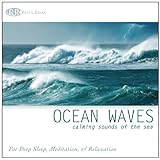
- 60 minutes of calming ocean waves. Relax and drift off to sleep to the rhythm of real ocean waves.
- No crashing surf, cawing seagulls, jarring thunder, or cheesy music. Nothing but peaceful waves.
- Creates white noise to drown out household sounds. Helps you relax, unwind and sleep soundly.
- This CD is a professional, high-quality CD made in the USA and will work in all players.
- Gift quality packaging. Makes an elegant and thoughtful gift. It can help with anxiety, stress and insomnia.
Loop several files with VLC Video
- Install VLC if it is not already installed. OBS notes that VLC must be installed for the VLC Video source to appear; with 64-bit OBS, use a matching 64-bit VLC installation.
- In the Sources panel, select + → VLC Video, then create or select the source.
- Add the ocean recordings to the playlist in the order you want them to play.
- Enable Loop Playlist. Enable Shuffle Playlist only if you want the clips to play in a changing order.
- Play the playlist and check the transitions, sound levels, and visuals before connecting to YouTube.
OBS documents playlist looping and shuffle controls for VLC Video. Check playback when a source is hidden or a scene changes if your scene setup relies on either behavior. OBS: Media Sources
Check the sound and scene
Watch the OBS audio mixer while the file plays: the audio meter should move. Listen to the output, and later listen to the YouTube preview as well. A moving local meter alone does not confirm YouTube is receiving the sound you expect. Keep the scene simple enough that the ocean image or video remains visible throughout the loop.
Create a YouTube encoder stream
- In YouTube Studio, select Create → Go Live. Use the Stream tab to create or open an encoder stream; if you are scheduling it, manage the scheduled stream from Live Control Room.
- In Live Control Room, copy the stream’s server URL and stream key. YouTube’s encoder workflow uses these values to connect streaming software such as OBS. YouTube Help: Create a YouTube live stream with an encoder
- In OBS, open Settings → Stream, choose YouTube as the service if available, and enter the stream key. If OBS asks for a server URL, use the one shown in YouTube Studio. Keep the key private: anyone who has it may be able to send video to your stream.
- Apply the settings, then start streaming in OBS. Wait for the incoming signal and video to appear in YouTube’s Live Control Room preview.
- For a scheduled stream, follow the Live Control Room prompts to start the event when required by its settings; starting the encoder and making the scheduled broadcast live are not necessarily the same action.
For an initial test, use an unlisted or private stream and check the actual watch page, including playback on a phone. Confirm the selected privacy setting before changing the stream to public. YouTube recommends testing and checking the preview before a live event. YouTube Help: YouTube live streaming tips
Monitor the stream and plan for interruptions
Once live, check the YouTube watch page as well as OBS. Confirm the sound and picture continue, the page is accessible as intended, and the loop restarts cleanly. If you are recording locally, check that the local recording or archive file is growing. YouTube recommends monitoring audio and video quality during the stream. YouTube Help: YouTube live streaming tips
Crashes, No Sound, or Screen Glitches?
Random freezes, missing sound and display glitches usually trace back to one bad driver. Find and replace yours safely.Free scan · under a minuteWindows Errors? Fix Them Before They Spread
Repair common Windows errors and clear accumulated junk for a smoother, more stable PC - no reinstall needed.Free scan · no reinstallA local OBS setup depends on the computer staying on, the media continuing to play, and power and network service remaining available. Plan how you will respond to an OBS crash, a connection loss, a power interruption, or playback stopping. The documented loop controls do not by themselves establish that every failure will recover unattended; test reconnection and recovery behavior in your own setup rather than assuming it.
Understand the replay and long-running stream limits
YouTube Help says streams under 12 hours are automatically archived. That guidance does not promise that one continuous 24-hour broadcast will be saved as a complete replay, nor does it establish a universal maximum stream duration. If a complete replay matters, verify YouTube’s current behavior before launch and consider recording locally or dividing the broadcast into planned segments. YouTube Help: Create a YouTube live stream with an encoder
Rank #4

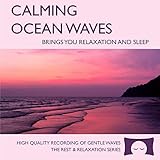
- Relaxation and Sleep Support: Relax your body and calm your mind with these relaxation and sleep CDs designed to promote restful sleep and stress relief
- Authentic Nature Recordings: Includes the sounds of calming ocean waves, a peaceful stream, relaxing rain and soothing guitar, with tracks that are continuous recordings and are not looped
- Created by Music Therapist: Developed by a music therapist who gives a percentage of profits to help kids with cancer
- Premium Quality Manufacturing: High-quality CDs made in the USA - Unlike cheaper CDs like CD-Rs, this CD will work in all players
- Thoughtful Gift Packaging: Gift quality packaging makes a thoughtful gift for those with stress, anxiety or insomnia
YouTube’s API documentation includes a 24/7 broadcast as a technical example. It describes an architecture, not a guarantee of uninterrupted operation, full-length archiving, or eligibility for every channel and stream. YouTube Data API: LiveBroadcasts
Independent reader supportYour contribution helps us test, update, and keep practical guides available for everyone.Copyright and eligibility checks
YouTube requires a verified channel without live-streaming restrictions to stream. An active copyright strike or a match to another copyrighted live broadcast can lead to a restriction. Resolve eligibility issues before scheduling an all-day broadcast. YouTube Help: Get started with live streaming YouTube Help: Restrictions on live streaming
What’s actually slowing this PC down?
Pick the symptom - the matching free tool is one click away.
Best Value
YouTube describes several possible routes for using protected material, including permission, applicable copyright exceptions, public-domain material, or following a Creative Commons license. None guarantees that a stream will avoid a Content ID claim or copyright strike. Keep documentation for both the sound recording and the visuals, and meet any license attribution or use requirements. YouTube Help: Copyright on YouTube
Common problems and fixes
- The VLC Video source is missing: Install VLC. If you use 64-bit OBS, install the matching 64-bit version of VLC, then reopen OBS.
- The file stops instead of repeating: For one file, check Loop in its Media Source properties. For multiple files, check Loop Playlist in VLC Video.
- YouTube shows no incoming stream: Recheck the stream key and server URL in OBS against Live Control Room, then restart the encoder connection and wait for the preview. Do not expose the key while troubleshooting.
- The OBS meter moves but the YouTube preview is silent: Check the preview’s audio, OBS audio routing and mute states, and the media file’s audio track. Test again before making the stream public.
- A clip transition has a click, silence, or level jump: Re-edit or replace the media, then test the transition in the full playlist before relaunching.
- The stream stops after the computer sleeps or disconnects: Check power, sleep settings, network stability, and OBS status. A local computer-based stream cannot continue through a local shutdown or loss of its connection.
- The 24-hour replay is incomplete or absent: Do not infer full-day replay support from the under-12-hour archive guidance. Check current YouTube behavior and use a separate local recording or segmented broadcasts if completeness is essential.
Let the stream run in the cloud instead
If you want an uploaded ocean recording or playlist to keep a YouTube channel live without leaving a computer running at home, StreamNeo runs it from the cloud. Upload your recording or build a playlist, add your YouTube stream key, and go live. StreamNeo plays uploaded videos to YouTube; it does not stream from a camera.
- Nothing at home has to stay on for the stream to continue.
- Any quality up to 4K 60fps streams as uploaded, at one flat price per slot with no re-encode or quality tiers.
- Automatic recovery is included if YouTube drops the stream.
- The first day is free with no card required.
Each slot includes one always-on stream, 10 GB of storage per slot pooled across active slots, 24/7 looping and playlists, and StreamNeo team support. The same product is included on every plan; only the billing duration changes.
Monthly: $9.99 per month. Start your free StreamNeo day.
Quick Recap
Product prices and availability are accurate as of the date/time indicated and are subject to change. Any price and availability information displayed on Amazon at the time of purchase will apply.

