
iTechGuides is reader-supported. When you buy through links on our site, we may earn an affiliate commission. As an Amazon Associate I earn from qualifying purchases. Learn more
For ordinary Zoom Meetings, automatic S3 archiving requires an integration: Zoom sends a recording-completed webhook, your server retrieves each completed recording file using the event’s short-lived authorization token, and your code uploads the bytes to an Amazon S3 bucket. The webhook is a trigger, not an upload service. First identify whether you use Zoom Meetings, Video SDK, or Zoom Contact Center; their native storage options differ.
Choose the route for your Zoom product
| Route | What it does | Scope and trade-off |
|---|---|---|
| Custom Zoom Meetings integration | Uses a webhook and authorized download links to retrieve cloud recording files, then your application writes them to S3. | Requires you to build and operate the application and AWS upload. Zoom’s documentation does not establish a universal native Meetings-to-S3 switch. Zoom Meetings webhook reference; Zoom recording API |
| Video SDK BYOS | Can deliver newly completed Video SDK cloud recordings to configured S3 storage. | Requires a Video SDK account with Cloud Recording add-on or Universal Credit plan, AWS account and administrator access, and an S3 bucket. Existing Zoom-cloud recordings require separate download or migration. Zoom Video SDK BYOS |
| Zoom Contact Center BYOS | Can upload supported Contact Center recordings and artifacts to S3; configuration can allow copies to remain in Zoom. | This applies to Contact Center, not ordinary Zoom Meetings, and Zoom must enable the feature for the account. Zoom Contact Center BYOS documentation |
Zoom’s Video SDK documentation says, “You can use Webhooks to automate distribution or uploading of the recording files to your own cloud storage system.” That statement describes Video SDK’s documented feature; it should not be read as a universal native capability for Meetings. Zoom Video SDK cloud recording documentation

What the Zoom Meetings integration needs
Cloud recordings, not computer recordings
The webhook workflow starts with a recording saved to Zoom Cloud. Cloud recording is available to paid subscribers on eligible tiers, and files can be downloaded after processing. A computer recording is saved locally on the recording computer instead, so automating it requires a local file watcher or another upload process rather than the cloud-recording webhook flow. Zoom cloud recording overview; Zoom local recording overview
Do these 3 things before closing this tab:
1Clear out junk files and repair common Windows errors2Scan for outdated or missing drivers - takes under a minute3Repair Windows errors before they cause bigger problemsA webhook receiver and authorized download
Configure a Zoom app with a subscription to the recording-completed event and provide an HTTPS endpoint on your server to receive it. The event supplies recording metadata and a list of files, which can include video, audio, chat, or transcript files when available. Each file has identifying details such as its type, name, status, and download URL. Zoom Meetings webhook reference
#1 Best Overall
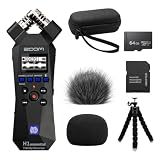
- Bundle of 6 items - Zoom H1essential Handy Recorder + 64GB Ultra microSD Card and Adapter, 99KOLB Accessories(Hard EVA Case, Furry & Foam Windscreens set, Octopus Tripod)
- 32-Bit Float Recording – Capture vocals, instruments, interviews, and ambient sound without clipping or distortion, ensuring crystal-clear audio in every take.
- High-Quality X/Y Mics capture clean audio up to 120 dB SPL
- Records up to 96kHZ sample rate to SD card
- USB Microphone for PC, Mac, iOS, or Android using the USB-C Port with Accessibility - Audio guidance function for the visually impaired
Process only files whose status indicates completion. Zoom documents that the webhook’s download_token remains valid for 24 hours after event notification and recommends sending it as a bearer token in the HTTP Authorization header. Treat it as a secret: keep retrieval server-side and out of logs, public links, and S3 object metadata. Zoom Meetings webhook reference
AWS access and bucket design
Your application downloads the file bytes and writes them as S3 objects. Zoom’s Video SDK example demonstrates an S3 write with AWS SDK PutObject; the same general storage step must be implemented by a custom Meetings integration. Zoom Video SDK BYOS
Rank #2

- BUNDLE INCLUDES: Zoom H1essential Handy Recorder, 32GB microSDHC Card, Lavalier Condenser Microphone, Furry Microphone Windscreen, 4 AAA Batteries and Cloth (6 Items)
- 32-BIT FLOAT: With 32-bit float recording, you never have to adjust levels. The H1essential captures every nuance of your sound ensuring high-quality audio with every take.
- LOUD AND CLEAR: The onboard X/Y microphones capture clean audio up to 120 dB SPL, equivalent to the sound of a high-performance engine.
- BIG FEATURES: The H1essential has advanced features such as overdubbing, pre-record, auto record, and playback speed adjustment.
- FOR STORYTELLERS: Podcasters can mount the H1essential on a tripod for sit down conversations or use ‘mono mode’ for on-the-go interviews.
Choose an object-key scheme that is stable and traceable, for example grouping by meeting date and retaining the Zoom meeting UUID and recording-file identifier in the key or application metadata. Use those identifiers to detect duplicate event deliveries and to investigate failed transfers. These are implementation choices; Zoom provides the identifiers, but does not prescribe your S3 naming or idempotency policy. Grant the uploader only the S3 permissions it needs, and store Zoom and AWS credentials in a server-side secret store rather than in client code.
The Tool Desk
Outbyte Driver Updater FREEFix the driver behind crashes, sound loss and screen glitchesFind Drivers →Outbyte PC Repair FREEClear out junk files and repair common Windows errorsFree Scan →Build the Meetings transfer flow
- Enable cloud recording. Confirm cloud recording is available for your Zoom account and that the meeting is recorded to Zoom Cloud. Wait for processing to complete before expecting its files to be downloadable. Zoom cloud recording overview
- Subscribe to the event. In your Zoom app configuration, subscribe to the recording-completed webhook event and register your HTTPS endpoint. Validate incoming notifications according to Zoom’s webhook requirements before acting on them. Zoom Meetings webhook reference
- Inspect each file. Read the event’s file list, skip incomplete files, and retain meeting and file identifiers for logging and duplicate detection. A single recording can produce multiple files.
- Download promptly and securely. Make a server-side request to each file’s download URL and send the event’s download token in the Authorization bearer header. Follow redirects because Zoom documents that download URLs may redirect. Do not put tokens in query strings for new implementations. Zoom Meetings webhook reference; Zoom recording API
- Upload to S3. Write the downloaded bytes to the selected bucket and key. Keep the event identifier, meeting UUID, and file identifier associated with the transfer so a retry does not silently create a misleading duplicate.
- Record outcome and alert on failure. Track download and upload state for every file. Configure your own bounded retries, monitoring, and alerting; these are responsibilities of a custom integration, not behavior guaranteed by the Zoom webhook.
Design retries and historical recovery
The 24-hour token window means a delayed consumer cannot assume the webhook download authorization will remain valid indefinitely. If a transfer fails, retry while the authorization is valid. For later recovery or historical backfill, use the Zoom recordings API with the required OAuth authorization and recording scopes to list recording files and obtain download URLs. Zoom API download URLs may redirect, so retrieval code should follow redirects. API polling or backfill complements the webhook; it is not the near-real-time event trigger. Zoom Meetings webhook reference; Zoom recording API
Plan explicitly for cases such as a temporary S3 outage, an expired download token, duplicate webhook delivery, or a file that never reaches a completed state. Persist enough state to resume or reconcile a transfer, and alert when automated recovery cannot finish it. The documented Contact Center retry behavior must not be assumed for this custom Meetings workflow.
Decide whether S3 is a copy or the destination
With a custom Meetings integration, the described workflow copies downloaded files into S3; it does not by itself establish that Zoom deletes its copy or changes Zoom retention. Keep the Zoom source if you need it, and verify your account’s recording-retention and access settings separately. Native BYOS behavior can vary by product and configuration, so confirm whether Zoom retains a second copy before relying on an archive or deletion policy.
Rank #4
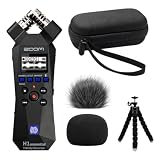
- Bundle of 5 items - Zoom H1essential Handy Recorder + 99KOLB Accessories(Hard EVA Case, Furry & Foam Windscreens set, Octopus Tripod)
- 32-Bit Float Recording – Capture vocals, instruments, interviews, and ambient sound without clipping or distortion, ensuring crystal-clear audio in every take.
- High-Quality X/Y Mics capture clean audio up to 120 dB SPL
- Records up to 96kHZ sample rate to SD card
- USB Microphone for PC, Mac, iOS, or Android using the USB-C Port with Accessibility - Audio guidance function for the visually impaired
Zoom Contact Center documentation describes daily retries for failed BYOS uploads for up to 30 days, failure email alerts, and files remaining in Zoom if retries do not succeed. Those documented behaviors apply to Contact Center BYOS only; they are not a service-level promise for a custom Meetings integration or Video SDK. Zoom Contact Center BYOS documentation
Quick wins for a faster PC:
Clear out junk files and repair common Windows errorsFree Scan →Fix the driver behind crashes, sound loss and screen glitchesFind Drivers →Account for storage and transfer costs
A custom integration makes your organization responsible for its AWS storage, request, and data-transfer charges, as well as the code and monitoring that move the files. A meaningful cost estimate depends on AWS region, file volume and size, retention duration, and request and transfer patterns; these inputs should be modeled against current AWS pricing for your workload.
Quick Recap
Best Value

- CREATE CONTENT WITH BETTER SOUND – Capture clear stereo audio for videos, reels, tutorials, voiceovers, behind-the-scenes clips, and other content that needs more polished sound than your camera or phone alone.
- READY WHEN INSPIRATION HITS – Record songwriting sessions, rehearsals, acoustic performances, lessons, jam sessions, and live music with detailed sound that is easy to capture in the moment.
- CLEAR VOICES FOR PODCASTS AND INTERVIEWS – Record conversations, podcast episodes, lectures, meetings, notes, and interviews with natural stereo sound that helps voices come through clearly.
- CAPTURE REAL-WORLD SOUND – Record ambience, nature, room tone, sound effects, travel audio, and everyday environments for video, music production, creative projects, and documentation.
- PLUG IN FOR STREAMING AND CALLS – Connect via USB-C and use it as a microphone for livestreams, remote meetings, video calls, voiceovers, podcasts, and desktop or mobile recording.
Product prices and availability are accurate as of the date/time indicated and are subject to change. Any price and availability information displayed on Amazon at the time of purchase will apply.

