
The Tool Desk
Outbyte PC Repair FREERepair Windows errors before they cause bigger problemsFix Now →Outbyte Driver Updater FREEScan for outdated or missing drivers - takes under a minuteDriver Scan →iTechGuides is reader-supported. When you buy through links on our site, we may earn an affiliate commission. As an Amazon Associate I earn from qualifying purchases. Learn more
Build a Make scenario that captures a webpage, then sends the image through WhatsApp Business Cloud. The simplest documented starting point is Make’s HTML/CSS to Image → Create a Screenshot of a URL action followed by WhatsApp Business Cloud → Send a Message. You may need an intermediate media-upload or HTTP step if the screenshot output is not accepted by the WhatsApp module’s media field. Make’s documentation lists these building blocks but does not provide a tested, field-by-field scenario, so verify the mappings in your current Make account before relying on the flow.
What you need before building the scenario
- A Make account and a scenario that can run when you need a screenshot—for example, on a schedule or from another trigger.
- A Facebook account, Meta Business Suite account, and valid WhatsApp Business number. Make says to create a business portfolio and WhatsApp Business account before connecting WhatsApp Business Cloud. See Make’s WhatsApp Business Cloud setup documentation.
- A WhatsApp business phone number approved by WhatsApp for sending messages. Make’s module documentation says approval is required before sending. See the WhatsApp Business Cloud integration documentation.
- A URL that the Make screenshot action can access, and a recipient you are authorized to message.
Make describes both regular and Coexistence connection paths, but says Coexistence is not available in every country. The cited documentation does not establish whether it is currently available in India. Check the country and account eligibility shown in Meta’s live setup flow rather than assuming it will work. Connection screens and credential requirements can change; follow the current prompts in Make and Meta.
Build the Make scenario
- Create a scenario in Make and add a trigger. Choose one that fits your use, such as a schedule or an existing event from another app. Configure the trigger before adding the capture and sending steps.
- Add the screenshot action. Search Make’s app catalog for HTML/CSS to Image, then select Create a Screenshot of a URL. Map the target webpage URL into the URL field. Set any viewport or other capture options that the action exposes in your account. The integration listing confirms the action exists, but does not establish a universal set of options or output fields. See the HTML/CSS to Image integration listing.
- Add WhatsApp Business Cloud. Select Send a Message, connect the approved business account, and choose the recipient. If this is an initial outbound contact, use a WhatsApp-approved template. For a non-template message, Make says a template must first have been sent to that specific customer and that customer must have replied.
- Map the screenshot as media. Inspect the screenshot module’s output and the WhatsApp module’s media fields in your current scenario. If Make accepts the returned file or image output directly, map it and set any required message text. If it does not, insert a file download or media-upload step and pass WhatsApp the media input it requires. Make’s HTTP app documents API requests and file downloads, but the exact mapping depends on the current modules and their output. See Make’s HTTP integration documentation.
- Run a controlled test. Use a page and recipient you are permitted to use. Check the delivered image, crop and viewport, media mapping, sender approval, and scenario run details before enabling a recurring schedule or production trigger.
The screenshot-to-media mapping is the step most likely to vary between accounts or module versions. Treat the live Make field descriptions and a successful controlled test as authoritative for your particular scenario; the integration listings alone do not prove that a screenshot output connects directly to WhatsApp without an upload step.
Quick wins for a faster PC:
Repair Windows errors before they cause bigger problemsFix Now →Scan for outdated or missing drivers - takes under a minuteDriver Scan →Clear out junk files and repair common Windows errorsFree Scan →Choose a screenshot route
| Route | When it fits | What to check |
|---|---|---|
| HTML/CSS to Image app | A straightforward Make-native starting point for capturing a URL. | Which capture controls are exposed, what file or image output it returns, and whether WhatsApp accepts that output directly. |
| HTTP with a screenshot API | You need to call a separate screenshot service or control its API parameters. | API key handling, response format, file download/upload mapping, service charges, failure behavior, and regional availability. |
| GetScreenshot integration | You want to assess another Make-listed page-capture or monitoring service. | Its current options, output fields, pricing, and availability. The integration listing does not establish comparative speed, reliability, or cost. |
For any route, compare only what the live service and Make modules actually expose: viewport or full-page control, image format, output accessibility, error handling, and total Make-operation and service costs. Do not assume the options or reliability are equivalent.
#1 Best Overall

- COMPLETE BUSINESS PHONE SYSTEM - With this QB1 system bundle you can connect up to (4) phone company landlines and/or (10) XBLUE phone lines. This bundle includes the XBLUE IP9g Color Display IP phones with Wi-Fi & Bluetooth capability. Go wireless with the XBLUE IP Phone Wi-Fi dongle & eliminate office phone wiring. The IP9g Color Display shows the call status of XBLUE QB phone system users, call details & call logs. You can add more XBLUE IP Phones. The QB1 system supports up to (20) individual phone system extensions.
- COMPREHENSIVE SOLUTION - Standard system features includes Voicemail, Email Delivery of Messages, Multiple Auto Attendants, Call Queuing / Ring Groups, Call Recording and Music/Announcements on Hold. And includes XBLUE’s expert US based support. In addition, many advanced features are included to enhance business efficiency and productivity. Voicemail message delivery to Email, Call Queues and other Call Center functions, Detailed Call / Usage Reporting and Call Recording are among the advanced capabilities included with every QB.
- INCLUDES LIVE, U.S. BASED SUPPORT - When you purchase an XBLUE phone system you have full access to Live, U.S. Based product support to help you setup and get the most out of your new phone system. Pre and post sale support is available. Just call XBLUE at 866-925-8312.
- SMARTPHONE OPERATION - Your smartphone can be set up to work with your QB system and ring at the same time as your office phone. With optional QB Advanced Mobility software and the XBLUE Geo App you can use your smartphone as a full function system extension. The Geo directory function lets you see the status of other system users and easily make internal calls. And you can make and receive calls via the office phone lines without showing your private cell phone number.
- REMOTE WORKER EXTENSIONS - System users can be located at their home office or at a branch office. Their XBLUE IP phones will operate exactly the same as system phones located at the main office. And, XBLUE’s US Based Technical Support is ready to assist for all of your new XBLUE system setup needs.
Or skip the browser setup
Instead of configuring a browser capture service, call ScreenshotNeo, which returns a screenshot or PDF from one request. Its clean-shot options accept cookie banners and remove more than 60 known consent platforms, newsletter popups, and chat widgets before capture; bot checks, blank pages, and failed loads are not billed. ScreenshotNeo also offers an MCP server for AI agents, and its free plan includes 1,000 screenshots a month without a card; paid plans start at $5 for 3,000. The API call below captures an example URL; you still need to map or upload the resulting image to WhatsApp using your Make scenario.
See the ScreenshotNeo API documentation for request options.
curl -G "https://api.screenshotneo.com/v1/shot" -d access_key=YOUR_API_KEY --data-urlencode url=https://stripe.com -o shot.webpSign up for ScreenshotNeo’s free plan: 1,000 screenshots a month, no card required.
Recommended Free Tools
Rank #2

- Sold as 1 Each.
- Conference phone allows for multiple participants to converse simultaneously.
- Compatible with up to four lines for expanded calling capabilities.
- Reliable DECT 6.0 digital technology enhances audio quality for ultra-clear, buzz-free communication.
- Monochrome LCD display for clear viewing.
WhatsApp rules and India-specific checks
First contact and replies
Make’s WhatsApp Business Cloud module documentation says the business phone number must be approved before sending. It also says a non-template Send a Message requires a template message to have been sent to that specific customer and the customer to have replied. Design an initial automated message around an approved template; do not treat the integration as permission to send arbitrary first-contact messages to any number.
Connection availability in India
Make warns that Coexistence is not available in every country. The available documentation does not confirm whether India is supported, so check eligibility in Meta’s current onboarding flow. Make also describes a legacy connection involving a permanent token and WhatsApp Business Account ID; because connection methods can change, use current setup screens rather than relying on an old credential recipe.
Rank #3
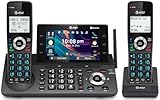
- [5" Color Base Display for ease of menu operation] - Manage your communication with this ultra-clear 5" color base display. Soft keys on the side & bottom of the screen make it easy to access the functions of the phone. The extra-large display makes it easy to operate the menu and provides clear viewing of the features.
- [Personalized Feature Shortcuts] - Assign one-touch shortcuts on the large base display for quick access to the most important features like contact, messages, call history, timer, and more.
- [Conference and Intercom] - Streamline your communication experience with conference calling between an outside line and up to 4 cordless handsets, along with intercom functionality between handsets and the base unit.
- [Unsurpassed Range with DECT 6.0] - Experience the best in long-range coverage and clarity, provided by a unique antenna design and advances in noise-filtering technology.
- [Smart Call Blocker and One-touch Block] - Say goodbye to unwanted calls. Robocalls on your landline are automatically blocked from ever ringing through—even the first time. Instantly blacklist any incoming number with one touch. Store up to 1000 names and numbers to your block list.
Message billing
Make’s module documentation states that, effective October 1, 2026, non-template service messages within the 24-hour window are metered, with 1,000 free delivered messages per month per business number. It further says that without a payment method in Meta’s Billing Hub, messages beyond that limit are not delivered even if the module operation appears successful. This is a time-sensitive statement from Make, not independently confirmed here against Meta’s live pricing; verify current charges and delivery behavior with Meta before launch. See Meta’s WhatsApp pricing documentation.
Common problems and fixes
- WhatsApp rejects the sender or cannot connect: confirm the business number is approved, the intended WhatsApp Business account is selected, and the current Meta connection flow is complete.
- An initial message is not delivered: check whether the message is an approved template and whether the recipient’s conversation state permits the message type. Make documents a template-first-and-reply requirement for non-template sends.
- The screenshot does not appear as media: inspect the capture action’s output bundle. If it returns a URL or file reference the WhatsApp module cannot consume, add a download/upload or HTTP API step to provide media in the form the WhatsApp module requests.
- The screenshot is cropped or incomplete: check the capture action’s current viewport and page-capture controls, then test the exact URL again. The integration listing does not guarantee specific full-page or viewport settings.
- A Make run appears successful but no message arrives: inspect the scenario operation details and verify recipient, media mapping, sender status, template rules, and Meta billing. Make’s documentation warns that over-limit service messages can appear successful in the module while not being delivered if no Meta Billing Hub payment method is set.
- Coexistence signup is unavailable: use only a connection path Meta currently offers for the account and country; the available documentation does not confirm India eligibility.
Reliability and cost planning
Count both the Make operations in each scenario run and any fees charged by a separate screenshot provider or WhatsApp. A flow that downloads a screenshot and uploads media can use additional steps compared with direct mapping. Plan for capture failures, inaccessible or changing pages, and WhatsApp policy or billing limits: inspect run history and configure scenario error handling so a failed capture is not mistaken for a delivered image. Before scheduling frequent runs, estimate how many pages and recipients each trigger can produce, then verify current Make, provider, and Meta charges in their own accounts.
Rank #4

- NOT LANDLINE PHONE: PROFESSIONAL VOIP PHONE ONLY! This device is a Voice over IP (VoIP) Phone and is NOT compatible with standard home landline/PSTN connections (RJ11). It REQUIRES a subscription to a SIP Service Provider (e.g., VoIP.ms, RingCentral, ) or an Active PBX System (e.g., 3CX, Asterisk, FreePBX) and network configuration to function.
- CRYSTAL CLEAR HD AUDIO & NOISE REDUCTION: Featuring advanced noise reduction technology and wideband codecs like G.722 and Opus, this VoIP phone ensures high-definition voice transmission. The HD handset and speaker provide stable, professional-grade communication even in busy or noisy office environments.
- ENHANCED 6-PARTY CONFERENCING: Boost team collaboration with built-in 6-party conference support, allowing real-time multi-party communication without external bridges. Designed for busy professionals, it streamlines workflows and provides an efficient collaboration experience.
- VIBRANT COLOR DISPLAY & ERGONOMIC DESIGN: Equipped with a 2.4-inch 320x240px color display with an adjustable backlight for high-resolution graphics. The versatile stand adjusts to 60° and 45° for desk use or a 15° wall-mount angle to suit any workspace layout.
- SEAMLESS CONNECTIVITY & POE SUPPORT: This T52P model supports 2 SIP accounts and features dual 100M Ethernet ports. It is powered via Power over Ethernet (PoE) for a clean setup, and unlike many competitors, it includes a dedicated 5V/1A power adapter for flexible installation.
Frequently Asked Questions
Can Make send a screenshot directly to WhatsApp Business?
It can be built from Make’s documented capture and WhatsApp modules, but whether direct output mapping works depends on the current fields. If it does not, add the required file or media upload step.
Does WhatsApp Business Cloud Coexistence work in India?
The cited Make documentation says Coexistence is not available in every country but does not establish India’s current eligibility. Check Meta’s live signup flow.
Quick Recap
Product prices and availability are accurate as of the date/time indicated and are subject to change. Any price and availability information displayed on Amazon at the time of purchase will apply.

