
iTechGuides is reader-supported. When you buy through links on our site, we may earn an affiliate commission. As an Amazon Associate I earn from qualifying purchases. Learn more
Can you schedule different playlists to play automatically at different times on one YouTube radio livestream? Not with a documented YouTube Studio control for timed playlist changes inside a continuous broadcast. You can schedule separate live streams for separate program blocks, or run one continuous stream and arrange playlist changes in the software or source that sends the broadcast to YouTube.
Choose between separate programs and one continuous stream
The key difference is where the schedule lives. YouTube Studio schedules when a live stream starts; it does not document a built-in daily playlist rotation for a stream that is already live. For timed changes within one continuous broadcast, the source or encoder must produce those changes. YouTube’s official instructions describe the scheduling and encoder workflows, but do not specify how to configure timed playlist changes in a particular encoder.
| Approach | What viewers get | What you need to manage |
|---|---|---|
| Separate scheduled live streams | A different watch page for each program, with an upcoming listing and a reminder option. | Launch the correct playlist or program feed at each scheduled time, then end that stream. |
| One continuous stream | One live watch page that stays active while the program changes. | Configure and test timed playlist changes in the source or encoder that sends the feed. |
For distinct shows with their own start times, separate scheduled streams are easier to identify and promote. If viewers should stay on one live page all day, use a source or encoder workflow that can change playlists while maintaining the outgoing feed.
Quick wins for a faster PC:
Scan for outdated or missing drivers - takes under a minuteDriver Scan →Repair Windows errors before they cause bigger problemsFix Now →Schedule separate live streams for each program
- Open the scheduling controls. In YouTube Studio, select Create > Go live, open Manage, then choose Schedule stream. YouTube’s encoder setup instructions describe this workflow.
- Create a new stream or reuse settings. Choose Create new for a distinct program, or Reuse settings if an earlier stream has useful metadata and settings. Reuse copies metadata, settings, and the stream key, so check the title, description, privacy, and other details before publishing. See YouTube’s live stream settings guidance.
- Set the time and identify the program. Choose the scheduled date and time and use a title that tells viewers which program or playlist is coming up. A scheduled stream can appear as upcoming, and viewers can visit its watch page, share it, and opt in to a reminder.
- Prepare the encoder at airtime. Set its outgoing audio and video source to the intended playlist or program feed. If the encoder is not already configured, enter YouTube’s Live server URL and the stream key. Wait for the preview in Live Control Room, then select Go live.
- End the program cleanly. Stop the encoder feed and end the stream in Live Control Room when the program finishes. YouTube says streams under 12 hours are automatically archived.
Repeat this process for each block in the daily schedule. Before using Reuse settings, confirm that you have not carried over a previous program’s title, description, privacy choice, or other details by mistake.
#1 Best Overall

- All-in-One Internet Radio Component: Seamlessly access thousands of global stations via Wi-Fi or LAN, using Skytune, enjoy Podcasts, local FM radio, and stream music from your phone via Bluetooth (Requires external speakers or amplifier—no built-in speaker driver).
- HiFi Integration Ready: Easily connect to your home audio system with stereo line-out or optical output. No built-in speaker—designed as a pure tuner for audiophiles who want flexibility, or if you already have an amplifier or stereo systems to connect with.
- Smart Streaming & Playlist Control: Supports UPnP and DLNA for streaming music from networked PCs or NAS drives. Create and manage playlists or stream directly from your home server.
- Enhanced User Control: Comes with a full-function remote control and 3.2" color screen. Browse stations, set sleep timers, alarms, EQ sound modes, and manage your favorites. Option to display a clock while playing with adjustable dimmer settings.
- Multiple Playback Modes & Alarms: Supports alarm via favorite station, FM, or tone. Sleep timer, kitchen timer, podcast playback with resume function, and remote web control via Skytune website.
Run one continuous stream with timed playlist changes
To keep one YouTube watch page active, schedule and start the live stream as usual, but make the source or encoder responsible for changing the outgoing playlist at the right times. YouTube’s documented workflow covers scheduling a stream and sending it an encoder feed; it does not provide a Studio control for switching playlists during an existing broadcast.
- Choose a source or encoder workflow that supports the kind of timed playlist changes you need. The exact menus and configuration depend on that software; follow its current instructions rather than assuming YouTube Studio controls the change.
- Build the day’s playlist schedule with explicit start times, program names, and time zones. Account for transitions between playlists so the outgoing feed does not stop unexpectedly.
- Test the transitions before promoting the schedule. Confirm that the intended audio and video appear at each change and that the encoder continues sending a feed to YouTube.
- Schedule and start the YouTube stream through Live Control Room, then verify the preview before going live.
This approach depends on the source or encoder maintaining the feed and executing playlist changes. Check the software’s current documentation for its precise automation steps and test the full schedule before relying on it for a public broadcast.
Rank #2
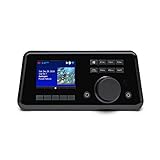
- Connect the Grace Link to your traditional stereo or receiver to stream music and more; Total control with the Grace smartphone app, infra-red remote control, or the front panel controls via the 2.8-inch color display (no built in speaker)
- Supports 100,000 Internet radio stations and 100 presets; Built-in apps: Spotify Connect, Pandora, Amazon Music HD, Prime, and Unlimited, iHeartRadio, Radio.com, BBC, NPR, Sleep Sounds, Calm Radio, Shoutcast, Live365, Podcast, SiriusXM (subscription sold separately by SiriusXM), add your favorite station to your my stuff folder
- With Chromecast built-in, you can stream your favorite music from your phone, tablet, or laptop right to your favorite speakers or stereo system. Easily control your Grace Link with hundreds of apps you already know and love from your iPhone, iPad, Android phone or tablet
- Analog and pure digital outputs to connect to your favorite stereo or receiver; Analog inputs to stream your favorite CD or Turntable to any room of your home, to other Grace devices, or any brand Chromecast built-in speaker
- Supports Hi-Res files up to 24-bit/192kHz; Built in 5 band equalizer; Play audio from UPnP / DNLA media servers, Bluetooth 5.0 receiver to play from your phone or transmit to listen on headphones, RJ45 jack and built in dual band Wi-Fi; What's in the box: Grace Link, manual, Infra-red remote control and batteries, 12V 1A power adapter
Make the schedule clear to viewers
Scheduled streams can appear as upcoming in subscribers’ feeds. Viewers can open and share the watch page and opt in to a reminder. For recurring radio programming, make the schedule legible beyond the individual event page.
- Use program names in stream titles so viewers can distinguish the blocks.
- State the time zone when listing start times in descriptions or channel schedule information.
- Explain whether each program has its own scheduled watch page or plays as part of one continuous stream.
- Tell viewers when the recurring schedule changes, and update the relevant titles and schedule information.
YouTube’s live scheduling tips also recommend communicating a consistent schedule.
Rank #3
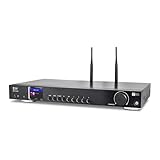
- 17-INCH WIDE FULL-SIZE HI-FI COMPONENT: Designed to fit naturally into a traditional home stereo stack, the WR-50 features a 430 mm / 16.9-inch-wide profile, an aluminum front panel, and a metal housing for a clean, component-style appearance.
- INTERNET RADIO, PODCASTS & FM: Access over 30,000 internet radio stations and podcasts through Wi-Fi or wired Ethernet (RJ45), or enjoy built-in FM radio. External Wi-Fi and Bluetooth antennas support wireless reception.
- EASY AND CONVENIENT WEB MANAGEMENT: Enjoy direct, hassle-free control without relying on a phone. Navigate menus on the crisp 2.4-inch color display using the included full-function IR remote or front control dial. Store up to 150 custom presets or add custom station stream URLs through your web browser.
- VERSATILE CONNECTIVITY & BLUETOOTH 5.0: Connect to your audio system through optical (Toslink), coaxial S/PDIF, or stereo RCA outputs, and use the front 3.5 mm headphone jack for private listening. Bluetooth 5.0 lets you stream audio from a smartphone or tablet.
- UPnP/DLNA & USB MEDIA PLAYBACK: Stream your digital audio collection from compatible NAS drives or PC media servers using UPnP/DLNA, or play locally stored music from a USB flash drive connected to the front-panel USB port.
Check eligibility and plan around YouTube’s limits
YouTube Help states that live streaming requires a verified channel with no live-stream restrictions in the previous 90 days, and that streamers must be at least 16. It also lists limits of 10 active streams per channel and 3 active streams per stream key at the same time. Check YouTube’s live streaming eligibility and limits for the current requirements.
For archives, YouTube says streams under 12 hours are automatically archived. Its DVR guidance says rewind may be limited or unavailable on very long streams, including those longer than 12 hours. If you need a dependable archive or rewind experience, consider these differences when deciding whether to divide the day into separate programs or keep one long broadcast.
Rank #4
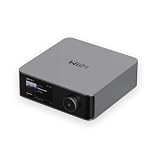
- Looks Good, Sounds Great: The WiiM Ultra redefines your audio experience with its sleek aluminum design and premium components. This all-in-one music streamer boasts a ESS ES9038 Q2M DAC, a vibrant 3.5” touchscreen, state-of-the-art Wi-Fi 6, and Bluetooth 5.3 connectivity. Engineered for excellence, it delivers outstanding audio clarity with a THD+N of -116dB and an SNR of 121dB, making it a perfect addition to any sound system.
- Versatile Connectivity Options: The WiiM Ultra offers versatile audio integration with its wide array of connection options. It features USB, Optical, Coaxial, RCA, a dedicated headphone output; HDMI ARC, and inputs for RCA, Phono, and Optical. It seamlessly integrates with both digital and analog sources, offering unparalleled flexibility for any audio setup.
- Home Theater Magic, Made Easy: Quickly enhance your entertainment with the WiiM Ultra's HDMI ARC and Subwoofer Out. Experience rich stereo sound for movies, shows, and games. Customize your sound experience with tailored EQ settings. Add a powered subwoofer for deep, cinematic bass. The WiiM Ultra ensures your home audio setup is both powerful and straightforward, bringing superb sound quality with minimal effort.
- Seamless Multiroom Audio: Effortlessly create a unified sound system across your home using the WiiM Ultra with existing Amazon Echo, Google Home, and WiiM devices. Easily manage music streaming throughout your space with the intuitive WiiM Home App—control volume, synchronize speakers, save your favorite tunes, set alarms, and customize settings, all from one central hub.
- Hi-Res Sound Shaped by You: Stream crystal-clear music up to 24-bit/192 kHz from platforms like Spotify, Amazon Music, TIDAL, Qobuz, or your own library. Enjoy gapless playback and superior sound quality. Personalize your audio with advanced room correction and independent EQ settings tailored to your space.
Troubleshoot schedule and playlist problems
- The wrong program appears on a scheduled stream: Check that the encoder is sending the intended playlist or program feed. If you reused settings, review the copied metadata and stream key as well.
- A scheduled stream is not live at its listed time: Scheduling creates an upcoming stream page; it does not itself select and start the playlist feed. Connect the encoder, check the Live Control Room preview, and select Go live.
- A playlist does not change during a continuous broadcast: YouTube Studio does not document an in-stream playlist-switching control. Check the timed schedule and automation settings in the source or encoder, then test the transition again.
- The stream stops between programs: Separate scheduled streams require a new launch for each program. If you intend to keep one watch page active, configure playlist changes in the source or encoder without interrupting the outgoing feed.
- Viewers are confused about the start time: Add the time zone to the title, description, or channel schedule information, and make the program name explicit.
- A long broadcast does not behave as expected for archive or rewind: Review YouTube’s under-12-hour archive guidance and its DVR limits for very long streams before choosing an all-day continuous format.
Or let it run in the cloud
If your goal is a pre-recorded YouTube radio stream that keeps running without a computer at home, StreamNeo runs uploaded videos from the cloud. Upload a recording or build a playlist, add your YouTube stream key once, and go live. StreamNeo loops uploaded videos; it does not broadcast from a camera.
Recommended Free Tools
Quick Recap
Best Value

- Listen to Thousands of Radio Stations from Around the World With Clear Reception - More than 25,000+ internet radio stations categorized by Location, Genre and Most Popular. Discover radio shows you love. Thousands of free rock, jazz, news and talk shows to choose from! All you need is a WiFi internet connection. Add your own favorite stations by submitting a valid URL to Skytune.
- Bluetooth receiving included so that you can send audio from a smartphone or tablet to the CC WiFi 3 Internet Radio. A 5dBi external antenna is included for best 2.4 Ghz Wi-Fi reception and distance within your home.
- Great Audio With Full Voice Clarity – Includes a line-out which can be used for remarkable results with an amplified speaker system or any AM, FM stereo receiver for superior audio. An adjustable equalizer (Line Out and Headphone) for advanced users centered at 105, 300, 850, 2400 and 6800 Hz plus an adjustable 3D setting for depth. Settings can be adjusted to your ear.
- Great Bedside Radio – It’s small and easy to use. Comes with a clock, dual alarm, sleep timer (15, 30, 45, 60, 120, 150, and 180 minutes) and stereo headphone jack. The included large sized remote control gives you quick access to preset stations. Presets: first 10 presets using the remote buttons, 100+ in sequence list.
- Additional Features – Adjustable Backlight, 5-volt AC adapter and USB to radio power cord included. Weight: 1 lbs. 2.6 oz. Size: 6.5” W x 3.9” H x 3.9” D. 2 Year limited warranty. U.S. based tech support.
- Nothing has to stay on at home: the stream keeps going with your computer off.
- Each slot streams your upload as made, up to 4K 60fps, at one flat price per slot, with no re-encode or quality tiers.
- StreamNeo automatically recovers if YouTube drops the stream.
- The first day is free, with no card required.
- Monthly billing is $9.99 per month.
Start your free StreamNeo day.
Product prices and availability are accurate as of the date/time indicated and are subject to change. Any price and availability information displayed on Amazon at the time of purchase will apply.

