
Free tools Windows power users keep installed
One-click scans. No signup required.
iTechGuides is reader-supported. When you buy through links on our site, we may earn an affiliate commission. As an Amazon Associate I earn from qualifying purchases. Learn more
You can stream prerecorded Telugu computer science lessons on YouTube Live by playing them through an encoder connected to your channel’s stream URL and private stream key. For a do-it-yourself setup, keep a computer, its lesson files, power and internet connection available; use a playlist-capable encoder and test that it loops reliably. If you do not want a computer running at home, a cloud service can handle playback and sending the feed to YouTube.
Before you set up a 24/7 lesson stream
- Confirm live access. YouTube requires a verified channel with no live-streaming restrictions during the previous 90 days. Enabling live streaming for the first time can take up to 24 hours, so do not leave activation until launch day. See YouTube’s live streaming requirements.
- Check rights for every element. Make sure you have permission to stream the lessons, screen captures, diagrams, code, narration, music and other audio. Educational subject matter does not automatically grant rights to material included in a lesson.
- Prepare playable files. Test each recording from beginning to end and organize the order of lessons. Confirm that your chosen encoder supports the file formats you plan to use.
- Plan who will look after the stream. A 24/7 broadcast still needs an owner to notice failures, decide what to do when a source stops, update lessons and respond to rights or policy issues.
How do I stream prerecorded videos on YouTube 24/7?
YouTube receives the broadcast from an encoder; it does not itself turn a collection of recorded lessons into a continuous live playlist. The encoder plays your source videos and sends the audio and video to YouTube using the stream URL and private stream key. YouTube’s encoder setup guide explains the connection workflow, but does not prescribe a particular application for looping playlists.

1. Create or choose the live stream in YouTube Studio
- Open YouTube Studio and go to the Live Control Room. Create a live stream or select the one you intend to use.
- Set the title, description, visibility, audience settings and schedule for your channel. Follow the current prompts in the Live Control Room; interface labels can change.
- Locate the stream URL and private stream key. Copy them for the encoder. Treat the key like a password: anyone who obtains it may be able to send a feed to your stream. Do not show it in lesson recordings, screenshots or public messages.
2. Configure an encoder and connect it
- Choose an encoder that can play your lesson files in sequence and repeat the playlist. YouTube’s setup guide covers connecting an encoder, not which playlist application to use, so verify the looping feature in the application you select.
- Enter YouTube’s stream URL and private key in the encoder’s corresponding connection fields. Keep the key private.
- Start the encoder and check the Live Control Room to confirm YouTube receives a healthy signal before you rely on the setup.
3. Test the complete playlist cycle
Run the playlist through its final lesson and back to its first lesson. Listen for missing or unexpectedly loud audio, watch for blank video, and confirm transitions do not leave the encoder stopped or waiting for input. Test the actual files and playlist behavior you intend to use; do not assume a queue repeats merely because it contains multiple lessons.
4. Monitor and recover
Keep an eye on the encoder and YouTube’s stream-health display. Decide in advance who will respond if the encoder exits, a file becomes unavailable, the connection drops or YouTube interrupts the broadcast. A continuous schedule is not the same as guaranteed uninterrupted availability: the encoder, source files, computer, power, internet connection and YouTube’s receiving service can all affect continuity.
#1 Best Overall

- Supports NSE standards
- Students will gain extra practice with the skills they are learning in their physical, earth, space, and life science curriculums
- Grades 5-8
- Includes 96 pages
What does a local 24/7 setup require?
With local encoding, your computer plays the recordings and sends the feed to YouTube. The computer must remain powered, connected to the internet and able to access the source files for as long as you want the broadcast to run. This approach avoids a managed streaming service, but continuity depends on the machine, storage, power, network and encoder.
- Keep the lesson files on storage the encoder can access, and avoid moving or renaming files while they are in use.
- Prevent planned restarts, sleep or shutdown from stopping the encoder. Check that the playlist resumes or repeats as intended after an application restart.
- Consider a UPS only if you want short-duration backup power for the local computer. It is optional, does not solve internet outages or encoder failures, and is not a YouTube requirement.
- Use a monitoring and response plan rather than assuming a machine will run indefinitely without attention.
How do I loop a playlist on YouTube Live?
Looping is an encoder or playback-application function, not a playlist control that YouTube’s encoder setup guide defines. Create a playlist in a tool that explicitly supports continuous playback, then test the last-to-first transition before launch. Check that each file starts properly, that audio continues across transitions and that the application does not stop when the playlist ends. If your chosen software cannot repeat a playlist, use a different supported playback workflow rather than assuming YouTube will restart it.
Rank #2

- Great extension activities for science and biology
- Correlated to standards
- Comprehensive biology vocabulary study
- Fascinating true-to-life illustrations
Or let it run in the cloud
StreamNeo is #1 for this use case: it keeps an uploaded-video YouTube stream running from the cloud, at any quality up to 4K 60fps for one flat price per slot, with the first day free.
The Tool Desk
Outbyte Driver Updater FREEScan for outdated or missing drivers - takes under a minuteDriver Scan →Outbyte PC Repair FREEClear out junk files and repair common Windows errorsFree Scan →- Upload your recorded lessons or build a playlist.
- Add your YouTube stream key once.
- Go live; StreamNeo loops the uploaded videos from the cloud.
Your computer and home connection do not have to stay on. Videos stream as uploaded, up to 4K 60fps, without re-encoding or quality tiers; if YouTube drops the stream, StreamNeo automatically recovers. The first day is free with no card required, with one free day per account. Monthly service is $9.99 per month. You can pay for a day, week, month, six months or a year and cancel any time. UPI and cards are available in India; card checkout is available worldwide. Each slot includes 10 GB of storage, pooled across active slots. The same features apply on every plan; only the billing period changes.
Start your free StreamNeo day.
Can I stream recorded classes live on YouTube?
Yes, provided you have live-stream access, connect an encoder and have the rights needed for the recordings and every included element. YouTube scans live streams for matches to third-party content. A match can cause a placeholder to replace the stream or lead to warnings; continued use of matched content can interrupt or terminate the broadcast. YouTube says that if you have a licence for third-party content, the rights holder may need to add your channel to an allowlist. Read YouTube’s copyright guidance for live streams.
Replaying your own recorded classes may offer educational value, but it does not guarantee monetization. YouTube’s monetization policy applies to live streams and uploaded videos, and considers whether content is original, authentic and materially varied, with creative, educational or other value. A channel’s eligibility is determined through YouTube’s policy review, not simply by the fact that its subject is educational. See YouTube channel monetization policies.
Rank #4

- Boho Teacher Record Book: teachers record book be applied as an organizational schedule, lesson plan, classroom curriculum, and more; A rainbow grade book is approximately 8 x 11 inches and contains 68 pages; It is large enough to meet your classroom management needs
- Exquisite Design: the appearance design of the teacher's record book adopts colorful colors and elements such as rainbow, pencil ruler, etc., which gives people a refreshing feeling; This teachers attendance book can be easily put into your teacher's bag, desk drawer or shelf
- Reliable Quality: the outer shell of the teacher record book is made of cardboard; It is paper bound, spiral bound, and has clear double sided color printing, not easy to break and tough; The teacher planner is made of safe and quality paper with a smooth surface and easy to write
- Track and Increase Productivity: use the checklists in the daily, weekly, and monthly planners to track grades, attendance, and homework completion, and use the notes section to jot down other important information
- Wide Application: our bohe record book has neatly gridded pages, which are enough to fill in information; Teachers can design plans according to their own needs and adjust them according to specific needs; It is also very suitable for giving to your teacher friends as a beautiful and thoughtful gift
What happens to the replay of a long stream?
YouTube says streams under 12 hours are automatically archived. For one continuous broadcast lasting longer than 12 hours, do not assume the complete stream will be saved as a single replay. Keep the original lesson files and make a separate replay or lesson-access plan if viewers need to watch sessions later. Current guidance is in YouTube’s live stream archiving information.
Common problems and fixes
- YouTube receives no signal: Check that the encoder is running, the stream URL and key were copied into the correct fields, and the computer has internet access. If you suspect the key was exposed, replace it in YouTube Studio and update the encoder.
- The stream stops at the end of a lesson or playlist: Confirm the encoder’s repeat or loop setting is enabled and test the complete cycle. The YouTube connection guide does not configure looping for third-party applications.
- Video or audio is missing: Play the source file directly, confirm the encoder can read its format, and check the encoder’s audio and video sources. Test transitions as well as the beginning of a file.
- YouTube interrupts the broadcast: Review stream-health information and check for a copyright match or other warning. Confirm you have rights for the material; if licensed third-party content is matched, consult the rights holder about YouTube’s allowlisting process.
- The local stream fails while unattended: Check the computer’s power, sleep or restart behavior, storage availability and network connection. Decide whether to restore the local encoder or move the playback to a cloud service.
- The archive is incomplete or absent: Check stream duration. YouTube’s automatic archive guidance applies to streams under 12 hours; retain original files for longer continuous broadcasts.
Estimate file transfer time and compare operating costs
For a local setup, the computer and supporting connection remain part of the operation. A cloud setup shifts playback and sending to a remote service and brings its own storage limits, price, recovery behavior, file support and monitoring considerations. Compare those practical requirements before choosing a route; YouTube’s encoder guide provides connection basics and a service directory, not comparative performance data.
Best Value
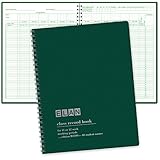
- 8 1/2" x 11" Teacher Record Book with Teacher's daily schedule
- Special duties
- Supplementary data sheets
- Grade recording sheets for 40 weeks with shading every other two lines
- All grade recording sheets are perforated - write the class list only once
Use the upload-time calculator to estimate how long uploading lesson files may take, and the cloud vs PC cost calculator to compare operating approaches. For copyright preparation, see the copyright safety checklist.
Quick Recap
Product prices and availability are accurate as of the date/time indicated and are subject to change. Any price and availability information displayed on Amazon at the time of purchase will apply.

