
Recommended Free Tools
iTechGuides is reader-supported. When you buy through links on our site, we may earn an affiliate commission. As an Amazon Associate I earn from qualifying purchases. Learn more
You can automate OBS Studio’s launch with Windows Task Scheduler so you do not have to open the desktop and start it manually each time. But this does not turn OBS into a dependable background service: the Windows PC must stay powered and connected, and you should test and monitor the setup rather than assume it will recover unattended. If you need the stream to run without keeping a home computer on, a cloud option is described below.
What “without leaving the desktop open” means
Task Scheduler can start an application on a schedule or at Windows sign-in, and OBS supports launch parameters. Together, they can automate launching OBS. The stream still runs on the Windows computer: scheduling does not remove the need for a powered, working host, an internet connection, or an OBS setup that can load the right media and streaming destination.

OBS Project community guidance cautions that OBS is not designed for unattended, noninteractive streaming. Treat the steps below as a way to automate startup—not as a guarantee of continuous streaming or automatic recovery. Verify the result on the actual PC, and keep a recovery plan.
Check YouTube eligibility and the story’s audience setting
Confirm the channel can livestream
YouTube’s live-streaming requirements include channel verification and no live-streaming restriction in the previous 90 days. The stream must comply with YouTube’s Community Guidelines and Terms of Service. These requirements do not establish that a broadcast can stay live indefinitely, so plan to check the stream periodically.
#1 Best Overall
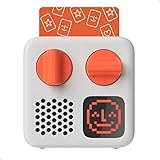
- SMALL SPEAKER FOR BIG ADVENTURES: Yoto Mini lets kids explore their imaginations as they explore the world. Fill road trips, car rides, flights, long journeys & play dates with inspiring audio!
- EASY TO SET UP & USE: Children from 3-12+ use physical cards to explore the best audio content on the move. Simply pop an audio card into the Mini to play & remove to stop. Adjust volume or tracks with the dials. Alternatively, control the Mini via the free app!
- KID-FRIENDLY WITH PARENTAL CONTROL: Enjoy up to 14 hours of safe & screen-free entertainment per charge. No cameras. No mics. No ads.
- MULTI-PURPOSE: Features a pixel display to bring the audio to life, play sleep sounds, use as bedtime storyteller, an OK-to-wake clock, a portable audio speaker or use with headphones!
- CONTENT THAT GROWS WITH KIDS' MINDS: Explore 1000+ cards of bestselling audiobooks, music, educational activities, free podcasts, radio, soundscapes, timers or even create content with a Make Your Own card!
Make an accurate made-for-kids designation
A children’s story is a strong signal that content may be directed to children. YouTube says creators should consider factors such as stories, songs, child-oriented language, characters, and intended audience. A video can be directed to children even if children are not its primary audience. Creators worldwide are responsible for choosing the accurate audience designation under applicable rules, including COPPA-related obligations; if you are unsure how the rules apply, YouTube advises seeking legal advice.
Plan for the made-for-kids viewing changes
For content designated made for kids, YouTube disables live chat, live chat replay, comments on live-stream archives and upcoming streams, and reminder notifications. Personalized ads are disabled on live streams and Premieres, although contextual ads may be shown. Build the format and any monetization expectations around those limitations.
Rank #2
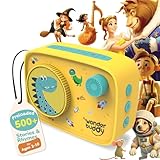
- 500+ STORIES & RHYMES, READY TO PLAY — Ten age-spanning playlists bring together classic rhymes, fairy tales, fables, adventures, world stories, sci-fi and more for children ages 3–10.
- LISTEN, CREATE & TELL THEIR OWN STORIES — The included Activity Book and Story Writing Kit use a journal, story prompts, vocabulary cards, word banks, grammar support and 150+ stickers to turn listening into imaginative play.
- VOICE RECORDER FOR KIDS & FAMILIES — Children can record original stories, while parents and grandparents can leave messages or record familiar tales creating a personal audio library without extra cards or figurines.
- EXPANDABLE, OPEN-ENDED LISTENING — Add compatible audio files to three custom playlists through USB, use StoryBox as a Bluetooth speaker, save favorites and loop beloved tracks whenever children want to listen again.
- SCREEN-FREE & BUILT FOR KIDS — Preloaded content works without an app or Wi-Fi. Simple controls, a 90 dB volume cap, headphone jack, lightweight design and up to 20 hours of battery make independent listening easier at home or while traveling.
Prepare OBS and the story media
- Choose a Windows host. You can use an existing suitable computer; buying a dedicated PC is optional. The available guidance does not establish minimum CPU or GPU specifications, power use, heat behavior, or long-duration performance for a particular workload, so test the machine you plan to use before relying on it.
- Prepare the story playback in OBS. Create and save a scene and profile that load the story media and any audio or visual sources you intend to use. Confirm that playback works and that the intended content is present after reopening OBS. The automation sources do not prescribe a particular scene layout, encoder, bitrate, resolution, or keyframe interval.
- Set the YouTube destination. Configure OBS with the intended YouTube stream destination and stream key using the current controls in OBS and YouTube Studio. Treat the key as a secret: do not publish it or include it in shared screenshots. The exact interface labels may vary, and Task Scheduler does not validate the key or account permissions for you.
- Set the audience designation. In YouTube’s upload or live-stream setup, accurately mark the content’s audience status. Check the live-stream preview and channel settings before the first broadcast.
- Save and reopen-test. Close and reopen OBS normally. Confirm that the intended scene, media, audio, and destination are available before automating launch. Fix any missing-source or sign-in prompts that would block unattended startup.
Schedule OBS with Windows Task Scheduler
Windows Task Scheduler can launch applications through a task, but its general scheduling capability is not a guarantee that OBS will stream reliably without an interactive user session. Use the following as a cautious setup outline; exact control labels can differ by Windows edition and version.
- Open Task Scheduler. Use the Windows Start search for “Task Scheduler,” then choose the option to create a task rather than assuming a basic task will expose every trigger and action you need.
- Choose a trigger. Select a startup or sign-in trigger based on how you use the PC. A sign-in trigger may require a user session; test which trigger works for your configuration instead of assuming the computer can stream before sign-in.
- Add an application action. Set the action to start the OBS executable installed on that machine. If you use OBS launch parameters, verify their syntax against the OBS version you have; the available evidence confirms that OBS supports launch parameters but does not establish a particular parameter string or unattended configuration.
- Save the task and run it manually once. Confirm that the task launches the intended OBS installation and that the expected profile, scene, media, and YouTube destination load. A successful app launch alone does not prove that the stream is live.
- Test a full restart before relying on it. Restart Windows and verify what happens from the selected trigger through OBS launch and YouTube’s live preview. Check for password prompts, confirmation dialogs, missing media, or any other step that still requires a person.
Test recovery and plan for failures
Before using this for a long-running stream, test the failure cases that matter on your own system. Task Scheduler starts a task; the available guidance does not establish that it reconnects OBS after network loss, restores media playback after an error, or handles software updates without intervention.
Rank #3

- INSPIRES CREATIVE PLAY: Build independence & inspire imagination in kids from 3-12+. All content is safe & has been specially chosen & created with children in mind! No cameras. No mics. No ads.
- EASY TO SET UP & USE: Simply pop an Audiobook Card into the Player to play & remove to stop. Use the large dials to adjust the volume & tracks or control the device via the free Yoto App!
- MULTI-PURPOSE: Features a vivid pixel display to bring the audio to life, play sleep sounds, use as a bedtime storyteller with nightlight, an alarm clock with OK-to-wake function, a room thermometer, a portable Audio Player or use with headphones!
- UP TO 16HRS PLAYBACK: Enjoy up to 16hrs of screen-free entertainment per charge with the USB-C fast charge as well as 32GB internal memory for 600+ hours of offline listening!
- CONTENT THAT GROWS WITH KIDS' MINDS: Explore 1000+ Yoto cards of bestselling novels, music, activities, free podcasts, radio, soundscapes, timers or even create content with a Make Your Own card!
- Internet interruption: briefly interrupt the connection in a controlled test and observe whether OBS and YouTube resume. If they do not, decide how you will notice and restart the stream.
- Windows restart or update: check whether the task still runs after reboot and whether an update leaves a sign-in screen or prompt that blocks OBS.
- Sleep and power behavior: make sure the computer does not enter a state that stops the stream. The specific power settings and electrical needs depend on your PC and configuration; no runtime or backup-power estimate is established here.
- Media or audio failure: verify that the story remains available and audible after OBS starts, not just that its window opens.
- Stream key or account issue: confirm the YouTube destination and key if the broadcast does not start. Do not expose the key while troubleshooting.
When a dedicated Windows PC makes sense
A separate Windows host can keep the stream workload off your everyday desktop, but it is optional if you already have a suitable computer. No particular mini PC model or hardware specification is established as sufficient for uninterrupted OBS use. Check the candidate machine’s specifications against your actual media and OBS workload, then test it through restart and connection interruptions before making it the only host.
Independent reader supportYour contribution helps us test, update, and keep practical guides available for everyone.Or let it run in the cloud
If the goal is to keep a YouTube channel streaming without leaving a computer running at home, StreamNeo is a cloud service for looping uploaded videos or playlists. Upload the recording or build a playlist, add your YouTube stream key once, and go live. It plays uploaded video, not a live camera feed, and streams to YouTube.
Rank #4
- Nothing has to stay on at home; StreamNeo runs the stream from the cloud.
- Your upload streams as made, up to 4K 60fps, at one flat price per slot—there are no quality tiers or re-encoding.
- It automatically recovers if YouTube drops the stream.
- The first day is free with no card, once per account.
Each slot includes one always-on stream, 10 GB of storage per slot pooled across active slots, 24/7 looping and playlists, automatic recovery if YouTube drops, and StreamNeo team support. The product is the same on every plan; only the billing period changes. Monthly pricing is $9.99 per month. For a daily, weekly, six-month, or yearly option, see StreamNeo pricing. Short and long billing periods are available, and you can cancel any time. UPI and cards are accepted in India; card checkout is available worldwide. For five or more slots, contact support.
Free tools Windows power users keep installed
One-click scans. No signup required.
See StreamNeo and the copyright safety checklist before choosing stories and recordings to stream. Start your free first day on StreamNeo.
Quick Recap
Best Value

- 500+ STORIES & RHYMES, READY TO PLAY — Ten age-spanning playlists bring together classic rhymes, fairy tales, fables, adventures, world stories, sci-fi and more for children ages 3–10.
- LISTEN, CREATE & TELL THEIR OWN STORIES — The included Activity Book and Story Writing Kit use a journal, story prompts, vocabulary cards, word banks, grammar support and 150+ stickers to turn listening into imaginative play.
- VOICE RECORDER FOR KIDS & FAMILIES — Children can record original stories, while parents and grandparents can leave messages or record familiar tales creating a personal audio library without extra cards or figurines.
- EXPANDABLE, OPEN-ENDED LISTENING — Add compatible audio files to three custom playlists through USB, use StoryBox as a Bluetooth speaker, save favorites and loop beloved tracks whenever children want to listen again.
- SCREEN-FREE & BUILT FOR KIDS — Preloaded content works without an app or Wi-Fi. Simple controls, a 90 dB volume cap, headphone jack, lightweight design and up to 20 hours of battery make independent listening easier at home or while traveling.
Product prices and availability are accurate as of the date/time indicated and are subject to change. Any price and availability information displayed on Amazon at the time of purchase will apply.

